


Introduction to Microsoft Authenticator
In today’s digital age, managing multiple online accounts can be both challenging and risky. The Microsoft Authenticator app emerges as a trusted solution designed to simplify secure access while enhancing your online security. Whether you're looking to curb password fatigue or boost your account protection, this versatile app offers a comprehensive approach to authentication that integrates seamlessly into your daily routine.
What is Microsoft Authenticator?
Microsoft Authenticator is a user-friendly mobile application that acts as your digital security guard. It primarily provides two-step verification (2FA) and passwordless login, offering an extra layer of protection for your online accounts. Compatible with both personal and organizational accounts, the app ensures that only you can access sensitive information, even if your password is compromised.
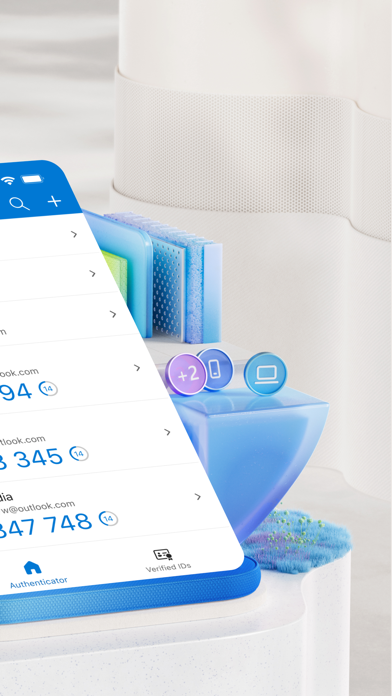
The app supports a broad range of accounts including Microsoft personal, work, or school accounts. Through easy account management, you can add multiple accounts—be they Microsoft or non-Microsoft services like Facebook, Amazon, Google, Dropbox, LinkedIn, or GitHub—and secure them all from a single, intuitive interface.
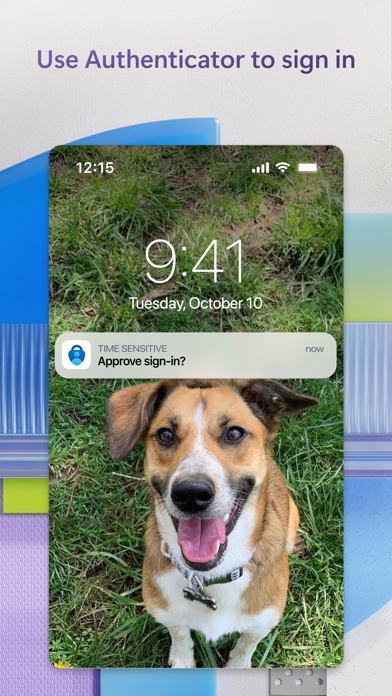
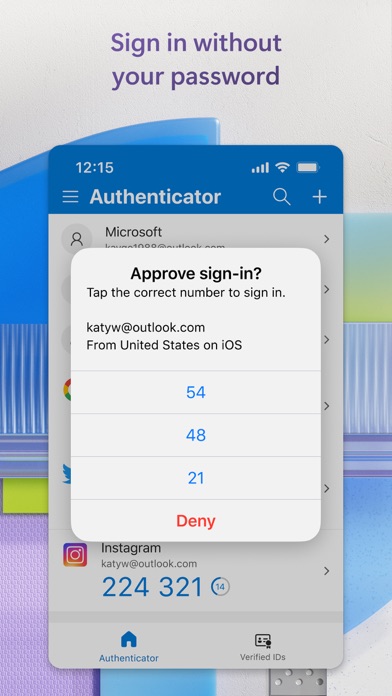
When set up, Microsoft Authenticator simplifies login processes by enabling passwordless authentication. Instead of typing in a password, you can verify your identity using biometric data—such as fingerprint or face recognition—or by approving notifications sent to your device.
Getting Started with Multi-Factor Authentication
Enhance your account security with multi-factor authentication (MFA) or two-factor authentication (2FA). When logging into your accounts, after entering your password, you'll receive a prompt to verify your identity via the app. You can approve the login request directly or enter a one-time password (OTP) generated by the app. These OTP codes are time-sensitive, with a 30-second countdown timer, ensuring each code is one-time use and not reusable.
Moreover, the OTPs don't require an internet connection, saving your battery and ensuring quick verification even offline. This feature makes Microsoft Authenticator a practical security tool for consistent and reliable protection across all your devices.
Passwordless Sign-In and Account Management
One of the app’s highlights is facilitating passwordless login. Instead of memorizing complex passwords, users just need to enter their username and approve a notification on their phone. Additional biometric verification options—such as fingerprint, face ID, or PIN—add further security, making the login process both simple and secure.
This streamlined sign-in process means you gain quick access to your Microsoft services like Outlook, OneDrive, Office, and more, without compromising security.
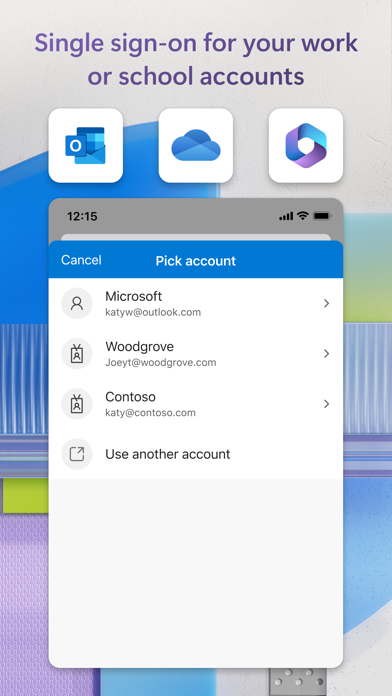
For organizational use, Microsoft Authenticator supports registering your device with your organization and leveraging features like cert-based authentication. This enables your organization to recognize trusted devices, allowing seamless access to corporate resources with minimal hassle. The app also supports single sign-on, letting you access multiple Microsoft apps after a single verification, reducing login fatigue.
Optional Access Permissions and Security Features
To operate effectively, Microsoft Authenticator requests certain permissions, all of which are opt-in. These include:
- Accessibility Service: Supports enhanced features for various apps and sites.
- Location: Used only if your organization requires location data for resource access.
- Camera: Needed for scanning QR codes when setting up accounts.
- Read storage contents: Used solely for diagnosing technical issues, with user consent.
All permissions are designed to provide a secure and efficient user experience without compromising your privacy.
Why Choose Microsoft Authenticator?
In an era dominated by cyber threats, Microsoft Authenticator offers a robust security solution that is easy to use. Its clear interface and multiple features cater to both tech-savvy users and beginners. The app’s use of advanced encryption, biometric security, and multi-platform support (iOS and Android) makes it a versatile and reliable addition to your digital safety toolkit.
Whether you want to eliminate the hassle of remembering passwords or need a trustworthy way to shield your accounts from unauthorized access, this app stands out. Its combined features of multi-factor authentication and passwordless login make it a must-have for anyone committed to digital security. By integrating seamlessly across devices and services, Microsoft Authenticator helps you embrace a safer, more convenient digital lifestyle.
Pros
- Seamless integration with Microsoft services
- Easy setup via QR code scanning
- Supports multi-factor authentication
- Operates offline for enhanced security
- Regular updates improve features
Cons
- Limited support for non-Microsoft accounts
- May consume significant battery with frequent use
- No desktop application available
- No customization options for notifications
- Might require reauthentication often