Overview of TeamViewer Remote Control
TeamViewer Remote Control is a versatile and powerful app that enables users to securely access and manage their computers and devices from anywhere in the world. Whether you're at home, traveling, or out in the field, this remote control solution provides quick and reliable access across multiple platforms, including Android, iOS, Windows, macOS, and Linux.
Designed for both personal and professional use, TeamViewer allows you to control your desktop, transfer files, provide or receive support, and collaborate seamlessly. Its user-friendly interface combined with industry-grade security makes remote working and support not only easy but also safe from threats.
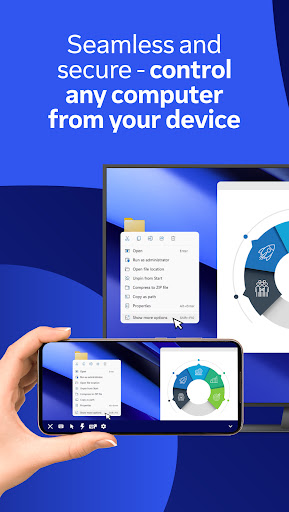
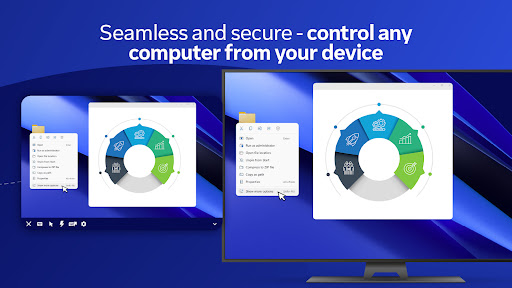
Control your desktop, manage files, and support devices—from anywhere, anytime. With the TeamViewer Remote Control app on your Android phone, tablet, or Chromebook, you can connect to Windows, macOS, or Linux computers as if you were sitting right in front of them. The app supports full remote control, allowing you to use intuitive touch gestures to navigate your remote desktop effortlessly.
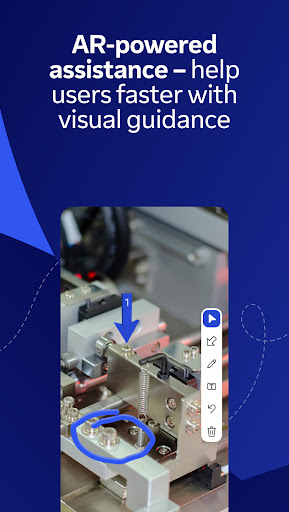
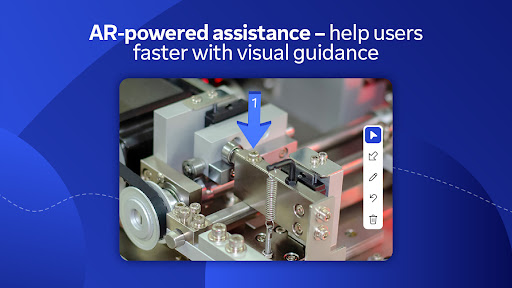
This app is particularly helpful for providing instant support or managing unattended devices like servers or virtual machines. You can control Android mobile devices—including rugged devices, kiosks, and smart glasses—and even utilize its augmented reality feature, Assist AR, to offer real-time visual guidance by placing 3D markers in the environment, making support interactive and more efficient.
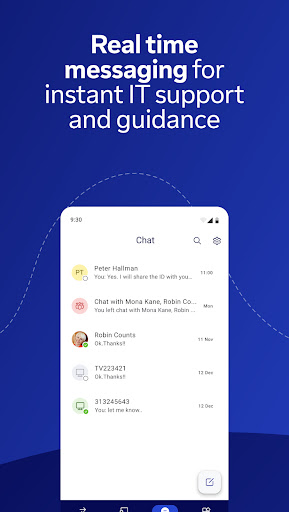
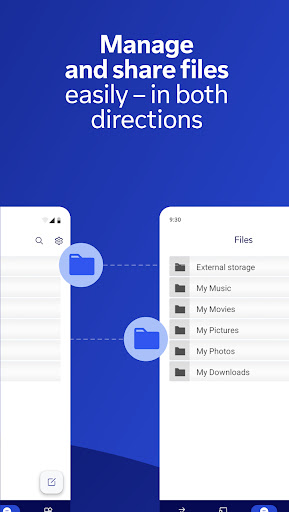
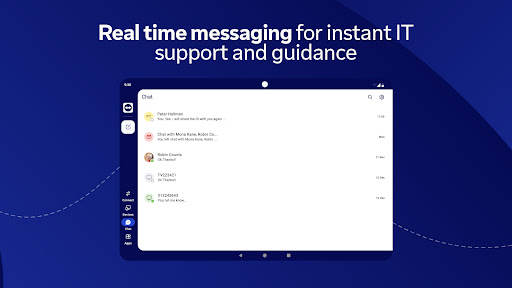
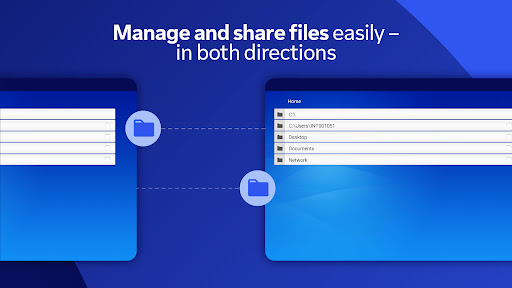
Once connected, users can easily share and transfer files in both directions, making collaboration simple whether you’re sharing documents or updating files remotely. Real-time chatting during sessions ensures smooth communication for questions or support requests. Additionally, the app excels in screen sharing with sound and HD video transmission, providing a high-quality viewing experience.
Key Features of TeamViewer Remote Control
Full Remote Access and Screen Sharing
Enjoy comprehensive control over your remote desktop, with smooth screen sharing capabilities that include sound and HD video transmission for an immersive experience.
Intuitive Touch Gestures
Navigate with ease using touch gestures designed for mobile devices, making remote control as natural as using your own computer.
Cross-Platform Compatibility
Supports Windows, macOS, Linux, Android, iOS, and more, enabling seamless access across devices.
Secure Connection with Industry-Grade Encryption
Protection of your data is paramount, with 256-bit AES encryption ensuring all sessions and file transfers are secure and private.
Multi-Monitor Support & Remote Printing
Manage multi-monitor setups effortlessly and print documents directly from your remote session, adding to the convenience.
Real-Time Chat & File Transfer
Communicate instantly during sessions and transfer files effortlessly in both directions, boosting productivity and collaboration.
Easy Setup & Device Compatibility
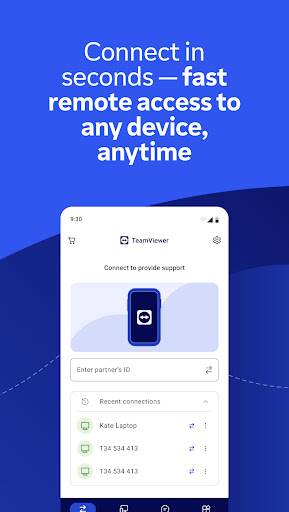
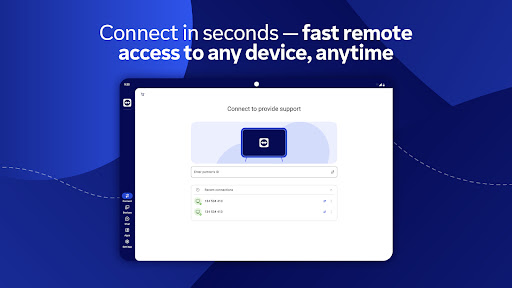
Getting started is simple—install the app on your mobile device and the QuickSupport module on the target computer. The setup process is straightforward, even for beginners, with a unique ID and session code ensuring secure connections.
Getting Started with TeamViewer Remote Control
Simple Setup Steps
1. Download and install the TeamViewer Remote Control app on your Android device.
2. Install the TeamViewer QuickSupport app on the computer or device you want to access.
3. Open both apps, input the session ID or code, and connect securely.
Optional access permissions include Camera for QR code scanning and Microphone for audio transmission or recording sessions. These permissions can be adjusted at any time in your device’s Settings.
Subscription and Privacy
TeamViewer subscriptions purchased via the app are billed to your iTunes account and automatically renew unless turned off in your account settings before renewal. During an active subscription, cancellation isn’t possible, but you can manage renewal preferences via your device settings.
For comprehensive information on data privacy and user rights, review the Privacy Policy and Terms of Use.
Why Choose TeamViewer Remote Control?
If you’re looking for a reliable, secure, and feature-rich remote access solution, TeamViewer Remote Control is an excellent choice. It simplifies remote desktop management, supports a wide range of devices, and prioritizes your security, making remote working and support smoother than ever. Whether you need to troubleshoot a device remotely, access files while traveling, or collaborate with team members across locations, this app has you covered.
Experience seamless, high-quality remote control today with TeamViewer and enjoy the convenience and confidence of industry-leading remote access technology.
Pros
- Easy remote access setup
- Supports cross-platform connections
- Stable and reliable connection
- Secure data transmission
- User-friendly interface
Cons
- Free version has limited features
- Requires good internet speed
- Occasional connection drops
- Complex for non-tech savvy users
- High resource consumption