Samsung Notes: The Ultimate Note-Taking App for Modern Users
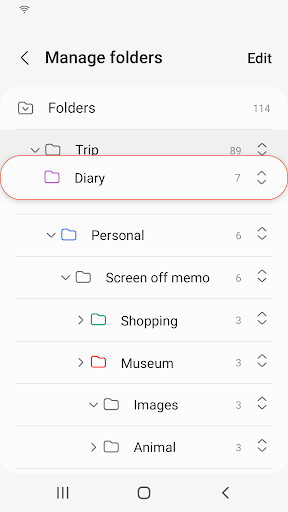
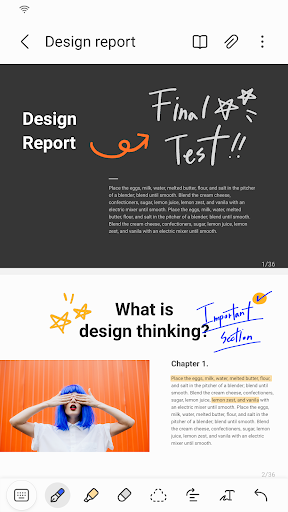
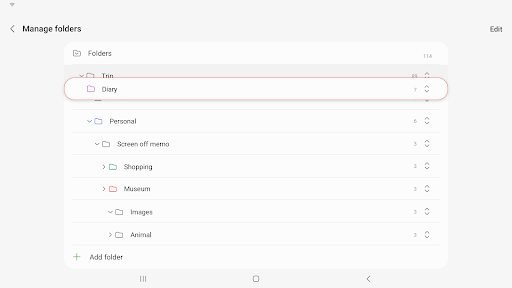
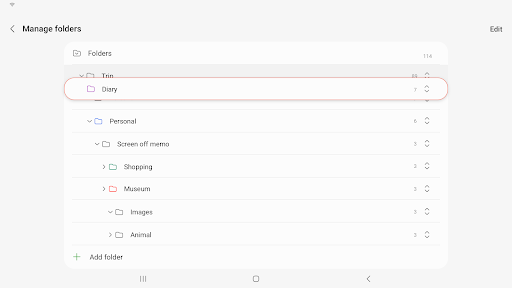
Samsung Notes is a powerful and versatile application designed to enhance your digital note-taking experience across multiple devices such as mobile phones, tablets, and PCs. Whether you're a student, professional, or someone who simply loves to organize thoughts and ideas, Samsung Notes offers an intuitive platform for creating, editing, and sharing your notes seamlessly. One of its standout features is the ability to collaborate with others, making teamwork and project management more efficient. The app supports adding annotations to PDF files, which is especially useful for reviewing documents or highlighting important information. Moreover, users can create rich multimedia notes by embedding images, voice recordings, and even handwritten content, providing a comprehensive tool for various note-taking styles. Connecting Samsung Notes with applications such as PDF readers, Microsoft Word, and PowerPoint expands its functionality further, enabling smooth integration with your existing workflow.
Getting Started with Samsung Notes
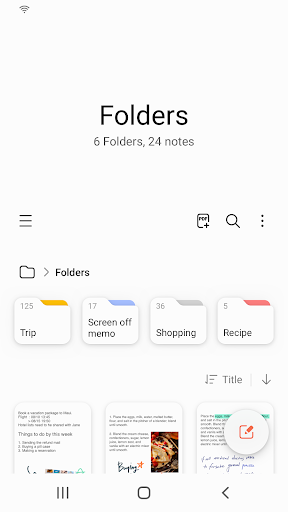
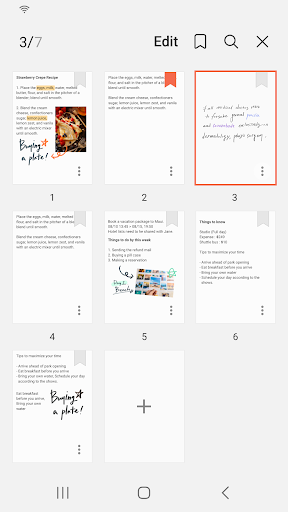
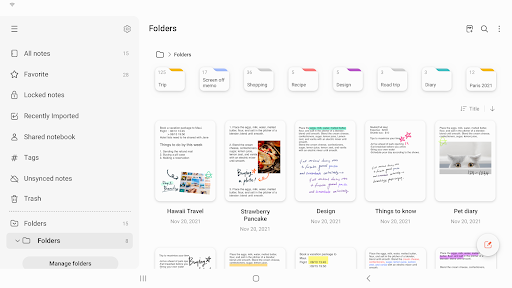
Setting up Samsung Notes is straightforward and user-friendly. Upon launching the app, you are greeted with a clean, minimalistic interface designed for ease of use. To create a new note, simply tap the + icon located at the bottom right corner of the main screen. Newly created notes are saved with the “sdocx” extension, ensuring easy identification and organization. The app optimizes your experience whether on a smartphone or tablet, adjusting the layout for a seamless interface that prompts efficient note creation and editing.
Protecting Your Notes
Security is a key aspect of managing sensitive information. Samsung Notes allows you to lock individual notes to prevent unauthorized access. To do this, go to the main screen, tap More Options in the upper right corner, select Settings, then tap Lock Note. You can choose your preferred locking method and set a secure password. To lock a specific note, tap More Options within that note and select Lock Note. This feature ensures your confidential notes stay protected, providing peace of mind whether you're storing personal thoughts or sensitive work information.
Creating Handwritten Notes and Multimedia Content
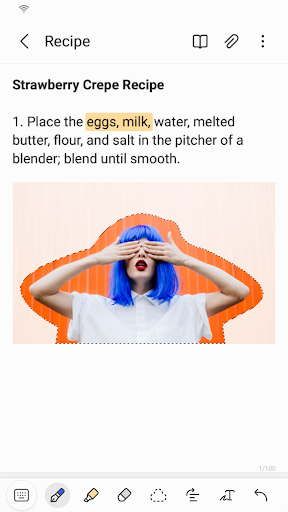
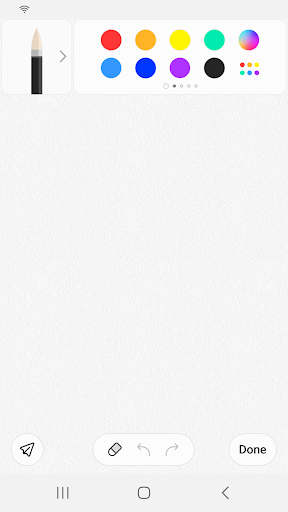
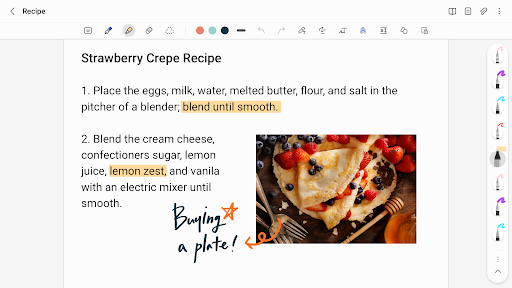
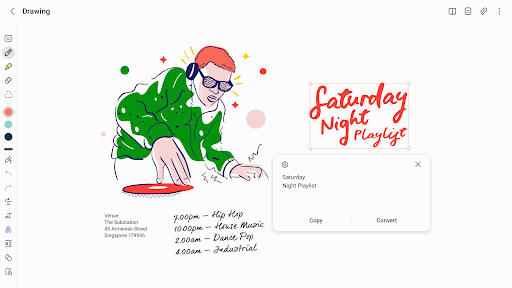
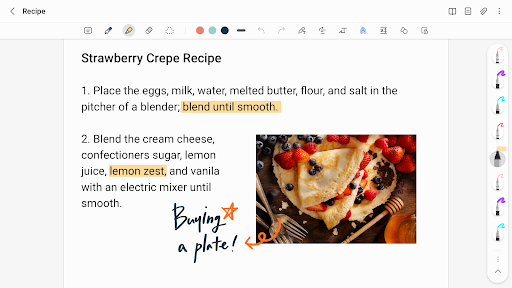
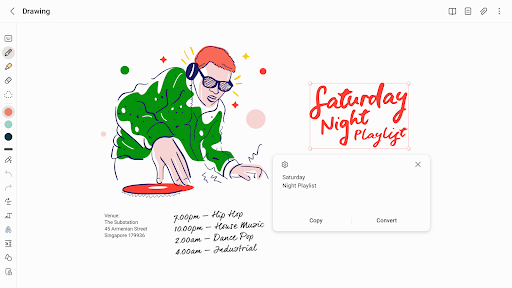
One of Samsung Notes’ standout capabilities is support for handwritten notes. By tapping the Handwriting icon while drafting a note, your handwritten input is instantly displayed on the screen. This feature is ideal for users who prefer to write naturally or use a stylus. Adding photos is equally easy—tap the photo icon to take a picture directly or load existing images. You can also add tags and edit these images as needed, enriching your notes with visual content. For auditory notes, use the Voice Recording feature by tapping its icon to record sound directly within your notes, supporting better context and memory recall.
Customizing Your Notes with Writing Tools
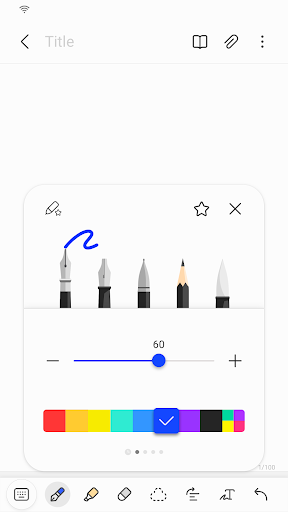
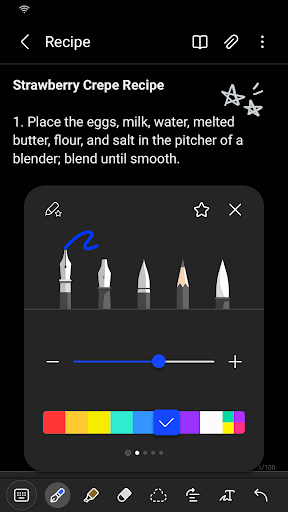
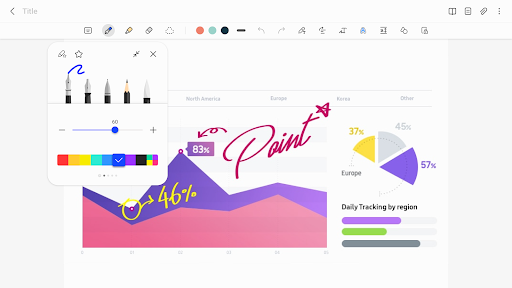
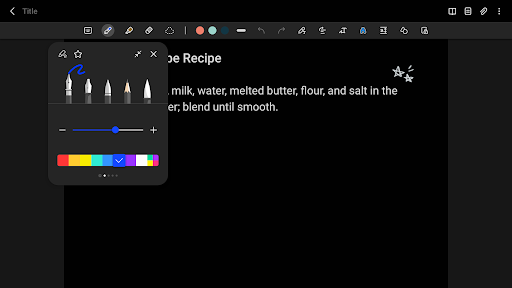
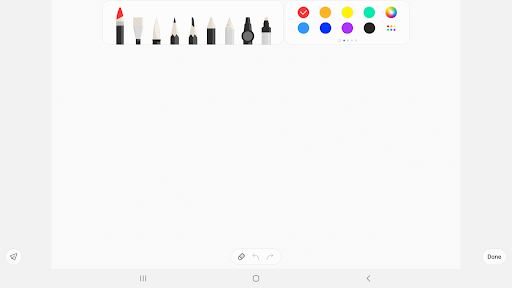
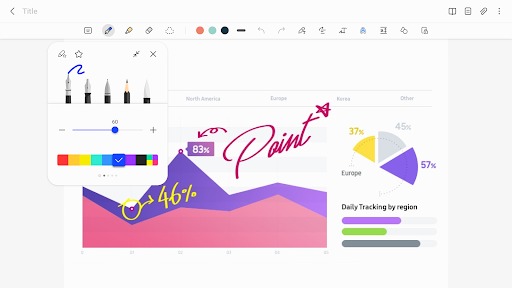
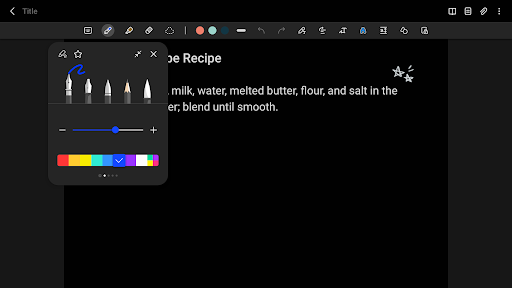
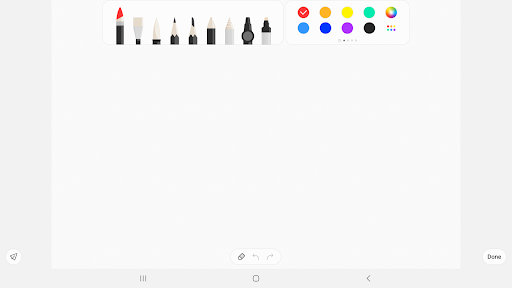
Samsung Notes offers a rich variety of writing tools to personalize your notes. Tap the Pen icon to access different pen types such as fountain pens, pencils, and highlighters. You can customize colors and line thicknesses to suit your style. If you need to erase specific parts of your notes, simply select the Eraser tool and remove unwanted content with precision. The flexibility in choosing writing tools allows for creative expression and detailed note organization, accommodating various note-taking preferences.
Importing and Syncing Notes
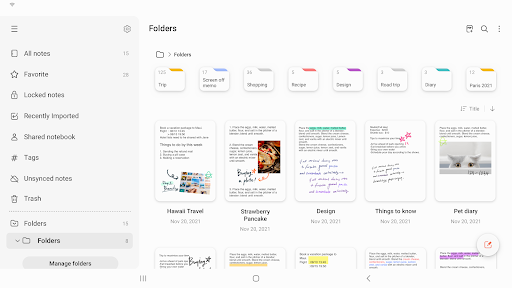
Samsung Notes supports importing notes from other apps and devices, making it easy to consolidate your digital notes. You can import data created in Samsung Notes, Memo, or S Note via the Smart Switch feature, which synchronizes notes saved across different devices or on your Samsung account. This cross-platform compatibility ensures your notes are always accessible, whether you're on an Android device or PC. Syncing is automatic, providing real-time updates and reducing the risk of data loss. Sharing notes is equally convenient; export your notes as PDFs or share directly through supported apps, enhancing collaboration and information dissemination.
Permissions and Privacy
Samsung Notes requires certain permissions to provide its full functionality. Basic features are available even without granting optional permissions. These optional permissions include access to the camera for inserting images, microfono for voice recordings, storage for saving/loading files, and notifications for updates on shared notes or syncing issues. By managing these permissions, users can customize their privacy settings to suit their preferences while enjoying the app's comprehensive features.
Final Thoughts: Why Samsung Notes Stands Out
In the crowded landscape of digital note-taking apps, Samsung Notes distinguishes itself with its rich feature set and seamless integration across Samsung devices. Its intuitive interface, robust customization options, and multimedia support make it an invaluable tool for anyone looking to organize their thoughts efficiently. Whether you're typing notes, sketching ideas, adding voice memos, or collaborating with teammates, Samsung Notes adapts to your workflow effortlessly. Although it primarily caters to Samsung users, the app’s approachable design and features make it a compelling choice for broader Android audiences as well.
For users seeking a reliable, feature-packed, and user-friendly note-taking solution, Samsung Notes is undoubtedly worth exploring. Its versatility and continuous improvements promise an even better experience in future updates, helping you stay organized and productive every day.
Pros
- Seamless synchronization with Samsung Cloud
- Provides comprehensive text formatting features
- Excellent handwriting-to-text conversion
- Supports recording audio notes for meetings
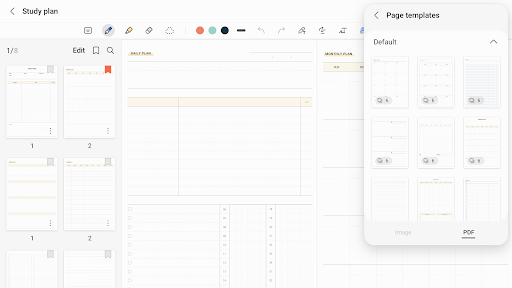
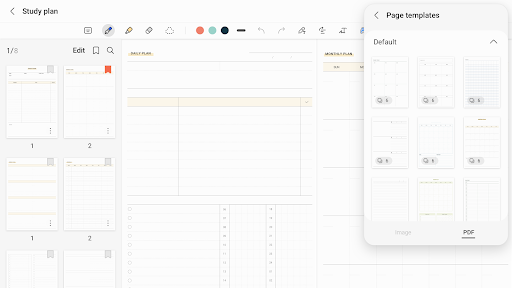
- Customizable templates improve user experience
Cons
- Limited compatibility across different platforms
- May be demanding on older devices' resources
- Lacks sophisticated collaboration functionalities
- Advertisements can be disruptive for free users
- Export options are somewhat restricted