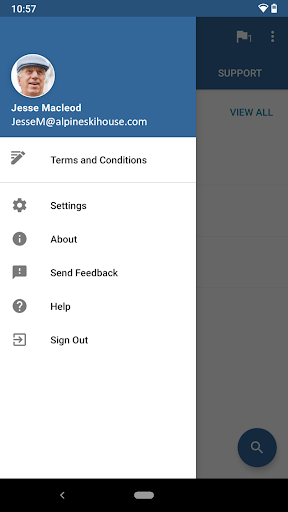
Introduction to the Intune Company Portal
The Intune Company Portal is a vital application that enables employees to securely access their company's internal apps and resources from nearly any network connection. Designed for seamless integration with Microsoft's security and device management solutions, this app provides an efficient way for users to stay connected with their corporate environment while maintaining control over their devices. To utilize the Company Portal, your company should already be subscribed to Microsoft Intune. Additionally, your IT administrator must set up your account in advance, ensuring that the app functions smoothly and securely. This setup process guarantees that your access to corporate resources adheres to company policies and security protocols. The core features of the Intune Company Portal include enrolling devices for access to corporate systems, browsing and installing enterprise apps, managing all enrolled devices, and updating password credentials. As an employee, you'll also have the ability to securely unenroll your device or perform remote wipes if needed. This flexibility empowers users to maintain control over their mobile work environment while ensuring corporate security standards are met. It is important to note that the Company Portal app mandates the use of your work account for enrollment into Intune. Some functionalities may not be available in certain countries due to regional restrictions. For any issues or questions regarding app usage or privacy policies, users are advised to contact their IT administrator rather than Microsoft, network providers, or device manufacturers. Overall, the Intune Company Portal is an essential tool that simplifies device management and resource access for modern enterprises, ensuring secure, flexible, and efficient mobile work experiences.
Key Features of the Company Portal App
The Company Portal offers several vital features designed to streamline corporate device and resource management:
Enrollment and Access
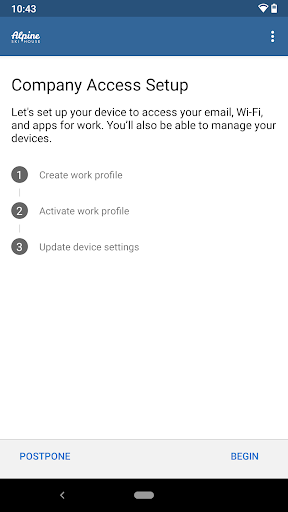
Enroll your device to gain access to corporate resources and internal apps. The enrollment process ensures that your device complies with the company's security policies and allows secure access to sensitive information from any location.
App Browsing and Installation
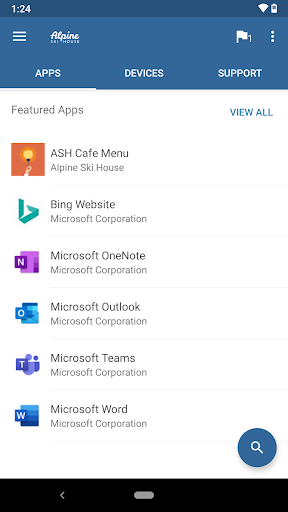
The app provides a directory of company apps that you can browse and install directly onto your device, facilitating a smooth transition to mobile productivity tools mandated by your organization.
Device Management
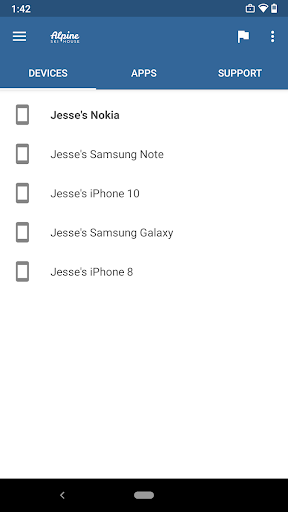
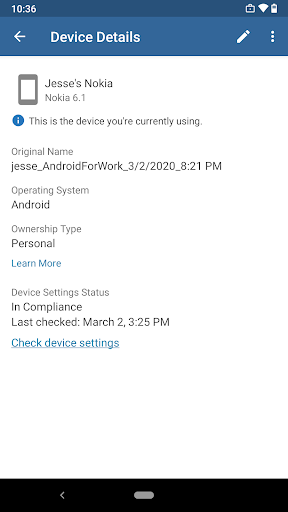
Manage all your enrolled devices in one place, including viewing device details, changing your work account passwords, and remotely wiping your device if it becomes lost or compromised. This control helps maintain security and data integrity across your devices.
Support and Contact Information
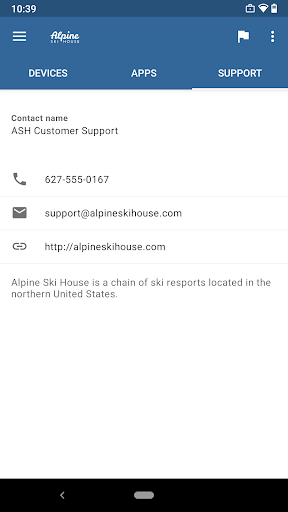
While the app displays IT department contact details, for support issues, users should reach out to their IT administrator to ensure proper assistance and adherence to company policies.
Security and Remote Management
The app enables the unenrollment of devices or executing remote wipes when necessary, providing an extra layer of security for corporate data and complying with organizational security protocols.
Important Considerations
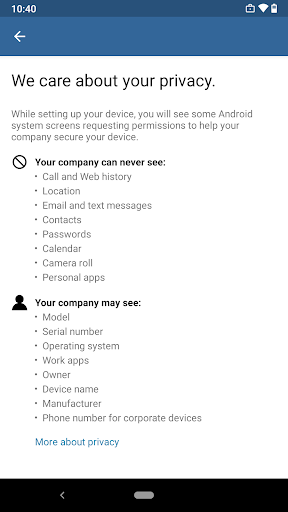
It is crucial to be aware that enrolling your device with the Company Portal requires using your work account. This ensures that access remains secure and compliant with organizational policies. Additionally, some functionalities of the app may not be accessible in all countries due to regional restrictions. If you encounter issues or have questions about how the app works, especially regarding privacy policies, it is best to contact your IT administrator rather than reaching out to Microsoft or other third-party service providers. For users wishing to uninstall the Company Portal app, the process involves unenrolling your device from Intune first. You can follow the official instructions provided by Microsoft to complete this process, which typically involves unenrollment steps before removing the app itself.
Pros
- User-friendly interface that simplifies navigation
- Offers a wide range of features to enhance user experience
- Regular updates improve stability and add new functionalities
- Strong community support provides helpful resources
- High customization options to tailor the app to individual needs
Cons
- Initial setup may be complicated for new users
- Occasional bugs can disrupt usage
- Battery consumption is relatively high during extended use
- Limited compatibility with older devices
- Advanced features may require a steep learning curve