- Category Photo & video
- Available on PC
- OS Windows 10 version 0.0 or higher
- Keyboard Integrated Keyboard
- Mouse Integrated Mouse
- languages English
Introducing Auto Screenshot for Windows: Your Reliable Screen Capture Companion
Auto Screenshot for Windows is a straightforward yet efficient tool designed to simplify the task of capturing screen images. Whether you're a professional requiring precise snapshots or just someone who loves sharing interesting screen moments, this app aims to make the process effortless and customizable.
Developed by MurGoo.com: A Trustworthy Name in Utility Software
Published by MurGoo.com, a developer known for creating user-centric utility tools, Auto Screenshot extends their portfolio with a solution tailored for Windows users seeking quick and reliable screen capture capabilities.
Key Features That Make It Stand Out
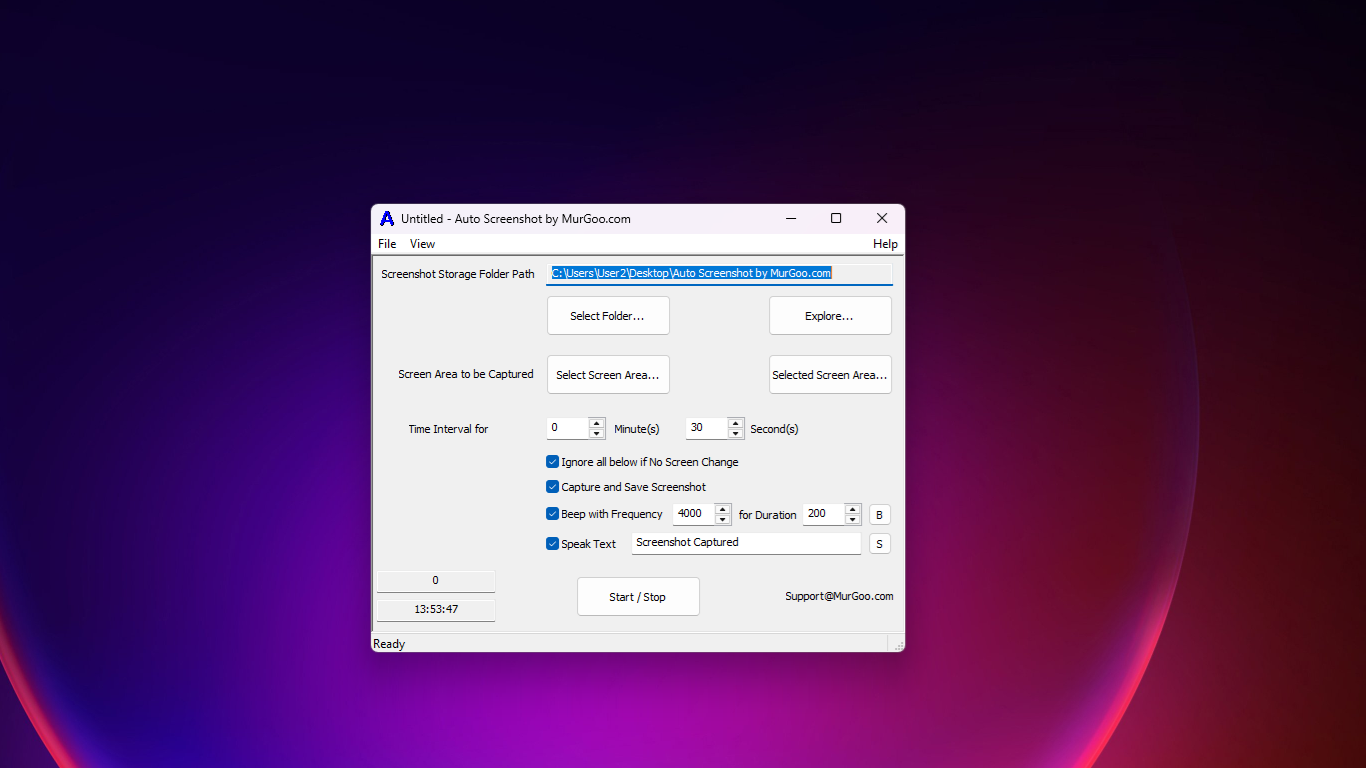
- Automatic and Scheduled Screenshot Capture: Set it and forget it — the app can take screenshots automatically at defined intervals or based on specific triggers, perfect for monitoring or recording evolving content.
- Customizable Capture Modes: Offers various modes such as full screen, window, region, or specific UI elements, allowing for precise control based on your needs.
- Built-in Image Editor: After capturing, you can instantly annotate, crop, or highlight parts of the screenshot, streamlining your workflow without needing external editing tools.
- Background Operation: The app can run silently in the background, enabling continuous recording or capturing without interrupting your main activities.
Delving Into the User Experience
Interface Design: Clean, Intuitive, Friendlier Than Your Favorite Coffee Mug
Auto Screenshot sports a minimalist interface reminiscent of a well-organized desk — uncluttered with all essential controls within easy reach. The layout is straightforward, making it accessible even for first-time users. Clear icons and logical menu placements ensure that navigating features feels more like a friendly chat than a technical puzzle.
Performance & Smoothness: Seamless Capture, No Jitters
Running the app feels akin to a reliable assistant who's always on cue. The screenshot process is snappy and responsive, with virtually no lag or hiccups—critical when timing is everything, such as capturing fleeting notifications or quick UI changes. The background operation is stable, and the app doesn't drain system resources excessively, ensuring your work or play isn't interrupted.
Learning Curve & Ease of Use
If you've ever tinkered with basic camera settings or tried to record a live stream, you'll find Auto Screenshot remarkably user-friendly. Its straightforward setup and clear prompts mean you can start capturing within minutes. Even advanced features like scheduled captures or in-app annotations are designed with simplicity, requiring minimal effort to master.
What Sets It Apart from Other Photo & Video Capture Apps?
Unlike many generic screenshot tools that focus solely on one-off captures, Auto Screenshot emphasizes automation and versatility. Its standout feature—the ability to schedule and automate screenshots—is akin to having a personal assistant who never forgets to jot down moments at specified times. This sets it apart from typical one-click snap tools, making it particularly valuable for ongoing monitoring, STEM experiments, or content generation.
Furthermore, its integrated editing tools save users the hassle of switching between different applications, fostering a smoother, more streamlined workflow. The app's focus on customization and automation is a unique proposition that aligns well with power users seeking efficiency without sacrificing control.
Final Thoughts and Recommendations
Overall, Auto Screenshot for Windows is a thoughtfully crafted utility that offers both simplicity and advanced features. Its automation capabilities and integrated editing make it especially appealing for users who need regular, high-quality screenshots without the fuss. It is well-suited for students, professionals, content creators, and tech enthusiasts alike.
While it may not boast flashy marketing claims or extensive multimedia editing features, its core strengths lie in reliable capture and user-friendly operation. I recommend giving it a try if you often find yourself needing frequent screenshots or automated screen recording — it's like having a diligent digital notepad on standby.
Pros
- Easy to use interface
- Automatic screenshot capture
- Multiple save options
- Customizable settings
- Lightweight and fast
Cons
- Limited editing features
- Occasional capture delays
- Compatibility issues with certain screen resolutions
- Limited format options
- No built-in sharing options