
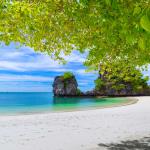
Frequently Asked Questions
How do I download and set up Beach Time on my Windows 10 device?
Download the app from the official store, open it, and follow on-screen instructions to apply the wallpapers via Settings > Personalization > Themes.
Can I customize or change the wallpapers within the app?
Yes, select your preferred images and manually set them as wallpapers through Settings > Personalization > Background.
How do I create a new theme using the Beach Time wallpapers?
Download desired images, then go to Settings > Personalization > Themes, and select 'Create New Theme' to include the wallpapers.
What are the supported image resolutions and do they adapt to my screen size?
All wallpapers are in 4K quality, designed for high-resolution displays. They automatically fit your screen's aspect ratio for best display.
Are the wallpapers in Beach Time animated or static images?
All wallpapers are static images in high-quality 4K resolution, designed only for desktop backgrounds.
Is there a subscription or in-app purchase to access more wallpapers or premium features?
Currently, all 15 images are free. No subscription or additional purchases are required for these wallpapers.
Can I use these wallpapers for commercial purposes or only personal use?
These images are intended for personal desktop use on Windows 10. Commercial use is not covered or permitted.
How do I set a wallpaper from Beach Time as my desktop background?
Download the image, then right-click the image file and select 'Set as desktop background' or use Settings > Personalization > Background.
What should I do if the wallpapers are not displaying correctly or are blank?
Try restarting your device, ensure the images are properly downloaded, and set them again via Settings > Personalization.
Will Beach Time automatically update with new wallpapers or updates?
No, currently, the app includes 15 static images; updates or new wallpapers are not automatically added.
You May Like

Blooming Dimensions
for Windows
5
Monotype Handwriting Font Pack
for Windows
5
Hues of Nature
for Windows
5
Dreamscapes
for Windows
5
Tales of the Teenage Mutant Ninja Turtles Theme
for Windows
5
Neon Dreams
for Windows
4.9
Cats Anytime
for Windows
4.9
Japanese Landscapes
for Windows
4.9
Sun and Sand
for Windows
4.9
Live Wallpaper Engine Plus
for Windows
4.8
Chicks and Bunnies
for Windows
4.8
Mountain Dwellings
for Windows
4.8