

- Category Productivity
- Developer Device Manager
- Available on PC, Mobile, Surface Hub, HoloLens
- OS Windows 10 version 17763.0 or higher
- languages English (United States)
Effortless Bluetooth Management on Windows: An In-Depth Review of Bluetooth for Windows
Navigating Bluetooth connections on Windows can sometimes feel like trying to tune into a faulty radio station—frustrating and unpredictable. Enter Bluetooth for Windows by Device Manager, a dedicated app designed to streamline and simplify your Bluetooth experience. But does it truly deliver? Let's delve into its features and see whether it's the game-changer it promises to be.
Streamlined Connectivity at a Glance
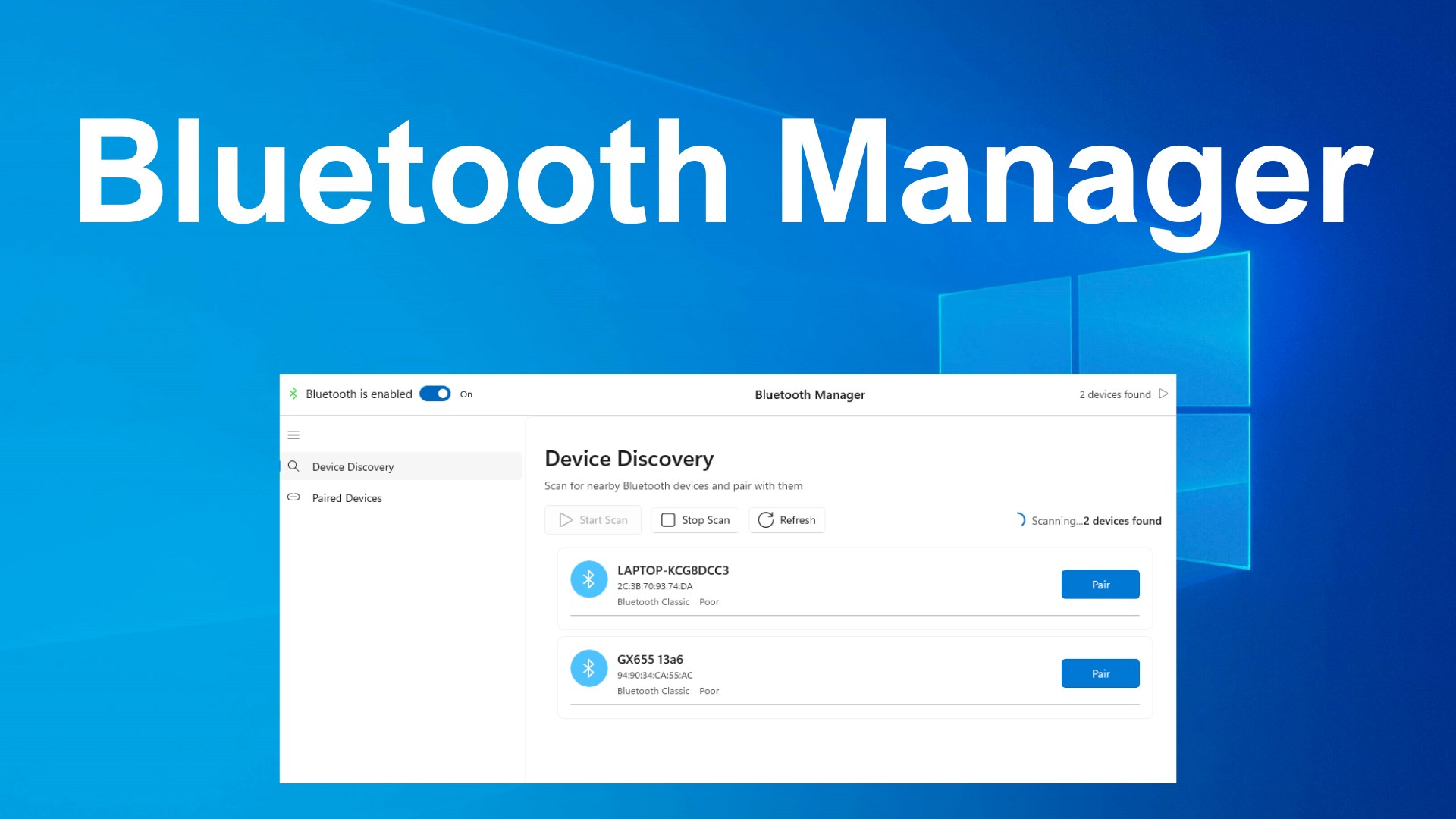
Developed by Device Manager, Bluetooth for Windows aims to serve as a centralized hub for managing all your Bluetooth devices seamlessly. Its core highlights include quick device pairing, easy connection management, and enhanced visibility into connected peripherals. Whether you're a tech enthusiast, a busy professional, or someone who just wants their wireless earbuds to connect without a huff, this app promises to be your dependable co-pilot.
Simplified Bluetooth Pairing and Device Management
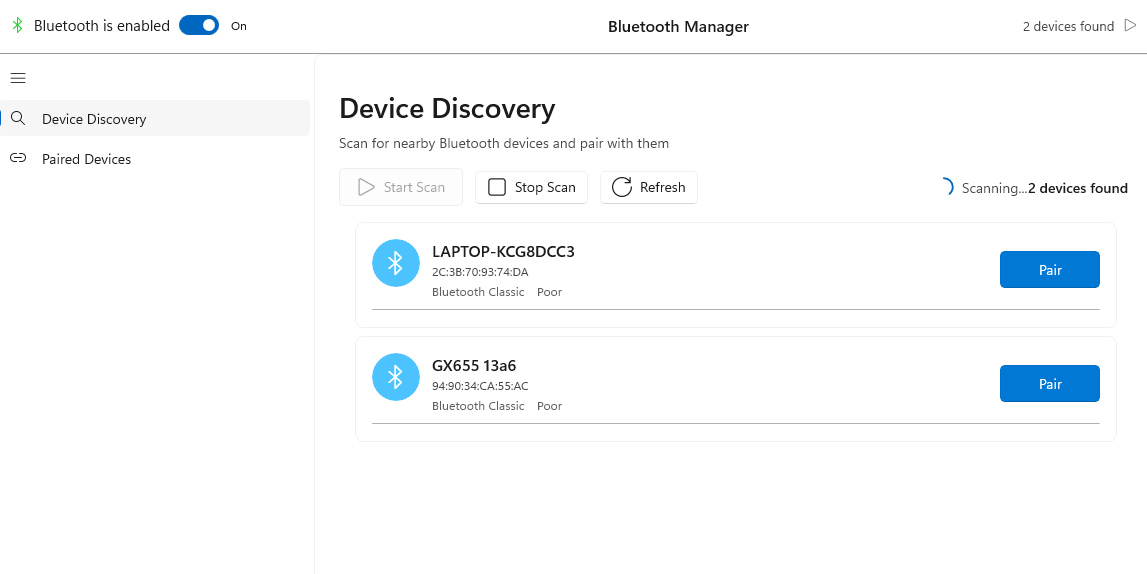
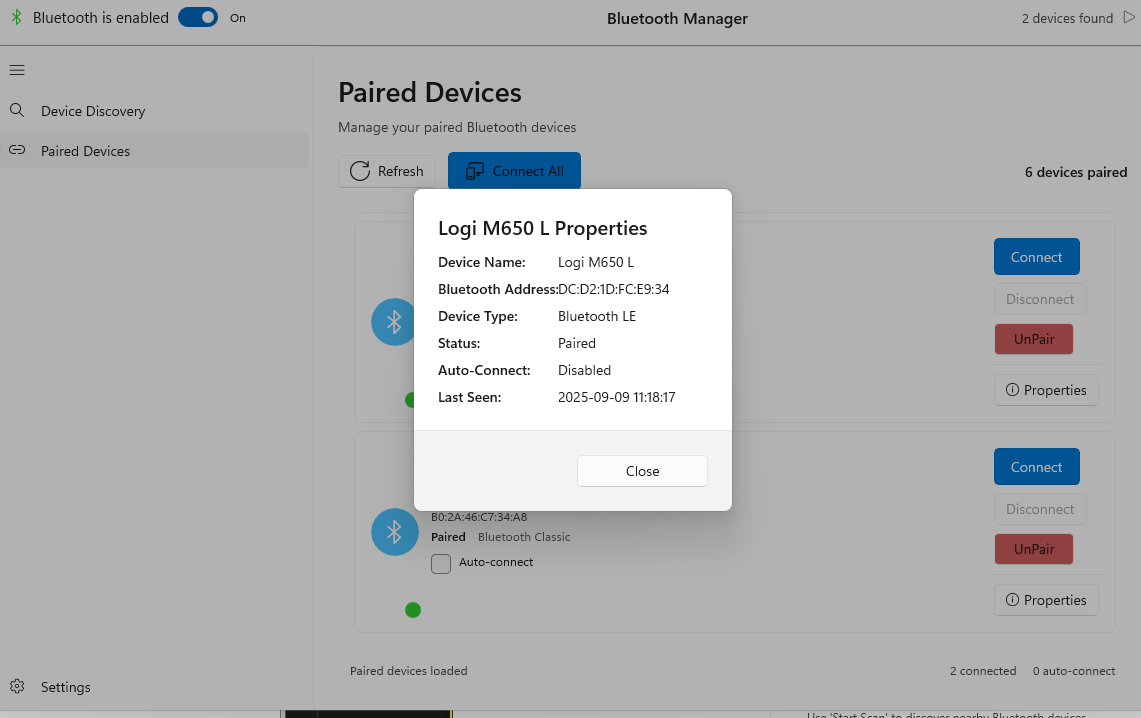
If you've ever wrestled with Windows' native Bluetooth menu—fumbling to find your device, waiting for it to connect, only to be met with error messages—then this app may provide some welcome relief. Bluetooth for Windows offers an intuitive interface that consolidates all Bluetooth device info in one place. Pairing new devices becomes as smooth as sliding a key into a lock; select the device, hit connect, and you're set. It also provides handy options to disconnect or even prioritize devices, ensuring your essential peripherals stay connected when needed.
Real-Time Device Connectivity Insights
One of the most compelling features is its real-time device status monitor. Like a friendly satellite overhead, this app constantly keeps tabs on your Bluetooth connections, alerting you to disconnections or connection issues before they disrupt your workflow. This proactive approach reduces cognitive load—no more flicking back and forth between multiple menus or trying to troubleshoot blindly. With a glance, you can see which devices are active, their signal strength, and troubleshoot within seconds. This feature is especially valuable for users who rely heavily on a stable connection, such as remote workers or gamers.
Design, Usability, and Unique Selling Points
The interface strikes a balance between minimalism and functionality—a sleek, straightforward dashboard that feels more like a command center than a cluttered menu. Navigating through devices is intuitive, with drag-and-drop options for prioritization and easy-access toggles. Performance-wise, the app is remarkably responsive; operations like connecting or disconnecting devices occur seamlessly without noticeable delays. The learning curve is gentle, making it accessible even for less tech-savvy users, yet powerful enough for enthusiasts demanding more control.
Compared to other Bluetooth management tools or relying solely on Windows' native options, Bluetooth for Windows stands out with its focus on workflow integration and reducing unnecessary cognitive effort. Its real-time connectivity insights act as a guardrail—preventing the frustrating disconnects that disrupt your day. This is unlike other apps that merely list device info; it actively enhances the reliability of your wireless connections by providing immediate feedback and control.
Final Verdict: Is It Worth a Try?
Based on its features and user experience, Bluetooth for Windows presents a compelling solution for streamline wireless device management. It especially shines in environments where quick, reliable Bluetooth connectivity is critical. While it may not replace more comprehensive device management suites for power users, its simplicity, efficiency, and focus on reducing user effort make it a solid recommendation for everyday users looking to elevate their Bluetooth experience. For those tired of Bluetooth headaches, this app could become your new best friend—turning what used to be a mundane chore into a seamless extension of your workflow.
Pros
- Seamless Bluetooth device management
- Automatic device detection
- Regular updates by Microsoft
- User-friendly interface
- Low system resource consumption
Cons
- Limited device support in some cases
- Occasional connection stability issues
- Lack of advanced configuration options
- Difficulty troubleshooting complex problems
- Delayed updates for new Bluetooth standards











