- Category Business
- Available on PC, Mobile, Surface Hub, HoloLens
- OS Windows 10 version 17763.0 or higher
- Keyboard Integrated Keyboard
- Mouse Integrated Mouse
- languages English (United States)
Introduction to Camera Connect App for Windows
Designed by MB Technologies, Camera Connect App for Windows offers a seamless way for photographers and visual content creators to link their compatible cameras directly to their PCs. Whether you're capturing studio shots or wildlife adventures, this app promises to streamline your workflow, making remote control and image transfer remarkably straightforward. Perfect for amateur enthusiasts and professional shooters alike, it bridges the gap between your camera and computer with ease and efficiency.
Core Features That Make It Stand Out
Intuitive Remote Camera Management
The app transforms your Windows device into a wireless command center. You can control camera settings such as shutter speed, ISO, aperture, and focus remotely, allowing you to capture shots from unique angles or in situations where direct camera access isn't feasible. This feature is especially beneficial for studio photographers or macro shooters who need precise control without physical contact.
High-Quality Image Transfer and Organization
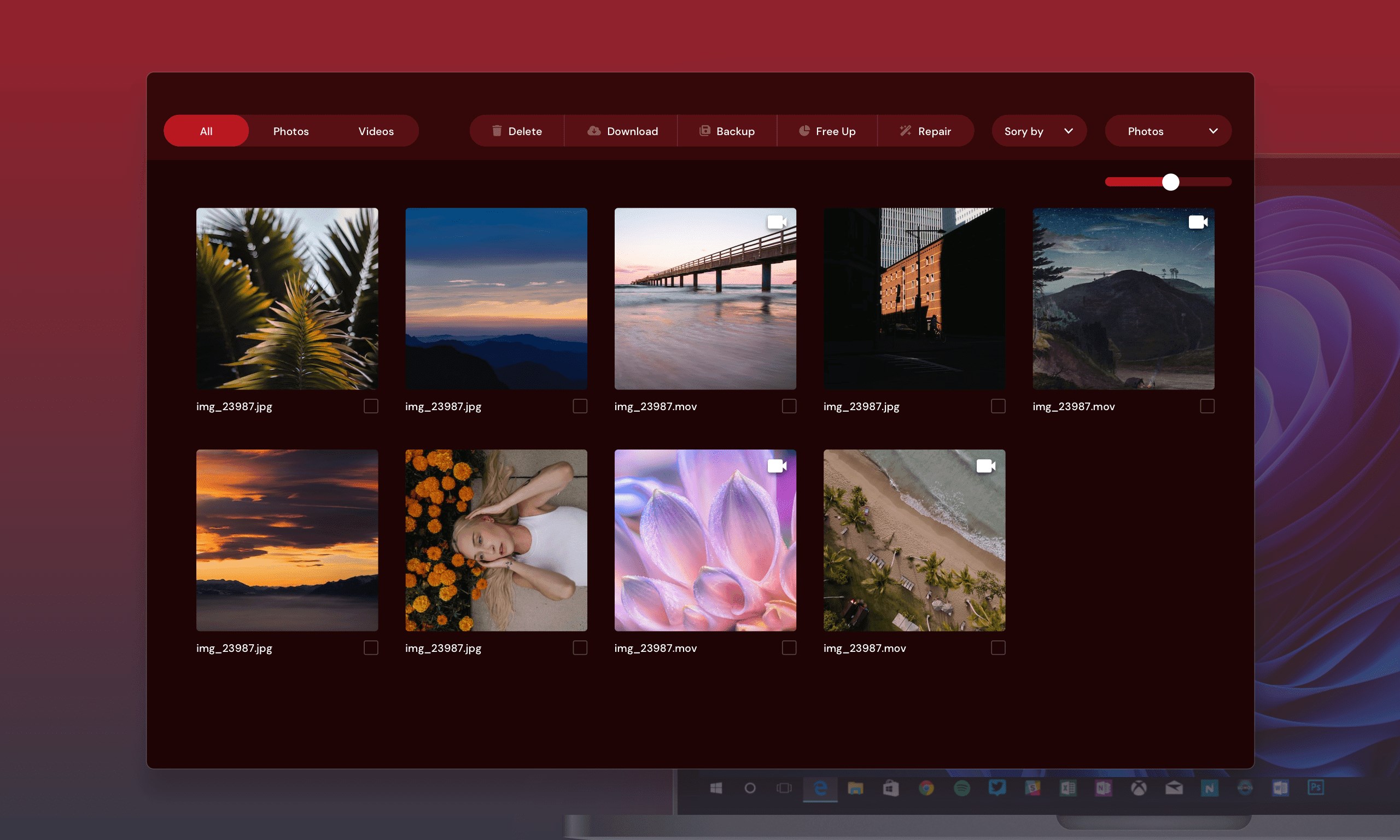
Camera Connect simplifies the process of transferring images, supporting fast and reliable wireless data transfer from your camera to your PC. Once images are transferred, users can instantly organize, review, and edit their photos. This smooth workflow reduces downtime, letting you focus more on your creative process and less on file management.
Enhanced Collaboration and Workflow Features
What truly sets this app apart is its collaboration-centric design. It supports multiple devices and users, enabling team members to access images directly from connected cameras or shared folders. This makes it ideal for collaborative projects, where real-time sharing and multi-user management can significantly boost productivity. Unlike some competitors, Camera Connect emphasizes teamwork, allowing entire creative teams to stay synchronized with minimal fuss.
User Experience: A Smooth Sailing Journey
The interface of Camera Connect App for Windows is clean and thoughtfully organized—think of it as the dashboard of a high-end vehicle: all controls within easy reach, intuitive to navigate. The setup process is straightforward, with clear instructions guiding users through camera pairing and configuration. Once connected, the app responds swiftly to commands, ensuring a lag-free experience when adjusting settings or transferring files. The learning curve is gentle; even those new to remote camera controls will find themselves comfortable within minutes.
Differentiation: How It Stands Out Among Competitors
Compared to other business-oriented camera management apps, Camera Connect's unique strength lies in its collaborative features. While many apps focus solely on individual control or basic file transfer, this app emphasizes teamwork by enabling multiple users to access and manage camera feeds and assets concurrently. Its emphasis on task management—such as tagging images, sharing collections, and synchronized workflows—sets it apart. These capabilities make it particularly suitable for media teams, agencies, or educational groups working on joint projects.
Final Verdict and Recommendations
All in all, Camera Connect App for Windows is a reliable, well-designed tool that adds considerable convenience to professional and hobbyist workflows. Its standout collaborative features are particularly useful for teams managing complex projects or multiple camera setups. For those who value seamless connectivity, quick workflows, and team collaboration, this app is highly recommended. However, users should ensure their camera models are compatible and their PCs meet the system requirements for optimal performance.
Pros
- User-friendly interface
- High compatibility with various camera models
- Excellent image transfer speed
- Reliable wireless connection
- Frequent updates and improvements
Cons
- Occasional connectivity issues
- Limited editing features
- Requires a stable Wi-Fi connection
- Inconsistent performance on older devices
- Limited support for non-Microsoft cameras