
Frequently Asked Questions
How do I install the Dark Skies theme on my Windows desktop?
Download the theme file, open it, and click 'Apply' to set the wallpapers. You can also find it in Settings > Personalization > Themes.
Can I customize the wallpapers within the Dark Skies theme?
The theme offers curated images; customization is limited to selecting the full set. To change wallpapers, go to Settings > Personalization > Background.
How many wallpapers are included in the Dark Skies theme?
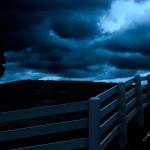
The theme includes a total of 10 gothic-style wallpapers, designed to create a mysterious atmosphere on your desktop.
Are these wallpapers suitable for all screen resolutions?
Yes, the wallpapers are optimized for typical screen resolutions; some cropping might occur on very high or low resolutions.
How do I set a specific wallpaper from the theme as my desktop background?
Right-click on the wallpaper in the theme folder, select 'Set as Desktop Background,' and it will appear on your desktop.
Is the Dark Skies theme a free download?
Yes, the Dark Skies theme is completely free to download and use on Windows devices.
Do I need a subscription to access new themes or additional wallpapers?
No, the current theme is free, and no subscription is required for future updates or additional wallpapers.
How do I update or upgrade the Dark Skies theme?
Updates are usually automatic; manually check the Microsoft Store or the theme download page for latest versions or new sets.
What should I do if the wallpapers are not displaying correctly?
Restart your device, ensure wallpapers are supported at your resolution, or reapply the theme via Settings > Personalization > Themes.
You May Like

Blooming Dimensions
for Windows
5
Monotype Handwriting Font Pack
for Windows
5
Hues of Nature
for Windows
5
Dreamscapes
for Windows
5
Tales of the Teenage Mutant Ninja Turtles Theme
for Windows
5
Neon Dreams
for Windows
4.9
Cats Anytime
for Windows
4.9
Japanese Landscapes
for Windows
4.9
Sun and Sand
for Windows
4.9
Live Wallpaper Engine Plus
for Windows
4.8
Chicks and Bunnies
for Windows
4.8
Mountain Dwellings
for Windows
4.8