
- Category Productivity
- Developer OfficeSuiteLab
- Available on PC, Mobile, Surface Hub, HoloLens
- OS Windows 10 version 14393.0 or higher
- languages English (United States)
Draw Diagram: For MS Visio for Windows — A Streamlined Solution to Visualize Your Ideas
If you're someone who often finds themselves tangled in a web of complex ideas, trying to make sense of them visually, Draw Diagram offers a friendly, efficient lifeline. Designed to complement Microsoft Visio on Windows, this app aims to simplify diagram creation and enhance workflow integration—making your visual planning feel like a breeze rather than a chore.
Meet the Developers: OfficeSuiteLab
Born out of the need for smarter, user-friendly diagramming tools, OfficeSuiteLab has established itself as a versatile developer dedicated to improving productivity. Their focus on creating seamless integration solutions ensures this app fits neatly into your existing digital environment, saving time and mental energy.
Key Features That Make Drawing a Joy
- Intuitive Diagram Templates and Shapes: Provides a comprehensive library of customizable templates and symbols, allowing users to generate professional diagrams swiftly without starting from scratch.
- Workflow Integration with MS Visio: Seamlessly complements the functionalities of MS Visio, enabling users to enhance their existing diagramming projects effortlessly.
- Smart Auto-Alignment and Connection Tools: Advanced features that automate the positioning of elements, reducing manual adjustments and ensuring clarity.
- Cross-Platform Compatibility: Facilitates easy exporting and sharing across devices, supporting remote and collaborative work environments.
Drawing You In: An Engaging User Experience
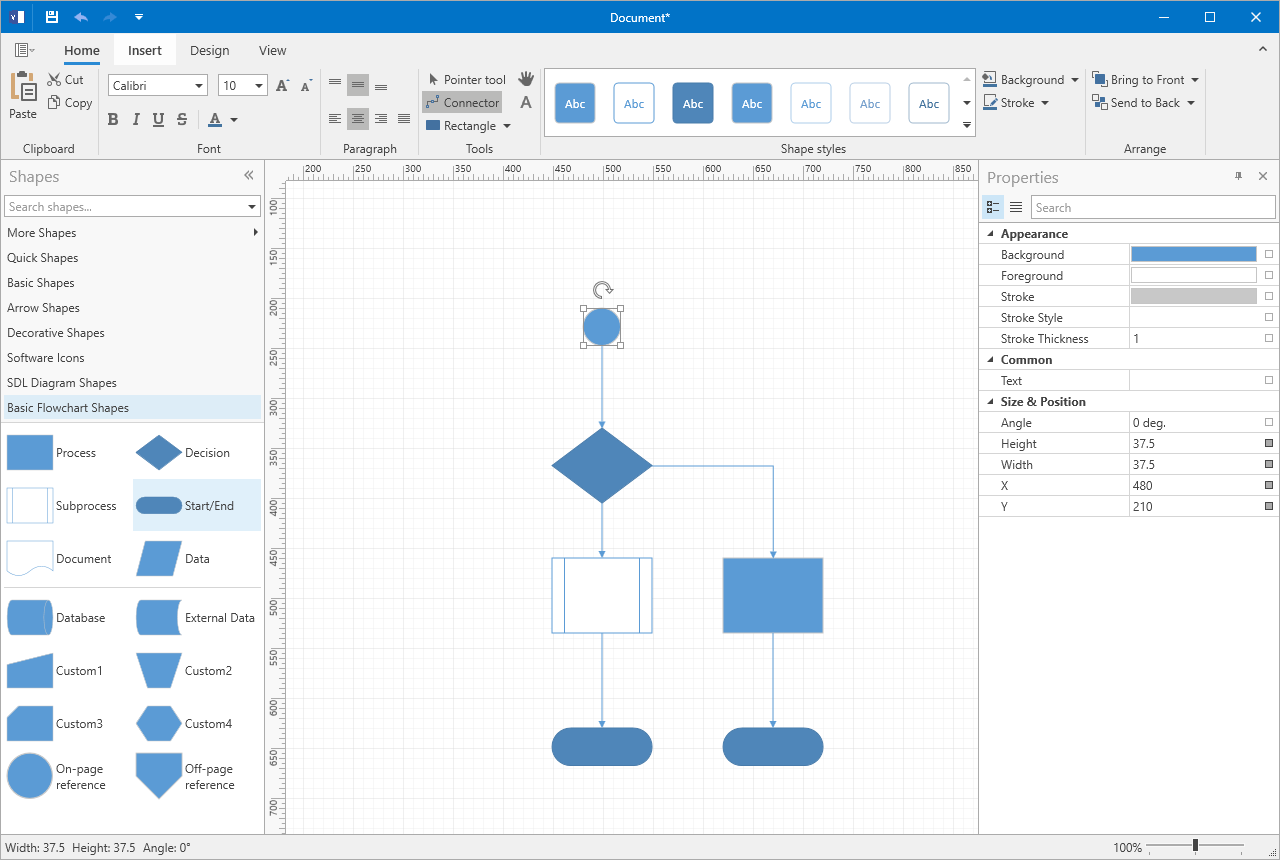
Imagine sitting down at your computer in the morning, coffee in hand, ready to sketch out your next flowchart. The application responds like a seasoned assistant, with an interface that feels both familiar and inviting. The clean, minimalistic design minimizes clutter, allowing your ideas to take center stage. Navigating through templates is as simple as flipping through the pages of a well-organized binder, and the auto-alignment tools work behind the scenes, ensuring lines and shapes stay neat without you having to fuss over pixel-perfect placement.
Operation is smooth—dragging elements, connecting shapes, and editing labels all happen with fluidity that keeps your creative momentum flowing. The learning curve is gentle, making it accessible for beginners yet robust enough for seasoned diagrammers. This balance is akin to having a helpful guide alongside, making sure you don't get lost in complexity.
Distinctive Edge in Workflow and Cognitive Load Reduction
Unlike many productivity tools that bombard users with a barrage of features, Draw Diagram emphasizes workflow efficiency by integrating closely with MS Visio. Its streamlined interface reduces cognitive load; you're not overwhelmed by options but instead guided toward completing your diagram swiftly and accurately. Automated alignment and contextual templates cut down repetitive steps, allowing you to focus on the creative and logical aspects of your diagram rather than fighting the tool itself. This thoughtful design effectively reduces mental strain and accelerates diagramming tasks—an attribute that sets it apart from more cluttered, feature-heavy competitors.
Recommendation and Usage Scenarios
Overall, Draw Diagram for MS Visio stands out as a practical companion for professionals, students, and project managers who value efficiency and straightforwardness. I'd recommend it particularly for those who already use MS Visio and seek a supplementary tool that enhances productivity without steep learning curves. Whether you're mapping out business processes, educational flows, or technical architectures, this app proves to be a reliable, time-saving asset.
For anyone tired of wrestling with overly complex diagramming tools or seeking a more integrated, user-friendly solution, Draw Diagram offers a compelling choice—like having a smart assistant who understands the importance of clean visuals and smooth workflows.
Pros
- User-friendly Interface
- Wide Range of Templates
- Seamless MS Office Integration
- Cloud Sync Capability
- Regular Updates and Support
Cons
- Limited Free Features
- Performance Issues on Older Devices
- Less Customization for Shapes
- Offline Functionality Constraints
- Learning Curve for Advanced Features











