
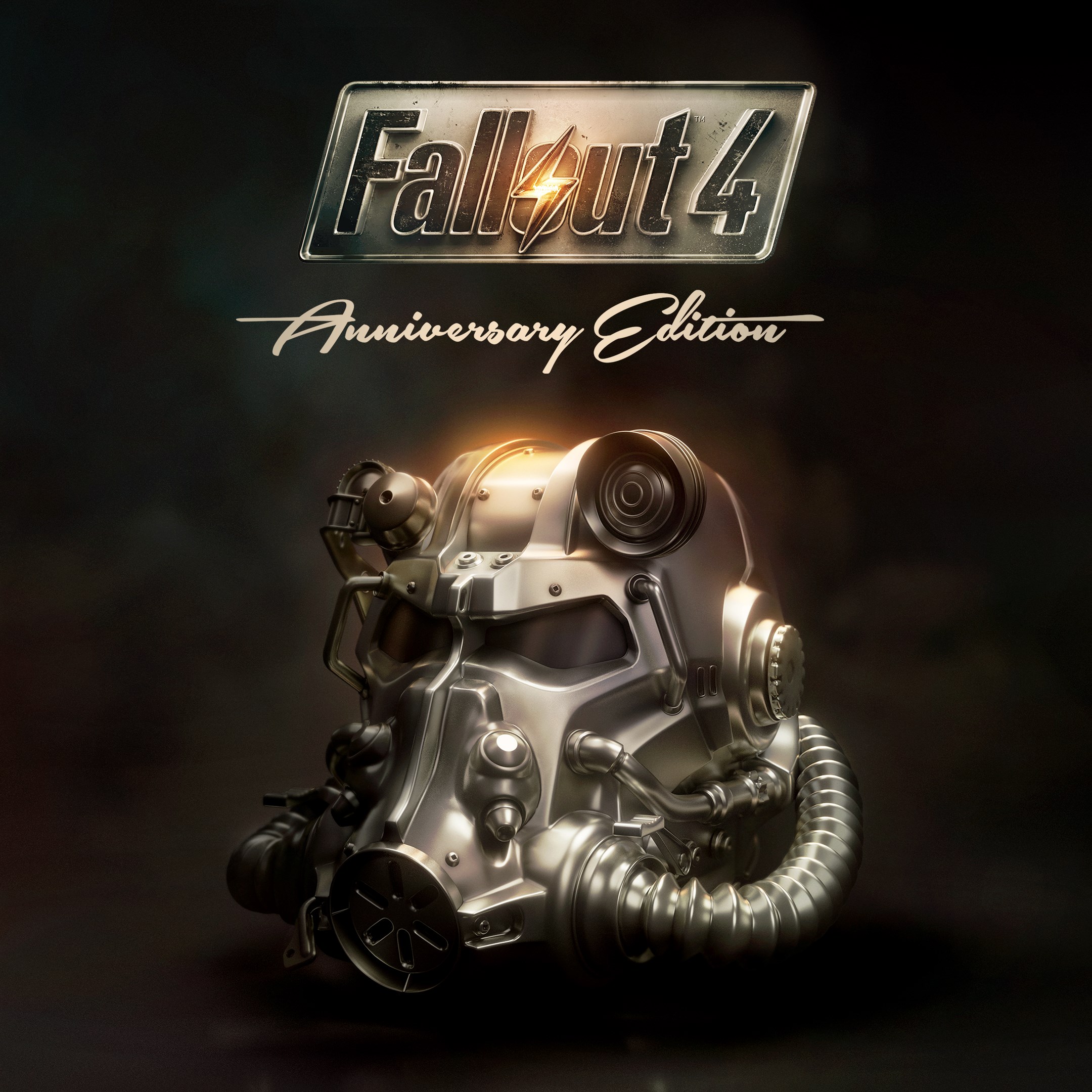
Frequently Asked Questions
How do I start playing Fallout 4: Anniversary Edition after installation?
Launch the game from your library or desktop shortcut, complete the initial setup, and follow the on-screen prompts to begin your adventure.
Can I customize my controls and settings for better gameplay?
Yes, go to Settings > Options to customize controls, display, and gameplay preferences for a tailored experience.
What are the main features included in the Anniversary Edition?
It includes the full base game, six official expansions, and over 150 Creation Club items for weapons, armor, buildings, and more.
How do I access the DLC expansions and Creation Club items in the game?
DLCs are automatically integrated; purchase or activate via the in-game store or launcher. Access Creation Club content through the in-game menu.
Are there any recommended system requirements for smooth gameplay?
Yes, ensure your PC meets or exceeds the recommended specs listed on the game's official page for optimal performance.
How do I manage or disable in-game DLC content if I experience issues?
Use the game launcher or platform settings to enable/disable DLC content under Manage Game or Downloads section.
Is this version of Fallout 4 suitable for new players and casual gamers?
Absolutely, the game offers flexible difficulty settings and a rich story, making it approachable for newcomers and casual gamers.
Is there a subscription fee or in-app purchase required to access additional content?
The base game and expansions are included; additional Creation Club items can be purchased within the game or platform store as needed.
Can I get technical support if I encounter crashes or bugs?
Yes, visit the game's support page or platform help center for troubleshooting guides, updates, and direct assistance.
Does Fallout 4: Anniversary Edition support cross-platform play?
No, the game is primarily designed for single-player experience on PC; cross-platform multiplayer is not supported.
You May Like

Persona 5 Royal
for Windows
4.9
Persona 3 Reload
for Windows
4.9
Stardew Valley
for Windows
4.8
Persona 4 Golden
for Windows
4.8
Undertale (PC)
for Windows
4.8
The Elder Scrolls V: Skyrim Special Edition (PC)
for Windows
4.7
Royal Revolt 2: Tower Defense
for Windows
4.6
Clair Obscur: Expedition 33
for Windows
4.6
Fallout: New Vegas Ultimate Edition
for Windows
4.6
Warhammer: Chaos & Conquest
for Windows
4.6
FINAL FANTASY
for Windows
4.5
The Elder Scrolls V: Skyrim Anniversary Edition (PC)
for Windows
4.4