
- Category Developer tools
- Available on PC
- OS Windows 10 version 17763.0 or higher
- Keyboard Integrated Keyboard
- Mouse Integrated Mouse
- languages English (United States)
A Sleek and Efficient Text Editor for Windows: gedit
For those seeking a straightforward yet powerful text editing tool, gedit for Windows stands out as a user-friendly option that combines simplicity with essential features tailored for both casual users and developers alike.
Basic Information: Clear, Focused, and User-Centric
gedit for Windows is a minimalist yet capable text editor designed to streamline your coding and note-taking tasks. Developed by the gedit team, originally part of the GNOME project, this version brings the editor's familiar features to the Windows environment. Its key highlights include syntax highlighting for multiple programming languages, a customizable interface, and seamless session management. Its target audience encompasses programmers, students, and writers who prefer a clutter-free and efficient editing experience without unnecessary complexity.
A Friendly Introduction: Why gedit Might Just Become Your New Favorite
Imagine a tool that feels like your reliable workspace—a place where your ideas flow smoothly and your code stays clean and organized. gedit for Windows is precisely that workspace. Designed with the everyday user in mind but packed with enough features to satisfy seasoned developers, it offers a balance of simplicity and power. Whether you're jotting down notes, editing scripts, or diving into programming languages, this editor aims to be your dependable companion, standing out with its lightweight design and thoughtful features.
Core Features That Shine
1. Syntax Highlighting and Language Support
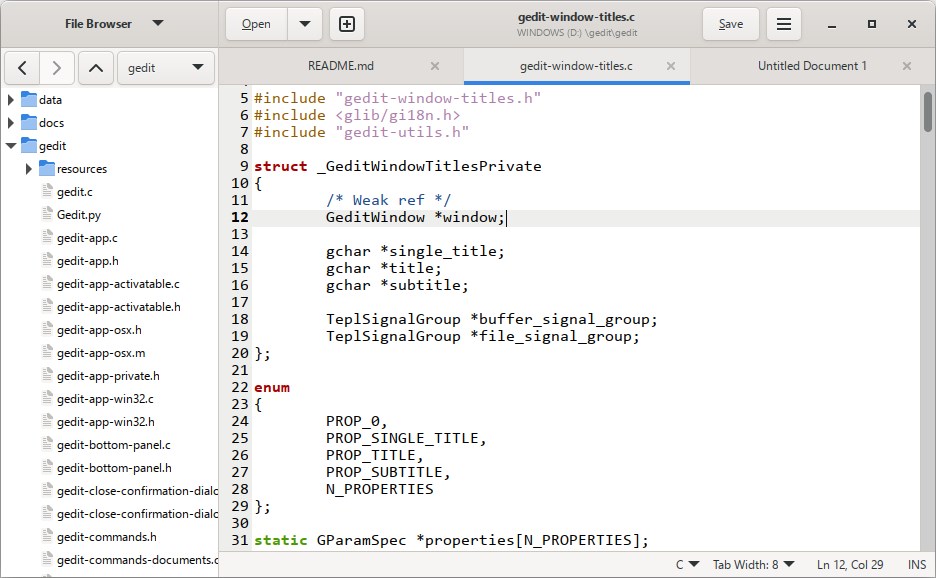
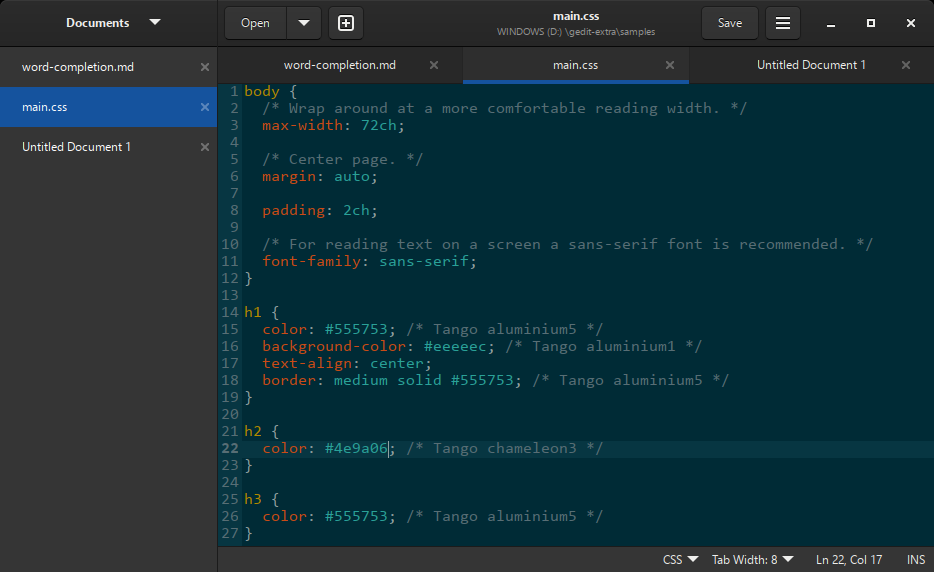
One of gedit's standout features is its support for syntax highlighting across numerous programming languages, including Python, C++, JavaScript, and HTML. This makes reading and editing code much easier, especially during long coding sessions. The color-coded syntax acts like a visual map, guiding your eyes through the structure of your code, which reduces errors and enhances readability. The editor automatically detects the language or can be manually set, making switching tasks seamless.
2. Highly Customizable Interface and Plugins
Freshen up your workspace with the customizable interface—change themes, font sizes, and layout to suit your preferences. Beyond aesthetics, gedit supports a variety of plugins that extend functionality, such as real-time spell checking, code autocomplete, or file navigation panels. These plugins can be easily activated via a simple menu, allowing users to tailor their environment without unnecessary bloat. This flexibility ensures that gedit remains lean while remaining adaptable to individual workflows.
3. Distraction-Free and Session Management
Gedit excels in providing a distraction-free environment—think of it as a clean desk where your thoughts can flow freely. The minimalistic interface helps maintain focus on your content. Additionally, session management allows you to save your workspace, reopen files, and pick up right where you left off—perfect for those deep work sessions or quick edits. The interface is intuitive, with straightforward menus that enable even novice users to get started easily.
Joe User Experience: Design, Speed, and Learning Curve
The interface of gedit is akin to a tidy workshop—simple, unobtrusive, and easy to navigate. It adopts a familiar Windows-like design, making transition from other editors or simple text apps effortless. The responsiveness is impressive; even with multiple files open, operations like editing, scrolling, and saving remain smooth, thanks to its lightweight architecture. For new users, the learning curve is gentle—most features are accessible via menus or keyboard shortcuts, which are easy to memorize and customize. Its minimalistic design ensures that users are not overwhelmed by unnecessary options but can find what they need swiftly.
What Makes gedit Unique Among Developer Tools?
While many code editors boast extensive feature sets, gedit's key differentiators lie in its balance of simplicity and extendibility. Its plugin system, rooted in open-source philosophy, encourages user-driven customization without sacrificing core performance. Unlike bloated editors, gedit remains lightweight, making it ideal for systems with limited resources or for those who prefer a no-nonsense approach. Furthermore, its resemblance to the familiar GNOME style makes it stand out for users who value consistency and straightforwardness over overwhelming options found in some IDEs.
Final Recommendation: Is gedit the Right Choice for You?
If you're in need of a clean, efficient, and customizable text editor that won't weigh down your system or complicate your workflow, gedit for Windows is a solid choice. It's particularly suited for users who want a no-frills editor with essential power—such as syntax highlighting, session save/load, and plugin support. However, if your needs lean toward integrated debugging, project management, or advanced code navigation, you might consider other options. For everyday coding, note-taking, or quick edits, gedit offers a delightful balance between simplicity and functionality, making it recommendable as a reliable part of your toolkit.
Pros
- Lightweight and fast
- Simple and user-friendly interface
- Syntax highlighting for multiple languages
- Extensible through plugins
- Cross-platform support
Cons
- Limited advanced features
- Basic customization options
- Limited plugin ecosystem
- Lack of integrated version control
- Occasional stability issues with large files