

- Category Productivity
- Available on PC
- OS Windows 10 version 18362.0 or higher
- languages Arabic (United Arab Emirates), Chinese (Simplified), Chinese (Traditional Chinese), Czech, Danish, Dutch, English (United States), Finnish, French, German, Greek, Hungarian, Italian, Japanese, Korean , Norwegian (Bokmål), Polish , Portuguese (Brazil), Russian, Slovak, Spanish (Spain), Swedish, Turkish, Ukrainian
A Clearer, Smoother Pen Experience for Windows: Lenovo Pen Settings Review
If you're someone who frequently sketches, annotates, or navigates Windows with a stylus, Lenovo Pen Settings emerges as a friendly companion designed to streamline your workflow and enhance your device's pen capabilities. It's like having a personal pen technician right at your fingertips, helping you customize and optimize your stylus interactions seamlessly.
About the App: Precision Through Customization
Developed by Wacom Technology Corp., Lenovo Pen Settings is a Windows application aimed at improving the precision and comfort of stylus use on compatible devices. The app primarily focuses on customizing pen parameters to suit individual workflows, offering a tailored experience for users who demand both flexibility and efficiency.
- Key Highlights:
- Customizable pen buttons and gestures for personalized control
- Adjustable pressure sensitivity and tilt responses for nuanced drawing or writing
- Profiling tools that enable you to switch between different configurations effortlessly
- Enhanced compatibility with Lenovo devices to maximize stylus performance
Targeted primarily at creative professionals, educators, and power users who rely on precise pen input, the app looks to make stylus interactions more intuitive and less cumbersome, transforming your device into a versatile digital canvas or navigation tool.
Design & User Experience: Intuitive and User-Centric
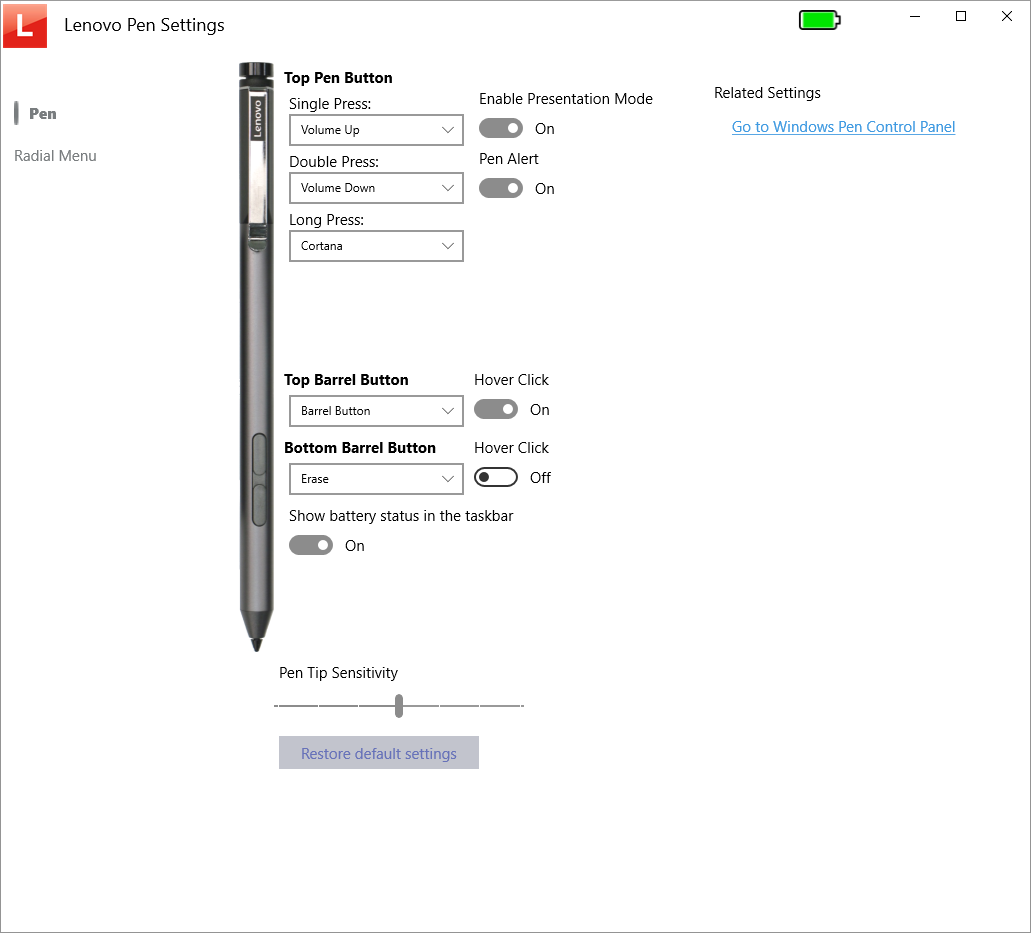
The first thing that strikes you when opening Lenovo Pen Settings is its clean, minimalistic interface—think of it as a well-organized artist's palette: simple, inviting, but packed with potential. The layout categorizes options into logical sections, enabling easy navigation whether you're a tech-savvy user or just starting out.
Operation feels smooth and responsive. Adjusting settings involves straightforward sliders and toggles, with real-time feedback making calibration intuitive. The learning curve is gentle; even newcomers can quickly grasp how to tailor pen behavior to their preferences, thanks to thoughtful design cues and prompts.
Core Features in Spotlight: Tailoring Your Digital Canvas
1. Button & Gesture Customization
This feature acts like a remote control for your stylus, allowing you to assign specific functions—like right-click, eraser, or custom shortcuts—to pen buttons or gestures. Imagine being able to swipe a button to switch from pen to eraser instantly—such fluid control reduces interruptions and keeps your creative flow flowing smoothly. Compared to other apps that offer generic presets, Lenovo Pen Settings enables deep personalization, making your pen feel like an extension of your intent.
2. Pressure and Tilt Calibration
Think of this as giving your stylus a personalized “sensitivity suit.” Fine-tuning pressure curves ensures strokes feel natural whether you're sketching delicate lines or bold strokes. Tilt calibration further refines how the stylus detects angles, perfect for shading or calligraphy. What's notable here is how seamlessly these adjustments integrate with your workflow—no cumbersome recalibrations, just click, tweak, and go.
3. Profile Management for Workflow Flexibility
Switching between different tasks often requires different stylus behaviors. With profile management, you can create, save, and switch between configurations—like one for graphic design, another for note-taking. Imagine toggling between professional illustration settings and casual sketching with a single click, making your device adapt in real-time to your needs. This feature truly stands out, reducing cognitive load by removing the need for complex recalibrations or multiple apps.
Comparative Insights and Recommendations
When stacked against competitors like Microsoft Pen Settings or Huion's customization tools, Lenovo Pen Settings excels in workflow integration and ease of use. Its ability to finely tune pen parameters without overwhelming the user makes it a standout choice—particularly for creative professionals who appreciate both control and efficiency.
While the app doesn't feature a sprawling array of options, its focus on core customization and profile switching means less feature fatigue and more practical usability. It's akin to having a seasoned artisan helping you adjust your tools rather than overloading you with unnecessary bells and whistles.
Recommendation: If you're a Lenovo device user seeking a reliable, intuitive way to elevate your stylus experience—especially for artistic or professional applications—this app is highly recommended. For those who value workflow efficiency and personalized control, Lenovo Pen Settings offers a compelling, streamlined solution.
Pros
- Easy access to Pen Settings
- Customizable pen behavior
- Optimized for Lenovo devices
- User-friendly interface
- Seamless integration with Windows
Cons
- Limited customization options
- Occasional connectivity issues
- Lack of detailed tutorials
- Performance might vary on different devices
- Limited update frequency











