
Frequently Asked Questions
How do I set a GIF as my desktop wallpaper using Lively Wallpaper?
Open Lively, go to 'Add New Wallpaper,' select your GIF file, then click 'Apply' to set it as wallpaper.
Can I customize the settings for my animated wallpapers?
Yes, after selecting your wallpaper, click 'Settings' to adjust options like loop, playback speed, and quality under the settings menu.
What types of media can I use as wallpapers with Lively?
Lively supports GIFs, videos, and webpages. Use the 'Add New Wallpaper' button to browse and select your preferred media.
How do I add a webpage as my wallpaper?
Click 'Add New Wallpaper,' choose 'Webpage,' enter the URL, then click 'Apply' to set it as your desktop background.
Does Lively Wallpaper have a free version, and are there any paid features?
Lively is free and open-source; all features are accessible without cost. There are no paid upgrades or subscriptions.
Are there any plans for premium features or subscription options?
Currently, Lively is fully open-source and free. No premium features or subscriptions are offered at this time.
How do I troubleshoot if my wallpaper isn't updating properly?
Try restarting Lively or your PC; ensure your media files are supported and correctly selected under your wallpaper settings.
Can I set different wallpapers for multiple monitors?
Yes, Lively allows you to assign different wallpapers per monitor via the 'Monitor Settings' menu.
How can I participate in the Lively open-source project?
Visit https://github.com/rocksdanister/lively, fork the project, and contribute via pull requests or community discussions.
Is there a way to temporarily disable animated wallpapers without uninstalling?
Yes, open Lively, select your wallpaper, and toggle the 'Enable' switch off to temporarily disable it.
You May Like

Blooming Dimensions
for Windows
5
Monotype Handwriting Font Pack
for Windows
5
Hues of Nature
for Windows
5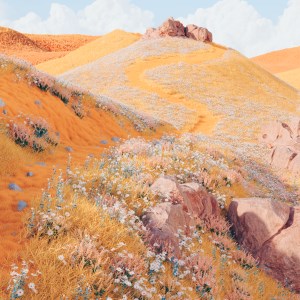
Dreamscapes
for Windows
5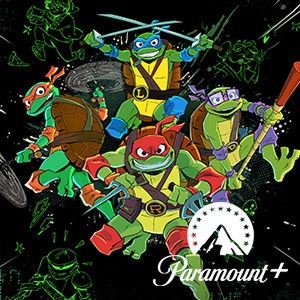
Tales of the Teenage Mutant Ninja Turtles Theme
for Windows
5
Neon Dreams
for Windows
4.9
Cats Anytime
for Windows
4.9
Japanese Landscapes
for Windows
4.9
Sun and Sand
for Windows
4.9
Live Wallpaper Engine Plus
for Windows
4.8
Chicks and Bunnies
for Windows
4.8
Mountain Dwellings
for Windows
4.8