
Frequently Asked Questions
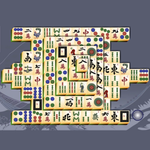
How do I start playing Mahjongg Pro on Windows 10/11?
Download and install Mahjongg Pro from your app store, then launch the game from your start menu or desktop shortcut to begin playing.
What are the basic controls needed to play Mahjongg Pro?
Use your mouse to click on matching free tiles to clear the board. Tiles are removed in pairs when they are free and match.
How can I understand the different game features and options?
Access the tutorial or help section within the game menu; settings can be found via Settings > Options for customization.
Can I pause the game and resume later?
Yes, Mahjongg Pro supports pausing and resuming gameplay, typically via the pause button or menu options.
What features does Mahjongg Pro offer for advanced players?
It includes multiple difficulty levels, undo moves, hints, and a timer to challenge experienced players.
How do I shuffle the tiles if I get stuck?
Use the 'Shuffle' button in the game interface, which can be accessed from the control panel during gameplay.
Is Mahjongg Pro a one-time purchase or subscription-based?
It is a one-time purchase app available on the Microsoft Store; no subscription is required.
Are there any in-app purchases or ads in Mahjongg Pro?
Mahjongg Pro offers a premium experience without ads; check the app store page for any optional in-app purchases.
What should I do if the game crashes or freezes?
Try restarting your device, updating the app, or reinstalling Mahjongg Pro; contact support if issues persist.
You May Like

Red Dead Redemption (PC)
for Windows
5
Solo Leveling: ARISE OVERDRIVE
for Windows
4.9
Criminal Case: The Conspiracy
for Windows
4.8
DesignVille: Merge & Design
for Windows
4.8
Minecraft: Java & Bedrock Edition Deluxe Collection
for Windows
4.8
Subnautica
for Windows
4.8
Vampire Survivors
for Windows
4.8
Little Kitty, Big City
for Windows
4.8
Hollow Knight: Voidheart Edition
for Windows
4.8
bloxd.io
for Windows
4.8
Sunset Overdrive
for Windows
4.8
Criminal Case: Mysteries of the Past
for Windows
4.8