
- Category Navigation & maps
- Developer Rushi
- Available on PC, Mobile, Surface Hub, HoloLens
- OS Windows 10 version 17763.0 or higher
- languages English (United States)
Introducing Maps for Gmaps for Windows: A Fresh Take on Navigation
If you've ever found yourself frustrated with clunky navigation apps that overpromise and underdeliver, say hello to Maps for Gmaps for Windows—a sleek, user-friendly alternative designed to streamline your mapping experience. Developed by Rushi, this application aims to bring Google's Maps features seamlessly onto your Windows device, making exploration easier and more efficient.
Core Features That Shine Bright
1. Integrated Google Maps Experience
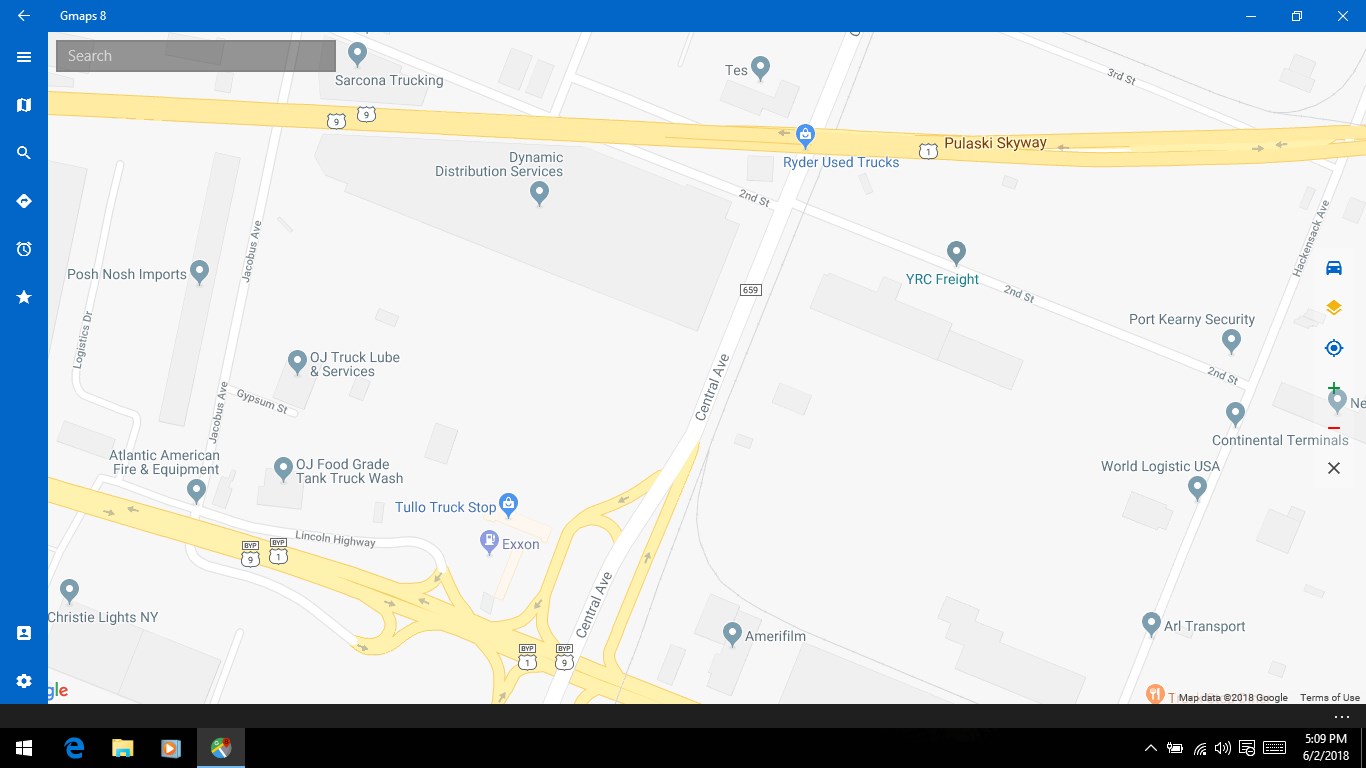
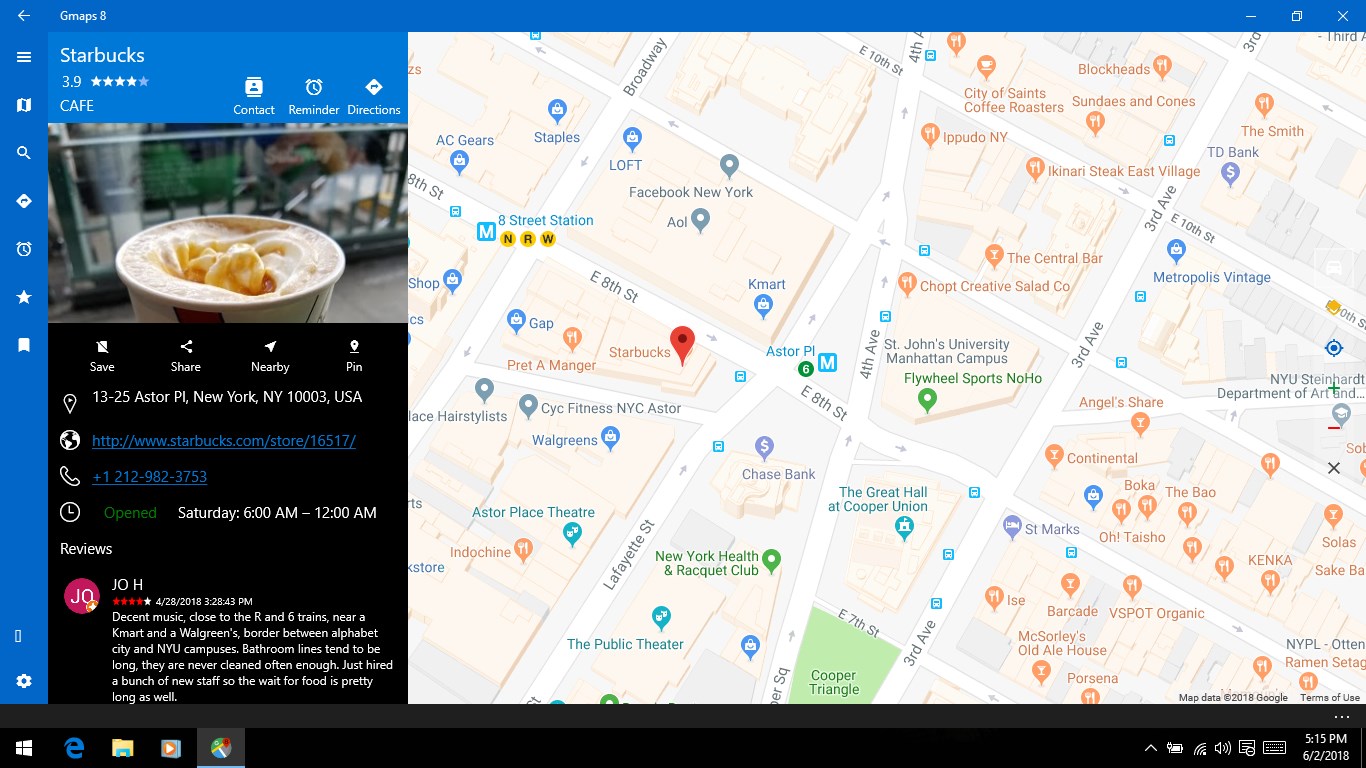
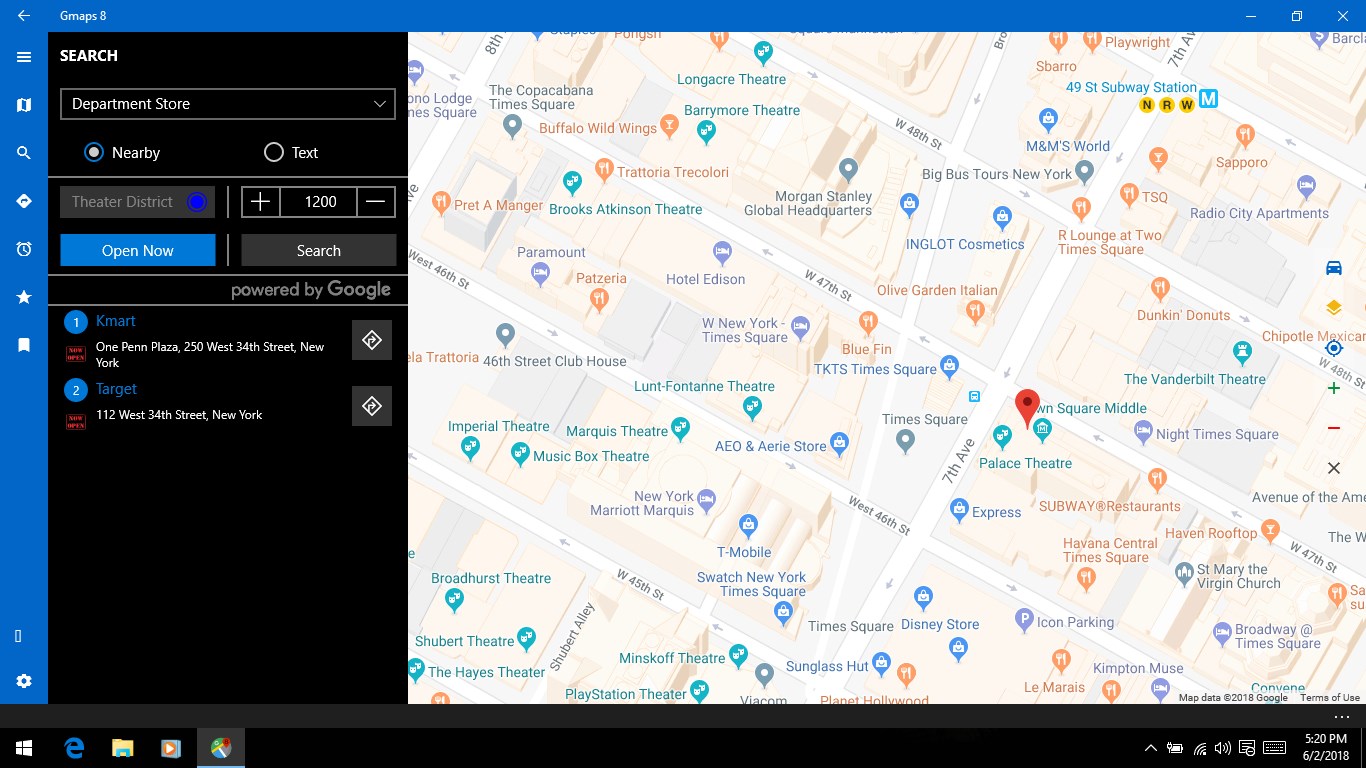
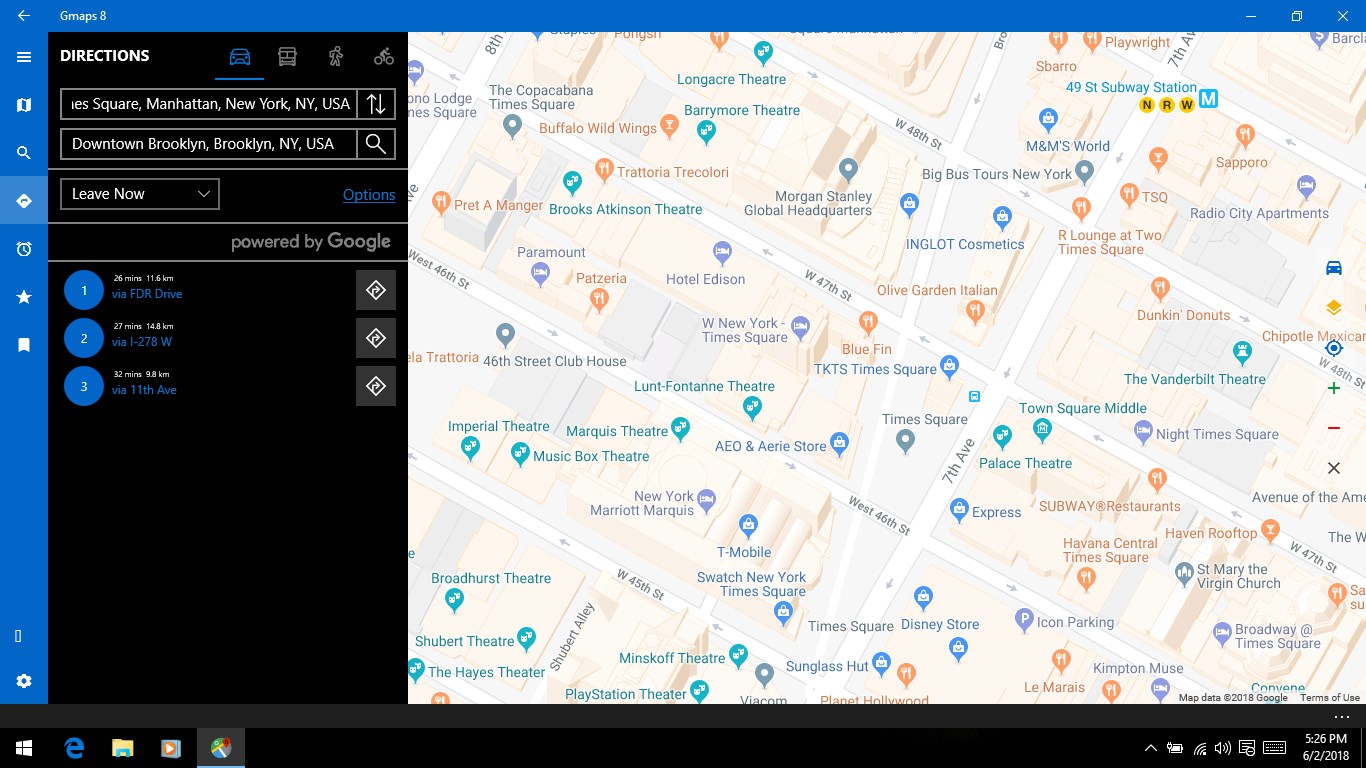
This app essentially acts as a bridge, providing quick access to Google Maps directly on your Windows desktop. With this integration, you can enjoy familiar functionalities like real-time traffic updates, route planning, and point-of-interest searches without switching between browser tabs or launching multiple apps. It's like having Google Maps embedded into your Windows environment, reducing clutter and improving accessibility.
2. User-Friendly Interface with Eye-Catching Design
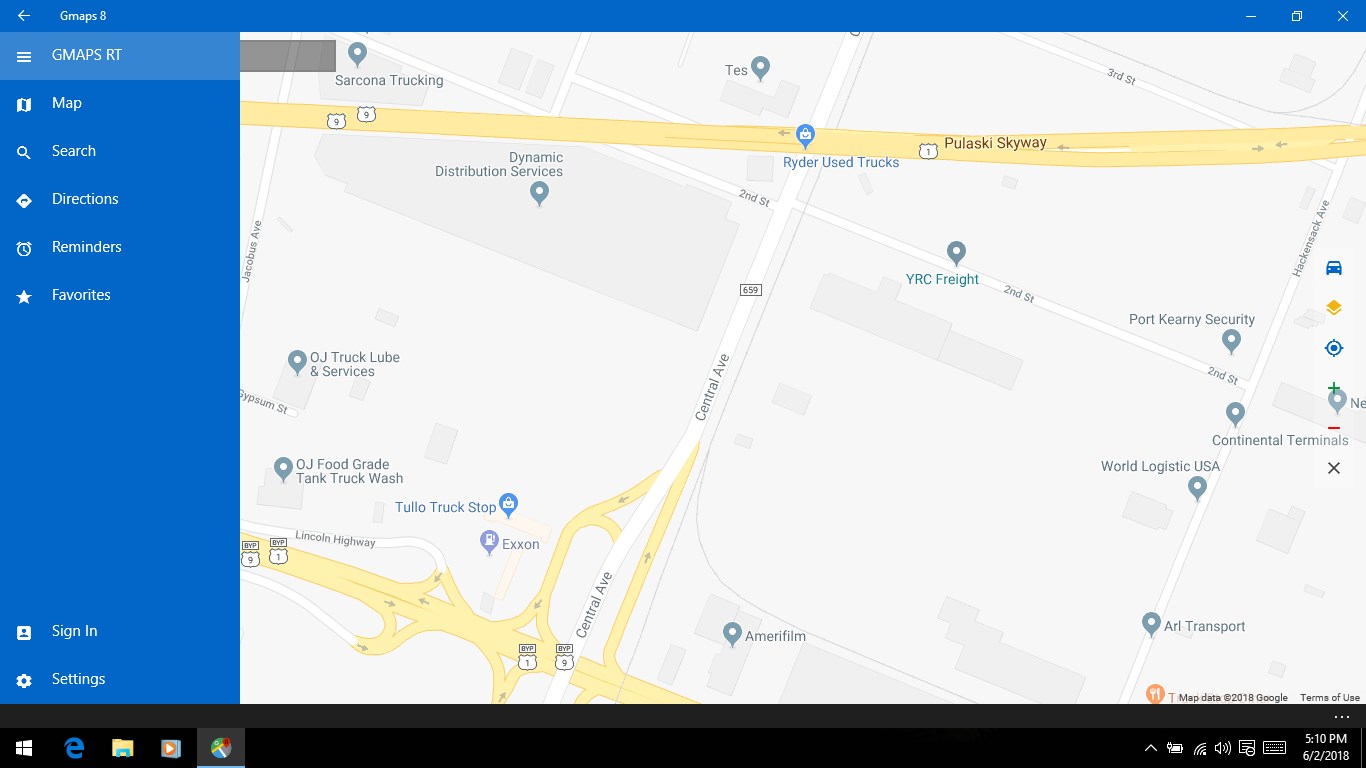
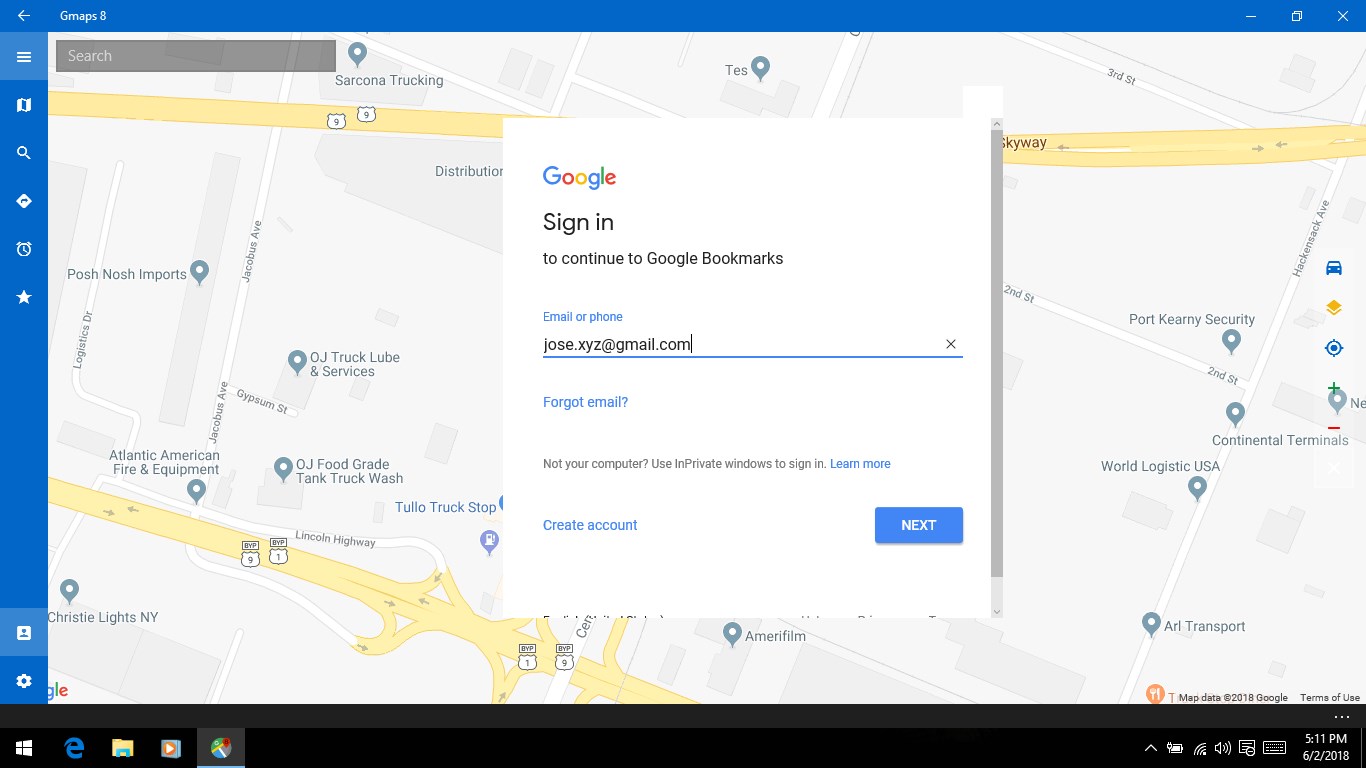
One of the app's strongest suits is its clean, modern interface that mimics Google's aesthetic—think minimalistic, intuitive, and visually pleasing. Navigation within the app is effortless; buttons and menus are logically organized, making it accessible even for those less tech-savvy. The overall design encourages quick learning and smooth usage, transforming what could often be a convoluted experience into a straightforward one.
3. Lightweight and Responsive Performance
Unlike some bulky mapping applications that hog resources, Maps for Gmaps for Windows is lightweight and fast. It responds swiftly to user inputs, offers quick loading times, and performs reliably even with lower-spec hardware. This efficient performance ensures that users aren't left waiting or dealing with lag—ideal for on-the-go planning or quick look-ups during work breaks.
Enhancing User Experience: Design, Navigation, and Ease of Use
The app's interface stands out for its simplicity and clarity, making navigation feel like a stroll through a well-mapped city. The layout allows users to easily access core features such as search, directions, and location sharing with just a few clicks. Its responsiveness means you can switch between views, zoom, or input destinations fluidly—even on modest laptops or tablets. For beginners, the learning curve is gentle; seasoned users will appreciate how naturally it fits into their workflow.
What Sets It Apart from Other Navigation Apps?
While standard mapping tools often come bundled with clunky interfaces or unnecessary bloat, Maps for Gmaps for Windows carves out its niche by focusing on core functionalities with a clean presentation. A particularly unique feature is its seamless integration of Google Maps directly within the Windows environment, eliminating the need for a browser or secondary app. Moreover, the app's lightweight design means it won't slow down your device or require extensive setup, making it an excellent choice for users seeking straightforward, reliable navigation without extra fuss.
Final Thoughts: Is It Worth a Try?
If you're looking for a no-frills, efficient way to access Google Maps on your Windows device, Maps for Gmaps for Windows deserves serious consideration. It's particularly suitable for users who want quick, reliable directions without the clutter of overly complex features—think of it as your dependable map companion on your desktop. While it may not have all the advanced features of dedicated navigation apps, its focused approach and user-friendly design make it an appealing option for everyday use.
Overall, I'd recommend giving this app a whirl, especially if you value simplicity and speed in your mapping tools. It's an excellent example of how a well-implemented, focused app can enhance your navigation experience—without the unnecessary bells and whistles.
Pros
- Accurate Navigation Features
- User-Friendly Interface
- Offline Map Availability
- Integration with Microsoft Ecosystem
- Regular Updates and Improvements
Cons
- Limited Customization Options
- Occasional Slow Loading Times
- Inconsistent Voice Guidance
- Battery Consumption
- Limited Features in Free Version