

- Category Productivity
- Available on PC, Mobile, Surface Hub, HoloLens
- OS Windows 10 version 18362.0 or higher
- languages Afrikaans, Albanian, Amharic, Arabic, Armenian, Assamese, Azerbaijani (Latin), Bangla (India), Basque, Belarusian, Bosnian (Latin), Bulgarian, Catalan, Chinese (Simplified), Chinese (Traditional Chinese), Croatian, Czech, Danish, Dari, Dutch, English (Canada), English (United Kingdom), English (United States), Estonian, Filipino, Finnish, French, French (Canada), Galician, Georgian, German, Greek, Gujarati, Hausa (Latin), Hebrew, Hindi, Hungarian, Icelandic, Igbo, Indonesian, Irish, Italian, Japanese, Kannada, Kazakh, Khmer, Kiswahili, Konkani, Korean, Kyrgyz, Latvian, Lithuanian, lo, Luxembourgish, Macedonian, Malay, Malayalam, Maltese, Maori, Marathi, Mongolian (Mongolia), Nepali, Norwegian (Bokmål), Odia, Persian/Farsi, Polish, Portuguese (Brazil), Portuguese (Portugal), Punjabi, Quechua, Romanian, Russian, Scottish Gaelic, Serbian, Serbian (Cyrillic, Bosnia and Herzegovina), Serbian (Latin, Serbia), Sindhi, Sinhala, Slovak, Slovenian, Spanish, Spanish (Mexico), Swedish, Tamil, Tatar, Telugu, Thai, Turkish, Turkmen, Ukrainian, Urdu, Uyghur, Uzbek, Valencian, Vietnamese, Welsh
A Glimpse Into the Future of Productivity
Microsoft 365 Copilot for Windows positions itself as a pioneering AI-powered assistant designed to seamlessly integrate into your daily workflow, transforming how you interact with familiar Microsoft Office tools and streamlining your tasks with intelligent support. Developed by the renowned Microsoft Corporation, this application aims to elevate productivity by blending AI capabilities directly into the Windows environment.
Key Features That Make Work Smarter, Not Harder
1. Intelligent Document Assistance
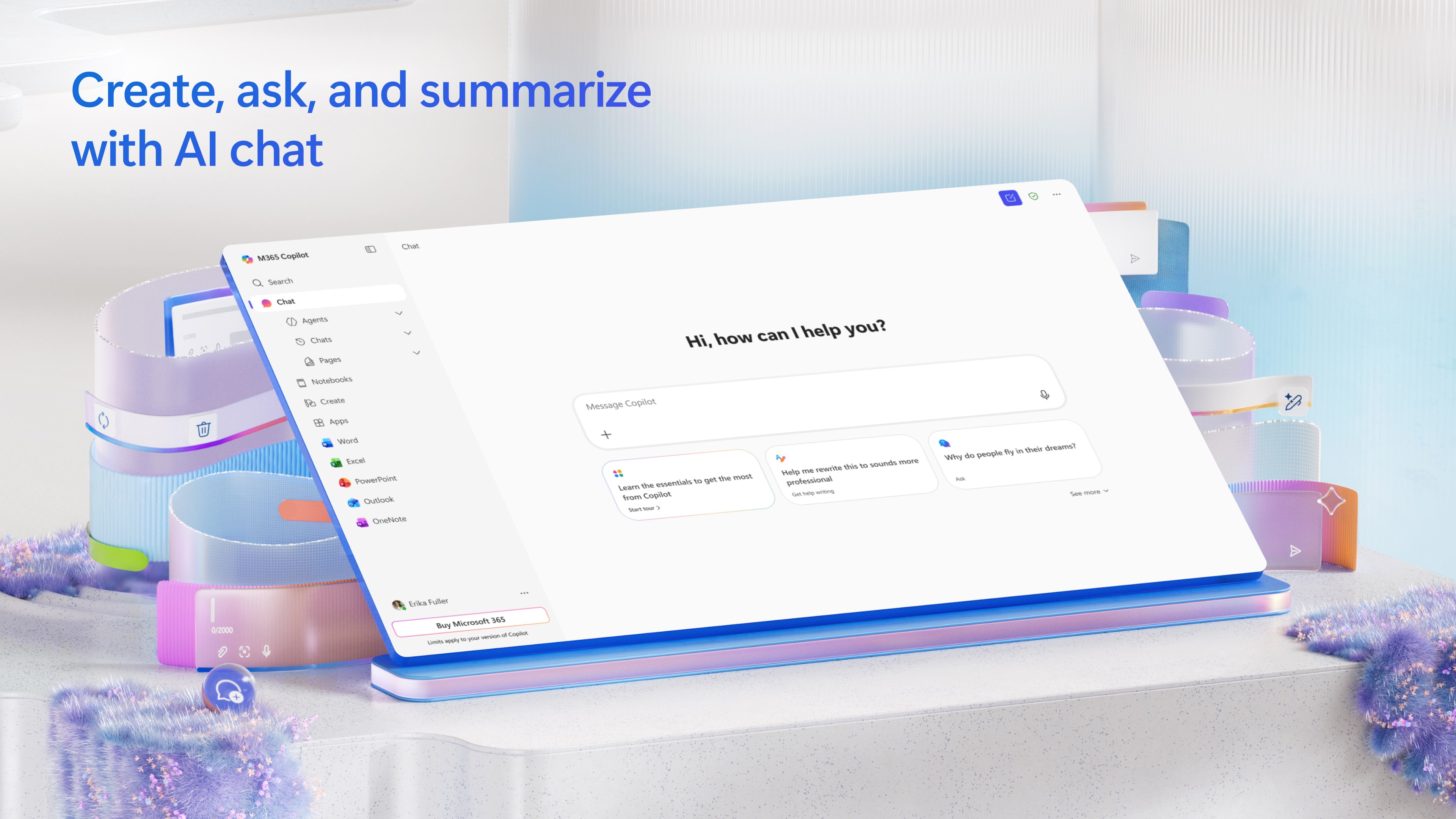
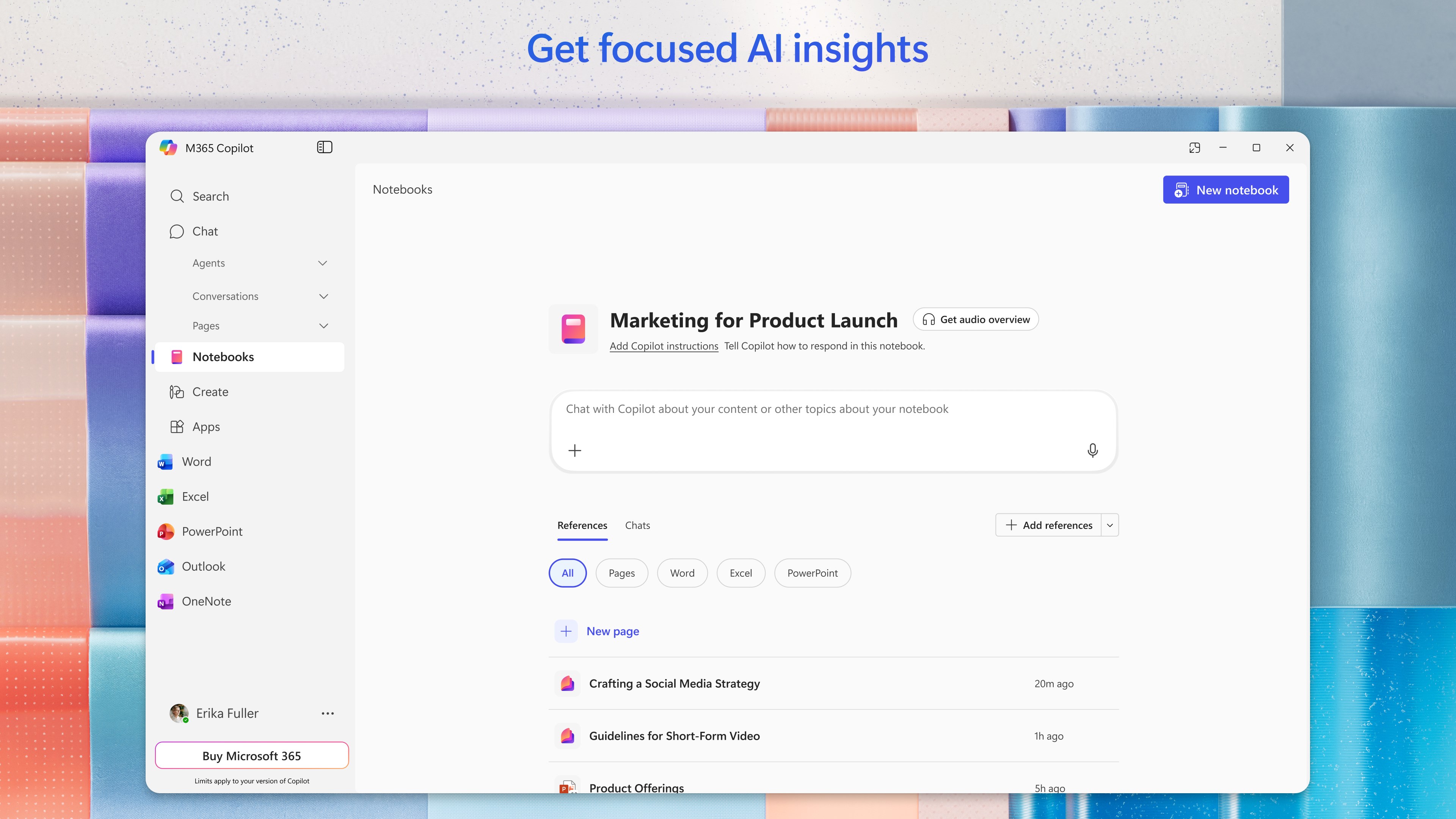
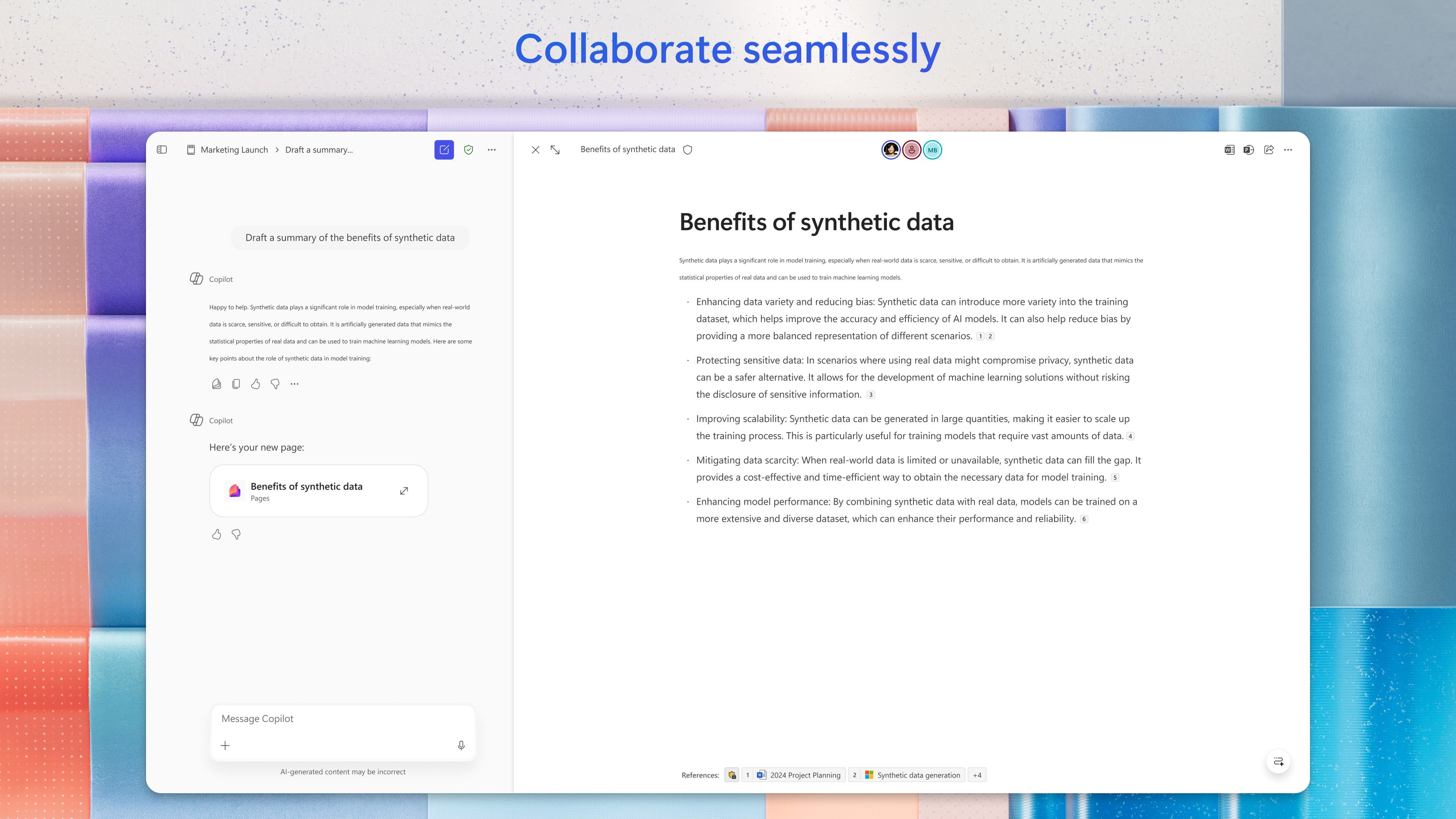
Imagine having a knowledgeable co-pilot riding shotgun in your Windows OS, ready to help draft, summarize, or analyze documents in real-time. Microsoft 365 Copilot leverages advanced AI to generate suggested content, provide quick summaries, and even assist with rewriting or editing, thereby reducing hours spent on repetitive typing and editing tasks. Its deep integration with Office applications such as Word, Excel, and PowerPoint allows for a seamless transition from idea to execution, boosting your efficiency without the cognitive overload of managing multiple tools.
2. Workflow Automation and Integration
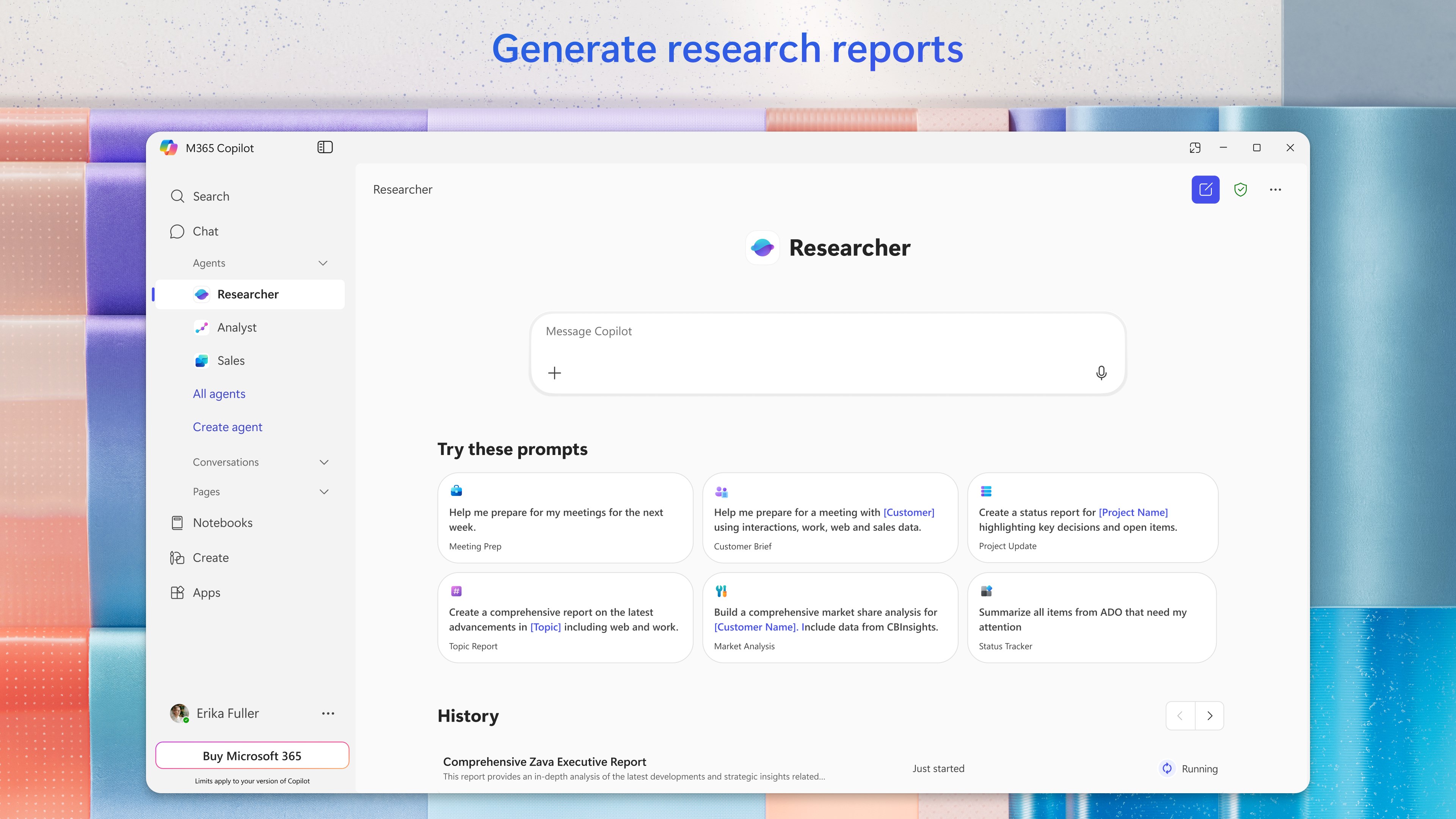
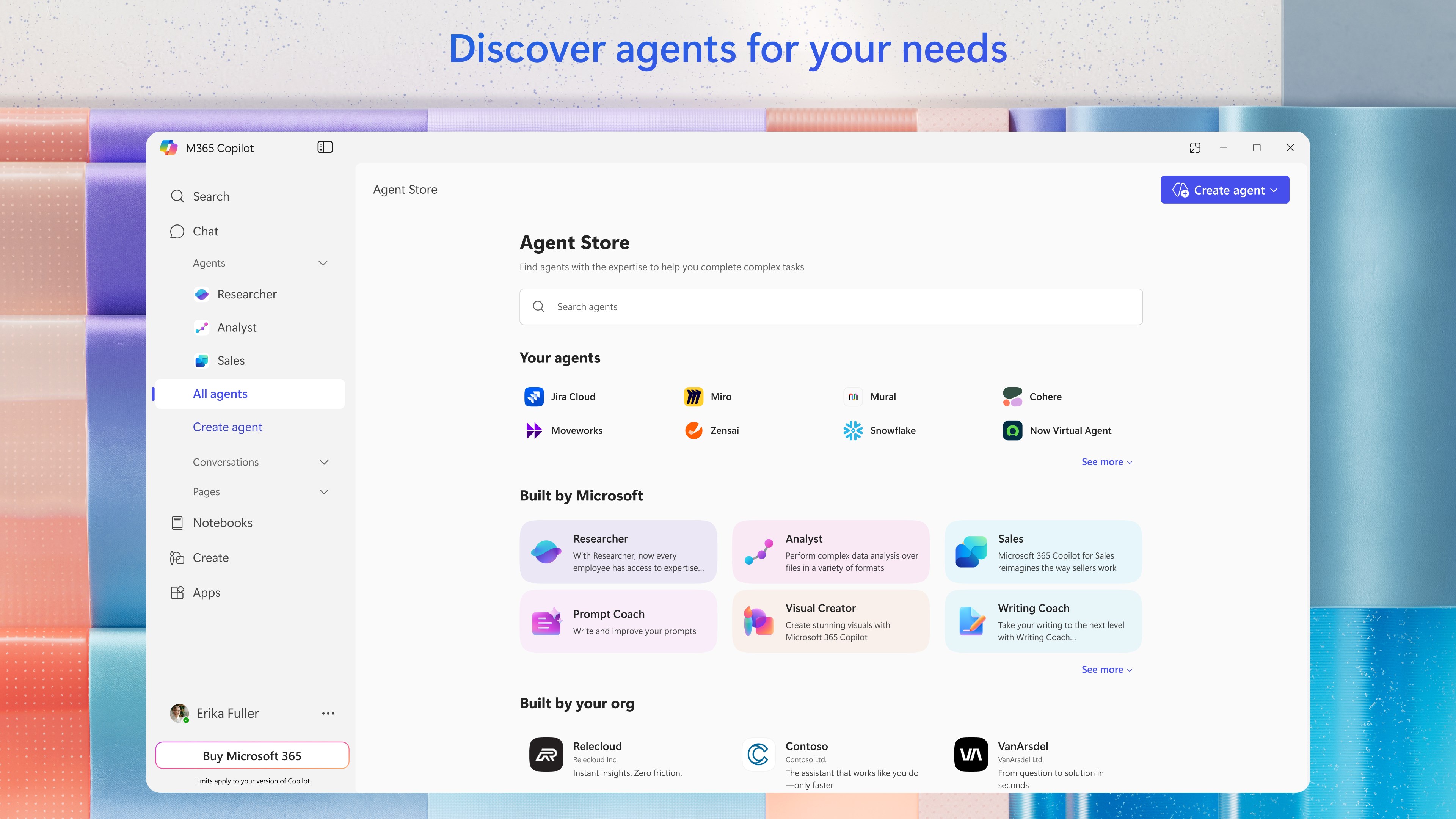
One of the most compelling features is its ability to embed AI support within your existing workflows. Whether you're scheduling meetings, managing emails, or creating presentations, Copilot acts as an intelligent assistant that understands context and reduces the need for manual intervention. This tight integration translates into fewer interruptions, allowing users to focus on high-level tasks while Copilot handles routine operations—think of it as a well-trained assistant that anticipates your next move.
3. Context-Aware Intelligence and Search Capabilities
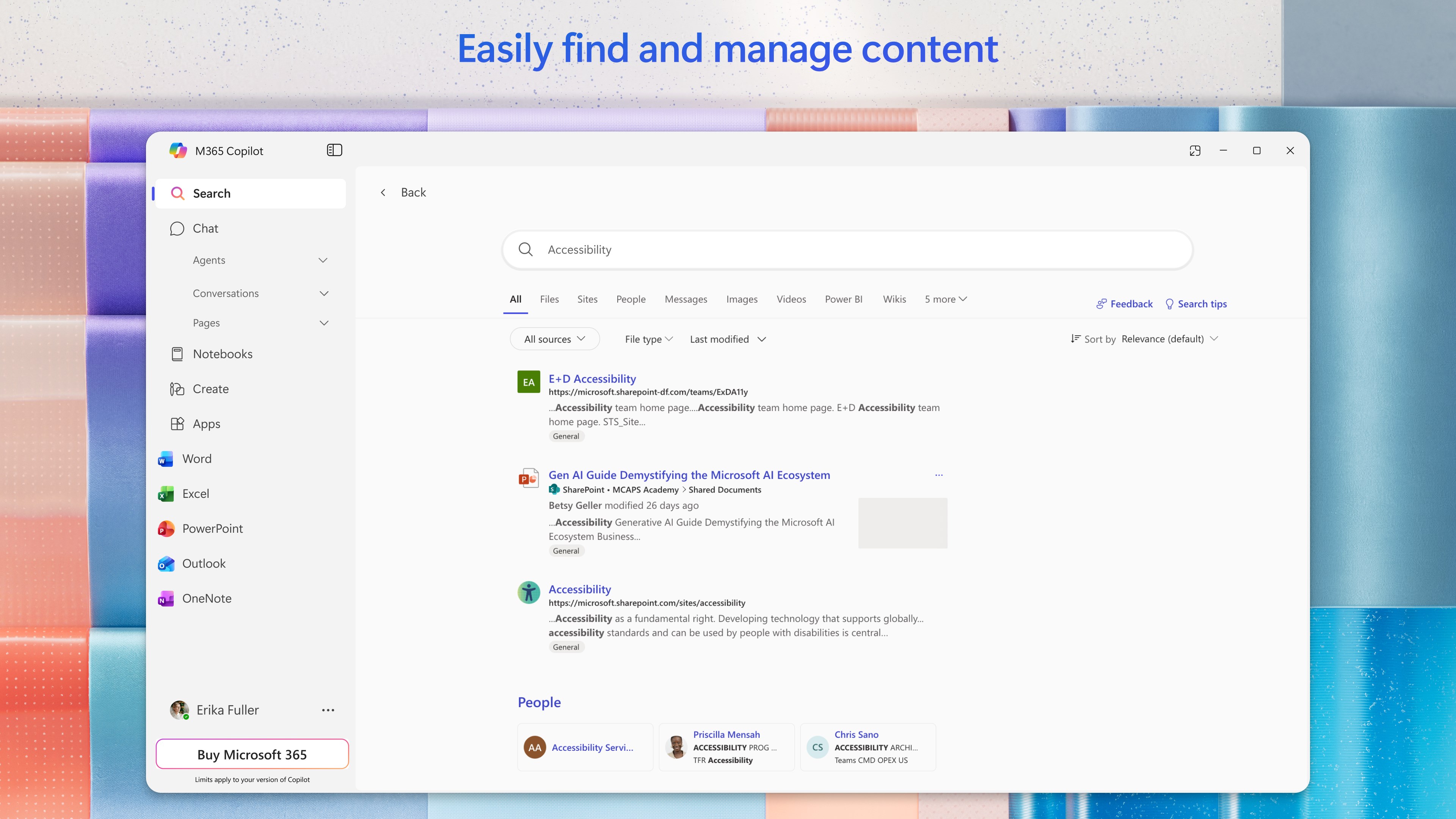
The app offers insightful, context-sensitive suggestions based on your ongoing tasks. Need to find relevant data in a lengthy report or get a quick overview of latest figures? Copilot's embedded search and summarization functions bring critical information front and center. With its ability to understand user intent and context, it minimizes the mental effort typically involved in sifting through multiple documents or applications, thereby elevating overall cognitive efficiency.
User Experience: Interface and Performance
The interface design of Microsoft 365 Copilot is unobtrusive yet intuitive, blending seamlessly into the Windows environment. It employs a clean, modern aesthetic with minimal clutter, making interactions feel natural and effortless—think of chatting with a knowledgeable friend rather than navigating a complex tool. Performance-wise, the app exhibits smooth operation, thanks to optimized AI processing that doesn't lag or cause noticeable delays, even with large files or data sets.
As for the learning curve, most users will find onboarding straightforward, due to contextual hints and the app's ability to adapt to individual workflows over time. The experience feels akin to having a personal AI assistant who gradually becomes more attuned to your unique working style.
What Sets It Apart: Workflow Efficiency and Cognitive Load Reduction
Compared to traditional productivity tools that merely offer static features, Microsoft 365 Copilot emphasizes workflow integration. It doesn't complicate your tasks with an abundance of buttons or options; instead, it intelligently anticipates what you need next, reducing the mental effort involved in task switching. This reduction in cognitive load—thanks to smart automation—helps users stay focused and less fatigued. Highlighting its unique advantage, Copilot optimally balances feature richness with simplicity, making complex tasks feel more manageable and less stressful.
Final Thoughts and Recommendations
Microsoft 365 Copilot for Windows is a promising addition for anyone embedded within the Microsoft ecosystem seeking to elevate their productivity. Its most standout feature—context-aware, intelligent assistance—belies its straightforward interface, making powerful AI tools accessible without overwhelming users. For professionals looking to optimize workflows, reduce manual effort, and minimize cognitive fatigue, this application is warmly recommended, especially in environments where efficiency and smooth integration are critical. To make the most of it, I suggest starting with routine tasks to allow the AI to adapt and then gradually incorporate more complex workflows as familiarity grows. Overall, it's a valuable ally for modern digital workspaces, making everyday tasks feel less like chores and more like collaborative endeavors with a smart colleague.
Pros
- Enhanced productivity with intelligent suggestions
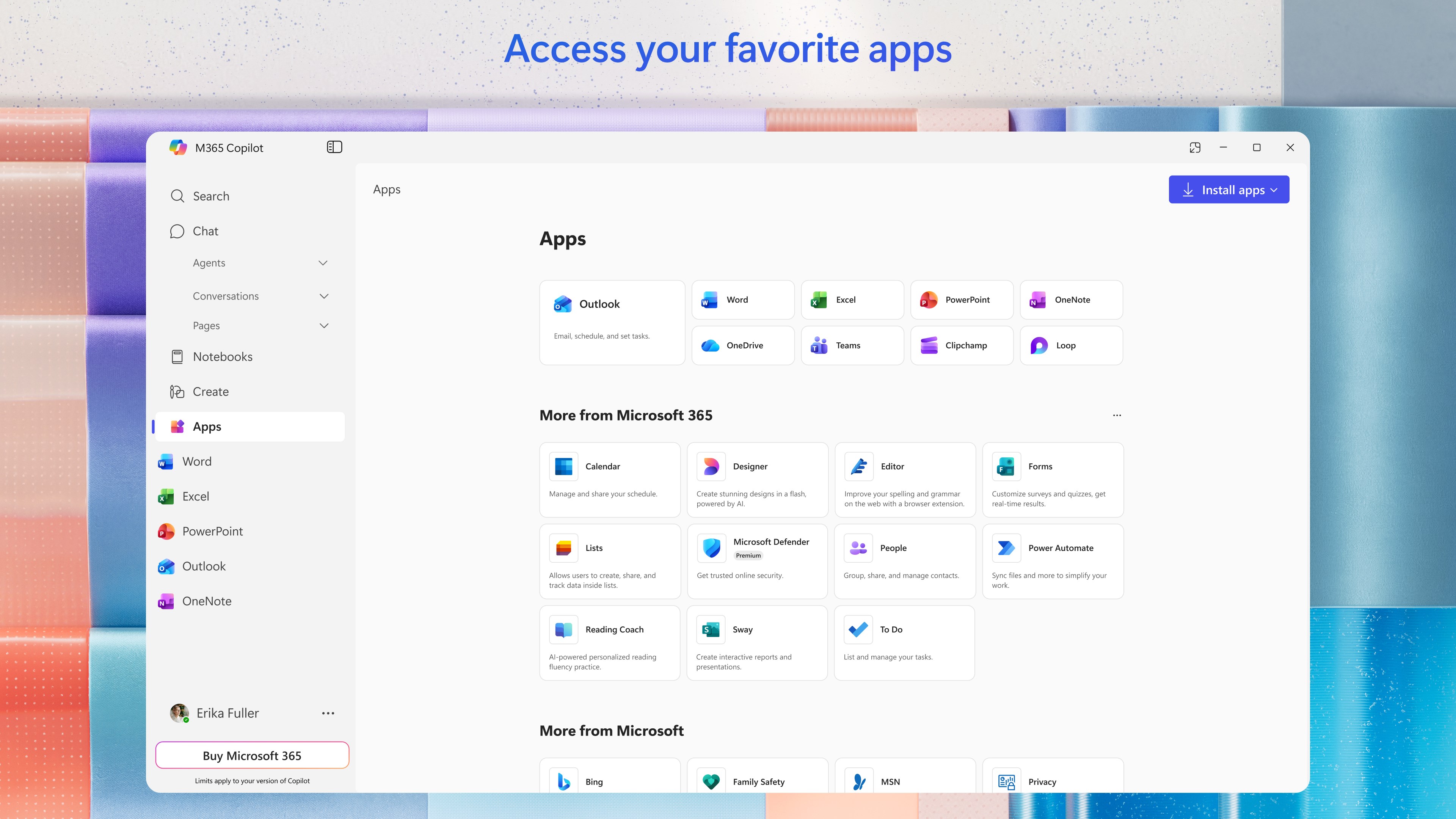
- Seamless integration with Microsoft apps
- User-friendly interface with intuitive features
- Automates routine tasks effectively
- Regular updates with improved AI capabilities
Cons
- High dependence on internet connectivity
- Occasional inaccuracies in suggestions
- Learning curve for advanced features
- Privacy concerns with data sharing
- Limited customization options for AI responses











