

Frequently Asked Questions
How do I start creating music with Music Maker Jam for the first time?
Download and open the app, select three free styles, then start combining loops, adjusting effects, and arranging tracks to create your own music.
Can I change or switch music styles after starting a project?
Yes, you can change styles anytime in your project by accessing the style options in the app's interface, allowing you to customize your sound.
How do I add or remove sounds and loops within my composition?
Tap on the track you want to modify, then select or deselect loops from the library to customize your arrangement easily.
How can I adjust the tempo and pitch of my tracks?
Use the tempo slider and pitch controls available on the main interface to modify the speed and pitch of your music to your liking.
What are real-time effects and how do I apply them?
Real-time effects can be applied via the effect panel. Select an effect, then adjust parameters while listening to see immediate changes.
How can I use the shake feature to remix my song?
Simply shake your tablet when playing your project to automatically reorder tracks, generating a fresh remix of your song.
Are there any paid features or styles, and how can I access them?
Premium styles like Hip Hop or Techno are available for purchase or subscription. Access them via the in-app store under 'Shop' or 'Styles'.
How do I subscribe or purchase additional content in Music Maker Jam?
Go to the App Store or within the app, navigate to 'Store' or 'Premium Content' to view, subscribe, or buy new styles and features.
Can I save and export my projects easily?
Yes, you can save your projects within the app and export finished tracks as audio files via the export option in the menu.
What should I do if the app crashes or doesn't respond?
Try restarting the app or your device. If the problem persists, update the app through the Windows Store and contact support if needed.
You May Like
Airyware Tuner
for Windows
4.9
M4A to MP3 - M4A to WAV
for Windows
4.9
Amazon Music
for Windows
4.8
Amazing Slow Downer
for Windows
4.8
djay Pro - DJ App & AI Mixer
for Windows
4.7
Incredibox
for Windows
4.7
RapidComposer
for Windows
4.6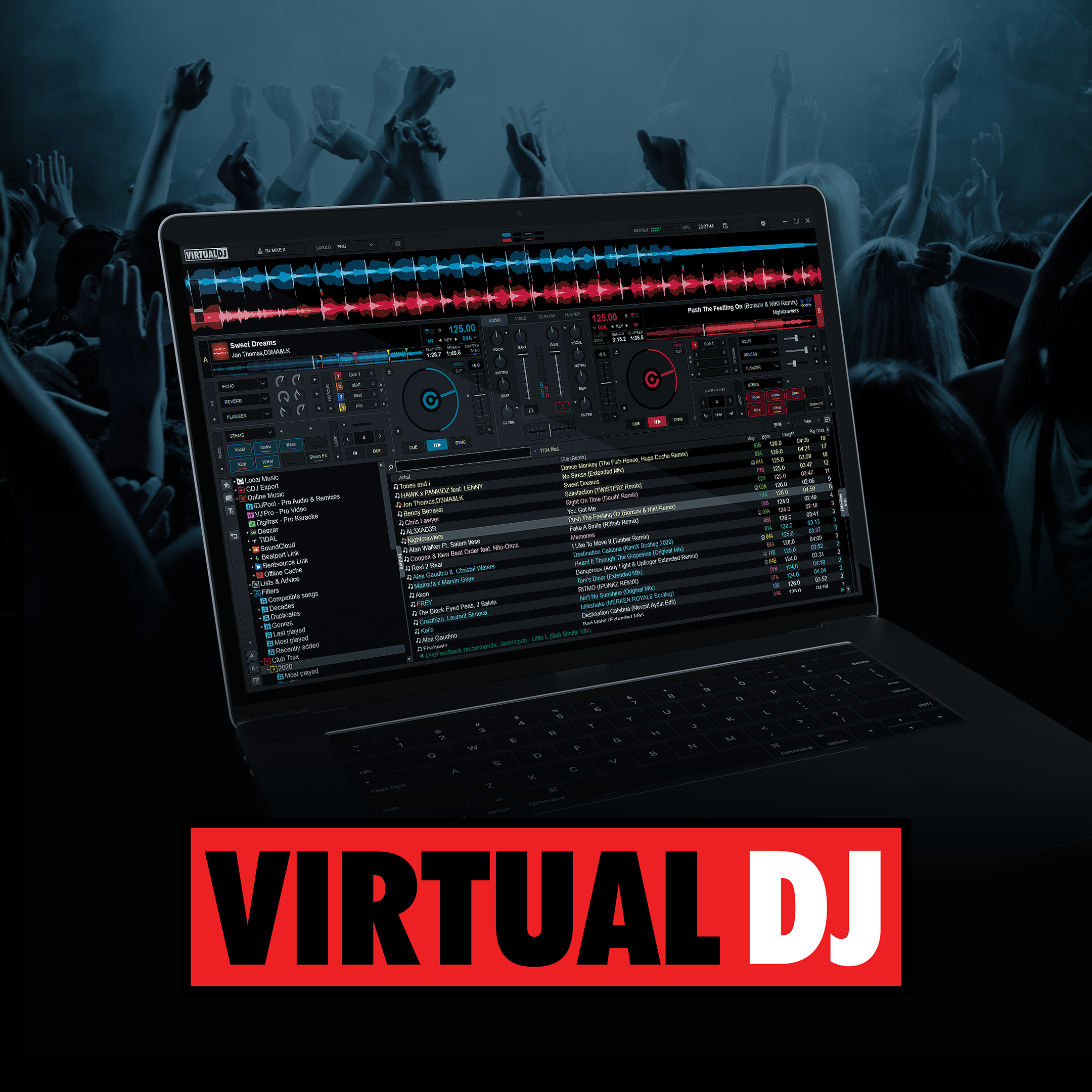
VirtualDJ
for Windows
4.6
Apple Music
for Windows
4.5
MobileSheets
for Windows
4.5
MusicBee
for Windows
4.5
Pandora
for Windows
4.5