

- Category Productivity
- Available on PC
- OS Windows 10 version 19041.0 or higher
- languages Afrikaans, Albanian, Amharic, Arabic, Armenian, Assamese, Azerbaijani, Bangla (India), Basque, Bosnian (Latin, Bosnia and Herzegovina), Bulgarian, Catalan, Chinese (Simplified), Chinese (Traditional Chinese), Croatian, Czech, Danish, Dutch, English, English (United Kingdom), English (United States), Estonian, Filipino, Finnish, French, French (Canada), Galician, Georgian, German, Greek, Gujarati, Hebrew, Hindi, Hungarian, Icelandic, Indonesian, Irish, Italian, Japanese, Kannada, Kazakh, Khmer, Konkani, Korean, Lao, Latvian, Lithuanian, Luxembourgish, Macedonian, Malay, Malayalam, Maltese, Maori, Marathi, Nepali, Norwegian, Norwegian (Bokmål), Odia, Persian/Farsi, Polish, Portuguese, Portuguese (Portugal), Punjabi (India), Quechua, Romanian, Russian, Scottish Gaelic, Serbian (Cyrillic), Serbian (Cyrillic, Bosnia and Herzegovina), Slovak, Slovenian, Spanish, Spanish (Mexico), Swedish, Tamil, Telugu, Thai, Turkish, Ukrainian, Urdu, Uyghur, Valencian, Vietnamese, Welsh
Streamlined Email Management with Outlook for Windows
Microsoft Outlook for Windows stands out as a comprehensive email client designed to integrate seamlessly into the broader Microsoft 365 ecosystem, aiming to make your communication and scheduling effortless. Developed by Microsoft Corporation, this application brings the robust functionality needed for professional and personal workflows alike.
What Makes Outlook for Windows Shine?
Outlook for Windows isn't just about reading and sending emails; it's about creating a unified hub for your productivity. The app excels in offering a smooth experience with features such as intelligent inbox management, calendar integration, and collaborative tools. Its design caters to users ranging from busy professionals to casual users who desire an organized, efficient digital workspace.
An Inviting Gateway to Your Digital Workspace
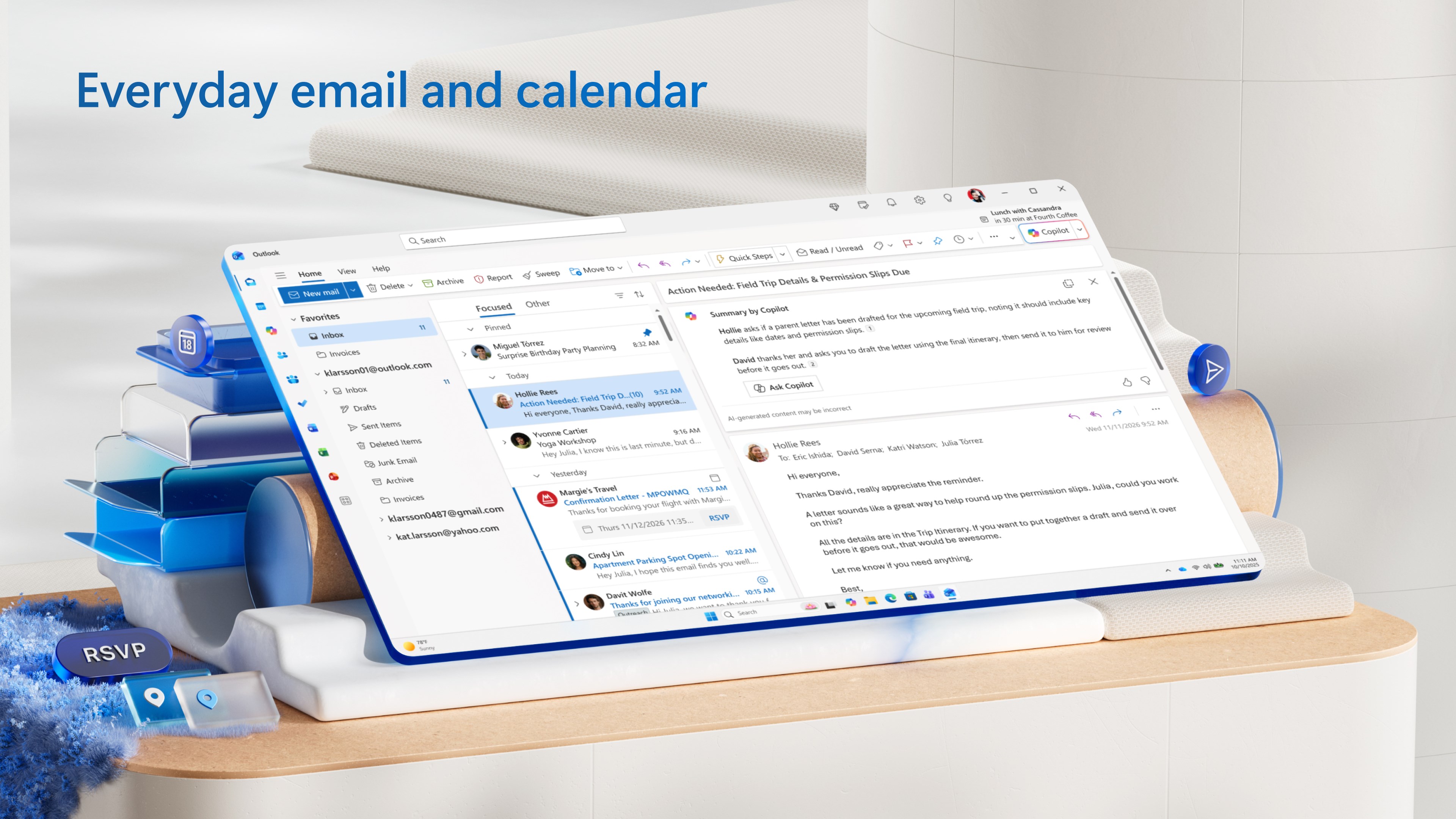
Imagine opening an organizer that feels like opening a neatly arranged desk—everything in its place, ready for action. Outlook's interface offers a clean, modern look that balances functionality with simplicity, making it easy for new users to find their way around. The experience is akin to having a digital assistant—one that anticipates your needs and responds swiftly. Navigation is intuitive, and the learning curve is gentle, even for those new to Microsoft's ecosystem. It's like having a helpful map on your journey through a bustling city of emails, calendars, and contacts.
Core Functionality: Email & Calendar in Perfect Harmony
Smart Email Organization
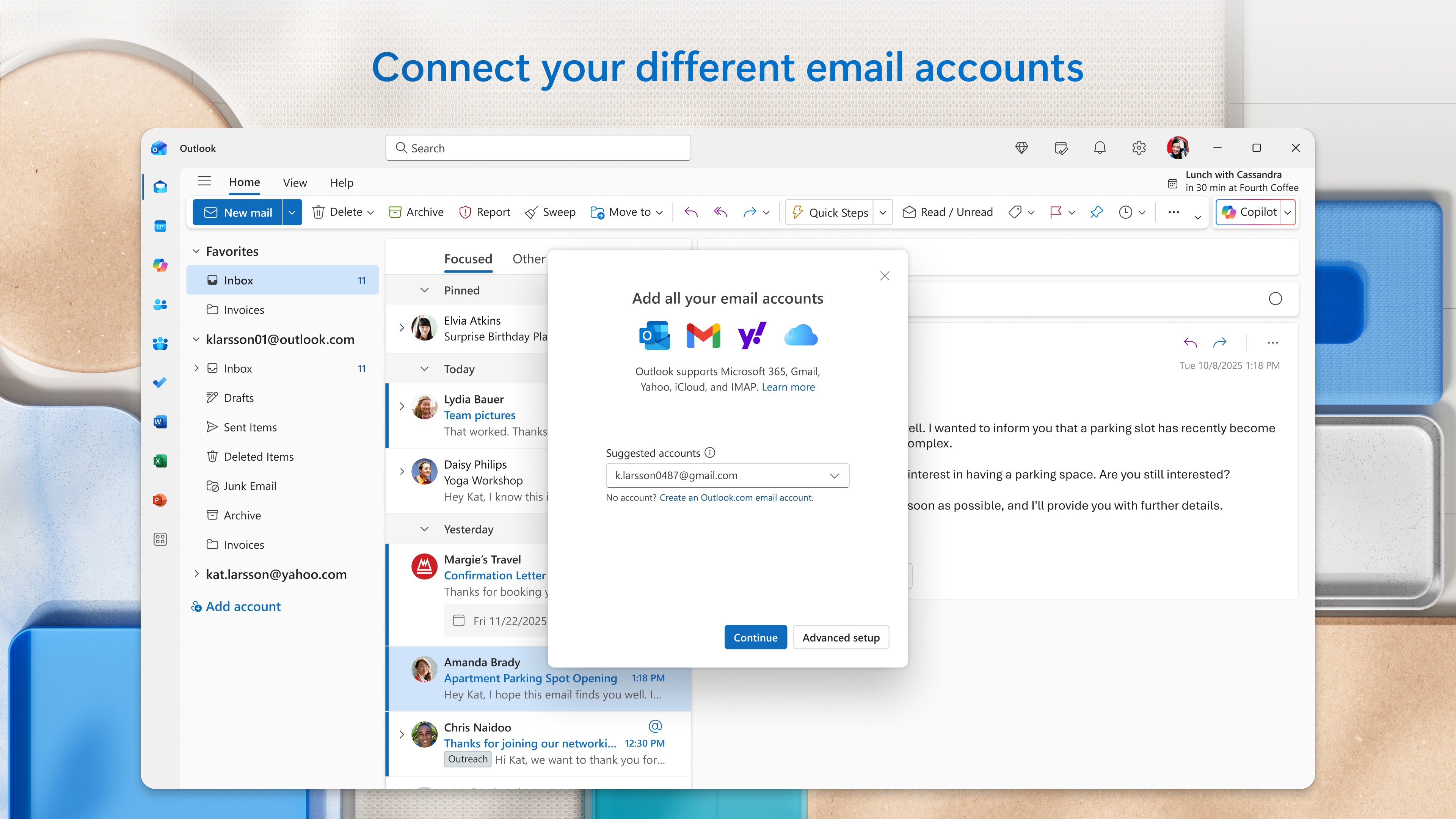
Outlook's standout feature is its intelligent inbox sorting, which uses AI to prioritize important messages and declutter your inbox. Unlike traditional email clients, Outlook learns your patterns, highlighting critical emails and filtering out less relevant ones. This significantly reduces cognitive load, letting you focus on what truly matters without being overwhelmed by the volume of incoming messages. Think of it as having a vigilant gatekeeper, helping you manage your inbox efficiently without constant manual sorting.
Deep Calendar Integration
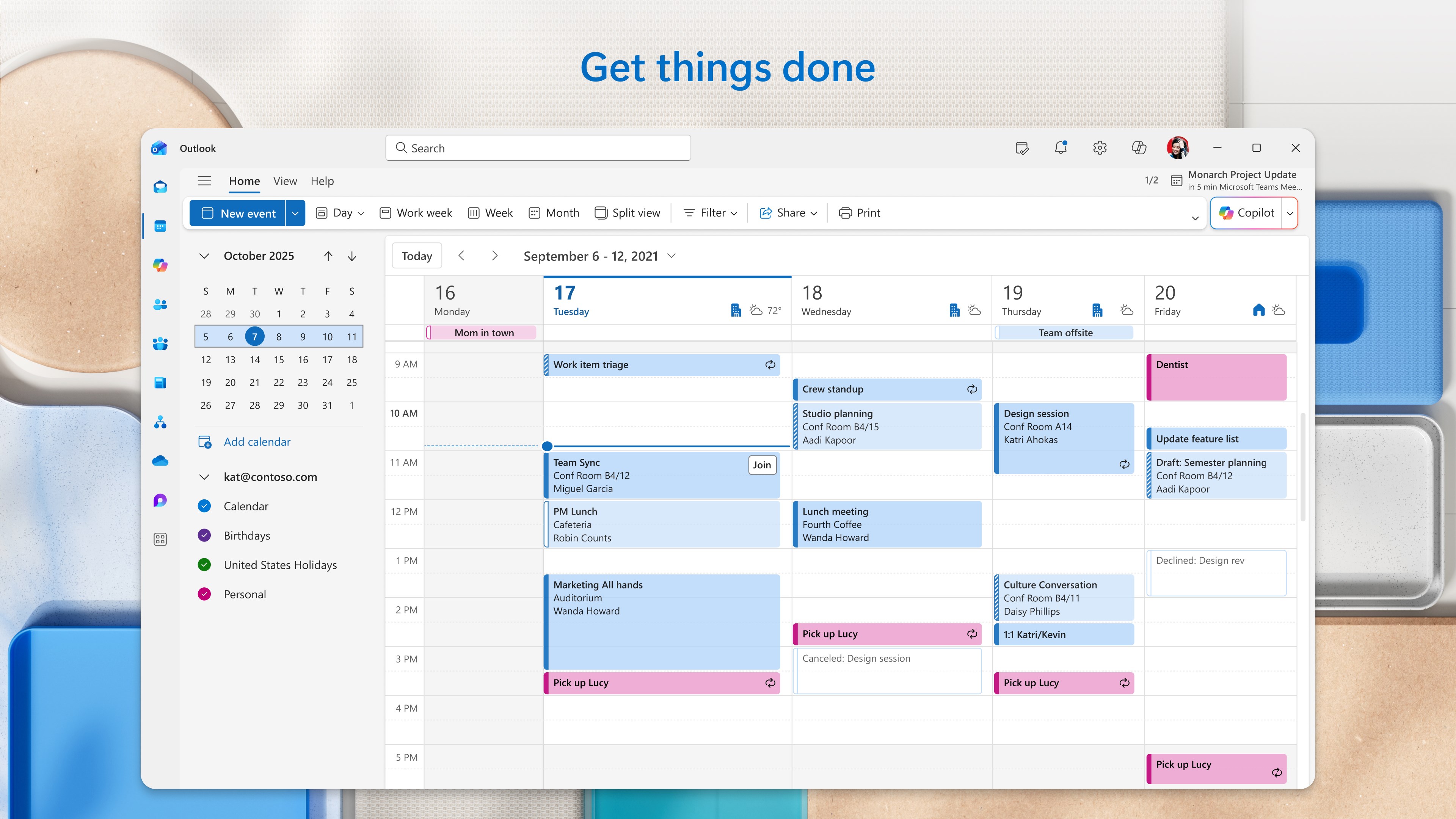
The calendar tool isn't just a scheduling assistant; it's your personal coordinator. Outlook automatically suggests meeting times based on your availability and even proposes adjustments if conflicts arise. The seamless integration with emails allows effortless conversion of emails into calendar events, saving precious time. The interface makes it easy to switch between inbox and calendar views, comparable to flipping between pages of a well-organized planner—intuitive and fast. For users managing multiple schedules, the clarity and responsiveness make planning feel like orchestrating a symphony rather than juggling chaos.
Collaboration & Productivity Tools
Beyond emails and schedules, Outlook incorporates useful features such as shared calendars, task management, and real-time document collaboration links (like Teams and OneDrive). These tools are thoughtfully integrated, reducing the need to switch between applications and lowering cognitive load. You get a holistic view of your work, akin to having a command center where everything necessary to execute tasks is within arm's reach.
Better Workflow Integration & User Experience
What sets Outlook apart from other productivity tools is its superior workflow integration, designed to reduce unnecessary complexity. While some apps pile on features that can overwhelm the user, Outlook strikes a balance by focusing on core productivity drivers—email, calendar, contacts—wrapped in an interface that's polished yet straightforward. The app's design minimizes distractions, enabling users to work with fewer interruptions. It essentially functions like an efficient drive-through, delivering what you need quickly without unnecessary detours. The responsiveness is smooth across devices, and even complex tasks feel manageable thanks to its thoughtful interface.
Recommendation & Usage Tips
Outlook for Windows is a solid choice for anyone seeking a reliable, integrated email and scheduling solution, especially if you're already embedded within the Microsoft 365 ecosystem. It's most especially recommended for professionals, team collaborators, and busy individuals aiming to streamline their daily workflow. For new users, spending some time customizing notifications and filtering rules will enhance the experience, allowing the app to work even smarter for you. Overall, if you're looking to reduce mental clutter while maintaining powerful features, Outlook for Windows deserves a spot on your productivity toolbox.
Pros
- Intuitive User Interface
- Robust Integration with Microsoft Ecosystem
- Advanced Calendar Features
- Strong Security and Privacy Settings
- Customizable Notifications
Cons
- Occasional Sync Issues
- Limited Offline Functionality
- Notification Overload
- Performance Slowness on Older Devices
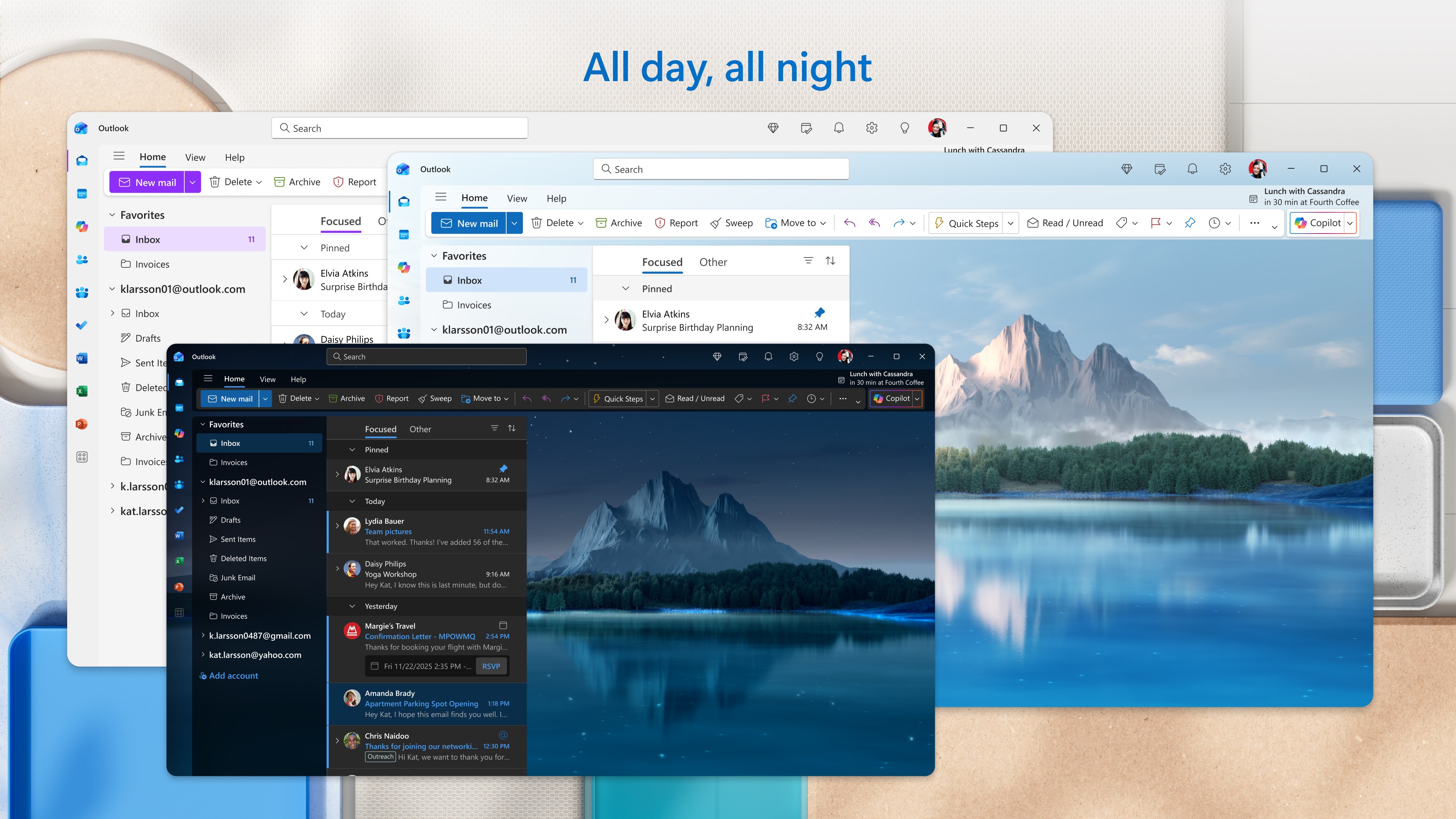
- Limited Customization for Themes











