

- Category Productivity
- Available on PC
- OS Windows 10 version 17763.0 or higher
- Keyboard Integrated Keyboard
- Mouse Integrated Mouse
- languages Basque, Bulgarian, Catalan, Chinese (Simplified), Chinese (Traditional), Croatian, Czech, Danish, Dutch, English (United States), Estonian, Finnish, French, Galician , German, Greek, Hindi, Hungarian, Indonesian, Italian, Japanese, Kazakh, Korean , Latvian, Lithuanian, Malay, Norwegian (Bokmål), Polish , Portuguese (Brazil), Portuguese (Portugal), Romanian, Russian, Serbian, Serbian (Latin, Serbia), Slovenian (Slovenia), Spanish (United States), Swedish, Thai, Turkish, Ukrainian, Vietnamese
Introducing Power Automate for Windows: Simplifying Your Digital Workflow
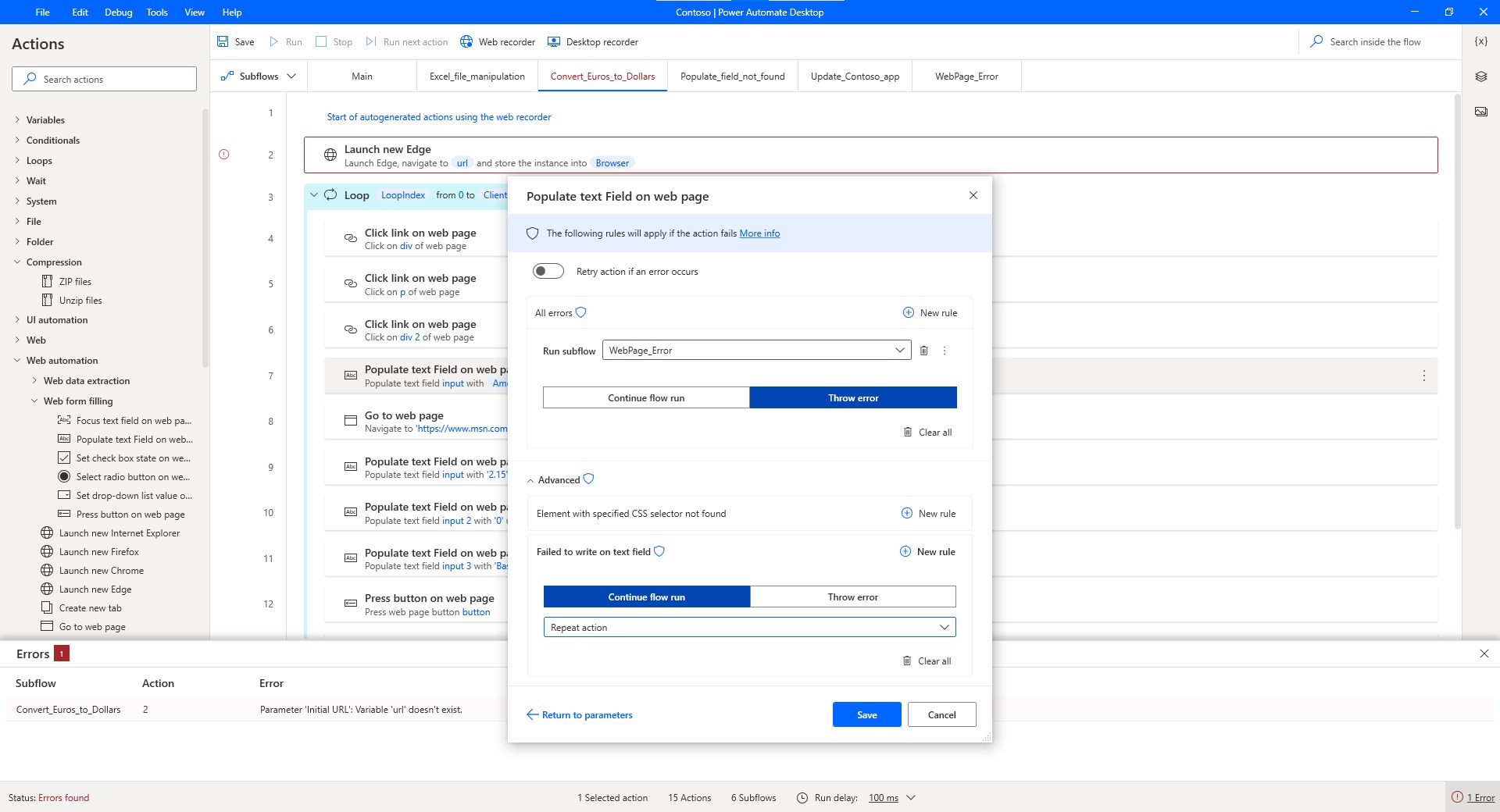
Power Automate for Windows is a streamlined desktop automation tool designed to integrate seamlessly with Microsoft's ecosystem, empowering users to automate repetitive tasks and connect their favorite apps with minimal fuss. Developed by Microsoft Corporation, this app aims to bring the power of workflow automation directly to Windows users, whether they are professionals, students, or hobbyists seeking to boost productivity.
Key Features That Make Automation Effortless
Here's what stands out about Power Automate for Windows:
- Native Windows Integration: Connects smoothly with Windows 10 and 11, enabling automation of local and cloud-based apps without complex setups.
- Pre-Built Templates and Flows: Offers a variety of ready-to-use templates that help users create automation flows quickly, reducing setup time.
- Seamless Office Suite Connectivity: Effortless integration with Office 365 apps like Outlook, Word, and Excel, facilitating data workflows within familiar environments.
- User-Friendly Interface: Designed with simplicity in mind, making automation accessible even to those with minimal technical background.
Engaging Introduction: Automate Your Day, Effortlessly
Imagine having a personal assistant on your Windows device, quietly working behind the scenes to handle mundane tasks—saving your emails, organizing files, or updating dashboards—so you can focus on the big ideas. Power Automate for Windows feels exactly like that—an unobtrusive yet powerful partner that turns complex workflows into simple, click-and-go solutions. It's akin to having a digital Swiss Army knife, ready to streamline your daily routines with just a few taps or clicks.
Deep Dive into Core Functionalities
1. Workflow Templates: Jumpstarting Your Automation Journey
The app's collection of pre-built templates acts like a library of recipes, guiding users step-by-step to craft automations tailored to common needs—such as saving email attachments directly to OneDrive or sending reminders for pending tasks. This feature significantly lowers the barrier for newcomers, akin to having an experienced guide showing the path in a dense forest of options.
2. Custom Automation Builder: Crafting Unique Flows
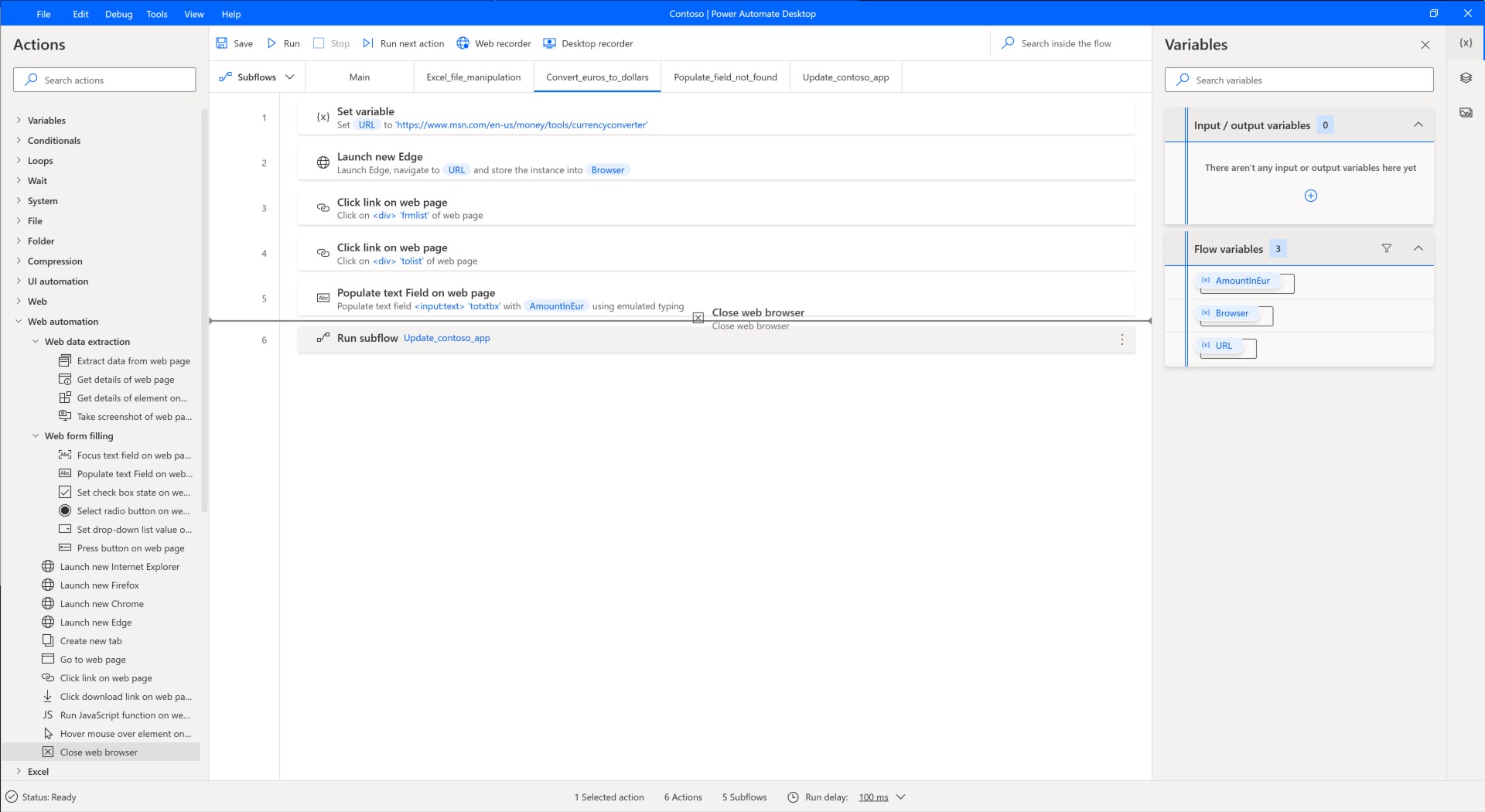
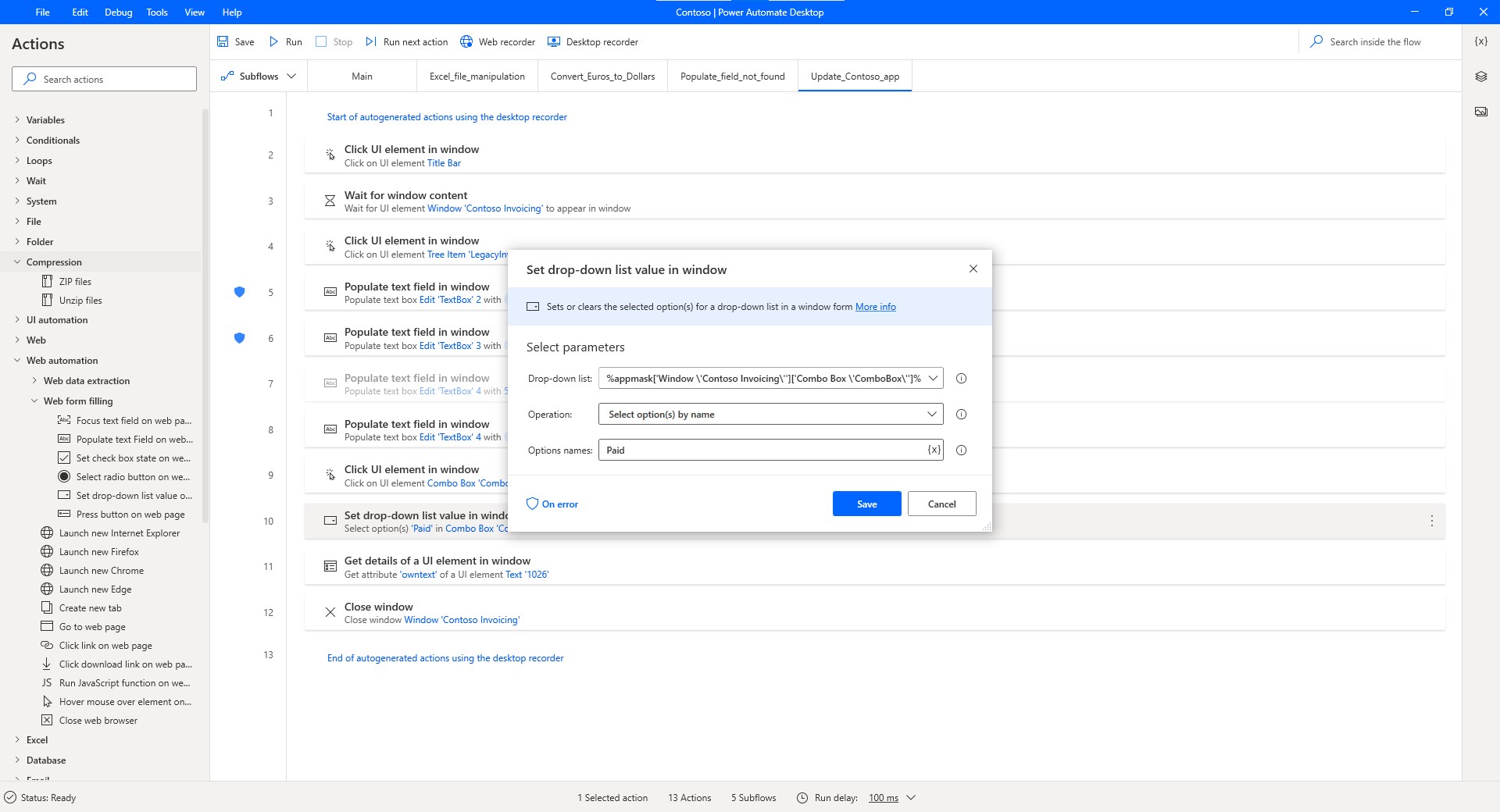
If you're feeling adventurous, the custom builder offers an intuitive, drag-and-drop interface that allows for tailored workflows. It's like assembling Lego blocks—you choose the trigger (e.g., a new email received), add actions (e.g., save file, notify team), and set conditions—all without writing a single line of code. This flexible environment empowers users to tackle specific needs, whether it's automating report generation or synchronizing data across apps.
3. Integration with Windows and Office Ecosystem
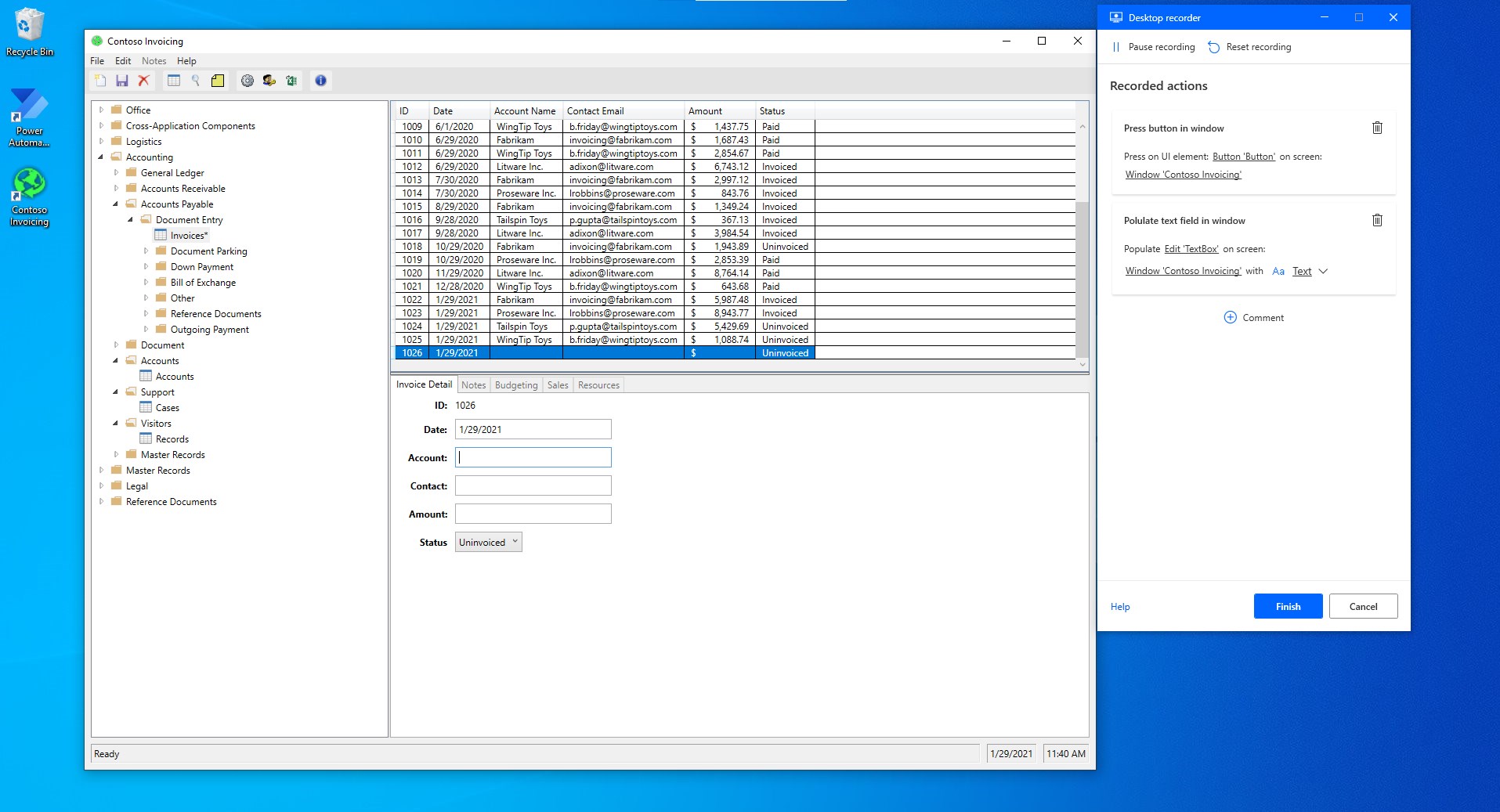
The standout feature here is how Power Automate for Windows leverages native OS integration to automate local files and apps seamlessly. For example, it can monitor a folder for new photos and automatically upload them, or sync data between Excel and cloud storage—all within the familiar Windows environment. This tight coupling reduces cognitive load by eliminating the need to switch between various tools or learn complex integrations, making automation feel natural and straightforward.
User Experience: Intuitive, Smooth, and Accessible
The interface exudes a clean, Windows-inspired aesthetic—organized like a well-lit workshop—where users find everything at their fingertips. The learning curve is gentle; newcomers can start with simple flows while advanced users can delve into more detailed configurations. The app runs smoothly, with fast response times that keep the workflow fluid. Even those unfamiliar with automation principles will find themselves creating effective flows within minutes, thanks to clear labels and guided prompts.
Comparison: Standing Out in Productivity Terrain
Compared to other productivity tools, Power Automate for Windows emphasizes ease of workflow integration and cognitive load reduction. While some automation platforms feature sprawling menus and convoluted options, this app adopts a focused approach, prioritizing common use cases and simplicity. Its unique advantage lies in its tight Windows and Office integration, making complex automation feel like a natural extension of your daily tools—more akin to a helpful colleague than a complex software system. This design choice reduces the mental effort required to set up and maintain automations, enabling users to focus on creative and strategic tasks rather than grappling with technical hurdles.
Final Recommendation and Usage Tips
I would classify Power Automate for Windows as a highly recommended tool for those seeking to streamline their routine activities without the steep learning curve of traditional automation platforms. It's particularly suited for office workers, students, and anyone embedded within the Microsoft ecosystem. For maximum benefit, start with simple templates, explore customizing flows, and gradually expand your automation repertoire. Whether you want to save a few minutes each day or build complex multi-app workflows, this app offers a friendly, reliable foundation to elevate your productivity game.
Pros
- User-Friendly Interface
- Robust Integration Capabilities
- Automation of Repetitive Tasks
- Pre-Built Templates
- Strong Support and Documentation
Cons
- Complex for Advanced Automation
- Limited Free Plan Features
- Performance Latency with Large Data Sets
- Mobile App Functionality Limitations
- Occasional Connectivity Issues











