
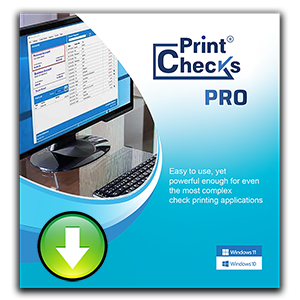
Frequently Asked Questions
How do I get started with Print Checks Pro on my Windows PC?
Download and install the app, then open it and follow the setup wizard to create your first account and check templates. Navigate to Settings > Accounts to begin.
Can I use Print Checks Pro on both my mobile device and desktop?
Yes, the desktop version is fully compatible with the mobile app. Share your database via cloud backups (One Drive, Dropbox, iCloud) to synchronize data across devices.
How do I set up multiple accounts within the app?
Go to Settings > Accounts > Add New Account. You can add unlimited US or Canadian accounts for separate check management.
What are the core features of Print Checks Pro?
It supports unlimited accounts, dual-printer printing (MICR and color), custom check images, bulk printing, and backups via cloud services for flexible check management.
How can I customize checks with my business logo or signature?
Navigate to Settings > Check Templates, then add images for your business logo, bank logo, and signatures to personalize your checks.
Does Print Checks Pro support printing deposit slips?
Yes, you can print deposit slips on blank stock or pre-printed slip paper, accessible via the Print menu under Deposit Slips.
Is there a subscription fee or in-app purchase to use Print Checks Pro?
Print Checks Pro is a one-time purchase app for full functionality. No subscription is required; upgrades are included with your purchase.
Can I back up my check data and restore it later?
Yes, use Settings > Backup to save your database to cloud services like iCloud, One Drive, or Dropbox, and restore from backups when needed.
What should I do if the checks don't print correctly?
Ensure correct check stock is loaded, verify printer settings, and run a test print via Settings > Print Preview. Contact live support if issues persist.
You May Like

Teleprompter Pro`
for Windows
5
Earth 3D Maps & Street View
for Windows
5
PDF Merger & Splitter
for Windows
4.9
8K YTb Downloader
for Windows
4.9
Printer Driver APP
for Windows
4.9
DAT Media Conversion Tool : DAT to MP4
for Windows
4.9
All Video Player.
for Windows
4.8
Power BI Desktop
for Windows
4.8
Checkbook Manager
for Windows
4.8
Quick Gantt Chart
for Windows
4.8
C Design Space for Maker, Explore, Joy
for Windows
4.7
Transparent Sticky Notes
for Windows
4.7