

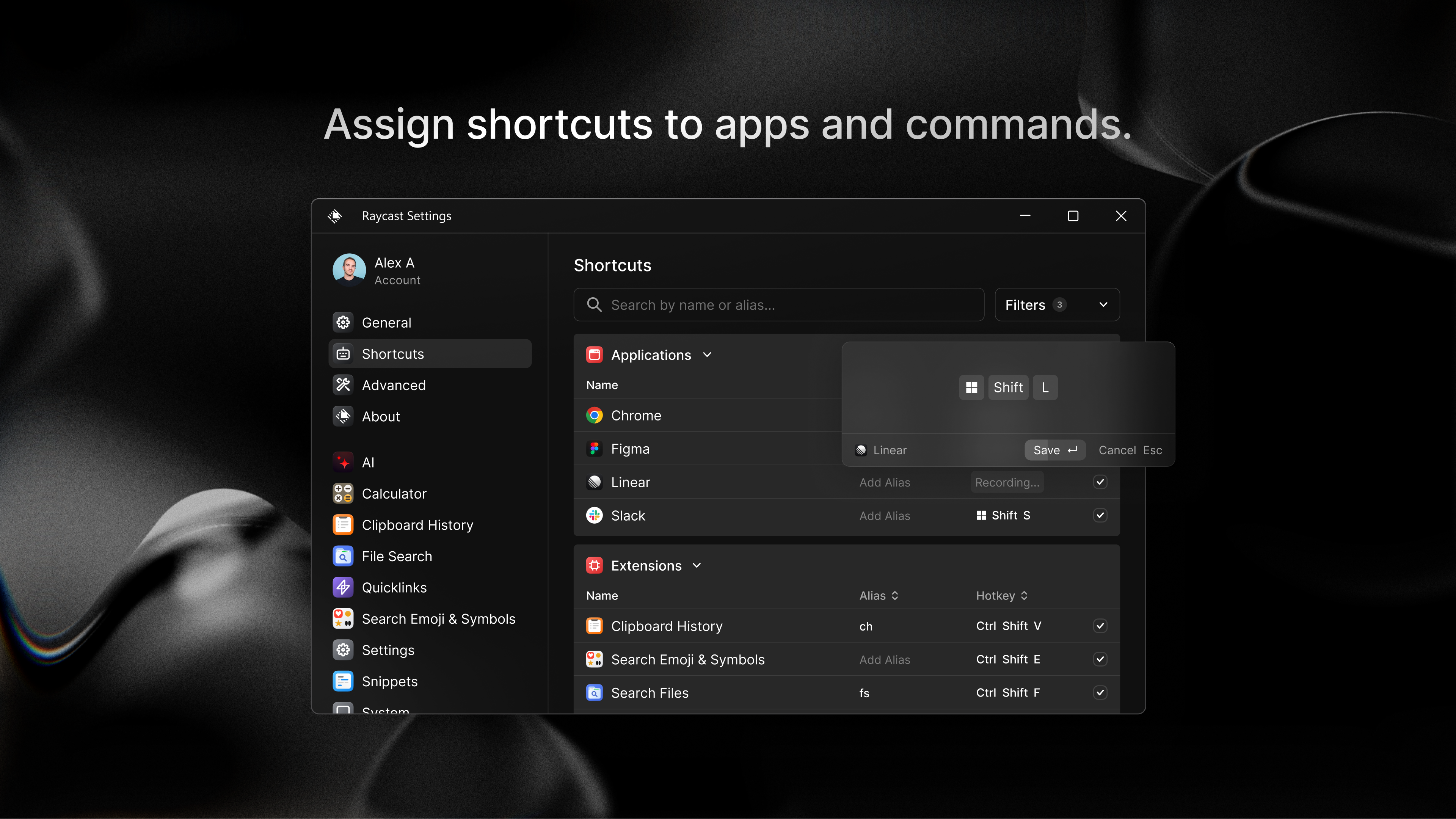
- Category Productivity
- Developer Raycast Technologies, Inc.
- Available on PC
- OS Windows 10 version 19041.0 or higher
- Keyboard Integrated Keyboard
- Mouse Integrated Mouse
- languages English (United States)
Introduction: A New Companion for Your Windows Workflow
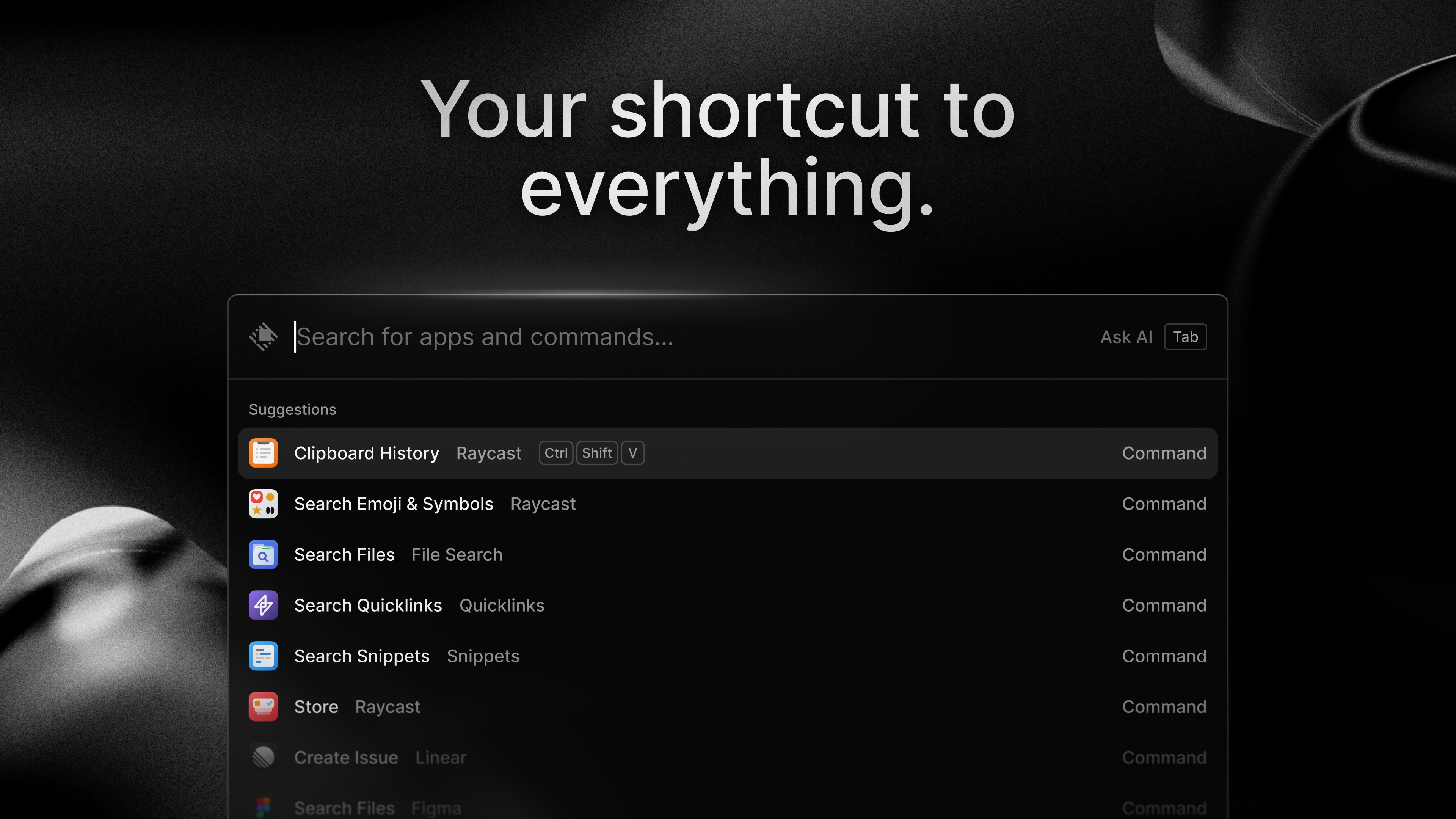
Imagine having a sleek, lightning-fast assistant that sits quietly on your Windows desktop, helping you summon files, launch apps, or perform complex commands with a single keystroke—without disrupting your flow. Raycast for Windows aims to bring that level of efficiency and elegance to Windows users, emulating the workspace magic long enjoyed by Mac aficionados. Developed by Raycast Technologies, Inc., this application offers a streamlined experience designed to cut through the clutter of traditional menus and sources, putting productivity at your fingertips.
Core Features that Elevate Your Productivity Game
1. Unified Command Palette for Seamless Control
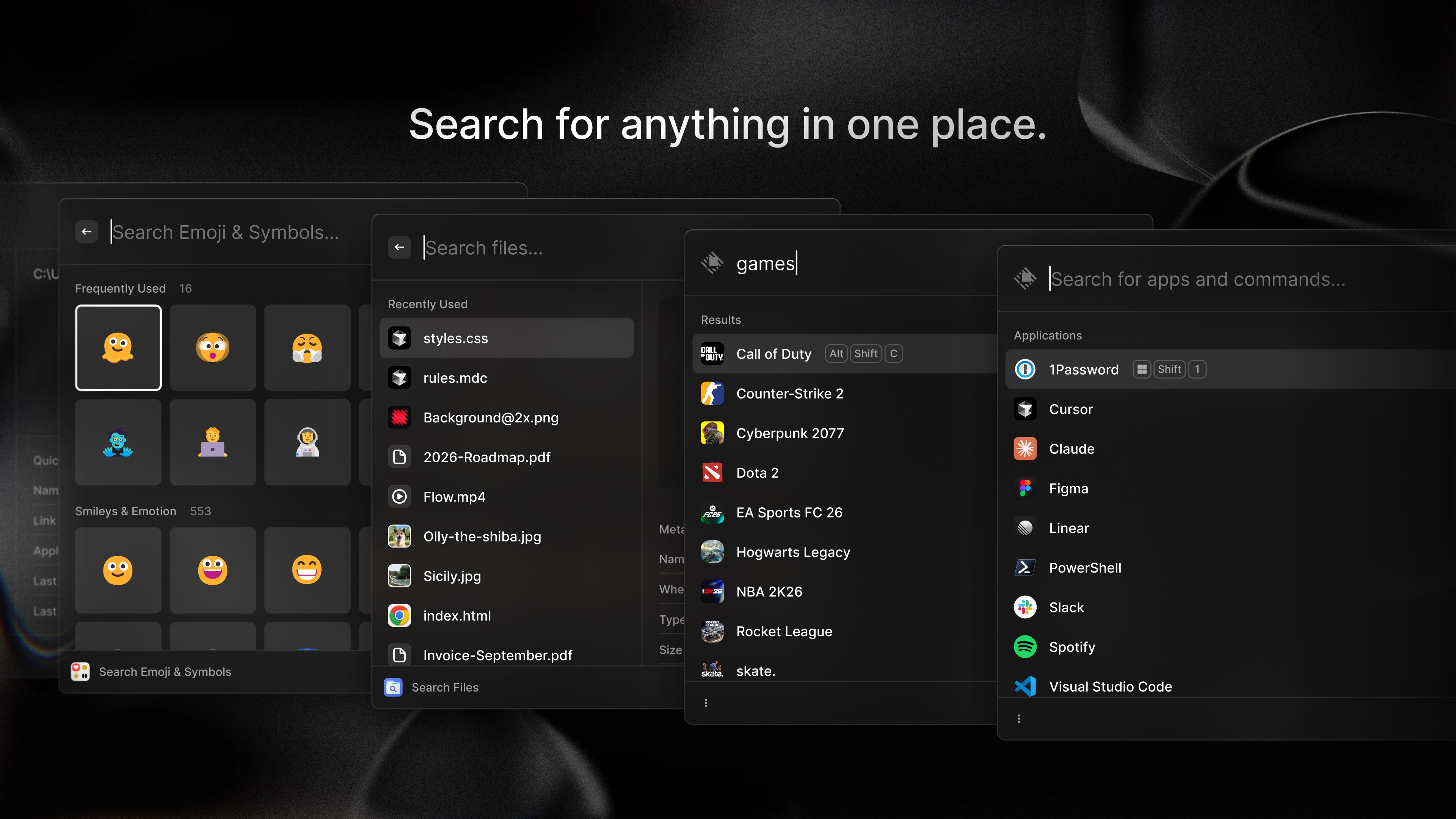
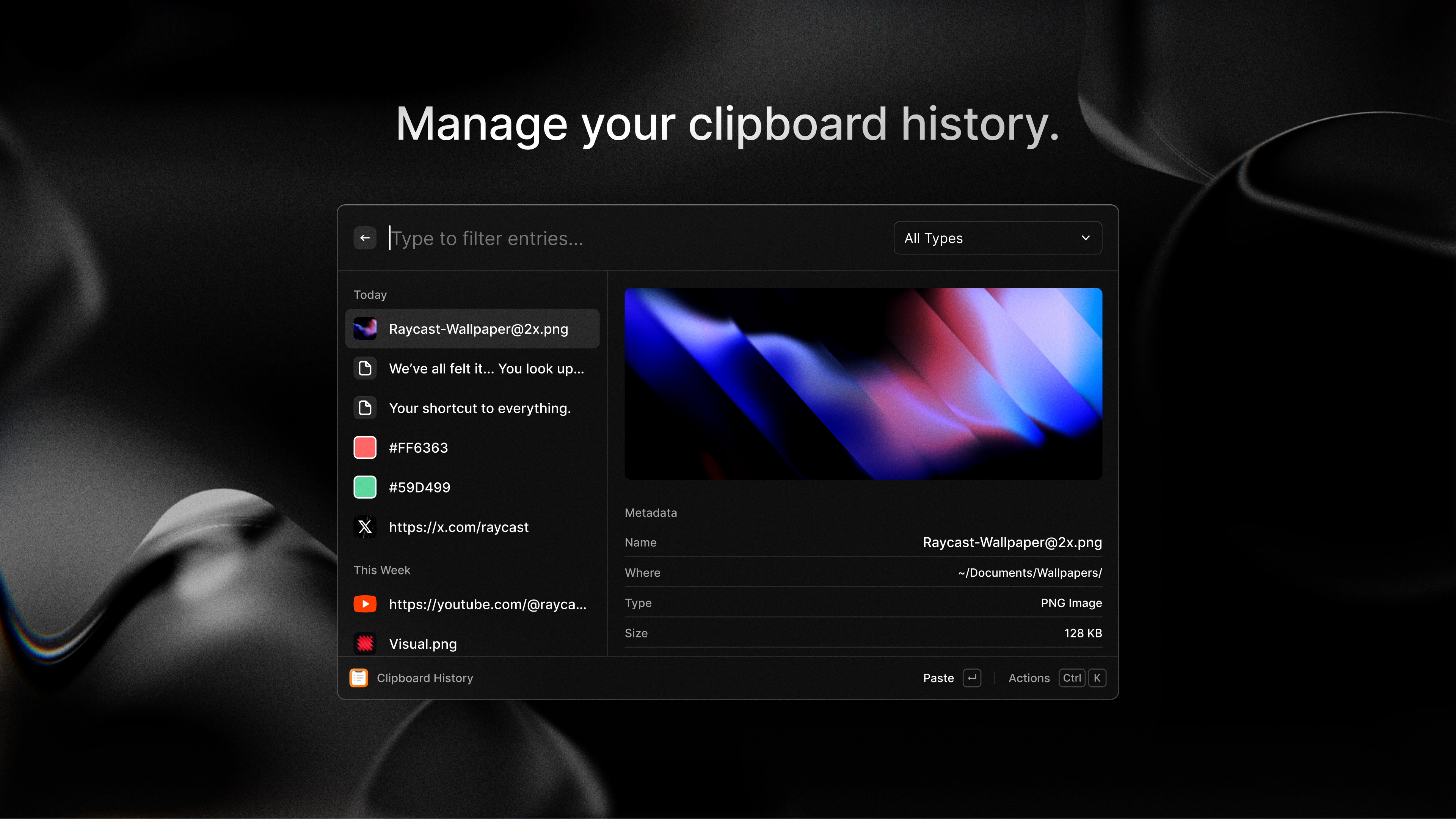
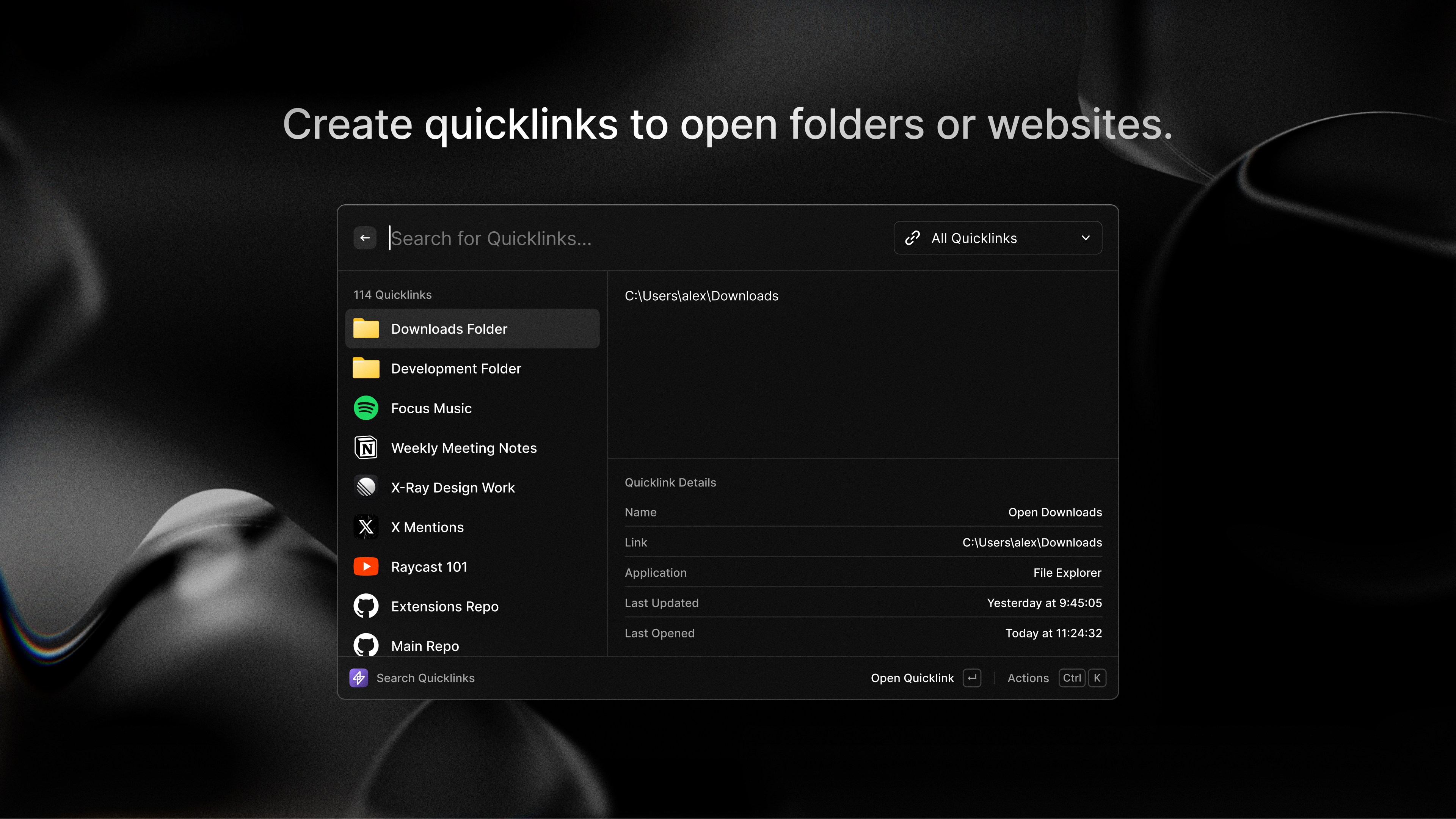
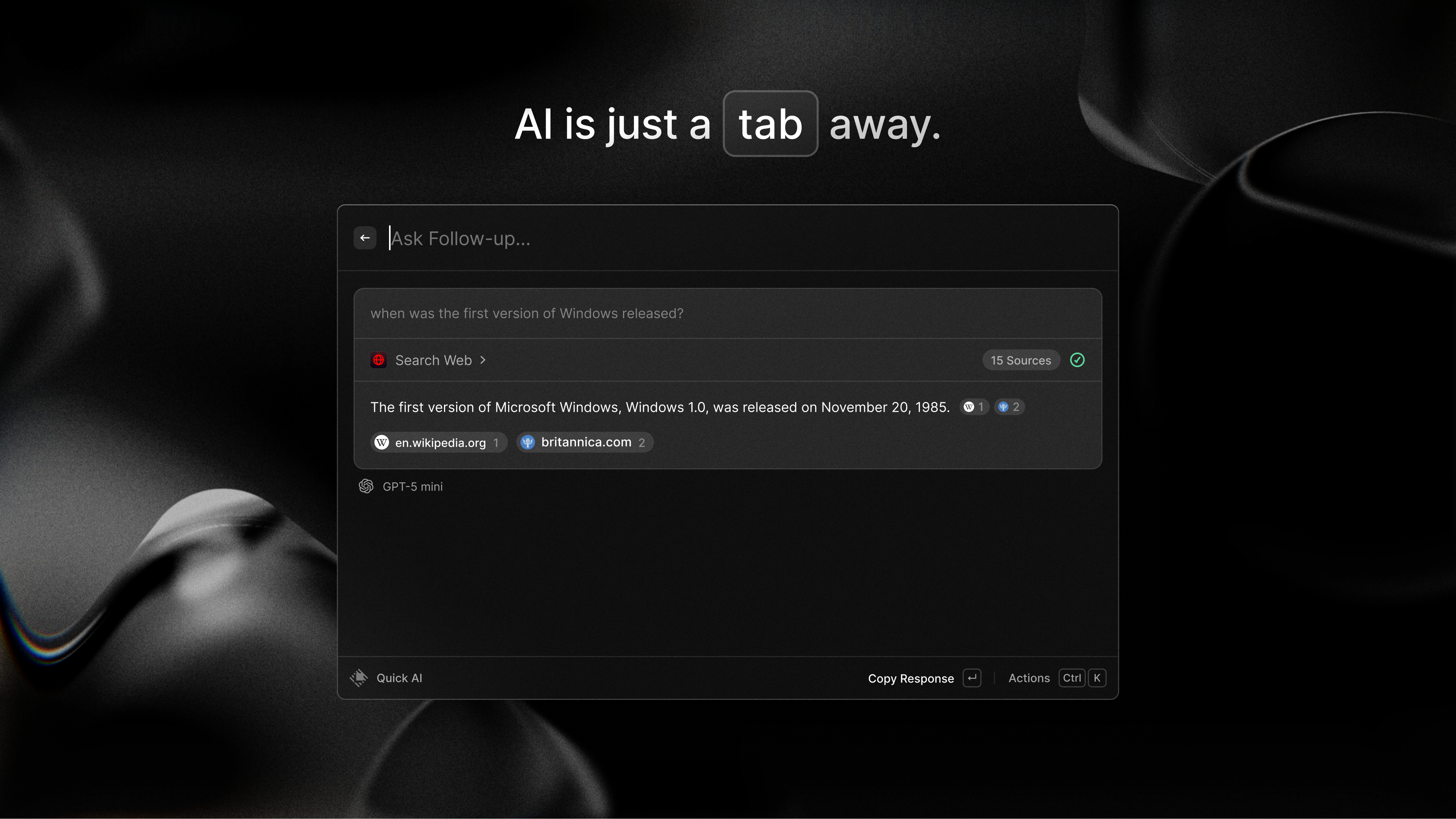
At the heart of Raycast for Windows lies its powerful command palette—a central hub where you can quickly search and execute a diverse set of actions, from opening files to executing scripts. Think of it as your virtual control tower; whether you're accessing system functions or launching recent apps, everything is just a few keystrokes away. The intuitive search suggestions and customizable commands make it feel like your personal assistant, learning your preferences over time.
2. Workflow Integration and Automation
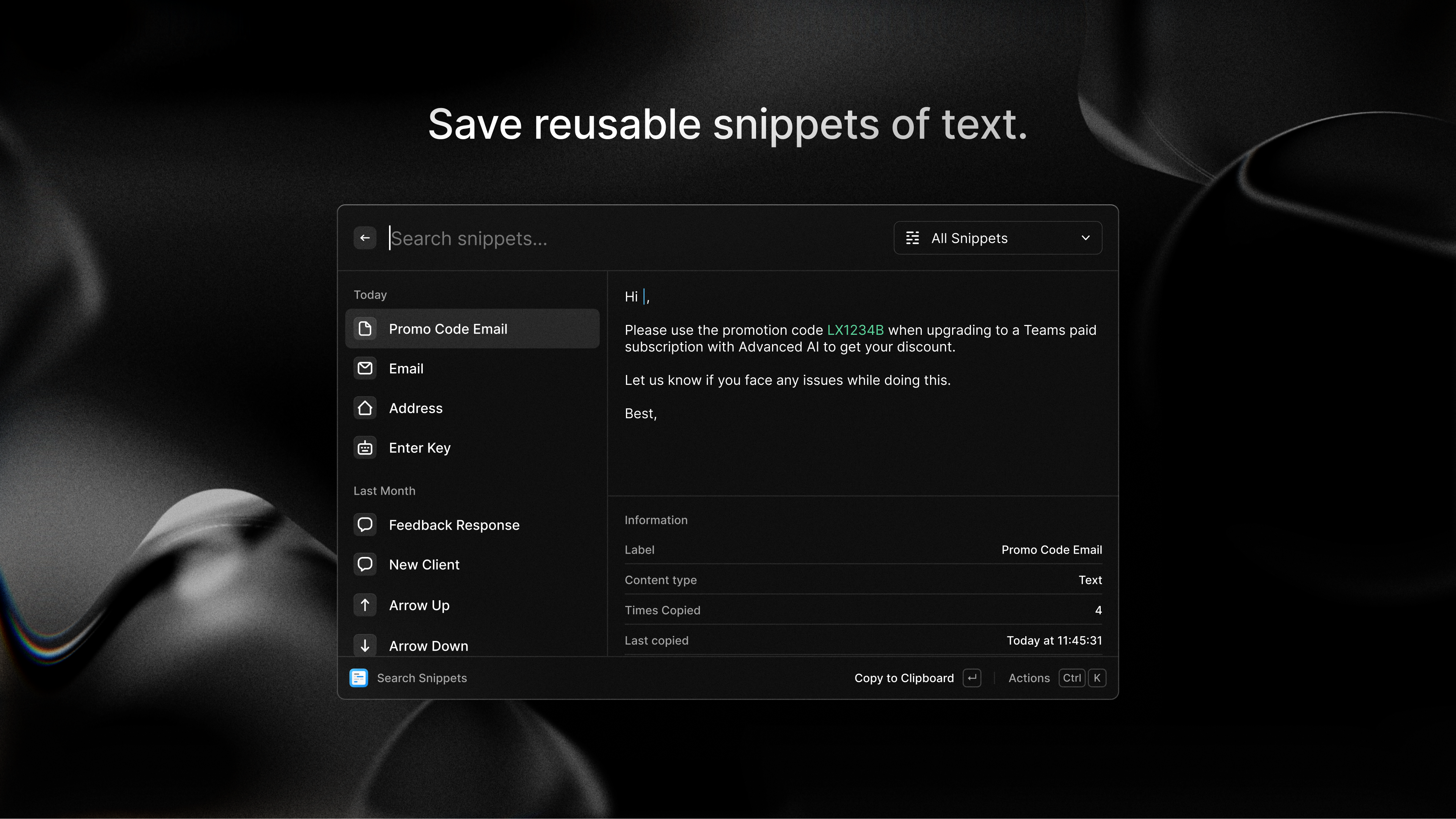
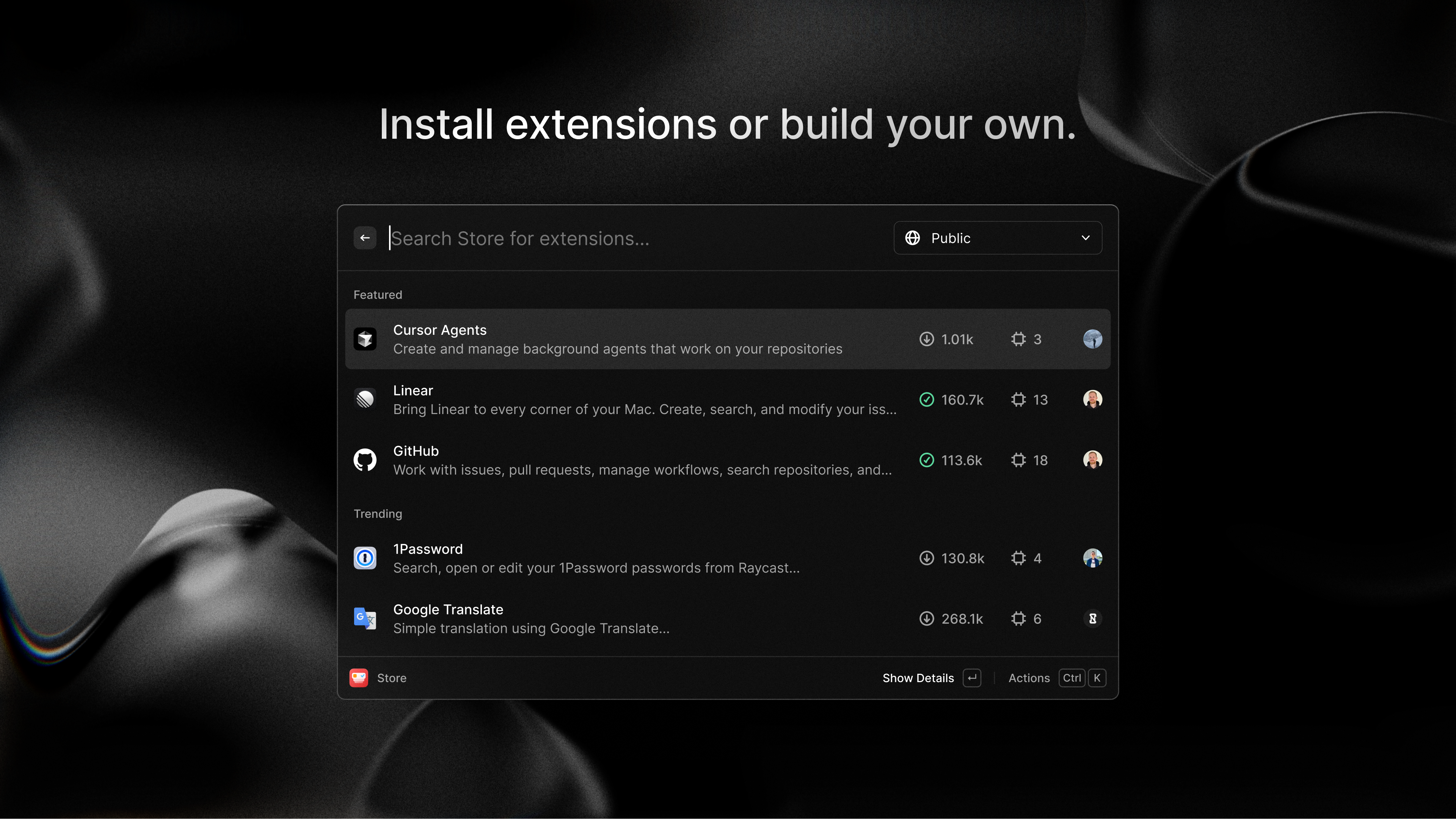
One of Raycast's standout features is its focus on integrating with existing tools and automating routine tasks. With support for plugins and scripts, users can tailor the app to their unique workflows, connecting to calendars, version control, or communication platforms. This reduces the cognitive load—no more juggling multiple apps or memorizing complex menu paths—allowing you to stay focused on what truly matters, whether that's coding, designing, or managing projects.
3. Sleek Interface and User Experience
The application's minimalistic interface hides a powerhouse of functionality behind a clean, aesthetically pleasing design. The command palette's simple modal window appears instantly, with smooth transitions that feel natural. Operation speed is impressive—search results appear almost instantaneously, and commands execute seamlessly. Moreover, the learning curve is gentle; new users rapidly acclimate thanks to clear organization and helpful prompts, making the app not just powerful but approachable.
Distinctive Benefits & Efficiency Highlights
Unlike many productivity tools cluttered with unnecessary features, Raycast for Windows emphasizes workflow efficiency and mental clarity. Its emphasis on integrating frequently used functions into a unified interface reduces the amount of mental effort required to switch between apps or remember complex commands. This is akin to having a master key; instead of fumbling through layers of menus, you get direct access, streamlining your tasks and decreasing cognitive friction.
Furthermore, its plugin architecture sets it apart from standard launcher apps. Whereas others may offer basic shortcuts, Raycast's ability to integrate deeply into your workflow—connecting with tools like Git, Slack, or custom scripts—reduces feature complexity for the user and enhances overall productivity. It feels like having a personal assistant who anticipates your needs, managing multiple tools behind the scenes so you can focus on your work.
Recommendation & Usage Suggestions
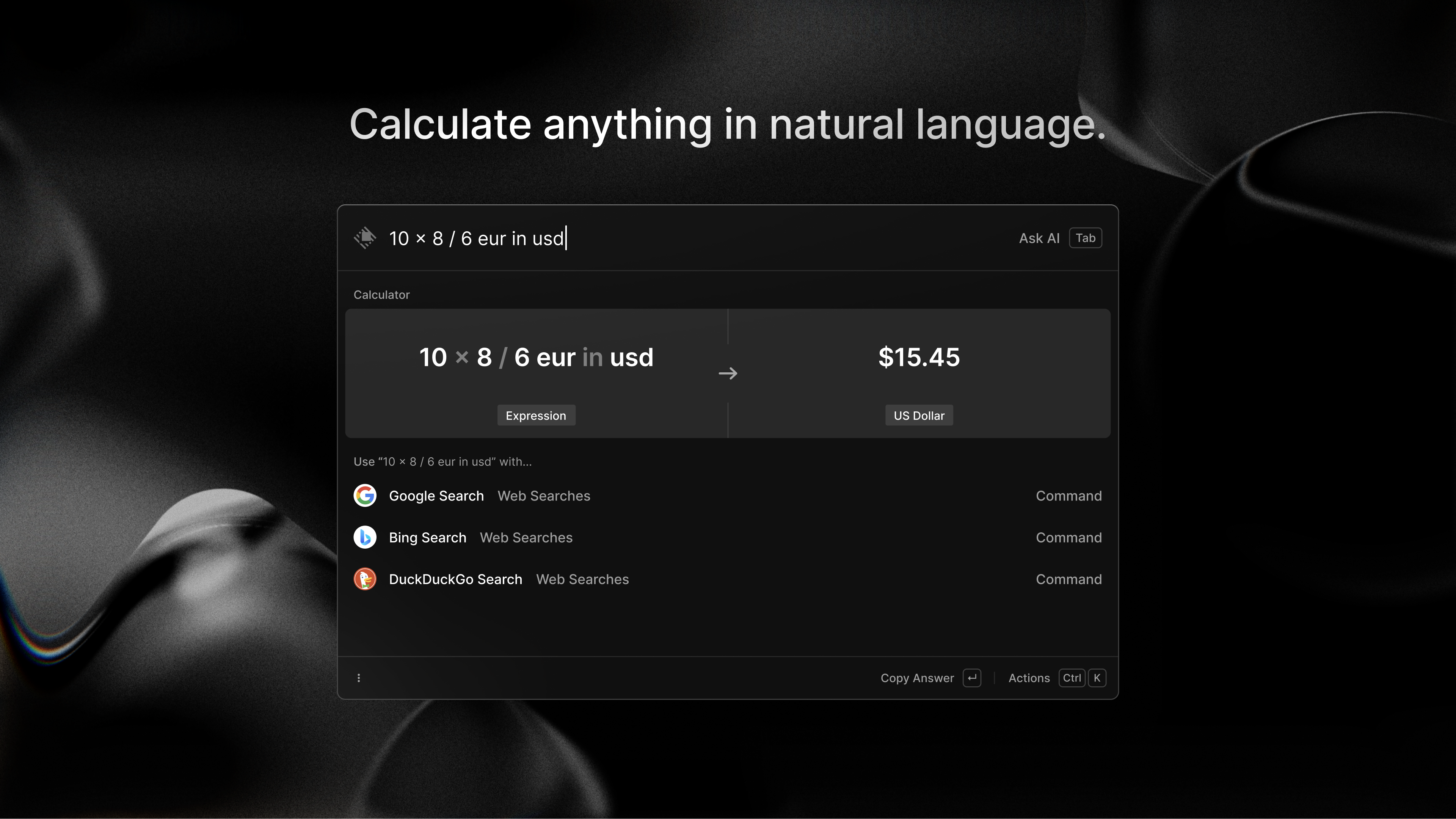
If you're a Windows user seeking a smarter, more efficient way to navigate your digital environment, Raycast for Windows is worth exploring. Its natural language command palette and automation capabilities make daily tasks less tiring, especially for power users juggling multiple applications and workflows. While the setup of custom plugins might require some initial investment of time, the long-term gains in speed and cognitive ease are well worth it.
For casual users, this app may offer more than needed, but for professionals who value a clutter-free workspace and rapid task execution, it provides a compelling upgrade. I recommend starting with core commands—like file access and app launching—and gradually exploring more integrations as you grow comfortable. Once scaled, it could become your indispensable digital sidekick, quietly optimizing your work, one keystroke at a time.
Pros
- Intuitive and customizable interface
- Extensive plugin ecosystem
- Fast and responsive performance
- Deep system integration
- Supports custom workflows
Cons
- Limited free features
- Learning curve for new users
- Occasional plugin compatibility issues
- Limited offline documentation
- Requires list of permissions











