
- Category Multimedia design
- Developer Screen Record
- Available on PC
- OS Windows 10 version 14393.0 or higher
- languages English (United States)
Capture Your Screen with Precision and Ease
Screen Record for Windows is a straightforward yet powerful screen recording tool designed to help users create high-quality video tutorials, gaming captures, and presentations without fuss. Its intuitive interface and focused features make it a go-to option for both beginners and seasoned content creators alike.
Clean Interface and User-Friendly Workflow
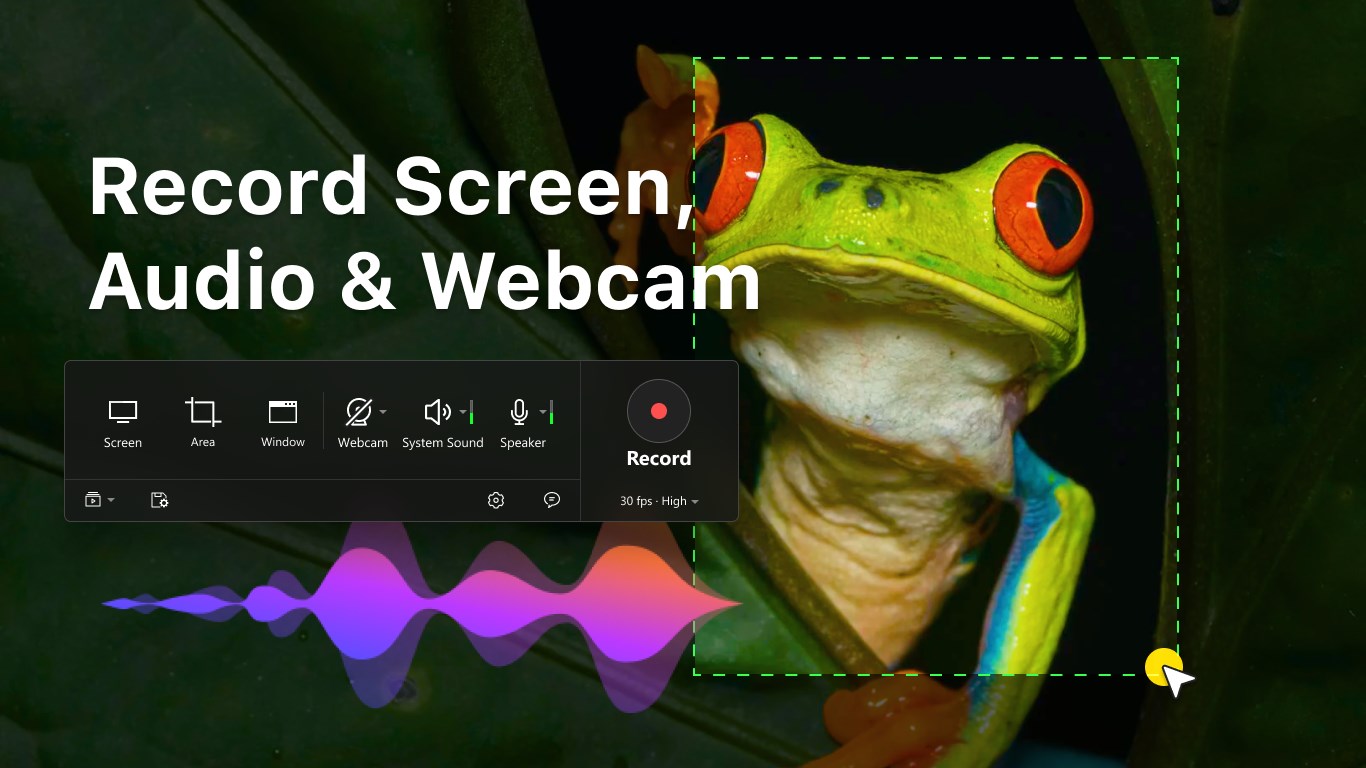
One of the first things you'll notice about Screen Record is its sleek, modern interface. It's like stepping into a well-organized control room—every button and menu visibly positioned for quick access. The main screen offers a clutter-free workspace, allowing users to start recording with just a few clicks.
The app's operation flow is remarkably smooth: select your recording area, choose your audio input, and hit record. The learning curve is minimal—almost like riding a bicycle; once you get the hang of it, you'll find it second nature. Transitioning from setup to recording feels like turning the ignition and effortlessly cruising down the digital highway.
Spotlight on Core Features
Flexible Recording Modes
What truly sets Screen Record apart is its versatility in capturing various content types. Whether you're capturing a specific window, the full desktop, or a custom region, the app adapts seamlessly. This flexibility means that whether you're gaming, making software tutorials, or recording a video call, you can tailor the recording method to suit your needs perfectly.
High-Quality Output with Minimal Hassle
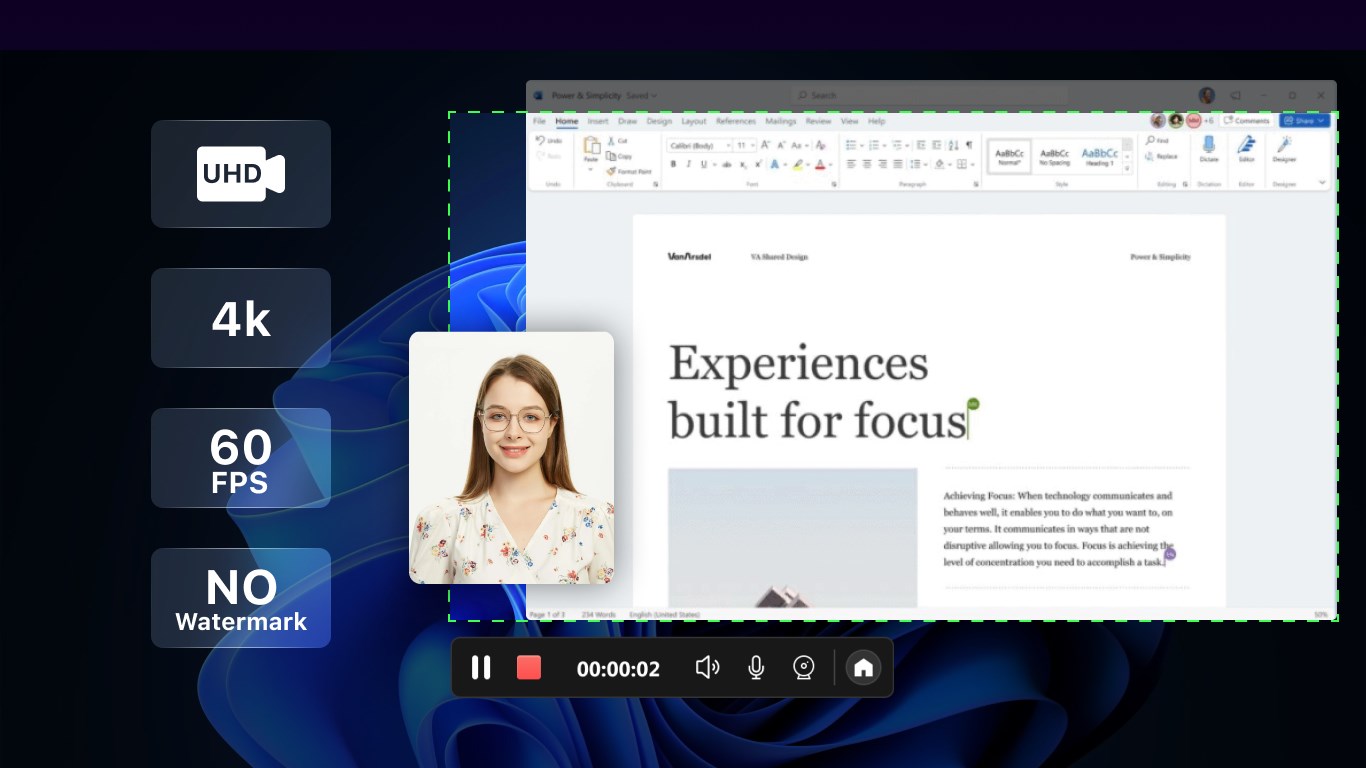
Another highlight is its ability to produce crisp, high-definition videos without complicating the process. The app automatically adjusts the quality settings based on your preferences, ensuring that your recordings look professional. Plus, it offers quick export options, so you can share your creations without fumbling through complicated menus.
Unique Edge: Focused Simplicity and Efficiency
Unlike many multimedia applications that bundle numerous editing tools, Screen Record keeps things streamlined. Its standout feature is a dedicated focus on efficient, high-quality recording rather than overwhelming users with unnecessary extra features. Think of it as driving a well-tuned sports car—easy to handle, reliable, and designed for performance.
Furthermore, its ability to record with minimal system impact ensures you can capture your screen even on less powerful machines, making it a practical choice for a wide range of users. This specialization in effective screen capturing, coupled with a clutter-free experience, makes it distinct from broader multimedia design apps that often prioritize editing or effects.
Final Recommendations and Use Cases
If you're seeking a reliable, easy-to-use tool for regular screen recordings—be it for tutorials, presentations, or gaming sessions—Screen Record for Windows is worth considering. Its focus on delivering high-quality recordings with minimal fuss makes it especially suitable for educators, professionals, and casual content creators alike.
While it may lack some advanced editing features found in comprehensive multimedia suites, its simplicity and efficiency are precisely what most users need for straightforward recording tasks. For those looking for a lightweight, focused solution, this app earns a solid recommendation.
Pros
- User-friendly interface
- High-quality video output
- Built-in editing tools
- Smooth recording performance
- Supports multiple formats
Cons
- Limited customization options
- Occasional recording freezes
- Basic annotation features
- File size can be large
- Requires constant internet connection for some features