

- Category Productivity
- Developer Dan Stromi
- Available on PC
- OS Windows 10 version 14393.0 or higher
- languages English (United States)
Sniptool for Windows: A Streamlined Snipping Companion
Sniptool for Windows emerges as a user-friendly yet powerful screen clipping tool designed to enhance your workflow through quick, organized, and customizable screenshots. Ideal for professionals, students, and casual users alike, it aims to simplify the process of capturing and managing screen snippets without the clutter of unnecessary complexity.
Who's Behind the Tool?
Developed and published by Dan Stromi, Sniptool is a solo project that emphasizes clean design and straightforward functionality. The developer's focus on user-centric features underscores a commitment to creating efficient digital tools that blend seamlessly into daily tasks.
Core Features That Make Sniptool Stand Out
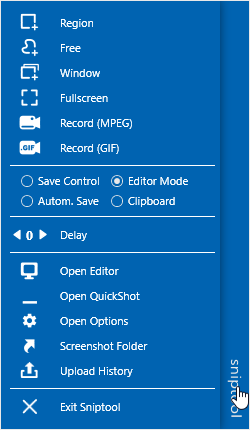
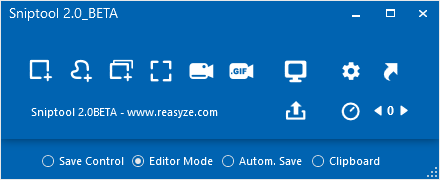
- Smart Snipping Modes: Instantly choose between freeform, rectangular, window, or full-screen capture, accommodating diverse screenshot needs with minimal fuss.
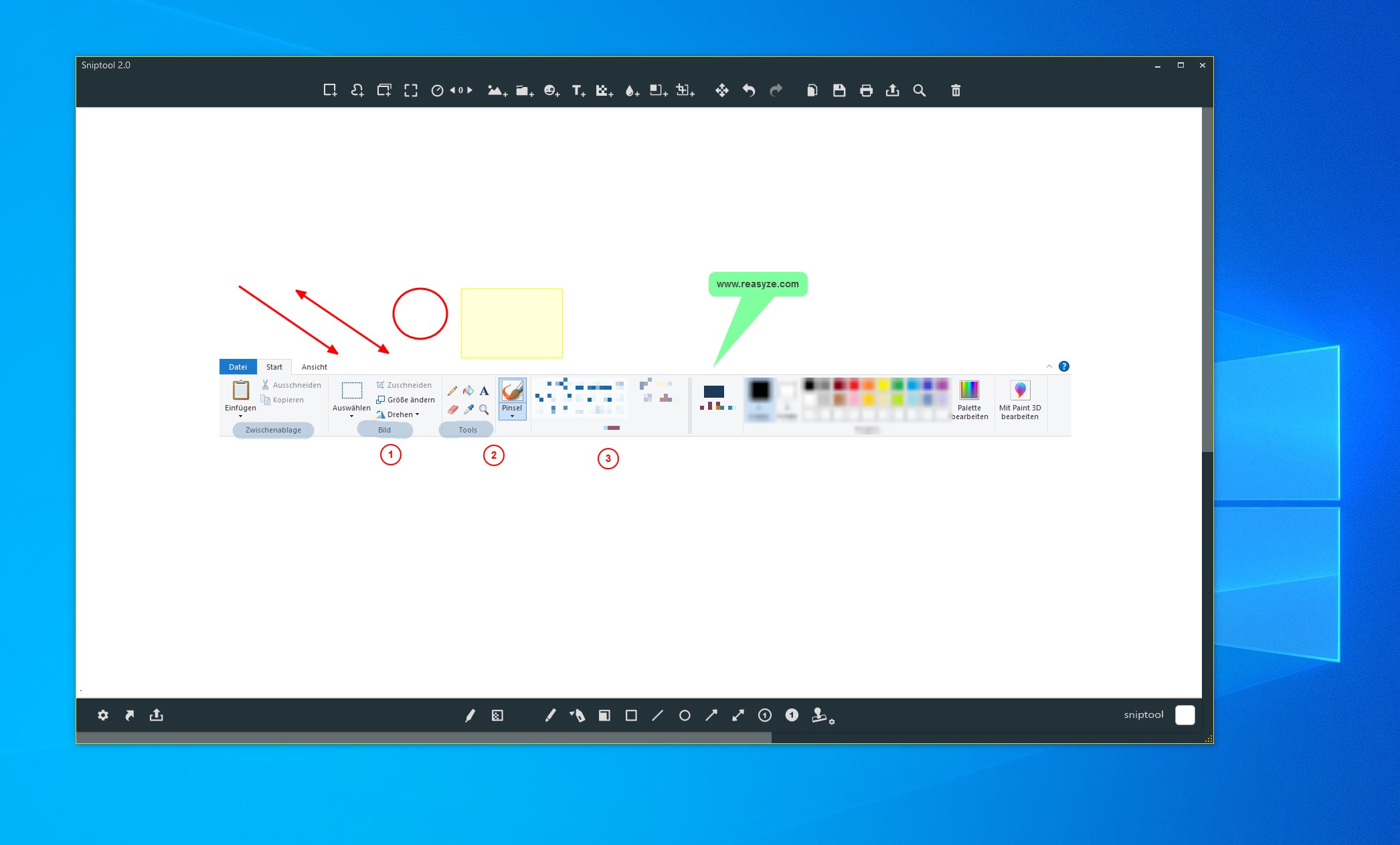
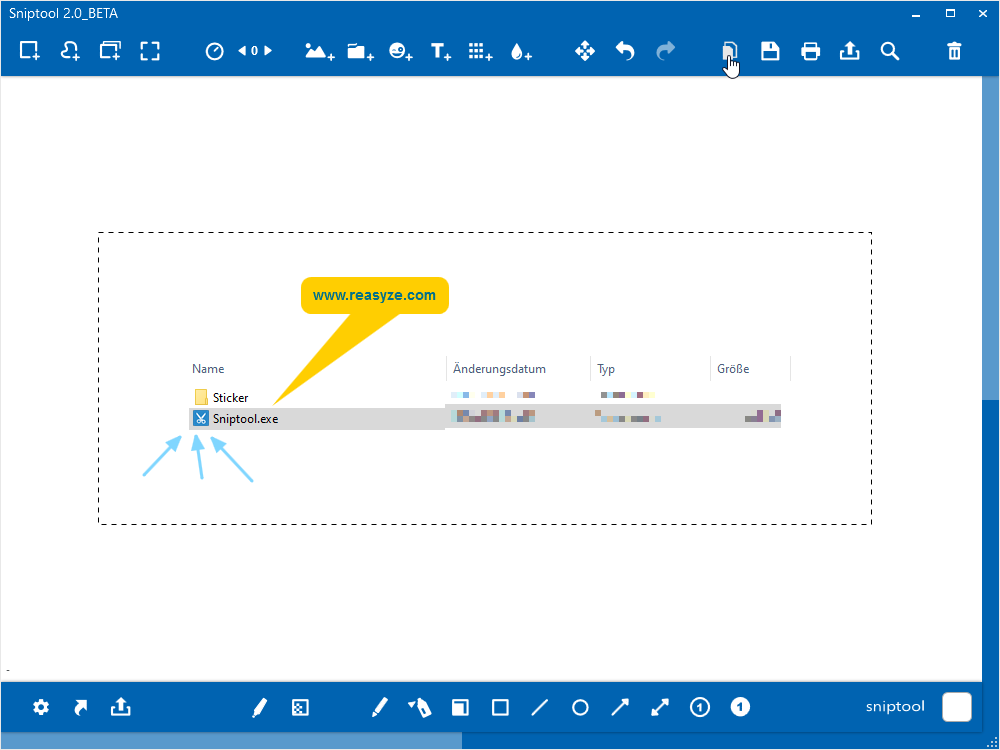
- Built-in Editing and Annotation: Post-capture, users can quickly annotate, highlight, or crop images within the app, eliminating the need for external editing tools.
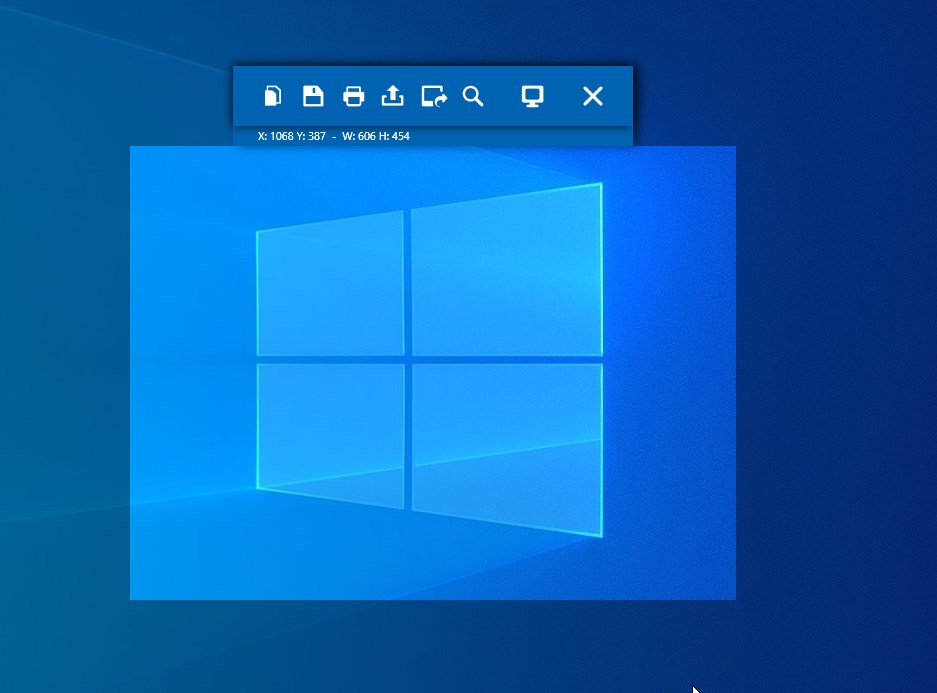
- Clipboard and Export Options: Seamless copying to clipboard or direct saving options streamline your workflow, making sharing or integrating snippets into documents effortless.
- Organized Snippet Management: Manage all your clips within a tidy interface, with tagging and search features to find what you need in seconds.
Immersive User Experience: How It Feels and Functions
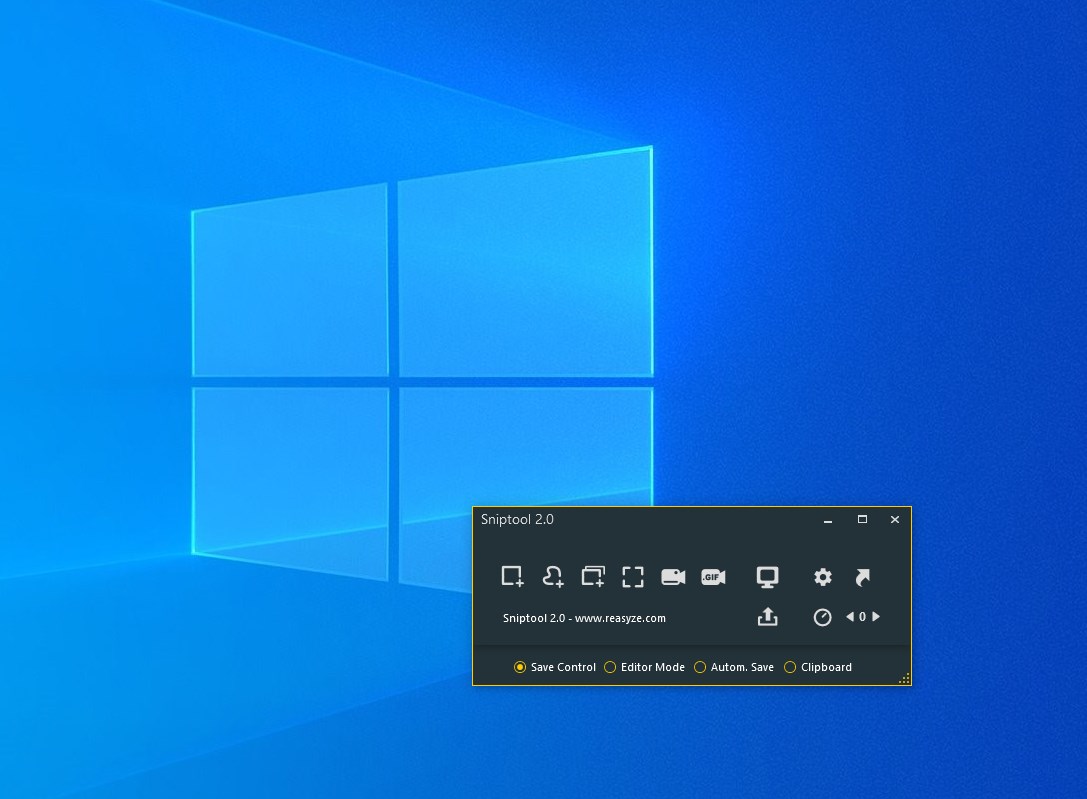
Upon launching Sniptool, you're greeted with an intuitive and uncluttered interface—think of it as walking into a well-organized workspace primed for productivity. The capturing process is remarkably swift; a simple hotkey or mouse gesture initiates the snip, reminiscent of pulling out a handy notepad when inspiration strikes. The application's responsiveness is impressive—the snip appears in an instant, ready for any edits, without lag or stutter, making it ideal for time-sensitive scenarios such as quick annotations during meetings or brainstorming sessions.
Design and Workflow Integration
The interface design strikes a balance between simplicity and functionality—large, clear buttons and minimal menus prevent cognitive overload, especially compared to bulkier screenshot tools. It's like having a dedicated workspace where everything is within arm's reach, yet nothing feels cluttered.
Navigation remains smooth, with a logical flow from capture to annotation to saving/sharing. The learning curve is gentle; most users will be up and running within minutes, enabling rapid adaptations to specific workflows, whether reporting bugs, creating tutorials, or capturing research data.
Differentiation in a Crowded Market
What really sets Sniptool apart is its laser focus on workflow integration and reducing cognitive load. Unlike complex screenshot suites overloaded with features, Sniptool zeroes in on the essentials—fast capturing, simple editing, and quick organization—saving you from drowning in options. Its efficiency lies in how seamlessly it becomes part of your routine: a quick hotkey, a prompt edit, and you're done. This contrast against more feature-heavy competitors highlights its thoughtful design aimed at reducing user fatigue and promoting rapid task completion.
Final Thoughts and Recommendations
Sniptool for Windows is strongly recommended for anyone seeking a practical, no-nonsense screen clipping tool that complements busy workflows. It's especially suitable for users who value speed and ease-of-use over extensive customization, making it ideal for frequent, lightweight screenshot tasks. For those tired of navigating bloated apps or cumbersome interfaces, Sniptool provides an accessible yet robust alternative that can significantly streamline daily screenshot needs.
While it may lack some advanced features found in premium tools, its core strengths of simplicity, efficiency, and thoughtful design position it as a reliable companion in digital productivity. Consider giving it a try if you're looking for a tool that works as hard as you do, without unnecessary distraction.
Pros
- Intuitive Snipping Interface
- Built-in Annotation Tools
- Keyboard Shortcut Support
- Seamless Integration with Windows
- Lightweight and Fast
Cons
- Limited Editing Features
- Occasional Screenshot Delay
- Lack of Cloud Storage Integration
- No Support for Screen Recording
- Customization Options Are Limited











