
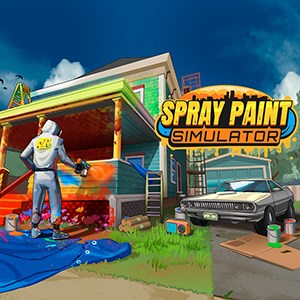
Frequently Asked Questions
How do I start my first spray painting project in the app?
Open Spray Paint Simulator, select 'New Project,' choose surfaces, and use the masking tools before spraying. Access these options from the main menu.
What are the basic tools I need to learn for painting?
Start with the spray tool, masking paper, and repair tools. Find them in the toolbar at the bottom of the editing screen.
How can I upgrade my spray equipment for better performance?
Go to the Shop via the main menu, select 'Tools & Equipment,' and purchase upgrades using in-game currency or real money.
How do I use the Free Spray mode to create custom designs?
After completing a job, tap the 'Free Spray' button on the project screen to access unlimited creative spraying options.
What is the process for masking surfaces before painting?
Use the masking tool from the toolbar, select surfaces to protect, and then spray over unmasked areas. Find masking tools in the editing section.
How can I manage my supplies like paint and tape?
Access the inventory from the main menu, where you can buy, use, and upgrade supplies to ensure smooth workflow for your projects.
Are there options for subscribing or premium features?
Yes, go to Settings > Account > Subscription to view and purchase premium plans for extra tools and modes.
What should I do if my spray tool isn't working properly?
Try restarting the app or reloading the project. If the issue persists, check for updates or contact support through Settings > Help.
Can I undo or redo my spray actions?
Yes, use the undo/redo buttons available at the top of the editing screen to correct mistakes easily during your project.
How do I purchase new tools or unlock additional features?
Visit the Shop section from the main menu, select desired tools or features, and complete purchase with in-game currency or real money.
You May Like

Dragon City
for Windows
4.8
Township
for Windows
4.8
Cooking Live: Restaurant game
for Windows
4.8
Global City
for Windows
4.8
Roadside Research (Game Preview)
for Windows
4.8
The Tribez
for Windows
4.7
Cooking Diary®: Restaurant Game
for Windows
4.7
Five Nights at Freddy's: Original Series
for Windows
4.7
Jurassic World Evolution 3: Deluxe Edition
for Windows
4.7
Goat Simulator 3: Windows Edition
for Windows
4.7
Crime Scene Cleaner
for Windows
4.7
Date Everything!
for Windows
4.6