

- Category Productivity
- Developer Elevenworks LLC
- Available on PC, Surface Hub, HoloLens
- OS Windows 10 version 17134.0 or higher
- languages English (United States)
TouchDraw 2 for Windows: A Stylish Addition to Your Digital Sketchbook
TouchDraw 2 offers a versatile vector drawing experience tailored for Windows users seeking precision and ease of use. Whether you're a professional illustrator, a designer, or an avid note-taker, this app aims to streamline your creative workflow with intuitive tools and thoughtful design.
Meet the Maker: Elevenworks LLC
Developed and published by Elevenworks LLC, a team dedicated to crafting accessible yet powerful digital drawing tools, TouchDraw 2 reflects their focus on user-centric design and seamless functionality.
Key Features That Stand Out
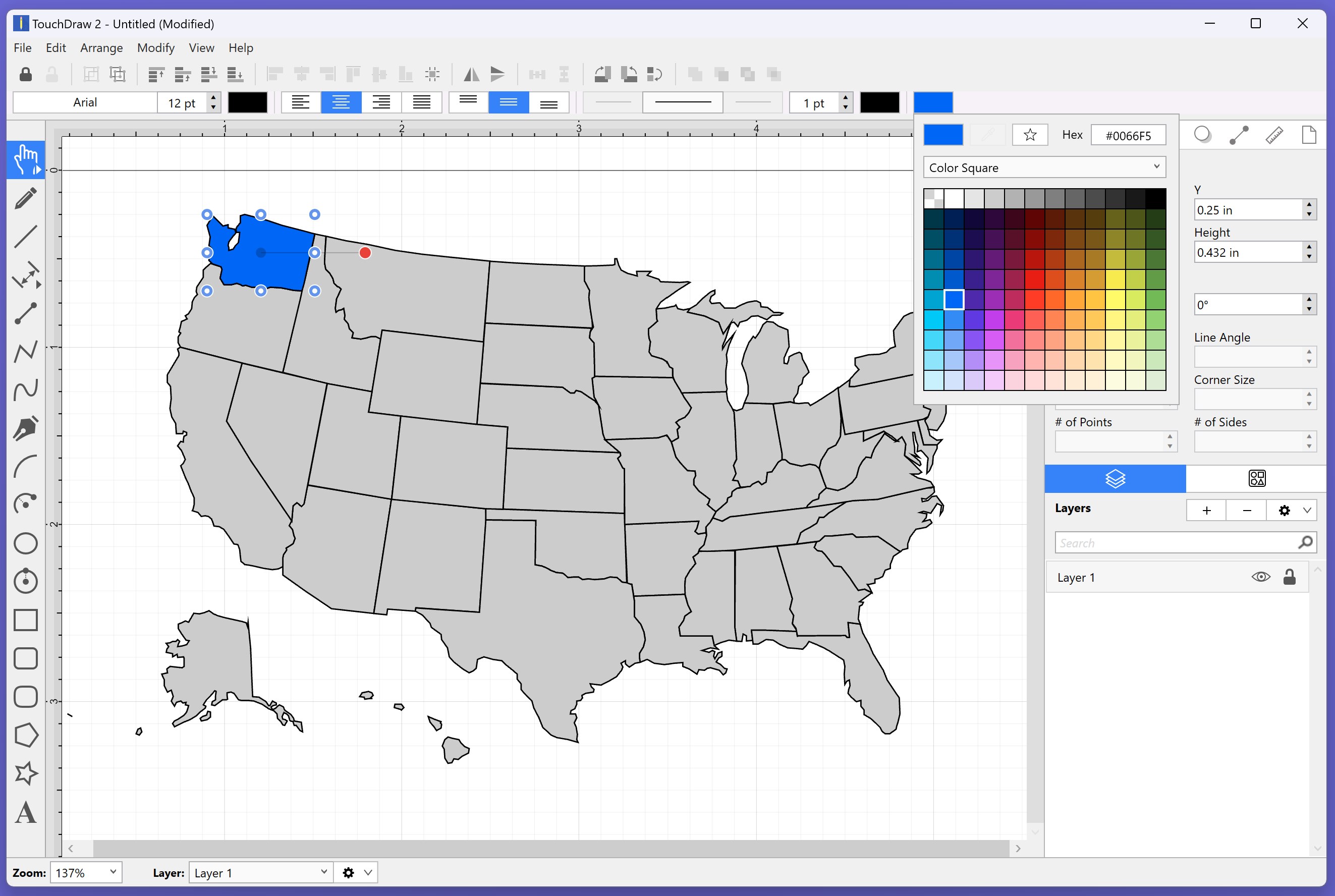
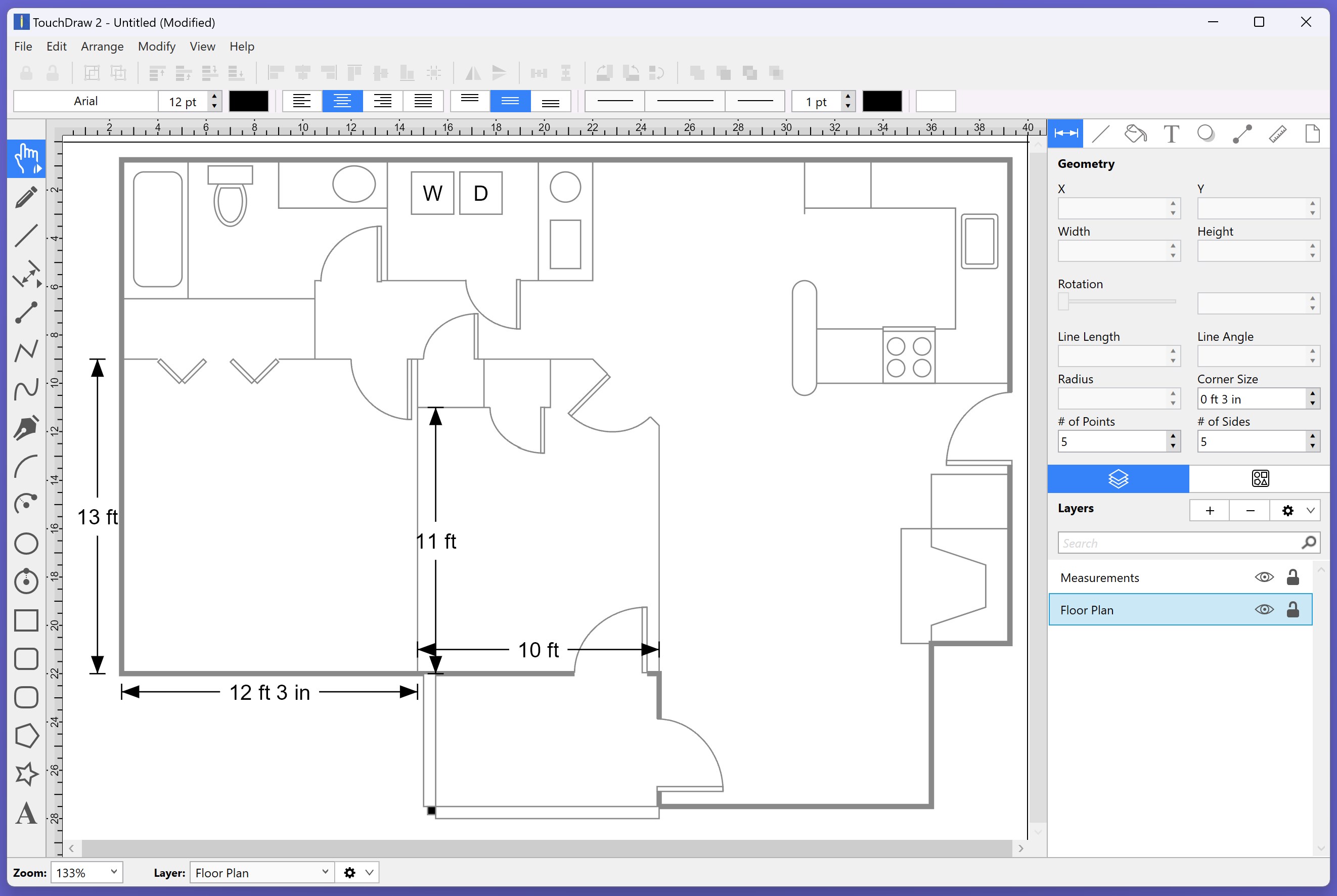
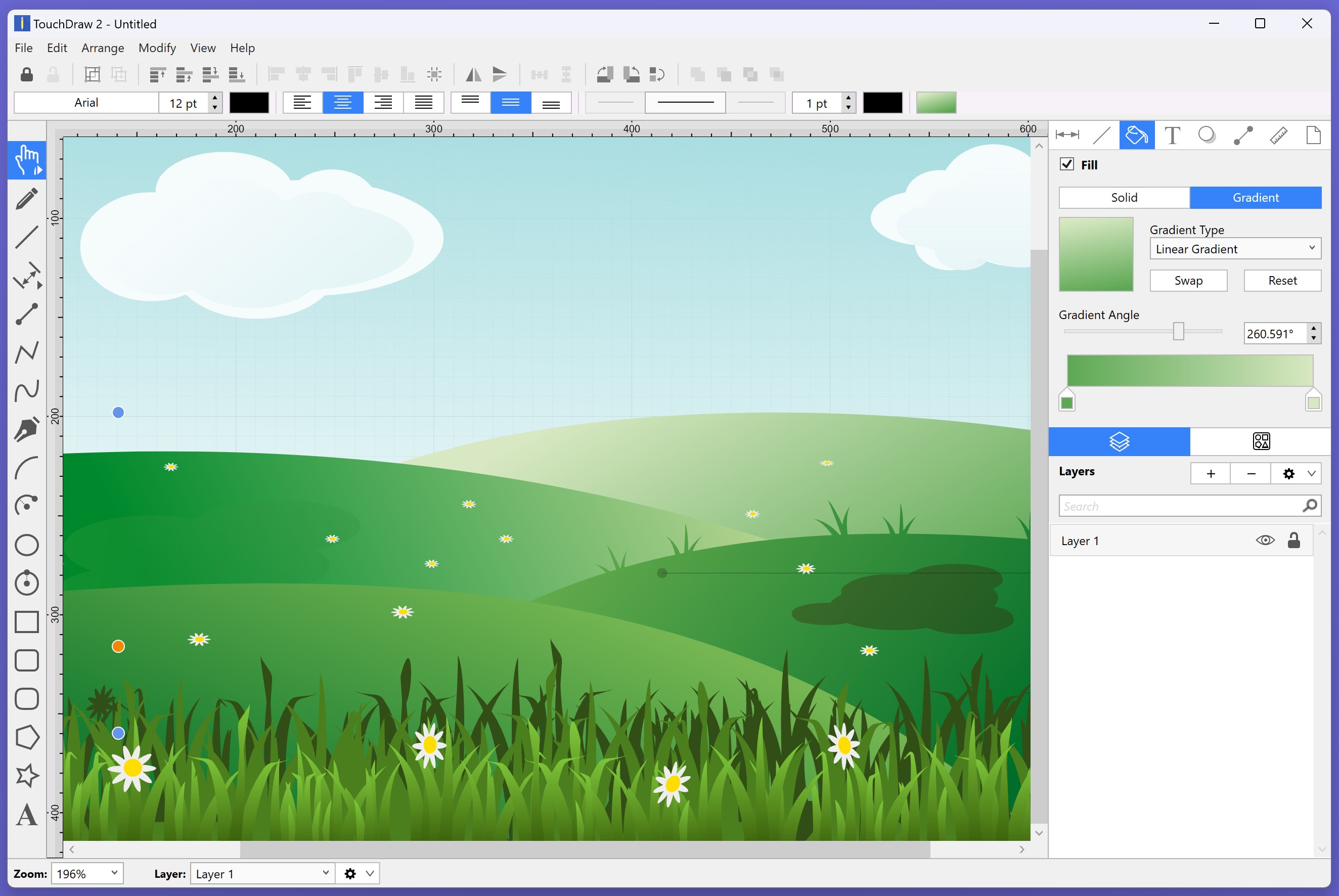
- Vector Precision and Flexibility: Create scalable, crisp illustrations with professional-quality vector tools that support complex curves, layers, and customizable strokes.
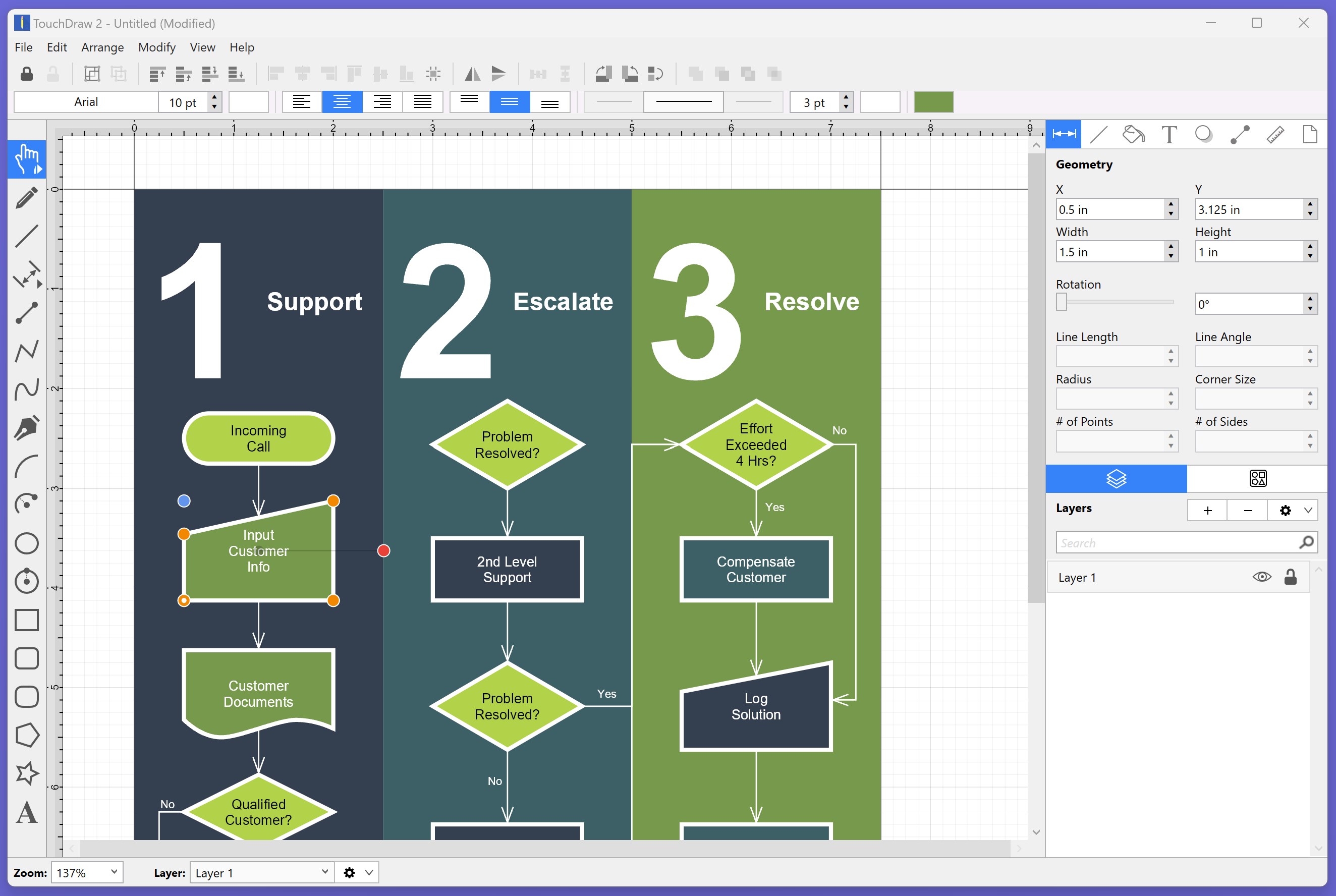
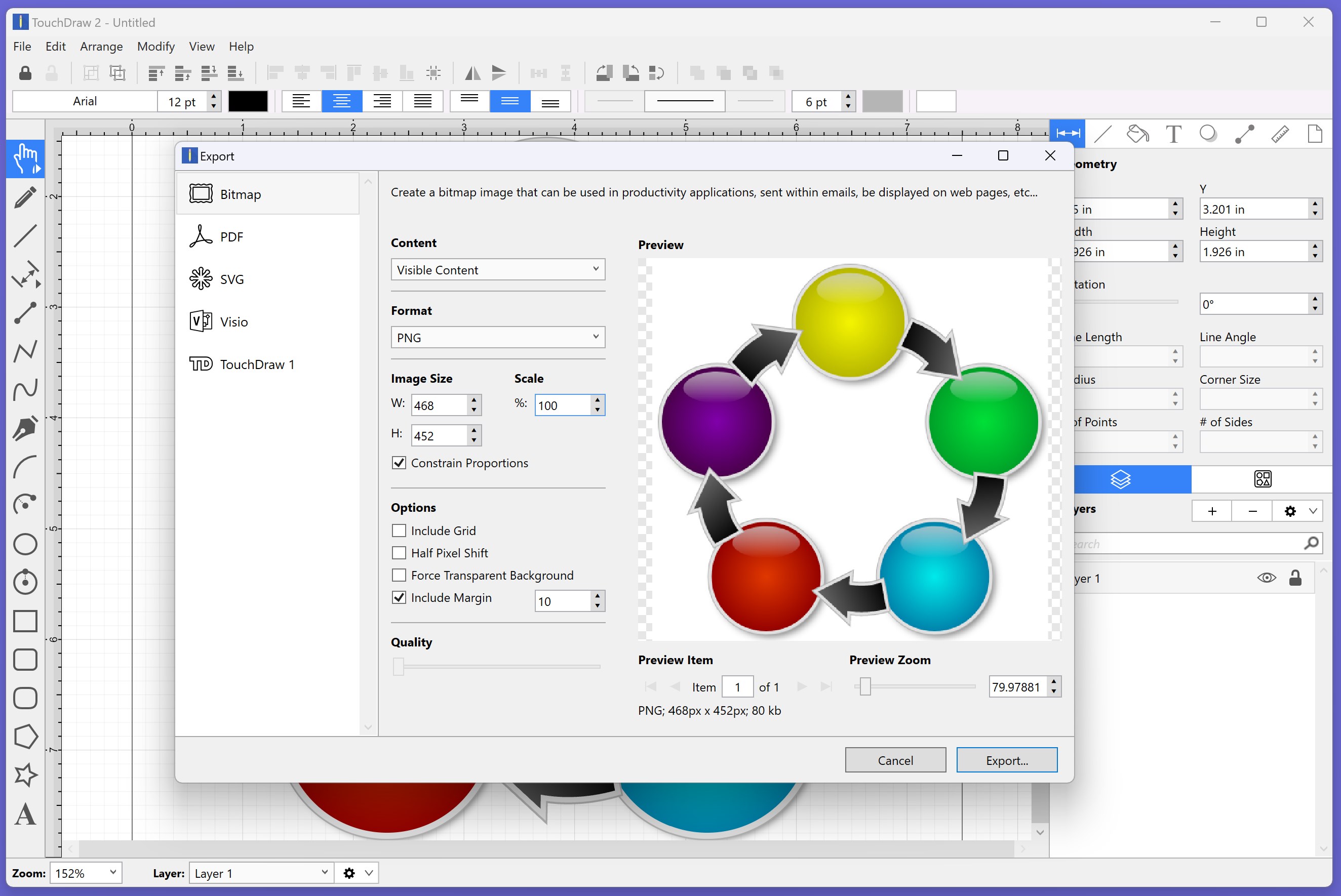
- Intuitive Interface: Clean, minimalistic design reduces distractions, allowing users to focus on creativity rather than navigating complicated menus.
- Workflow Integration: Compatible with Windows' touch and pen input, facilitating smooth, natural drawing motions that mimic traditional media.
- Cross-Platform Compatibility: Easily transfer projects or work across devices, enabling continuous productivity across different spaces.
Engaging and User-Friendly Drawing Experience
Getting started with TouchDraw 2 feels much like unboxing a sleek, new sketchbook—exciting yet straightforward. The app's interface is thoughtfully designed, akin to opening a tidy, well-organized studio where every tool is within arm's reach. Its responsiveness is noteworthy; drawing strokes flow naturally without lag, making your creative process seamless and satisfying. Even newcomers can learn the basics quickly due to the clear iconography and helpful tutorials integrated into the app.
Major Functional Pillars: Precision Tools & Enhanced Workflow
The core strength of TouchDraw 2 lies in its vector editing capabilities. Unlike raster-based applications, vector graphics allow you to scale your designs infinitely without loss of quality, much like stretching a rubber band or resizing a high-resolution photo—it's always crisp. The app provides a rich set of shape tools, bezier curves, and dynamic alignment features that serve both intricate detailing and broad sketches. These tools work harmoniously to elevate your productivity, especially when combined with features like layer management and customizable color palettes.
Another standout feature is TouchDraw 2's native support for pen and touch input. Drawing with a stylus feels surprisingly natural—akin to using a real pen on paper—making sketching, note-taking, or annotating fast and intuitive. This integration significantly reduces cognitive load; you don't have to switch between multiple apps or struggle with complex gestures. The workflow becomes fluid, supporting quick iterations and spontaneous ideas, comparable to drawing directly on a digital whiteboard.
Design, Usability, and the Learning Curve
From a user experience perspective, TouchDraw 2 is a breath of fresh air in productivity apps. Its interface resembles a tidy desktop workshop—organized, non-cluttered, and personalized to suit your needs. Navigating between tools is effortless, much like flipping through a well-annotated sketchbook. The minimalistic design minimizes distractions, empowering you to focus on the art rather than endless menu diving. Learning the basic functions takes mere minutes, thanks to contextual help and intuitive icons, whereas advanced features reveal their power through practical application rather than overwhelming menus.
What Sets It Apart in the Productivity Arena?
Compared to many drawing or diagramming apps, TouchDraw 2's standout feature revolves around its streamlined workflow integration—especially with Windows devices equipped with stylus support. While some apps bombard users with a plethora of features that can overwhelm, TouchDraw 2 carefully balances feature richness with ease of use, significantly reducing cognitive load. Its vector focus and smooth pen input make it ideal for users who want quick, precise results without wading through complexity. Moreover, its cross-platform compatibility ensures your creative or professional projects move as smoothly as a well-oiled machine, making it a practical tool for both casual doodling and detailed design work.
Final Verdict & Recommendations
TouchDraw 2 is a capable, user-friendly vector drawing tool that excels in workflow efficiency, especially for Windows users leveraging touch or pen input. It is best suited for creative professionals, students, or hobbyists seeking a clean, intuitive interface with powerful vector capabilities. While it may not replace more comprehensive design suites for highly complex projects, its balance of simplicity and functionality makes it a compelling choice for everyday sketching and diagramming.
We recommend giving TouchDraw 2 a try if you value a seamless, distraction-free environment that lets your ideas flow freely—like sketching on a digital glass table—without the fuss of overly complicated features. For those who prioritize clarity, speed, and ease of use in their productivity arsenal, TouchDraw 2 stands out as a particularly thoughtful addition.
Pros
- Intuitive User Interface
- Rich Drawing Tools
- High-Quality Export Options
- Responsive Touch Controls
- Regular Updates and Improvements
Cons
- Limited Layer Management
- Performance Issues on Older Devices
- Few Custom Brush Options
- Export Options Could Be More Flexible
- Occasional Stability Concerns










