

Frequently Asked Questions
How do I set a new wallpaper on my Windows 11 using this app?
Open Wallpaper HD, browse your preferred collection or import a photo/video, then click 'Set as Wallpaper' to apply it directly.
Can I schedule automatic wallpaper changes?
Yes, go to Settings > Smart Wallpaper Engine, enable auto-switch, and set your preferred time interval for automatic updates.
How do I enable live or animated wallpapers?
Select an animated wallpaper from the gallery, then click 'Apply' to set it as your dynamic desktop background.
How do I import my own photos or videos for wallpapers?
Tap the 'Import' button in the main menu, choose your media files, then set them as wallpaper through the app's options.
Can I use online streams as wallpapers?
Yes, go to Settings > Video Wallpaper, enter the URL of the stream or browse for local files, then set as your live background.
Are there any subscription options for premium wallpapers?
Yes, go to Settings > Account > Subscriptions to view and purchase premium plans for exclusive wallpapers and features.
Is Wallpaper HD free to use and are there in-app purchases?
The app is free to download and use, with optional in-app purchases for additional wallpapers and advanced features.
What should I do if the wallpapers are not changing automatically?
Check auto-switch settings in Settings > Smart Wallpaper Engine, ensure timers are enabled, and restart the app if needed.
Does the app support customization for lock screens?
Yes, go to Settings > Personalization > Lock Screen to choose or import wallpapers for your lock screen separately.
Can I save my favorite wallpapers within the app?
Yes, tap the 'Favorites' icon to save and easily access your preferred wallpapers for quick customization.
You May Like

Blooming Dimensions
for Windows
5
Monotype Handwriting Font Pack
for Windows
5
Hues of Nature
for Windows
5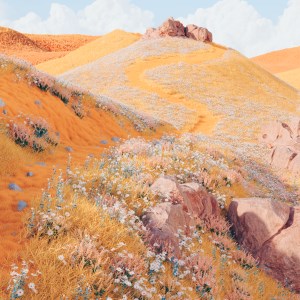
Dreamscapes
for Windows
5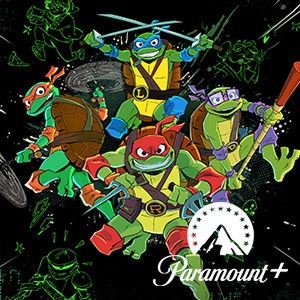
Tales of the Teenage Mutant Ninja Turtles Theme
for Windows
5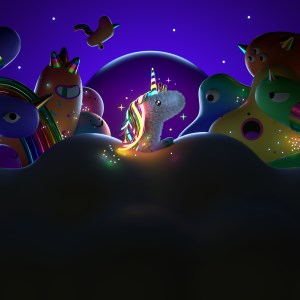
Neon Dreams
for Windows
4.9
Cats Anytime
for Windows
4.9
Japanese Landscapes
for Windows
4.9
Sun and Sand
for Windows
4.9
Live Wallpaper Engine Plus
for Windows
4.8
Chicks and Bunnies
for Windows
4.8
Mountain Dwellings
for Windows
4.8