

Frequently Asked Questions
How do I install and apply the Wildflowers wallpaper on Windows 10?
Download the app from Microsoft Store, open it, select your preferred image, and click 'Apply' to set as your desktop wallpaper.
Can I change the wallpaper automatically using Wildflowers?
Yes, go to Settings > Automatic Wallpaper Rotation, enable the feature, and choose your preferred images or schedule rotation intervals.
What are the main features of Wildflowers?
It offers 18 stunning 4K wildflower valley images, allows manual wallpaper setting, and supports automatic rotation for a dynamic desktop experience.
Can I customize the images shown in Wildflowers?
Currently, Wildflowers provides a fixed set of 18 images; customization options are limited to selecting images for rotation or manual use.
How do I set images as my desktop wallpaper in Wildflowers?
Open the app, choose your preferred image, and click 'Set as Wallpaper' to update your Windows 10 desktop background.
Is Wildflowers a free app, and does it include in-app purchases?
The app provides free access to 18 premium 4K images for themes; there are no additional charges or in-app purchases.
Are there subscription options for Wildflowers for more images or features?
Currently, Wildflowers offers a fixed set of images for free; no subscription plan is available at this time.
What should I do if the wallpaper isn't updating correctly?
Try restarting your computer, ensure the app is up to date, and verify your wallpaper settings under Settings > Personalization.
Can I use Wildflowers images outside of Windows 10 Themes?
The images are designed specifically for desktop wallpapers; exporting or using as backgrounds outside the app isn't supported.
How do I uninstall Wildflowers if I no longer want it?
Go to Settings > Apps, find Wildflowers, select it, and click 'Uninstall' to remove the app from your Windows 10 device.
You May Like

Blooming Dimensions
for Windows
5
Monotype Handwriting Font Pack
for Windows
5
Hues of Nature
for Windows
5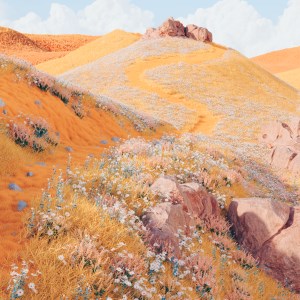
Dreamscapes
for Windows
5
Tales of the Teenage Mutant Ninja Turtles Theme
for Windows
5
Neon Dreams
for Windows
4.9
Cats Anytime
for Windows
4.9
Japanese Landscapes
for Windows
4.9
Sun and Sand
for Windows
4.9
Live Wallpaper Engine Plus
for Windows
4.8
Chicks and Bunnies
for Windows
4.8
Mountain Dwellings
for Windows
4.8