

- Category Photo & video
- Available on Xbox console, PC, Surface Hub, Mobile, HoloLens
- OS Windows 10 version 19041.0 or higher
- languages Afrikaans, Albanian, Amharic, Arabic, Azerbaijani, Bangla (Bangladesh), Basque, Belarusian, Bulgarian, Catalan, Chinese (Simplified), Chinese (Traditional), Croatian, Czech, Danish, Dutch, English (United Kingdom), English (United States), Estonian, Filipino, Finnish, French, French (Canada), Galician , German, Greek, Hausa (Latin), Hebrew, Hindi, Hungarian, Icelandic, Indonesian, Italian, Japanese, Kannada, Kazakh, Khmer, Kiswahili, Korean , Lao, Latvian, Lithuanian, Macedonian, Malay, Malayalam, Norwegian (Bokmål), Persian, Polish , Portuguese (Brazil), Portuguese (Portugal), Romanian, Russian, Serbian (Latin, Serbia), Slovak, Slovenian (Slovenia), Spanish (Mexico), Spanish (Spain), Swedish, Tamil, Telugu, Thai, Turkish, Ukrainian, Uzbek, Vietnamese
A Clear Window to Your World: An In-Depth Review of Windows Camera for Windows
Imagine a digital mirror that not only captures your moments but also enhances their quality effortlessly—Windows Camera for Windows aims to be just that. Developed by Microsoft Corporation, this app serves as a straightforward yet capable camera solution built into Windows, designed to cater to everyday photography needs. Whether you're a casual snapshooter or someone wanting to explore quick video recordings, this application promises a seamless experience with a few smart features that make capturing memories simple and intuitive.
Core Highlights: What Makes Windows Camera Stand Out?
At its core, the app is about simplicity and convenience. Notably, it offers a **high-quality photo capture** with auto-focus and scene optimization, ensuring your shots are clear and vibrant without needing manual adjustments. Its **video recording capabilities** are straightforward, perfect for quick clips or capturing fleeting moments. Additionally, the app integrates with Windows native functionalities like sharing and editing, streamlining the process from shooting to sharing. Finally, its **easy-to-navigate interface** appeals to users of all levels, making it accessible even for those new to photography apps.
Engaging and User-Friendly Interface
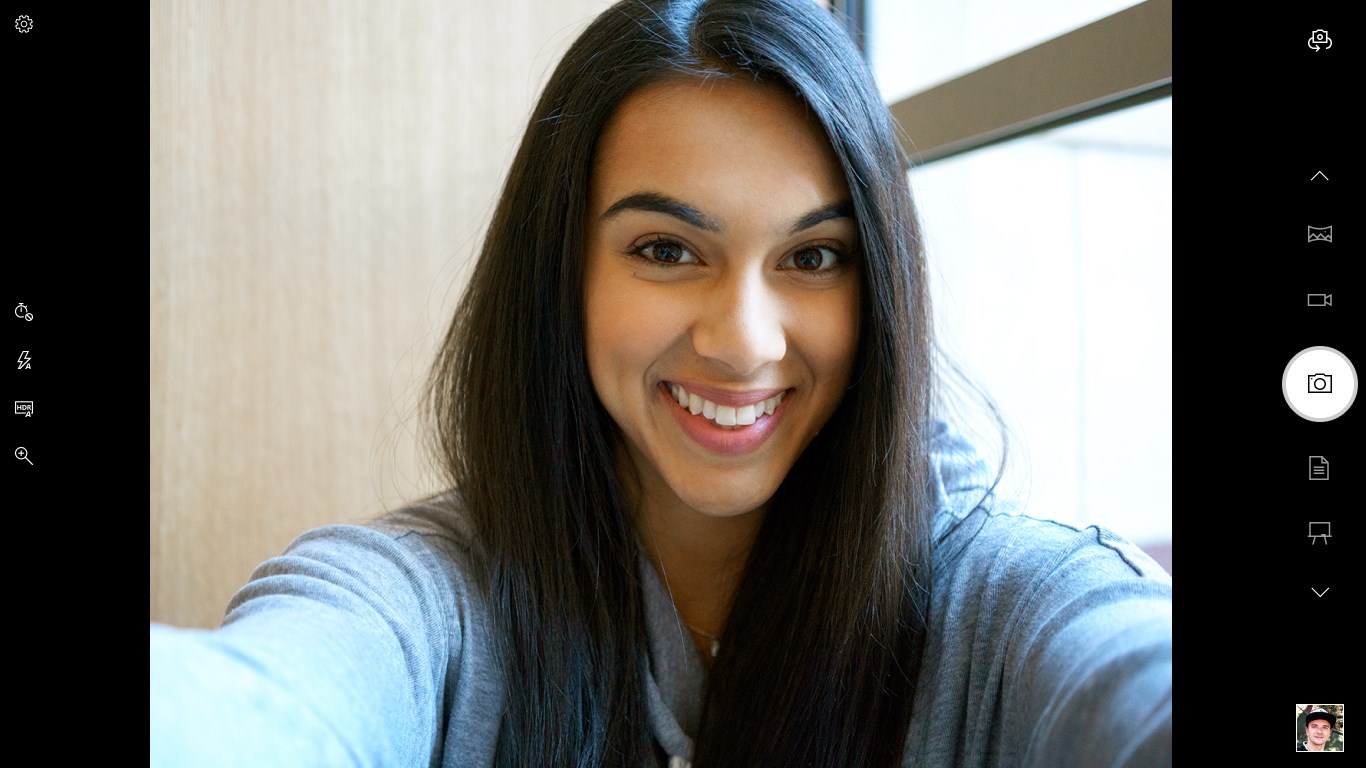
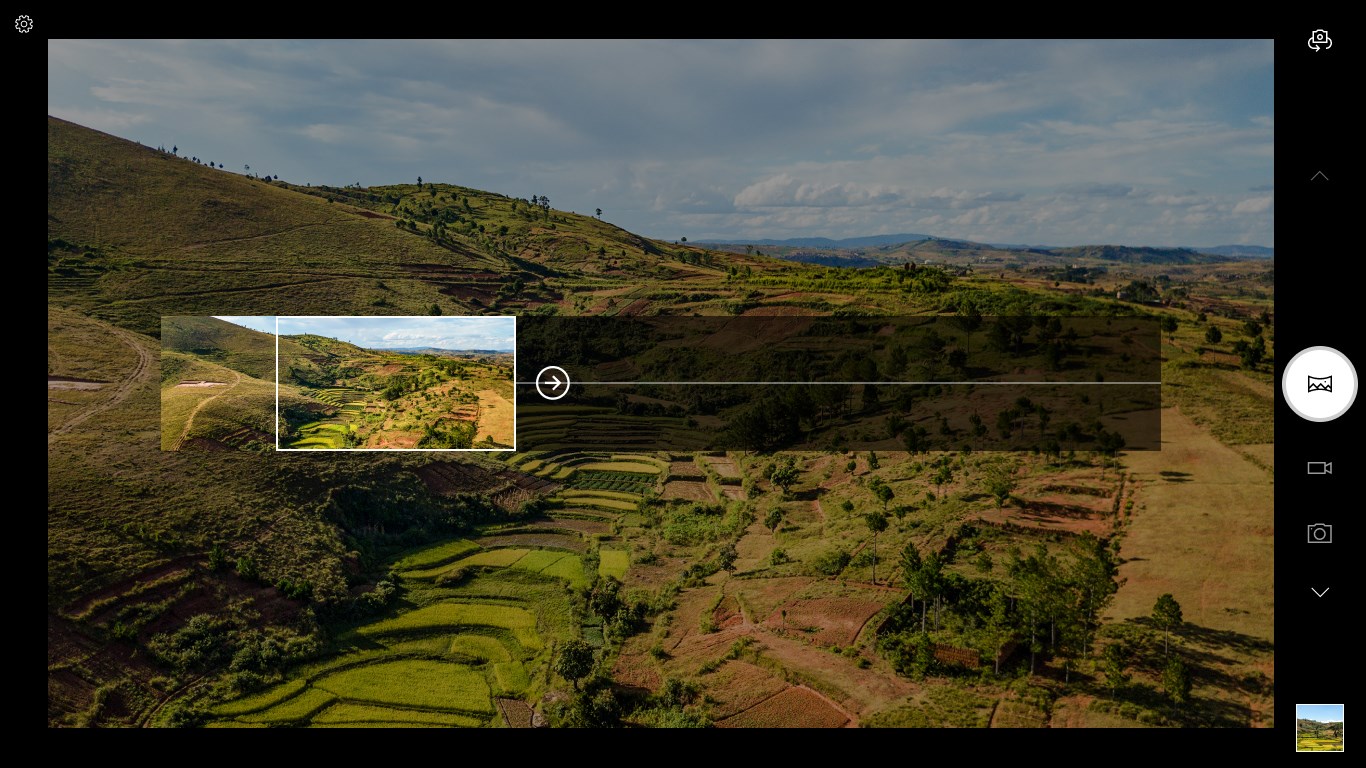
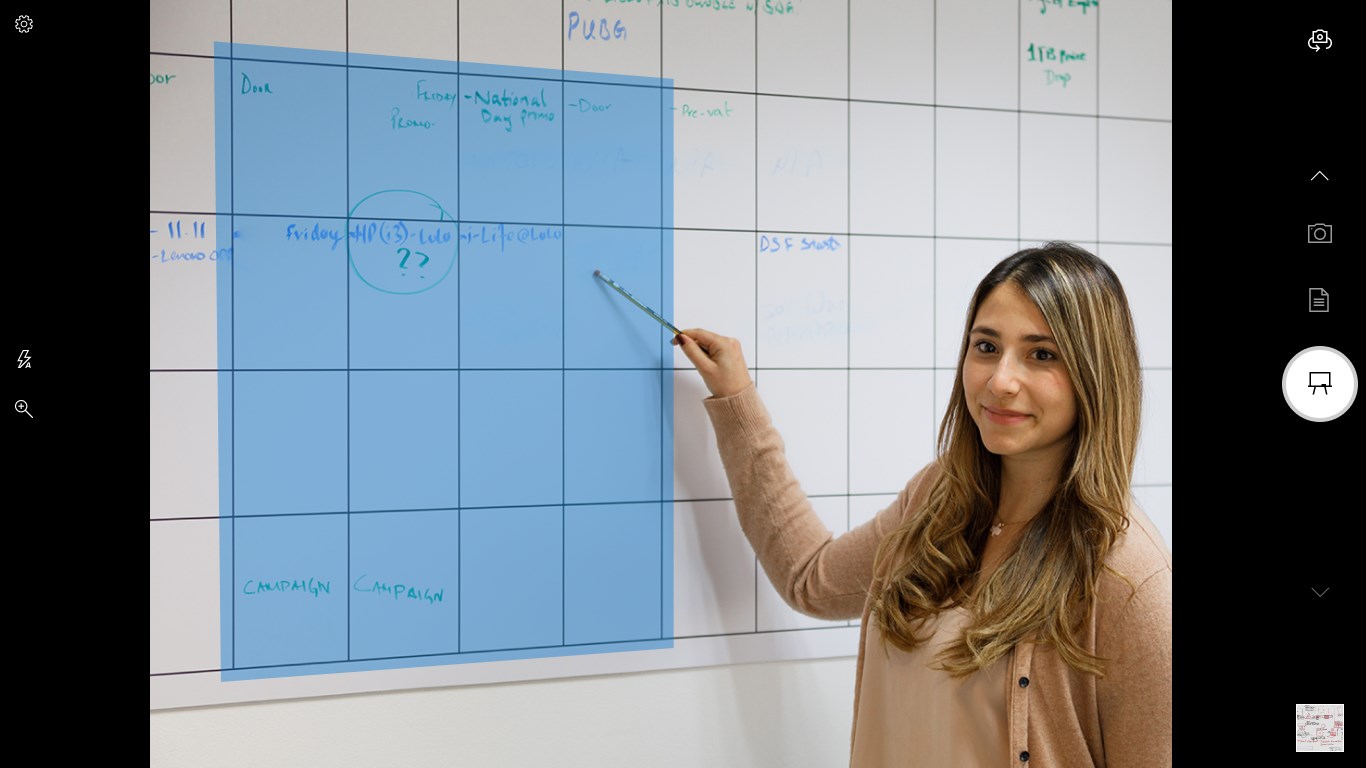
Opening Windows Camera feels like stepping into a familiar yet modern studio—minimalist, clean, and inviting. The interface is optimized for touch and mouse input, with large, clearly labeled icons for capturing photos, recording videos, and switching between modes. The overall design fosters an instinctive user experience; even first-timers can start shooting within seconds. Transitioning between photo and video modes is smooth, and live previews make composing shots a breeze. The app's responsiveness feels akin to adjusting a camera lens—you don't want lag or delay, and here, it's just fluid.
Core Functionalities Explained
Photo Capture with Smart Enhancements
One of the app's most celebrated features is its automatic scene adjustment. When you point your device at a subject—be it a bright landscape or a cozy indoor setting—the app intelligently adjusts exposure, color balance, and focusing. This means you can forget fiddling with settings and trust the camera to do the heavy lifting, resulting in sharper, more natural photos every time. The integration with Windows' existing system also ensures that photos are saved swiftly, with easy options to edit or share directly from the app.
Seamless Video Recording
If videos are more your style, Windows Camera provides a straightforward recording experience. With a single tap, you can start capturing moments on the go. The app supports HD videos, preserving details whether you're recording a quick clip during a family gathering or documenting an outdoor adventure. Its minimal interface means no confusing menus—just tap to start, tap to stop. Plus, the app includes basic options like switching between front and rear cameras and toggling flash, making it versatile for diverse scenarios.
Efficiency and User Experience
Beyond the core features, Windows Camera excels in delivering a smooth experience. The app launches swiftly, and switching between modes is practically instantaneous. Its learning curve is shallow; even users unfamiliar with camera apps will find it intuitive. The layout adapts well to different screen sizes, and the process from opening the app to capturing a photo or video feels almost instinctive, like using a well-tuned, digital Swiss Army knife. This focus on usability makes it an ideal default camera app for everyday use.
Differentiation and Unique Advantages
In a crowded market of feature-heavy camera apps, Windows Camera's strength lies in its simplicity and deep integration with Windows. Unlike third-party apps that often require complex configurations or suffer from performance hiccups, this app offers a lightweight, stable, and native experience. Its automatic scene detection and optimization stand out as particularly beneficial—these features act like a discreet photography coach, ensuring your shots look professional without any extra effort. Furthermore, integration with Windows means seamless sharing with Windows Photo Viewer, OneDrive, or other native tools, making it an excellent choice for users who value a cohesive ecosystem.
Final Thoughts: Is It Worth Trying?
For casual users looking for an easy-to-use camera app that delivers decent-quality photos and videos without any fuss, Windows Camera is definitely recommended. Its most compelling features—automatic scene recognition and integrated video capture—set it apart as a straightforward, reliable tool embedded in the Windows environment. While it might lack some advanced manual controls found in professional apps, its responsiveness, clarity, and user-friendly design make it an excellent default choice for everyday photography needs.
Pros
- User-friendly interface
- High-quality video and photo output
- Seamless integration with Windows
- Real-time filters and effects
- Fast startup speed
Cons
- Limited editing tools
- Occasional lag during recording
- Restricted customization options
- Limited support for external devices
- No built-in tutorial for new users