

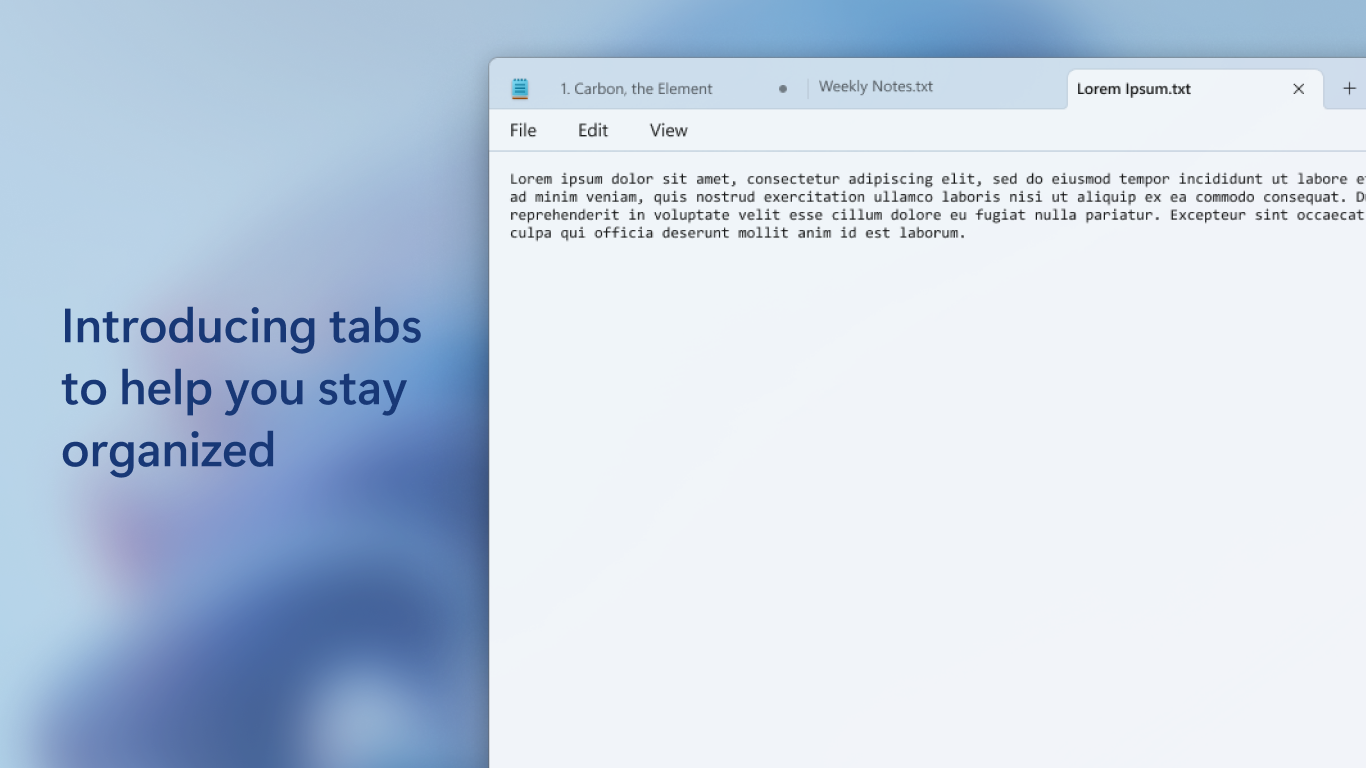
- Category Productivity
- Available on PC
- OS Windows 11 version 22000.0 or higher
- languages Afrikaans, Albanian, Amharic, Arabic, Armenian, Assamese, Azerbaijani, Bangla (Bangladesh), Bangla (India), Basque, Belarusian, Bosnian (Latin, Bosnia and Herzegovina), Bulgarian, Catalan, Central Kurdish (Iraq), Cherokee (Cherokee), Chinese (Simplified), Chinese (Traditional), Croatian, Czech, Danish, Dari, Dutch, English (United Kingdom), English (United States), Estonian, Filipino, Finnish, French, French (Canada), Galician , Georgian, German, Greek, Gujarati, Hausa (Latin), Hebrew, Hindi, Hungarian, Icelandic, Igbo, Indonesian, Irish, isiXhosa, IsiZulu, Italian, Japanese, Kannada, Kazakh, Khmer, Kinyarwanda, Kiswahili, Konkani, Korean , Kyrgyz, Lao, Latvian, Lithuanian, Luxembourgish, Macedonian, Malay, Malayalam, Maltese, Maori, Marathi, Mongolian (Mongolia), Nepali, Norwegian (Bokmål), Odia, Persian, Polish , Portuguese (Brazil), Portuguese (Portugal), Punjabi (Arabic), Punjabi (India), QUC-LATN-GT, Quechua, Romanian, Russian, Scottish Gaelic, Serbian, Serbian (Cyrillic, Bosnia and Herzegovina), Serbian (Latin, Serbia), Sesotho sa Leboa, Setswana, Sindhi (Arabic), Sinhala, Slovak, Slovenian (Slovenia), Spanish (Mexico), Spanish (Spain), Swedish, Tajik, Tamil, Tatar, Telugu, Thai, Tigrinya, Turkish, Turkmen, Ukrainian, Urdu, Uyghur, Uzbek, Valencian, Vietnamese, Welsh, Wolof, Yoruba
A Fresh Take on Plain Text Editing: Microsoft Notepad for Windows
Imagine a tool so familiar yet subtly refined that it transforms your mundane note-taking into a streamlined experience—welcome to Microsoft Notepad for Windows. It's more than just a basic text editor; it's an upgraded companion designed to enhance your productivity without overwhelming you with complexity.
Core Highlights That Make Notepad Stand Out
Developed by Microsoft Corporation, this version of Notepad retains its classic charm while integrating smart features tailored for modern workflows. Its main highlights include:
- Lightweight & Fast Performance: Launching in a blink and running smoothly, even with large files, ensuring minimal disruption to your tasks.
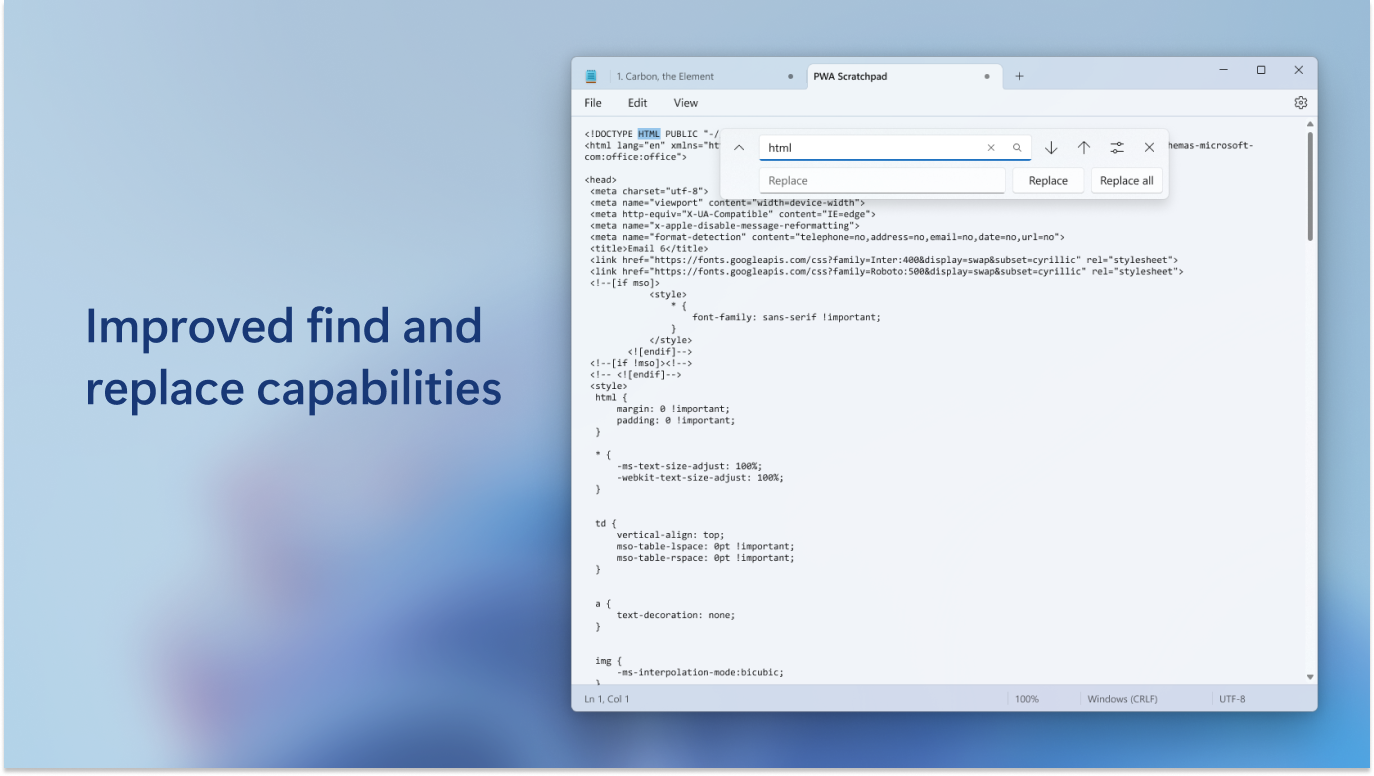
- Enhanced Search & Replace with Regular Expressions: Offering powerful text manipulation capabilities that cater to advanced users.
- Seamless External Program Integration: Works effortlessly alongside other Windows tools, supporting a more cohesive workspace.
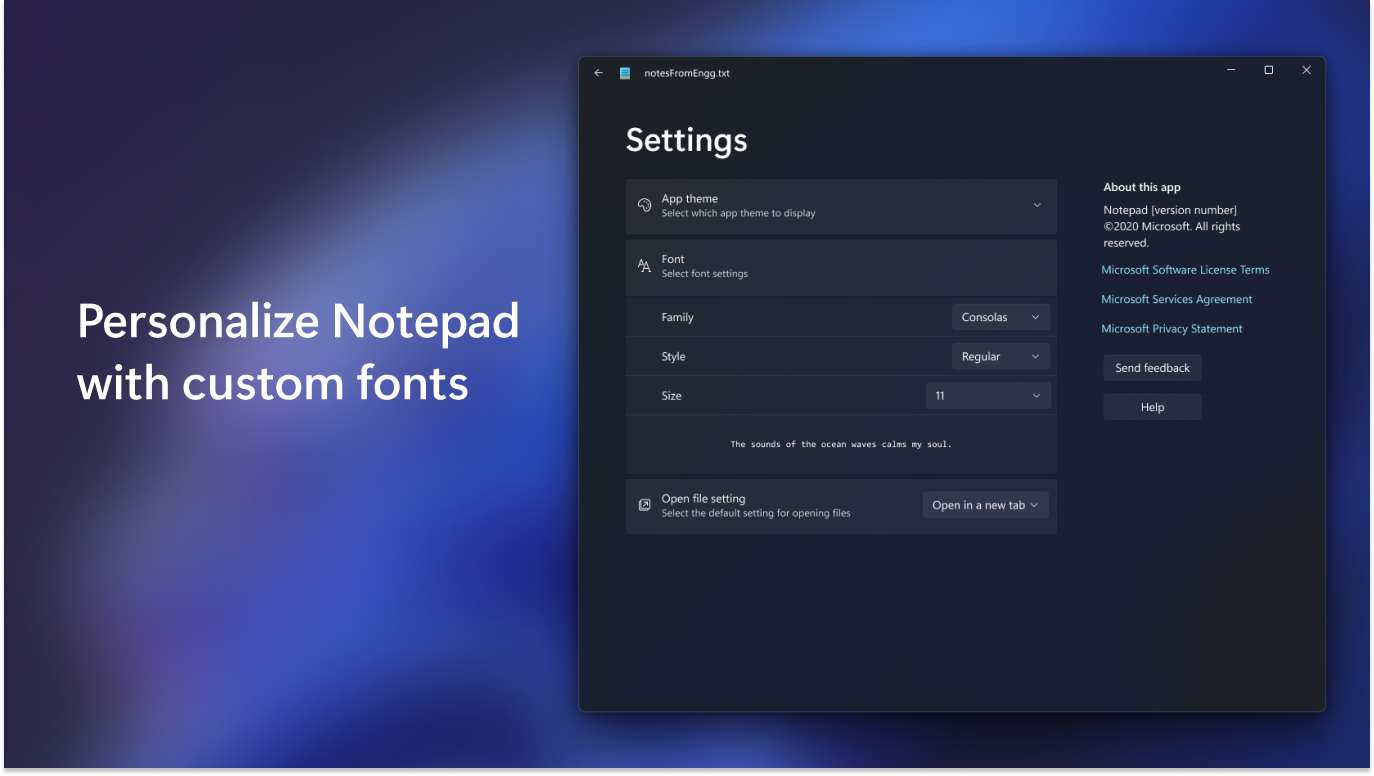
- Improved User Interface & Customization: Streamlined interface with customizable themes that cater to personal preferences, reducing visual fatigue.
Designed for students, writers, developers, and professionals alike, this Notepad version aims to simplify immediate text editing needs while supporting more complex workflows when needed.
A Playful Yet Practical Introduction
Picture yourself sitting at your desk, surrounded by a flurry of notes, code snippets, and quick ideas—traditional Notepad has been your trusty sidekick, sometimes feeling a bit dated. Now, imagine it upgraded with a quiet confidence, ready to tame the chaos of your digital workspace. This is the new Microsoft Notepad: familiar enough to comfort, yet equipped to elevate your daily tasks with subtle but significant improvements. Whether you're jotting down a simple reminder or editing a complex script, this revised Notepad promises a smoother and more efficient experience—no frills, just focused functionality.
Deep Dive into Key Features
Intuitive User Interface & Customization
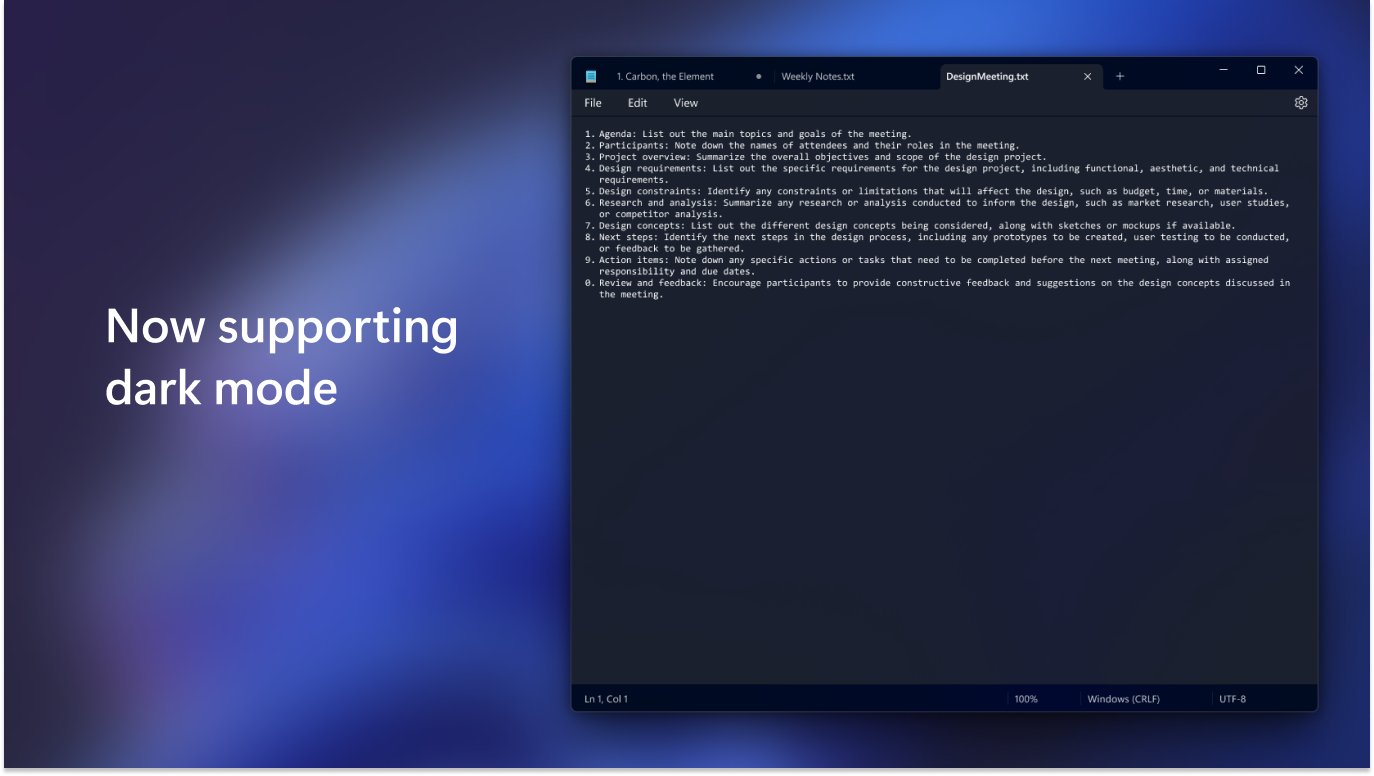
The first thing you'll notice is the cleaner and more modern interface. The design is subtle—no distracting icons or cluttered menus—making it approachable whether you're a seasoned coder or a casual note-taker. The dark mode option, for example, reduces eye strain during late-night sessions. Customizing the font size and theme is straightforward, allowing users to tailor their environment to their comfort, which helps lower cognitive load and keeps focus sharp.
Smart Search & Text Manipulation
One of the standout features is the enhanced search functionality. With support for regular expressions, users can perform complex search-and-replace operations effortlessly, saving precious time. Imagine updating a whole batch of code snippets or refactoring text files without hopping between multiple tools. This feature bridges simplicity with power—akin to having a Swiss Army knife within your notes, ready to handle tricky text tasks with minimal fuss.
Efficient Workflow Integration
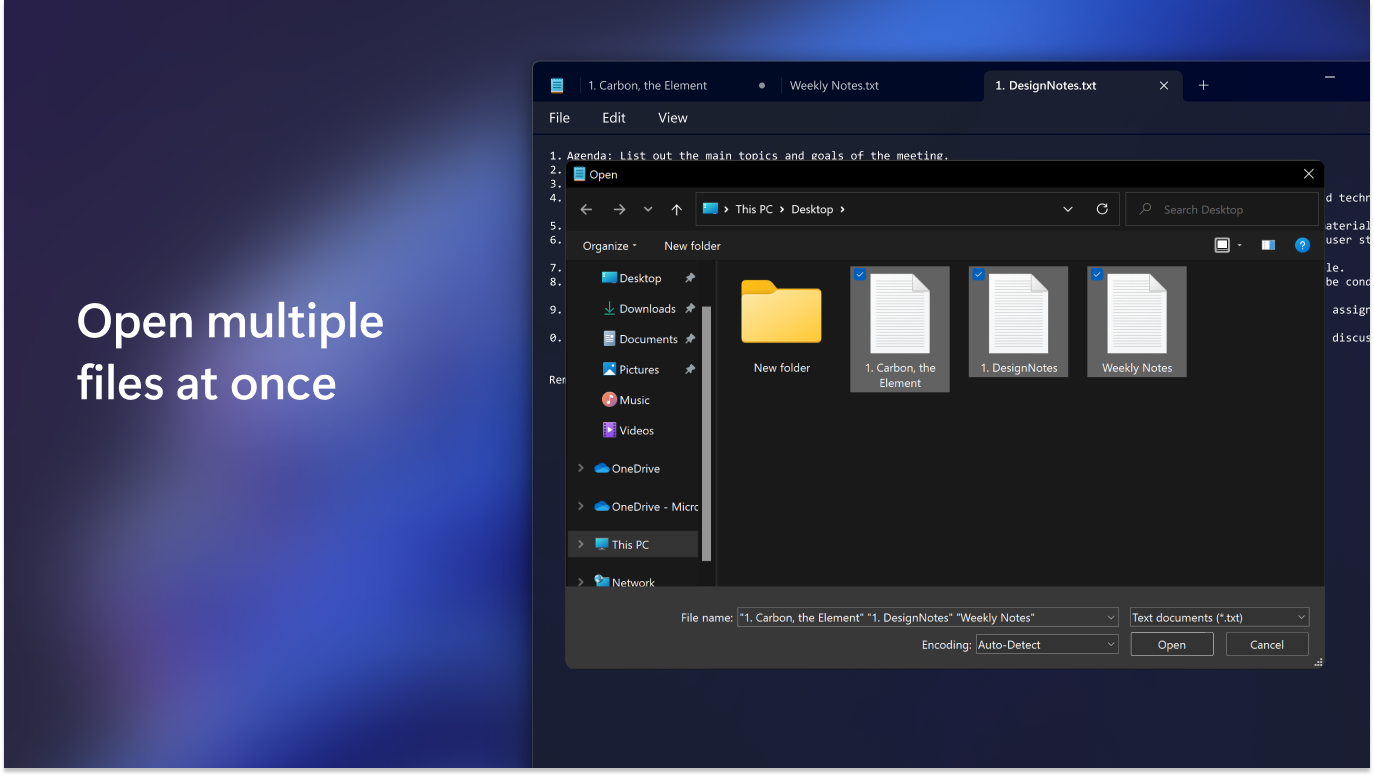
This Notepad complements other Windows productivity tools seamlessly. Files can be opened with just a click from File Explorer, and recent documents are easily accessible. Plus, it supports common keyboard shortcuts, making quick edits feel natural—like an extension of your own fingers. Compared to feature-heavy editors, it maintains a balance—adding just enough sophistication to enhance your workflow without overwhelming your cognitive resources. It's like a reliable co-pilot, easing your journey through your digital tasks.
Comparative Edge and Recommendations
While many productivity apps tout their extensive features, Microsoft Notepad's real strength lies in its simplicity combined with thoughtful enhancements. Unlike complex editors that can become daunting, this version reduces cognitive load by focusing on core functionalities and offering just enough customization to suit individual needs. Its integration with Windows ecosystem makes it an efficient choice for everyday text editing—whether for quick notes, code snippets, or draft ideas.
For casual users or those who prefer a no-nonsense tool that "just works," I recommend giving this Notepad a try. Power users who need advanced text processing will appreciate the regex support, but even they may find it a refreshing alternative to bulkier editors.
Overall, Microsoft Notepad for Windows earns a solid recommendation for anyone seeking a lightweight, efficient, and adaptable text editor integrated seamlessly into their workflow. It's a perfect example of how a simple tool can be thoughtfully enhanced to meet the demands of today's fast-paced digital environment.
Pros
- Lightweight and fast
- Simple and user-friendly interface
- Supports basic text editing functions
- Integrates seamlessly with Windows
- Good for quick notes and coding snippets
Cons
- Lacks advanced formatting options
- No spell check feature
- Limited to plain text only
- No cloud synchronization or sharing support
- Lacks version control











