
- Category Developer tools
- Available on PC
- OS Windows 10 version 19041.0 or higher
- Keyboard Not specified
- languages Afrikaans, Albanian, Amharic, Arabic, Armenian, Assamese, Azerbaijani, Bangla (India), Basque, Bosnian (Latin, Bosnia and Herzegovina), Bulgarian, Catalan, Chinese (Simplified), Chinese (Traditional), Croatian, Czech, Danish, Dutch, English (United Kingdom), English (United States), Estonian, Filipino, Finnish, French, French (Canada), Galician , Georgian, German, Greek, Gujarati, Hebrew, Hindi, Hungarian, Icelandic, Indonesian, Irish, Italian, Japanese, Kannada, Kazakh, Khmer, Konkani, Korean , Lao, Latvian, Lithuanian, Luxembourgish, Macedonian, Malay, Malayalam, Maltese, Maori, Marathi, Nepali, Norwegian (Bokmål), Odia, Persian, Polish , Portuguese (Brazil), Portuguese (Portugal), Punjabi (India), Quechua, Romanian, Russian, Scottish Gaelic, Serbian, Serbian (Cyrillic, Bosnia and Herzegovina), Serbian (Latin, Serbia), Slovak, Slovenian (Slovenia), Spanish (Mexico), Spanish (Spain), Swedish, Tamil, Tatar, Telugu, Thai, Turkish, Ukrainian, Urdu, Uyghur, Uzbek, Valencian, Vietnamese, Welsh
A Clean and Customizable Terminal Experience for Windows Enthusiasts
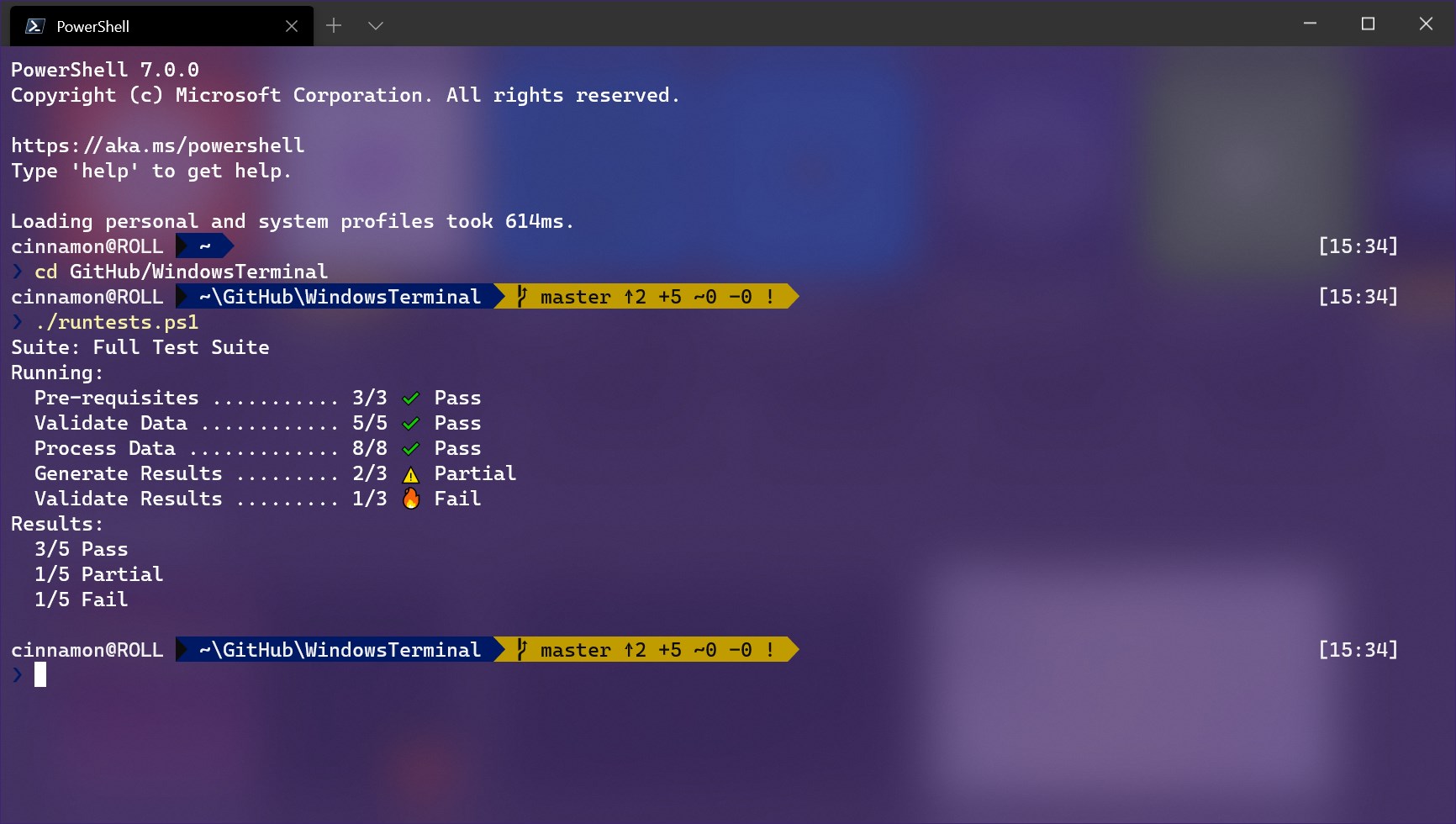
Windows Terminal for Windows, developed by Microsoft Corporation, is a modern, powerful terminal application designed to unify and streamline command-line workflows on Windows 10 and later systems. Its sleek interface and advanced features aim to enhance productivity for developers, sysadmins, and tech aficionados seeking an improved terminal environment.
Highlights at a Glance
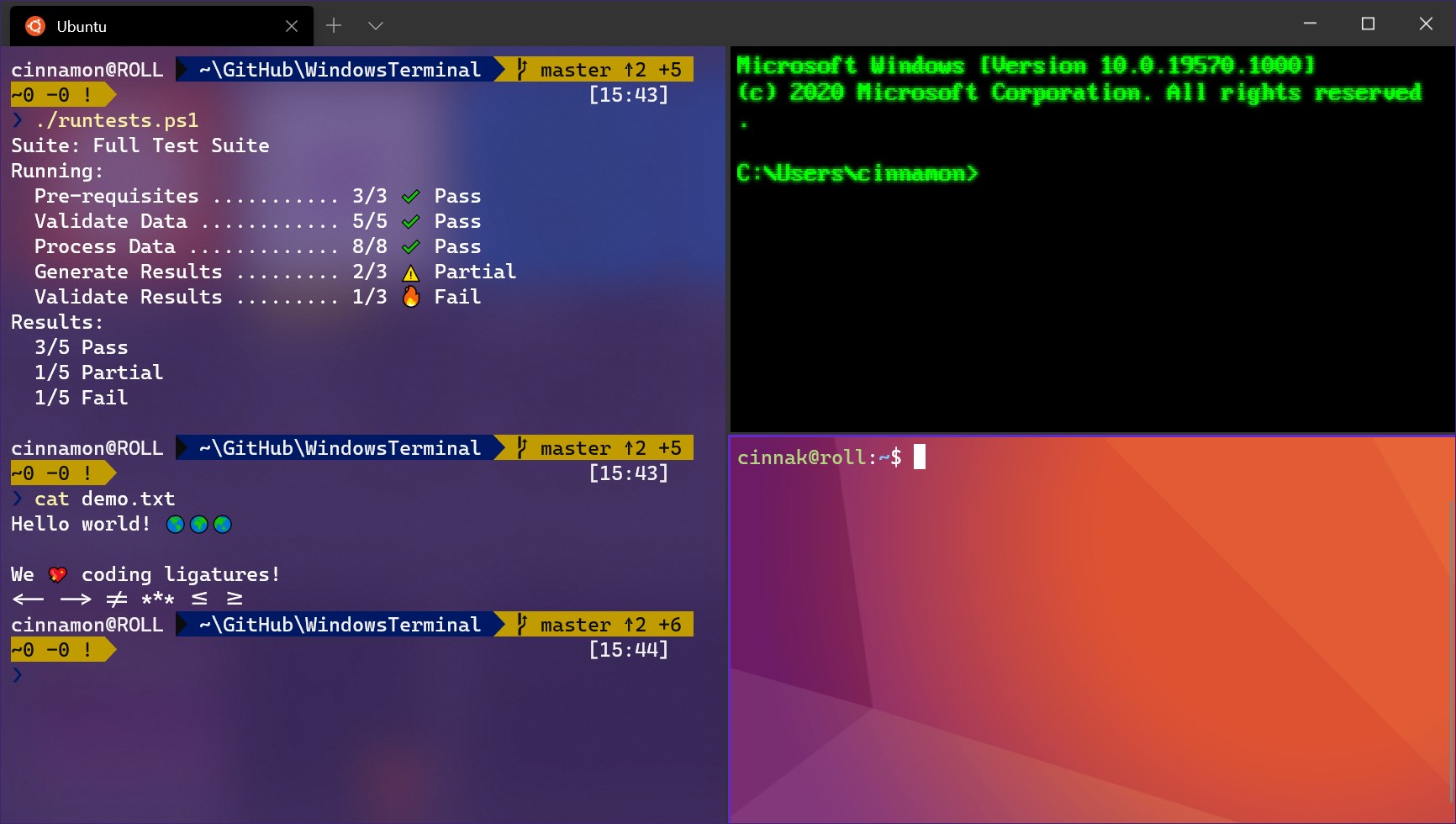
- Supports multiple tabs and panes for effortless multitasking.
- Highly customizable with themes, fonts, and keybindings.
- Built-in support for PowerShell, Command Prompt, WSL, and SSH in a unified interface.
- Regular updates adding new features and improving user experience.
Introduction: Your Terminal, Reimagined as a Powerhouse
Imagine switching from a cluttered, outdated command-line window to a sleek control center—everything you need at your fingertips, ready to be customized into your ideal workspace. Windows Terminal for Windows transforms the often austere terminal experience into a vibrant, intuitive environment that feels less like a relic and more like a modern command hub. It's like upgrading from a typewriter to a touchscreen tablet—both get the job done, but one makes the journey more enjoyable and efficient.
Multitasking with Multiple Tabs and Panes
The standout feature of Windows Terminal is its capacity for managing several command-line sessions simultaneously. With tabbed interfaces, you can open multiple shells—be it PowerShell, Command Prompt, or WSL—each in its own tab. Need to monitor logs in one window while working on a script in another? Just split the screen into panes—horizontally or vertically—and keep everything visible at once. This is akin to having a multi-monitor setup, but within a single window, drastically reducing clutter and improving workflow efficiency.
Deep Customization for Every User
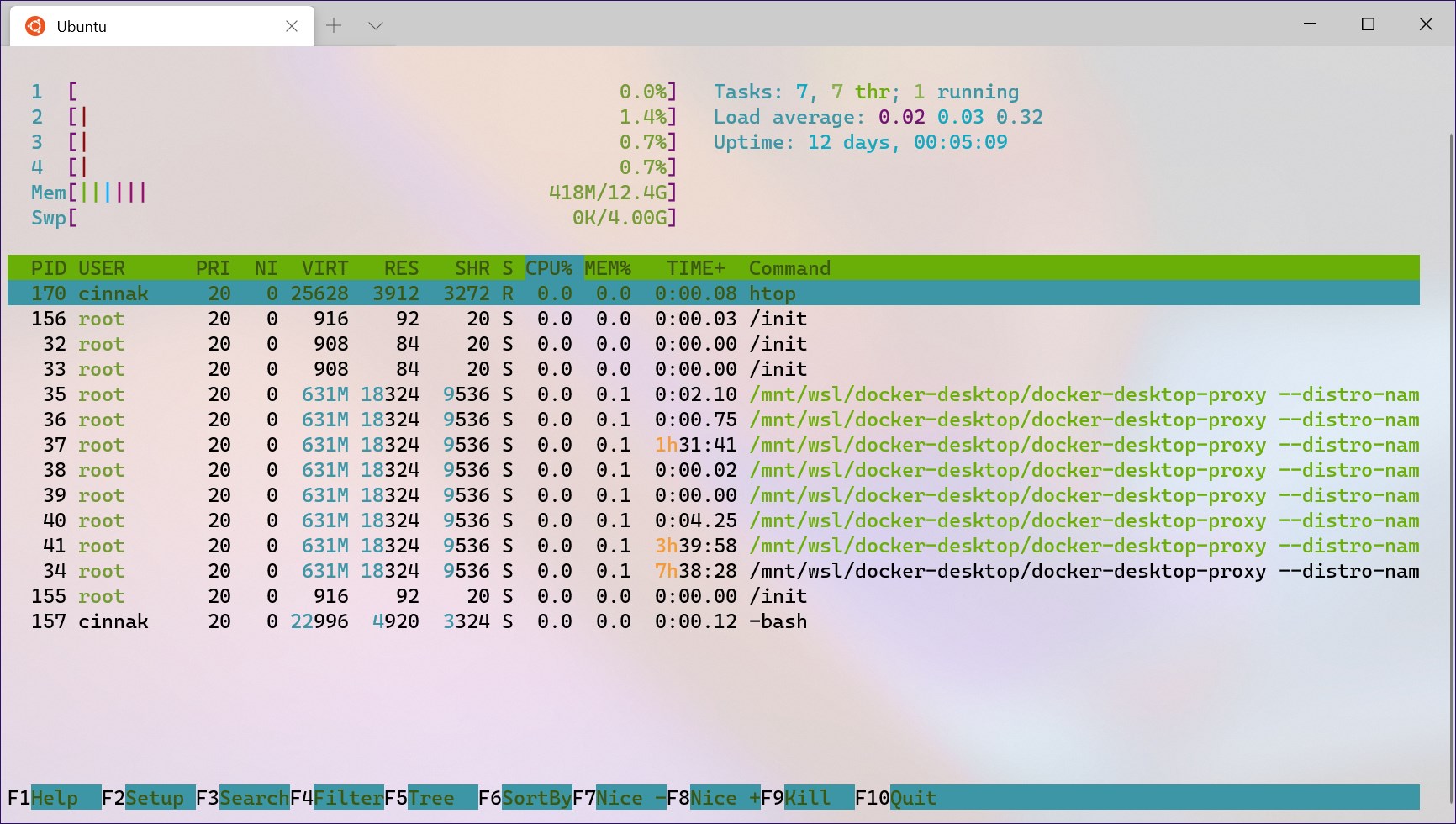
Unlike traditional terminals that feel rigid and utilitarian, Windows Terminal invites users to tailor their environment. Choose your preferred theme, select fonts (including custom ones), and configure color schemes to match your aesthetic or enhance readability. The JSON-based settings file may seem technical at first, but once you get a hang of it, it feels like decorating a digital workspace to your exact taste. This level of personalization turns the terminal from a tool into a reflection of your style and needs.
Seamless Integration and User Experience
The interface design strikes a fine balance between minimalism and functionality. With its modern, translucent background, rounded corners, and smooth animations, the app feels responsive and inviting. Operations such as opening new tabs, switching between sessions, or resizing panes are fluid and lag-free. The learning curve is gentle; a newcomer can quickly grasp the basics, while power users will appreciate the depth of custom shortcuts and settings available. Overall, Windows Terminal delivers a refined and consistent user experience that makes command-line work less cumbersome and more engaging.
Unique Edge: Unified Multi-Environment Support and Customizability
What sets Windows Terminal apart from other developer tools is its unified approach to multiple command-line environments. Developers working across different shells no longer need separate apps; Windows Terminal consolidates them effortlessly. Its support for SSH, WSL, and various shells ensures a cohesive workflow. Additionally, the high degree of customization—down to individual color schemes for each profile—and the support for GPU-accelerated rendering give it a performance edge. These features combine to create an environment that feels both powerful and personalized, tailored to meet diverse workflows.
Recommendation and Usage Tips
Overall, Windows Terminal is a highly recommended upgrade for anyone who frequently uses command-line tools on Windows. Its versatility, customization options, and modern design make it a valuable addition to both professional development setups and personal tech experiments. Beginners will appreciate its intuitive interface, while seasoned users will find the advanced settings and multitasking capabilities indispensable. For best results, spend a little time customizing your profiles and themes—this will turn your terminal sessions from mundane to motivating.
Final Thoughts: A Modern Command Center Worth Embracing
In the landscape of developer tools, Windows Terminal stands out as a prime example of how thoughtful design and feature-rich enhancements can transform a staple utility into an enjoyable and efficient workspace. Its support for multiple environments and high level of personalization are particularly compelling. If you're looking to breathe new life into your command-line experience on Windows, this app is undoubtedly worth a try—and once you do, you'll wonder how you ever worked without it.
Pros
- Highly customizable interface
- Supports multiple tabs and panes
- Integrates seamlessly with Windows ecosystem
- Regular updates with new features
- Open-source and developer-friendly
Cons
- Initial setup can be complex for new users
- Limited full-screen mode options
- Some advanced customization options are unintuitive
- Minor stability issues reported in early versions
- Limited support for certain third-party extensions at the moment