
- Category Productivity
- Developer WunderApps GmbH
- Available on PC
- OS Windows 10 version 17763.0 or higher
- Keyboard Not specified
- Mouse Not specified
- languages English (United States)
Introducing WordPal: A Smart Companion for Windows Writers
WordPal – Write & Format emerges as a fresh breath of air for those seeking a seamless and intelligent writing assistant on Windows. Designed to streamline the writing and formatting process, it aims to bridge the gap between creative flow and professional presentation, making it an intriguing tool for students, professionals, and content creators alike.
Meet the Developer: WunderApps GmbH & Tim Grabinat
Developed by WunderApps GmbH and published by Tim Grabinat, WordPal benefits from a team dedicated to enhancing productivity through intuitive software solutions. Their focus appears to be on crafting tools that not only assist with writing but also improve overall workflow efficiency.
Highlighting the Main Features: What Makes WordPal Stand Out
- Intelligent Writing Assistance: WordPal offers context-aware suggestions, grammar checks, and style improvements that help users craft clearer, more polished texts without the need to switch to external tools.
- One-Click Formatting: The app simplifies complex formatting tasks with easy-to-access templates and auto-formatting features, saving users valuable time during document preparation.
- Seamless Workflow Integration: Designed with productivity in mind, WordPal integrates smoothly into Windows workflows, enabling users to switch between writing, editing, and formatting effortlessly.
- Customizable Templates and Styles: Users can create and manage personalized styles, ensuring consistency across lengthy documents or collaborative projects.
A Closer Look: What Sets WordPal Apart?
Imagine sitting at your desk, surrounded by a mountain of documents, trying to stay organized. Now picture WordPal as a helpful co-pilot that simplifies your journey—offering suggestions as you write, auto-formatting your drafts with a single click, and seamlessly syncing with your workflow. Unlike traditional word processors or basic writing apps, WordPal's core strength lies in its ability to reduce the cognitive load associated with formatting and editing, allowing you to focus solely on your ideas.
Particularly compelling is its contextual assistance. As you type, WordPal subtly suggests improvements—akin to a friendly editor whispering in your ear—helping elevate the clarity and professionalism of your writing without overwhelming you with complex features. Its auto-formatting and style management tools work behind the scenes, enabling quick adjustments that maintain your flow, rather than interrupting it. This approach contrasts with more bloated productivity tools, which often trade simplicity for myriad features, leading to a steeper learning curve.
User Experience: Intuitive, Elegant, and Efficient
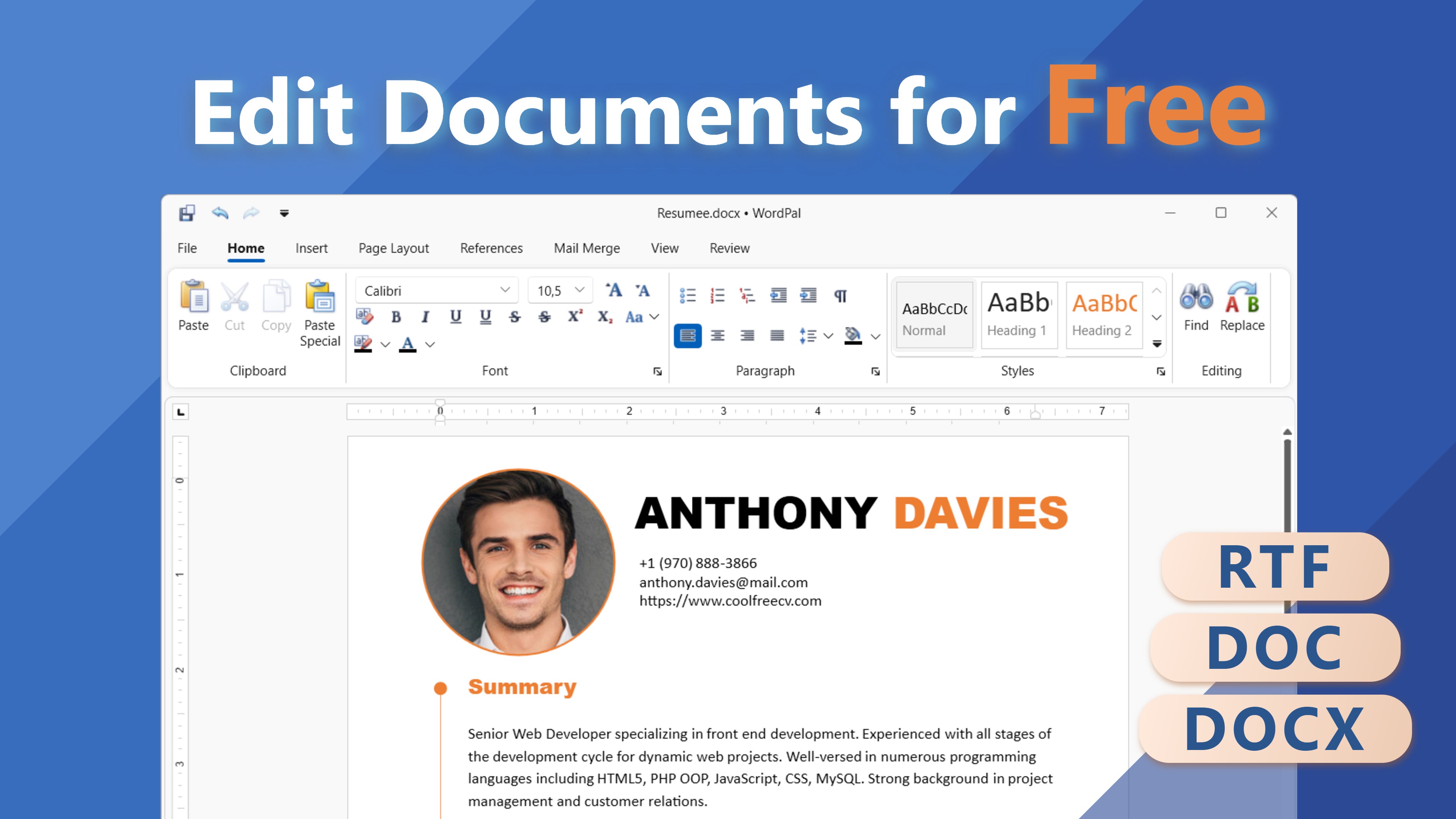
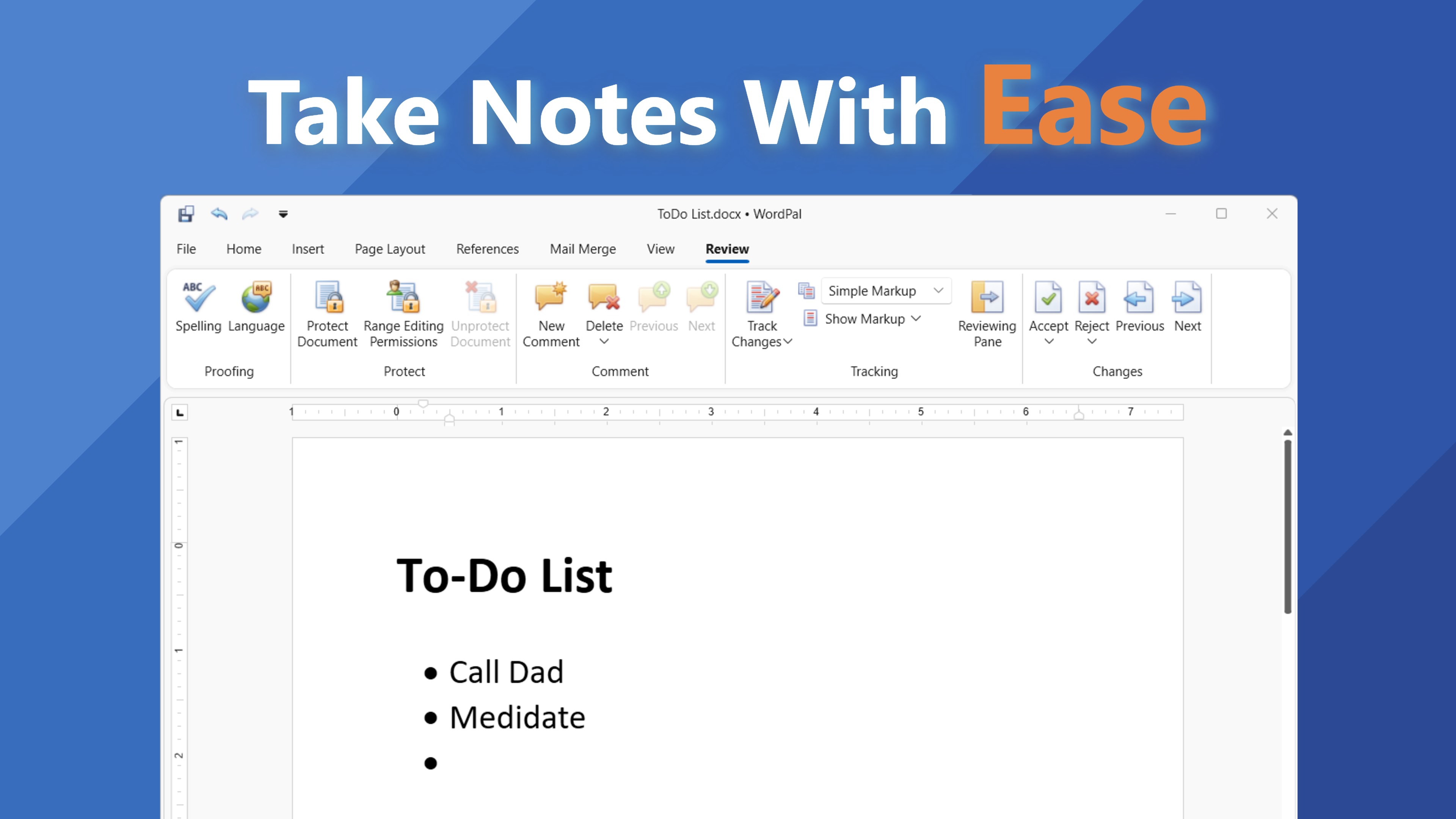
From the first glance, WordPal's interface exudes a clean, modern design that feels familiar yet fresh—like slipping into a well-tailored suit. Navigating through its features is straightforward: the toolbar is uncluttered, with context-sensitive suggestions appearing seamlessly as you work. The app's responsiveness is impressive, with no noticeable lag during intense editing sessions, ensuring a smooth user experience.
Learning to harness its full potential is relatively quick, thanks to well-placed tooltips and an intuitive layout. For users accustomed to standard word processors, transitioning to WordPal feels more like adopting a helpful companion than mastering a new complex system. It's especially appealing for those who want powerful assistance without the fuss of complicated menus or an overwhelming feature set.
Comparison and Recommendations: Why Choose WordPal?
When set against the landscape of productivity apps like MS Word or Google Docs, WordPal's unique advantage lies in balancing feature complexity with workflow efficiency. Its smart, context-aware assistance reduces the time spent on editing and formatting, which can significantly lower cognitive load—like having an assistant who anticipates your needs without constantly zigzagging through menus.
For writers who value clarity and speed, and for professionals seeking to produce polished documents rapidly, WordPal stands out as a reliable, unobtrusive partner. While it may lack some advanced collaborative features of bigger platforms, its streamlined approach makes it ideal for solo work or small teams prioritizing efficiency.
Final Thoughts: Is WordPal Worth Trying?
Absolutely. If your goal is to enhance your writing workflow with intelligent assistance that doesn't get in your way, WordPal deserves a spot on your Windows device. Its standout features—particularly intelligent suggestions combined with one-click formatting—make it a compelling tool for anyone tired of juggling multiple applications or battling cumbersome formatting processes. Give it a try, and experience how a well-designed helper can turn a mundane writing task into a smooth, almost effortless experience.
Pros
- User-friendly interface
- Effective formatting options
- Integrated writing suggestions
- Offline access capability
- Lightweight and fast performance
Cons
- Limited language support
- Basic editing features only
- Occasional formatting glitches
- Lack of templates
- Limited export options











