

- Category Utilities & tools
- Available on PC
- OS Windows 10 version 0.0 or higher
- Keyboard Integrated Keyboard
- Mouse Integrated Mouse
- languages English
Auto Tapper for Windows: A Handy Automation Tool for Effortless Clicking
Auto Tapper for Windows is a lightweight yet powerful utility designed to automate repetitive clicking tasks, making your digital routines smoother and less tiresome.
Meet the Developer: MurGoo.com
This application is developed and maintained by MurGoo.com, a company known for creating practical and user-friendly utilities that streamline everyday computer tasks.
Key Features that Make Auto Tapper Stand Out
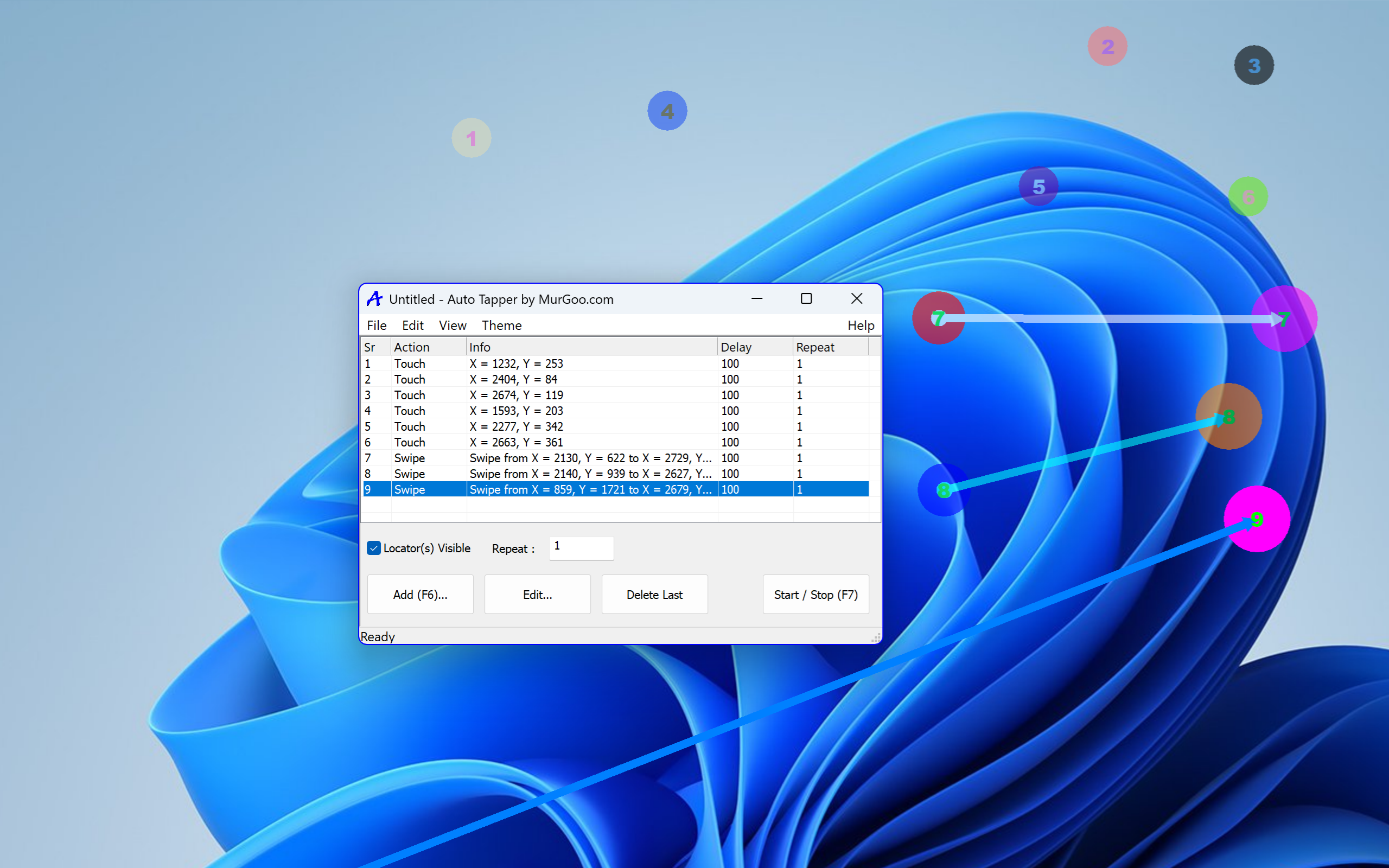
- Precision Automation: Set customized clicking points with millimeter accuracy to suit various automation needs.
- Multiple Modes of Operation: Supports both continuous and scheduled clicking, perfect for gaming, form filling, or testing scenarios.
- User-Friendly Interface: Simple setup process and intuitive controls allow users of all experience levels to get started quickly.
- Low Resource Consumption: Runs smoothly without hogging system resources, making it suitable for extended use even on modest hardware.
Engaging Usability & Core Functionality
Imagine a scenario where clicking away at repetitive tasks feels like a chore you can delegate—that's exactly what Auto Tapper aims to achieve. Its straightforward approach turns what could be hours of tedium into a simple set-and-forget process. Whether you're automating clicks in a game, streamlining data entry, or testing software interfaces, this tool fits seamlessly into your workflow.
Flexible and Precise Click Automation
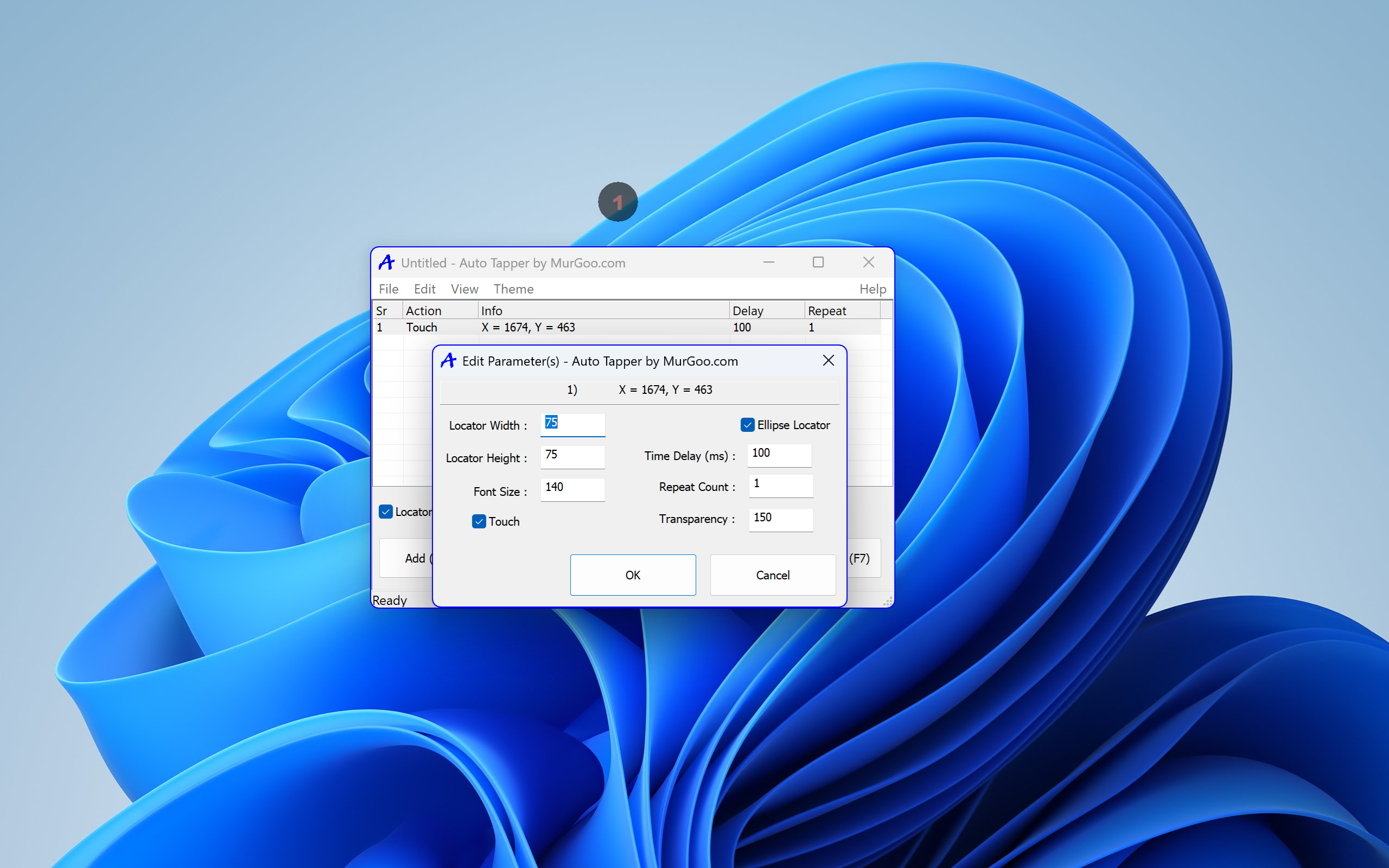
The core strength of Auto Tapper lies in its ability to precisely record and replay clicks at designated screen points. Users can easily specify coordinates, choose between single or multiple clicks, and schedule actions based on time or events. The inclusion of adjustable delay settings adds another layer of control, making it suitable for nuanced tasks that require timing finesse. What's particularly compelling is its support for multiple macro profiles, allowing you to switch between different automation scripts effortlessly—like toggling between different modes in a multi-tool workspace.
Interface Design & User Experience
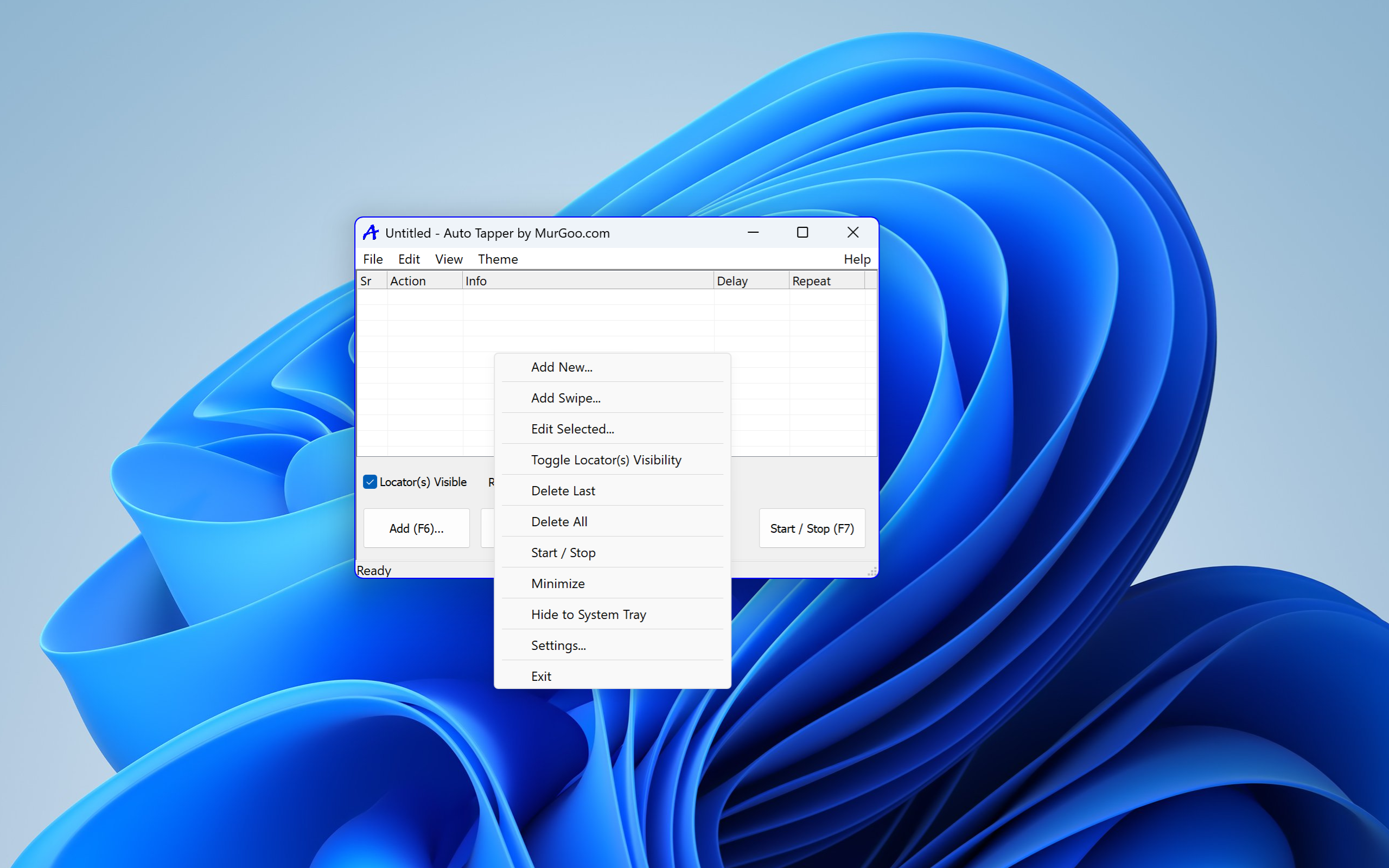
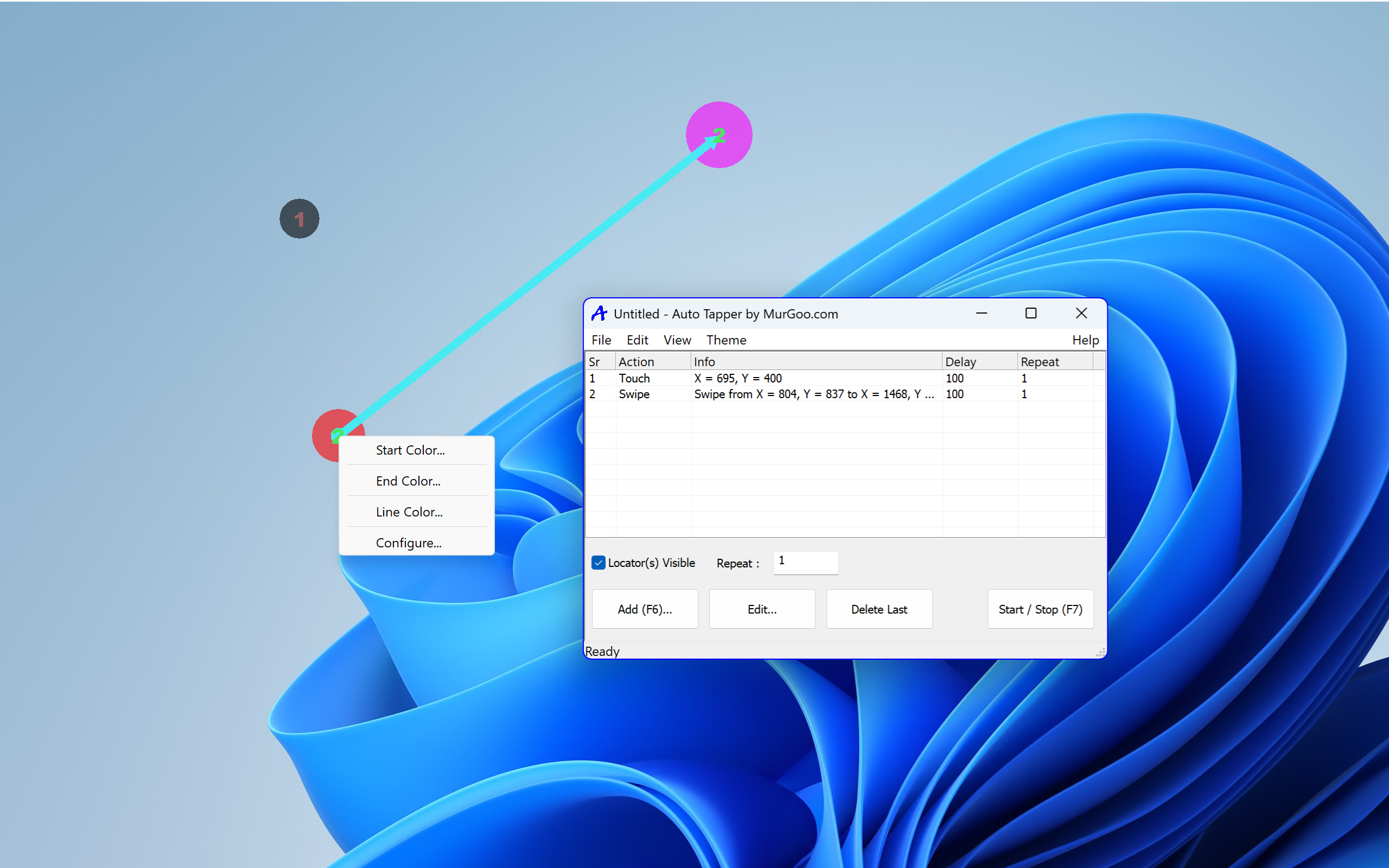
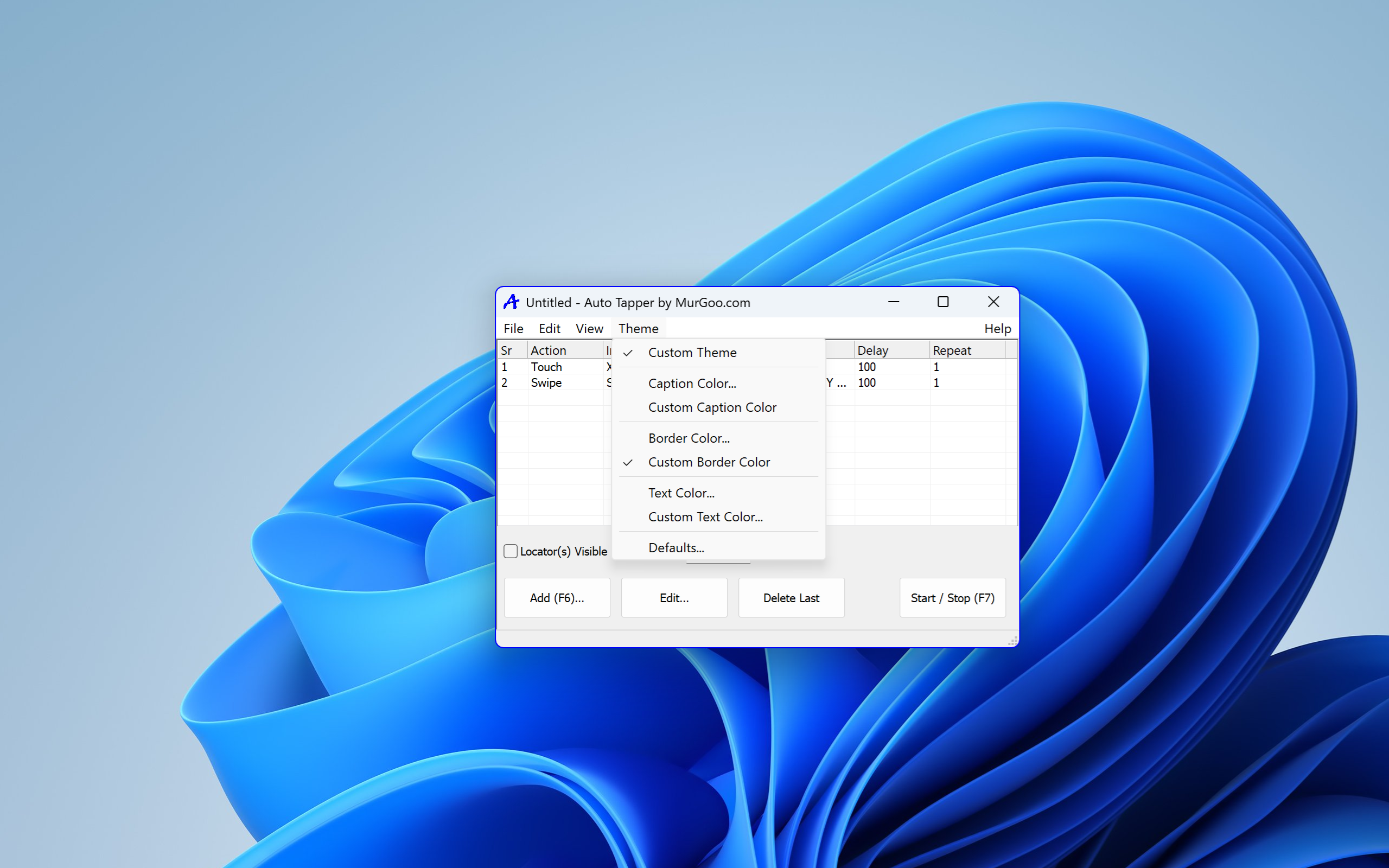
The app boasts a clean, minimalistic interface that feels like a digital dashboard—clear buttons, logical layout, and visual cues guide users smoothly through setup. Even newcomers will find the process intuitive; there's minimal learning curve. The responsiveness is commendable, with instant feedback during configuration and fast execution during operation. The presence of helpful tooltips and straightforward options reduces the chance of errors, enhancing overall usability. This thoughtful design ensures users can focus on their tasks rather than wrestling with complicated menus.
What Sets Auto Tapper Apart?
Compared to other utility applications in the automation sphere, Auto Tapper's standout feature is its ultra-lightweight operation combined with high precision and adaptability. Unlike bulkier automation tools that require extensive scripting knowledge or bulky installations, Auto Tapper embraces simplicity without sacrificing performance. Its ability to handle multiple profiles and scheduled operations makes it a versatile companion—whether you want to automate gaming clicks or streamline repetitive work processes. Moreover, its low resource footprint ensures it won't slow down your system, a big plus for those running multiple applications simultaneously.
Final Thoughts & Recommendations
All in all, Auto Tapper for Windows proves to be a reliable, straightforward automation utility that bridges the gap between complexity and usability. I'd recommend it to anyone looking to reduce repetitive clicking, whether you're a gamer, a data entry professional, or a software tester. Its ease of use, precision, and efficiency make it a valuable addition to your digital toolkit. While it doesn't boast flashy features or extensive customization, its focused functionality hits the sweet spot for everyday automation needs.
In conclusion, if you're seeking a no-fuss, effective auto-clicker that respects your system resources and offers flexible control, Auto Tapper is certainly worth trying out. It's like having a helpful assistant quietly working in the background, so you can focus on more important or enjoyable tasks. Give it a shot—you might find your workflow becomes a lot smoother with this simple yet smart tool on your side.
Pros
- User-friendly interface
- Customizable tap settings
- Supports multiple applications
- Preset automation profiles
- Affordable and accessible
Cons
- Limited advanced customization options
- Potential for accidental taps
- Compatibility issues with newer OS updates
- Lacks detailed usage instructions
- No free trial period for full features











