
- Category Utilities & tools
- Developer Dell Technologies
- Available on PC
- OS Windows 10 version 0.0 or higher
- Keyboard Integrated Keyboard
- Mouse Integrated Mouse
- Memory 8 GB
- languages Arabic, Chinese, Chinese (Simplified), Chinese (Traditional Chinese), English, French, French (Canada), German, Italian, Japanese, Korean, Polish, Portuguese, Portuguese (Brazil), Portuguese (Portugal), Russian, Spanish, Spanish (Latin America), Turkish, Ukrainian
Dell Display and Peripheral Manager for Windows: An Essential Tool for Seamless Device Control
If you've ever struggled to juggle multiple displays and peripherals, Dell's Display and Peripheral Manager might just become your new best friend—streamlining your setup with intuitive controls and smart features. Designed to enhance productivity and simplify device management, this app offers a centralized hub for all your Dell hardware-related adjustments.
What is Dell Display and Peripheral Manager?
This Windows application, developed by Dell Technologies and published by Dell Inc., is a comprehensive utility aimed at users with multiple Dell monitors and peripherals. It simplifies the process of configuring, monitoring, and updating your devices through a user-friendly interface. Whether you're a professional managing a multi-monitor workstation or a casual user seeking to optimize your setup, this app promises a more efficient experience.
- Developed by: Dell Technologies
- Publisher: Dell Inc.
- Main features: Customized display settings management, peripheral control, firmware updates, and real-time device monitoring.
- Target users: Professionals, gamers, or home users using multiple Dell peripherals or monitors who desire streamlined device management.
A Fun Dive into Device Control – Why It Stands Out
Imagine walking into your workspace and effortlessly adjusting your monitor brightness, switching display modes, or managing peripherals with a few clicks—this is exactly what Dell's utility aims to enable. Its sleek design and smart integrations make complex setups seem as easy as flipping a switch. Here's a closer look at what makes this app a compelling choice—and what sets it apart.
Intuitive Interface that Resembles a Control Room
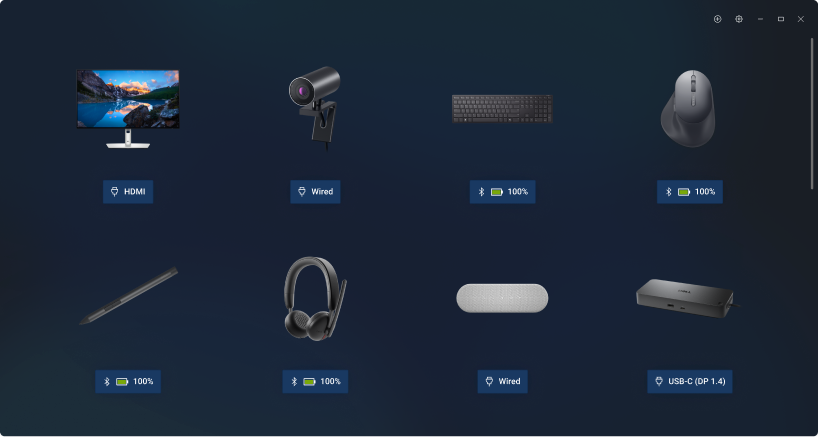
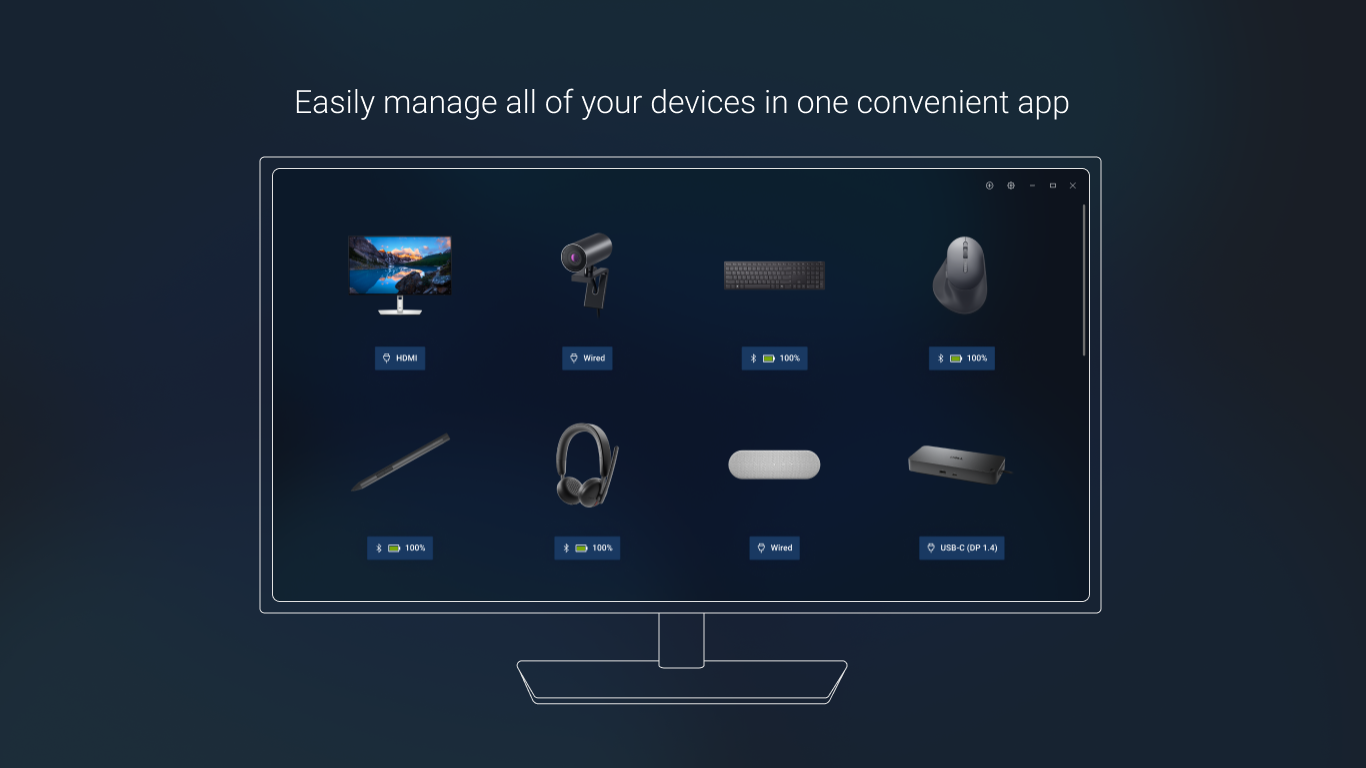
The app's interface is thoughtfully designed, akin to a modern cockpit where each dial and button is easily accessible. Icons and menus are logically organized, allowing even newcomers to navigate swiftly. The dashboard provides a quick overview of connected devices, status alerts, and key controls, making device management feel almost intuitive. Users have praised its clean layout and minimal learning curve, especially compared to more cluttered utility tools.
Core Functionalities – Power in Simplicity
Display Management at Your Fingertips
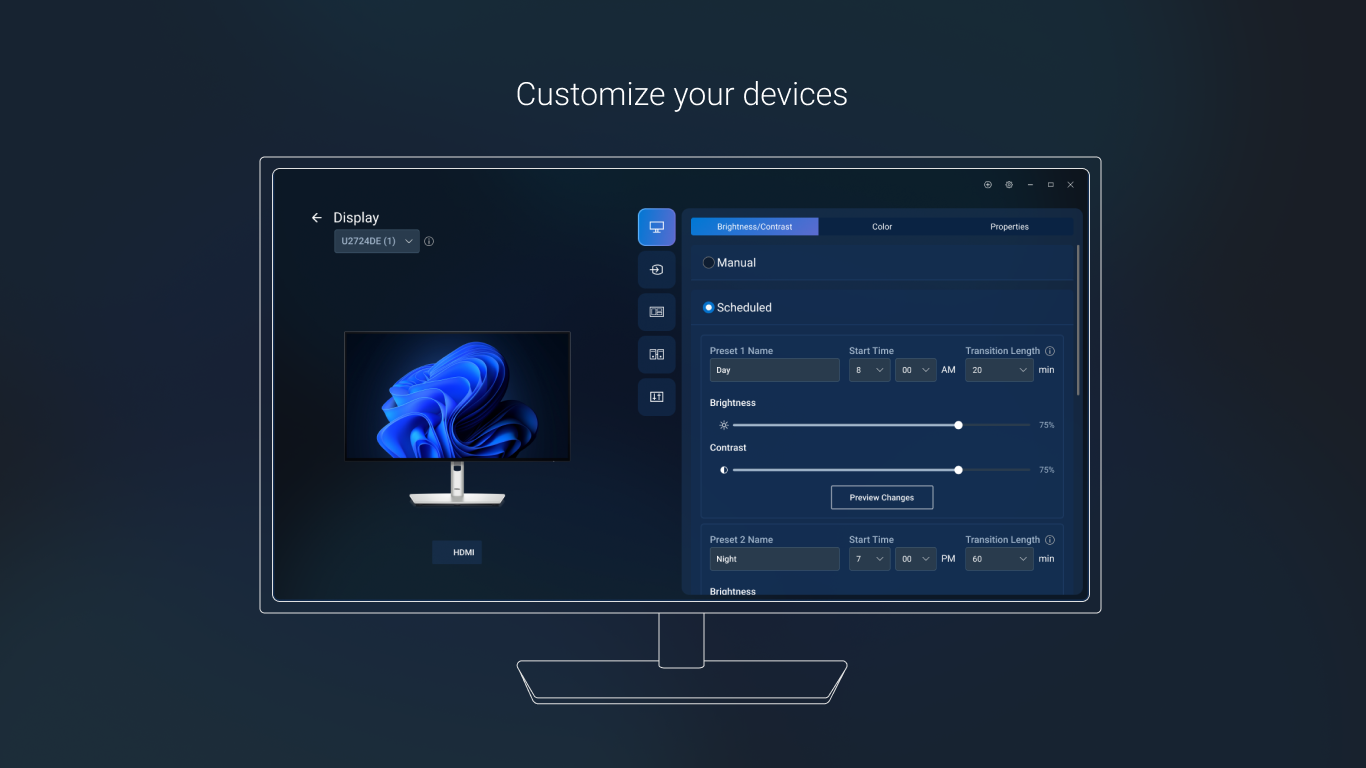
The crux of this application lies in its display management features. Users can calibrate multiple monitors, switch between display profiles, and adjust color settings seamlessly. For professionals working with color-sensitive tasks, this centralized control ensures consistency across screens. What's particularly impressive is its ability to apply settings across multiple monitors in one consolidated interface, eliminating the tedious task of adjusting each one manually.
Peripheral Device Monitoring and Control
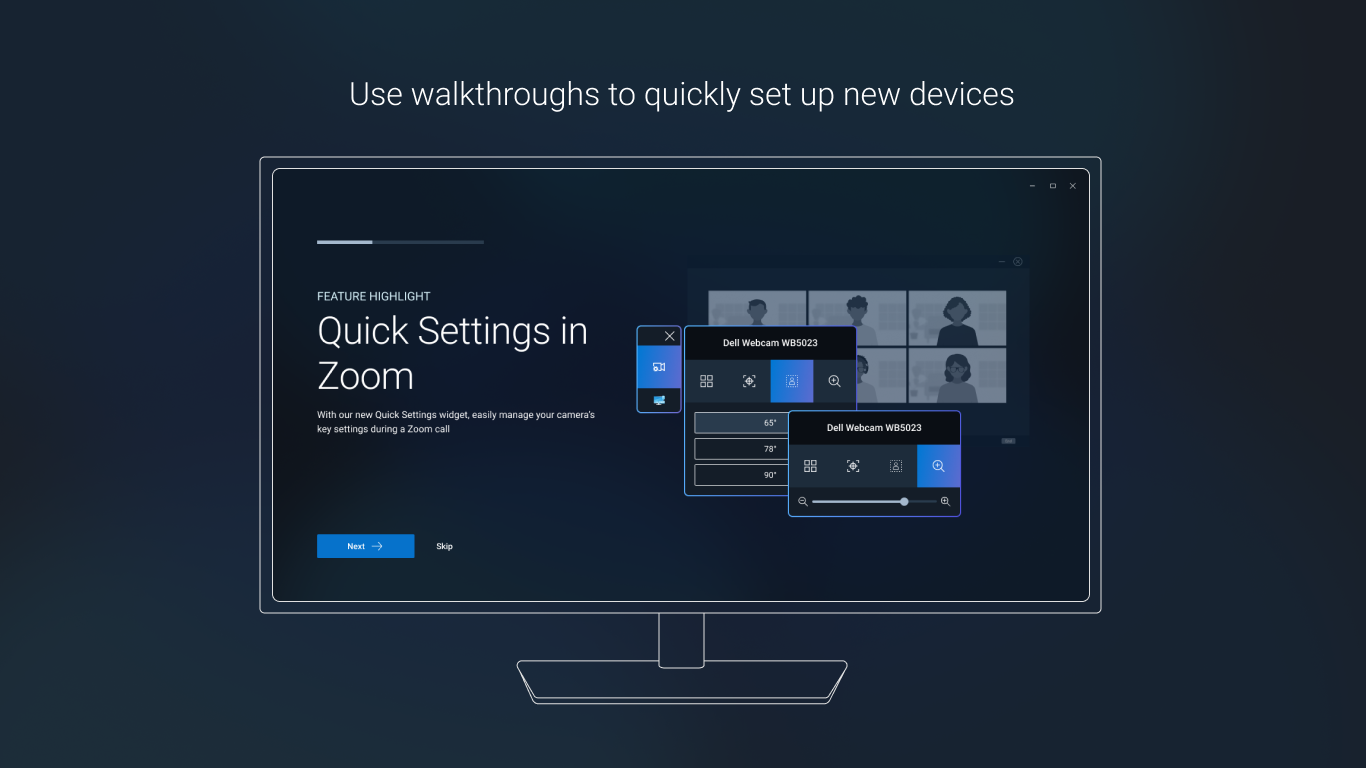
Another highlight is its peripheral management capabilities. Whether it's a keyboard, mouse, or external audio devices, users can monitor device statuses, update firmware, and customize specific features. The app supports real-time alerts for device issues, reducing downtime and troubleshooting hassle. This feature is especially valuable for users running critical workflows that rely on peripheral stability.
Firmware Updates and System Optimization
The utility also functions as a firmware updater, allowing users to keep their hardware components current without hunting through multiple vendor sites. Firmware updates are straightforward to install, reducing the risk of outdated drivers causing headaches. Plus, system optimization tools help in fine-tuning your setup, enhancing overall performance.
User Experience and Unique Selling Points
The app's design ensures a smooth experience; transitions are quick, and actions are reliably executed without lag—akin to a well-oiled machine. Unlike generic device management tools, Dell's application leverages deep integration with Dell hardware, unlocking features that third-party utilities often miss. Its ability to batch-apply settings across multiple devices sets it apart, especially for users managing extensive setups.
Furthermore, the app's proactive monitoring and alert system stand out. It doesn't just let you set and forget; it actively keeps tabs on device health, helping prevent potential failures before they happen. This combination of user-centric design and technical depth makes it a particularly valuable utility for power users.
Final Verdict: Is It Worth Adding to Your Toolkit?
In summary, Dell Display and Peripheral Manager offers a balanced mix of simplicity and sophistication—delivering an experience that is both approachable and feature-rich. If you're a Dell user with multiple devices or peripherals, it's a highly recommended utility that reduces setup complexity and boosts productivity. For casual users, it still offers enough streamlined controls to justify a try. While it may not reinvent device management, its tailored integrations and user-friendly design make it a standout among similar utilities.
Overall, I'd rate this app as a solid “recommend,” especially for those who want an easier way to manage their Dell hardware without juggling several standalone tools. If device harmony matters to you, give it a shot—you might find your workflow becomes just a little smoother every day.
Pros
- Intuitive interface for quick device management
- Seamless synchronization across multiple devices
- Enhanced customization options for display calibration
- Easy firmware and driver updates within the app
- Comprehensive device diagnostics and troubleshooting tools
Cons
- Limited device compatibility outside Dell products
- Occasional slow response times when switching settings
- Lack of advanced/analytics features for professional users
- Frequent update prompts may interrupt workflow
- Minor bugs reported in certain Windows versions











