

- Category Utilities & tools
- Available on PC
- OS Windows 10 version 18362.0 or higher
- languages Chinese (Simplified), Chinese (Traditional Chinese), Dutch, English (United States), French, German, Italian, Japanese, Portuguese (Brazil), Russian, Spanish (Spain)
Introduction: Elevate Your Display Experience with HP Display Center for Windows
Imagine having a personal assistant dedicated to optimizing your display settings, streamlining your workspace, and providing a seamless visual experience. The HP Display Center for Windows is precisely that—a smart hub designed to give you more control, clarity, and convenience when working with your HP display. Whether you're a creative professional, a gamer aiming for perfect visuals, or just someone who loves a crisp, well-calibrated screen, this app promises to be a handy companion.
About the App: Core Information
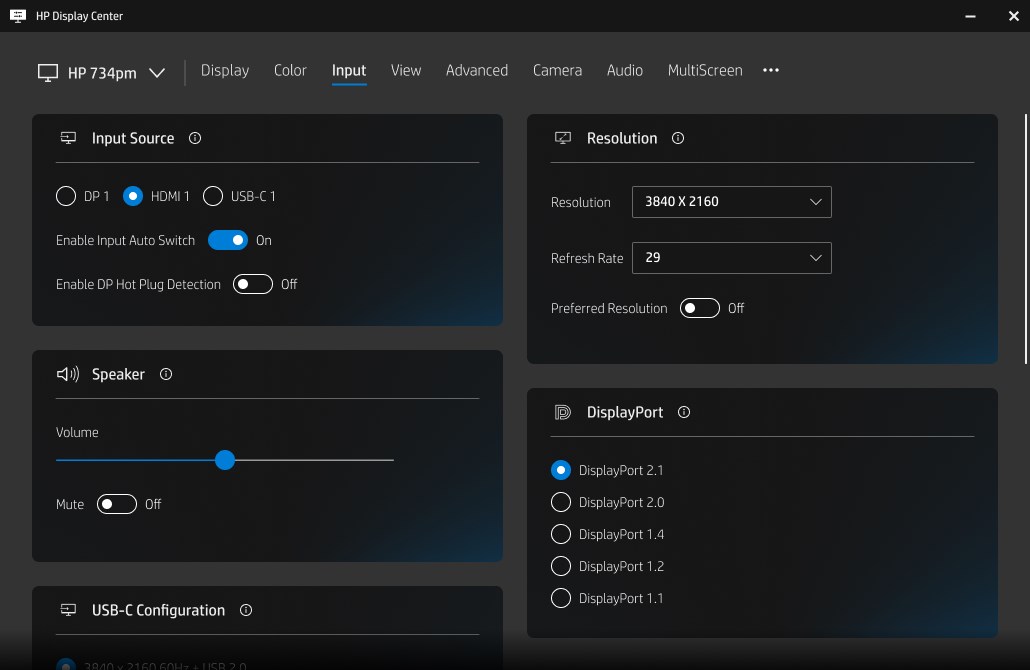
HP Display Center for Windows is a utility application developed by HP Inc. that centralizes display management to enhance user experience with HP monitors. Its primary function is to provide users with intuitive controls over display settings, including color calibration, brightness, and custom profiles. The app highlights include easy-to-use interfaces for quick adjustments, dedicated profiles for different usage scenarios, and seamless integration with HP hardware.
Targeted mainly at HP display owners—ranging from business users to gamers—the app aims to simplify the often complex process of display calibration and customization, ensuring that users get the most out of their hardware with minimal effort.
Vivid Beginnings: Setting the Stage for an Enhanced Display Journey
Imagine sitting at your desk, ready to dive into a project or game, but your screen's colors are slightly off, or the brightness needs tuning to match your environment. The HP Display Center for Windows steps in as a friendly guide, whispering, “Let me make things better,” transforming your routine display adjustments into a smooth, almost effortless experience. It's like having a personal tech-savvy assistant who knows exactly how to make your screen look its best—no fuss, no stress.
Powerful Customization in Action: Core Features Breakdown
Smart Color Calibration and Profiles
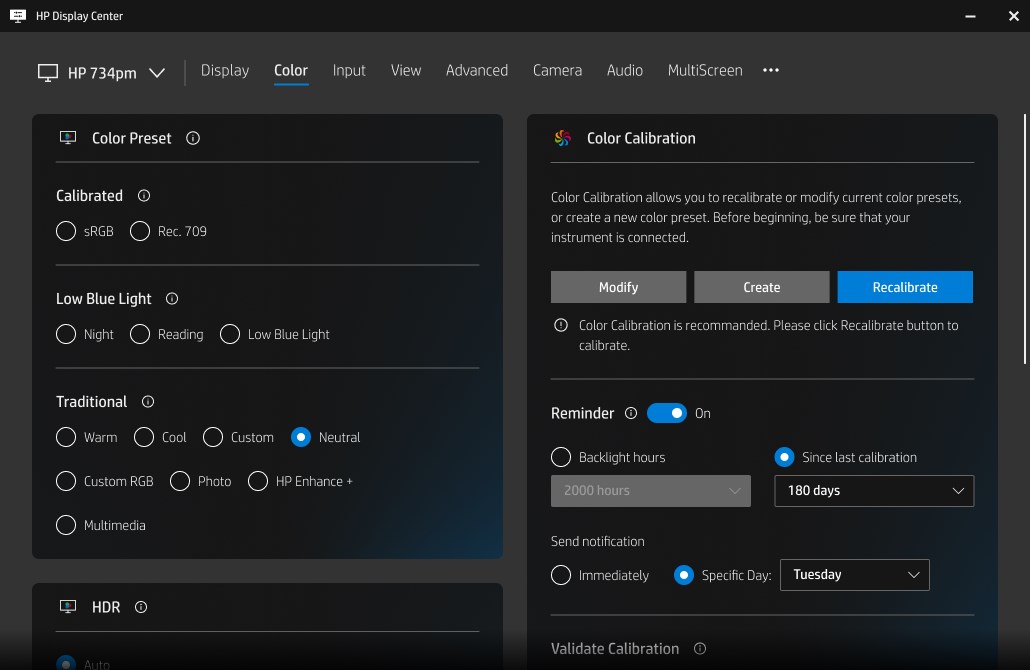
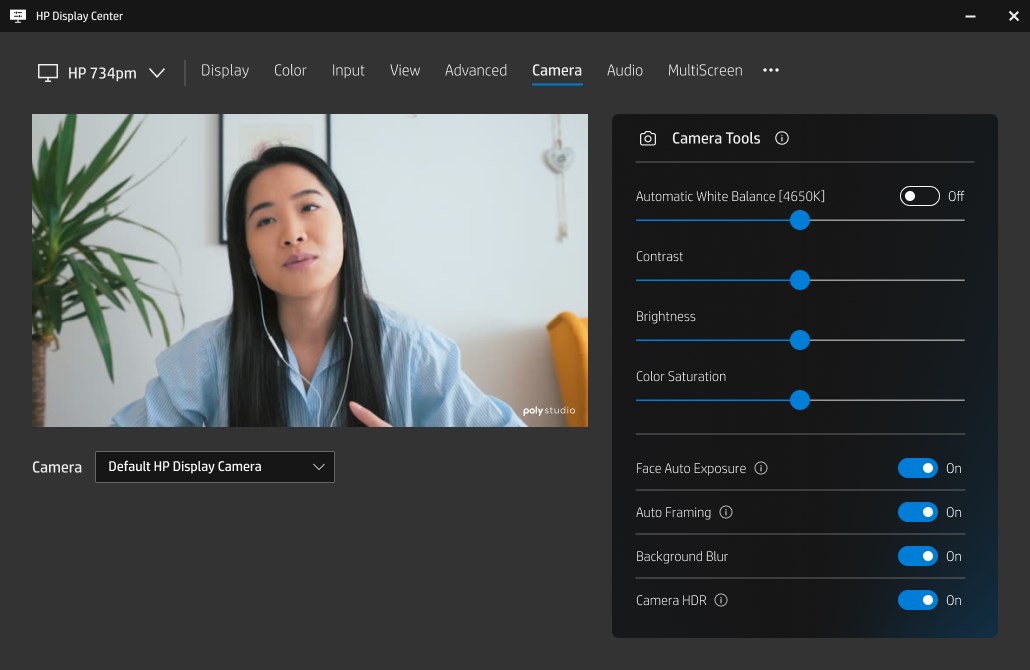
This app's standout feature is its ability to create and manage custom display profiles. You can fine-tune color temperature, saturation, and contrast to suit specific tasks—for photo editing, gaming, or general office work. What makes this feature remarkable is its user-friendly interface that guides even novices through calibration. Plus, the ability to save multiple profiles means switching between work and leisure modes becomes a matter of a click, ensuring that your visual experience adapts effortlessly to your needs.
Brightness, Contrast, and Environmental Adaptation
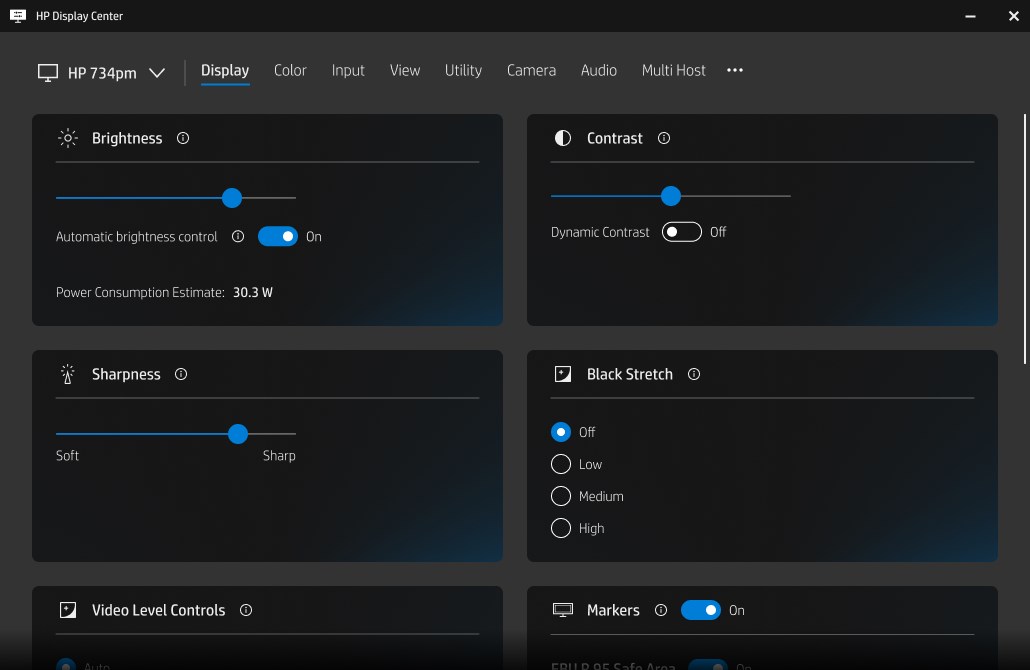
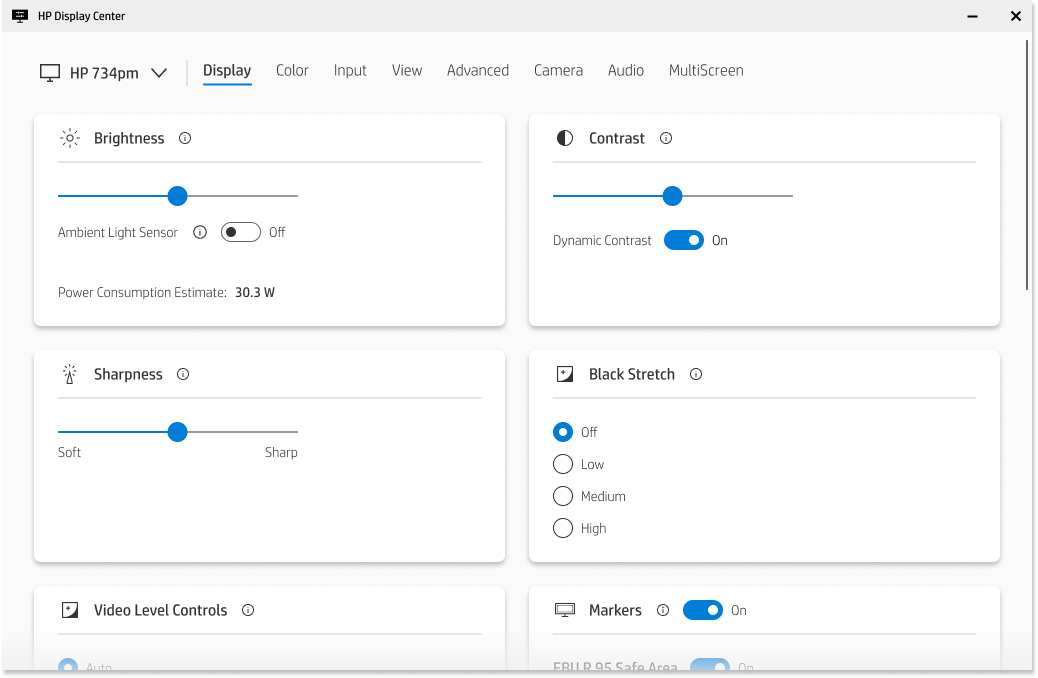
Adjusting brightness and contrast used to involve fiddling with manual buttons or navigating complex menus, but the HP Display Center simplifies this process dramatically. You can tweak these parameters within the app, and some HP monitors may even auto-adjust based on ambient light sensors—if your model supports it. This dynamic adjustment feature offers a personalized viewing experience, reducing eye strain and enhancing detail visibility, especially in varying lighting conditions.
Seamless Interface and User Experience
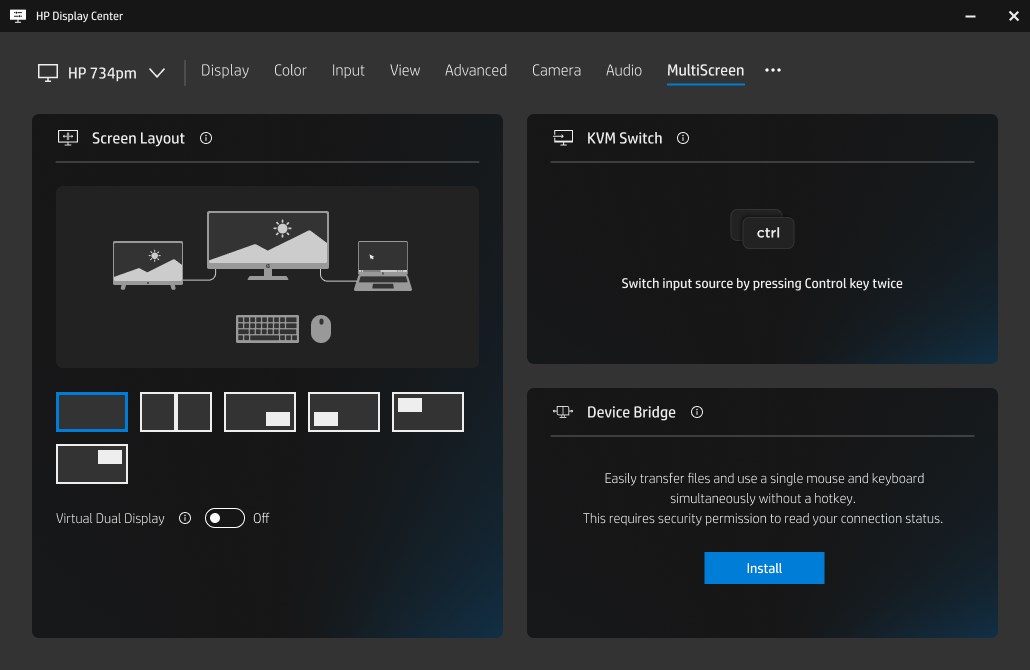
The app boasts a clean, modern interface that resembles a well-organized toolbox rather than a cluttered control panel. Intuitive menus and simple sliders make navigation straightforward, even for first-time users. The smooth operation—quick responses to your inputs and real-time visual updates—creates a feeling of fluidity that makes routine adjustments feel satisfying rather than tedious. The learning curve is gentle; most users will find themselves customizing their display with just a few minutes of exploration.
Unique Selling Points: What Sets It Apart
Compared to other utility apps for display management, the HP Display Center shines with its dedicated focus on HP hardware, offering optimization that general third-party tools might lack. Its ability to automatically recommend and apply profiles based on usage scenarios—like gaming, movies, or professional work—is a particularly handy feature. Moreover, its seamless integration with HP monitors ensures that adjustments are not just superficial tweaks but are aligned with the hardware's internal capabilities, resulting in superior color accuracy and responsiveness.
Another notable highlight is its ability to handle multiple profiles and switch between them swiftly, which is especially beneficial for users with diverse needs: a professional photographer switching from editing to a presentation, or a gamer toggling between casual and competitive modes.
Recommendation and Usage Advice
Overall, I would recommend the HP Display Center for Windows to HP monitor owners who seek a more tailored, efficient way to manage their display settings. Its user-centric design and focus on core calibration and customization features make it a practical tool for enhancing visual comfort and quality.
If you're someone who appreciates fine-tuning your display's appearance without dealing with complex menus or third-party apps, this tool is a solid choice. For best results, ensure your monitor supports the app's full spectrum of features—many benefits hinge on compatibility and hardware capabilities. As a friendly tip, spend a few moments creating tailored profiles for your most common activities—your eyes and productivity will thank you.
Pros
- Seamless monitor customization
- Intuitive user interface
- Support for multiple display profiles
- Automatic color calibration
- Enhanced device management
Cons
- Occasional app lag during profile switching
- Limited compatibility with non-HP monitors
- Basic customization options lacking advanced controls
- Some users experience frequent app crashes
- Limited update frequency











