



- Category Utilities & tools
- Available on PC
- OS Windows 11 version 22000.0 or higher
- languages English (United States)
Introducing Input Switcher for Windows: Effortless Device Management at Your Fingertips
Input Switcher for Windows is a lightweight utility designed to streamline the process of switching between multiple input devices such as keyboards, mice, and other peripherals. Whether you're a power user juggling different setups or a casual user seeking convenience, this app promises to make device management more intuitive and less disruptive.
Meet the Developer: Michał Łeptuch's Innovative Creation
Developed by Michał Łeptuch, Input Switcher for Windows is crafted with a focus on simplicity and efficiency. The developer, likely passionate about enhancing Windows usability, has delivered a tool that addresses a common pain point—easily toggling between connected input devices without navigating complex settings or restarting your system.
Core Features That Shine
- Seamless Device Switching: The app allows you to quickly toggle input devices, saving valuable time especially when working with multiple peripherals connected to your PC.
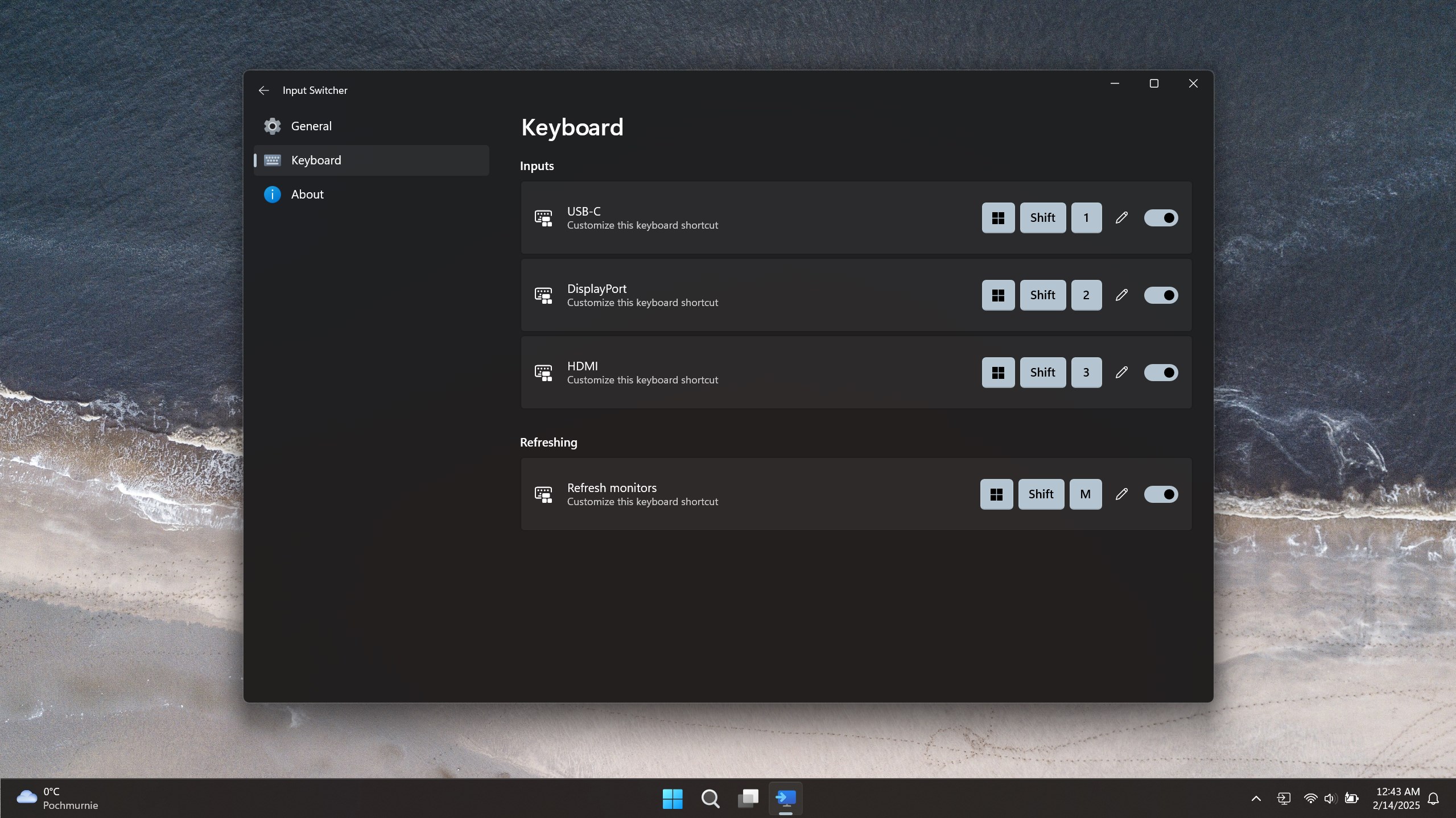
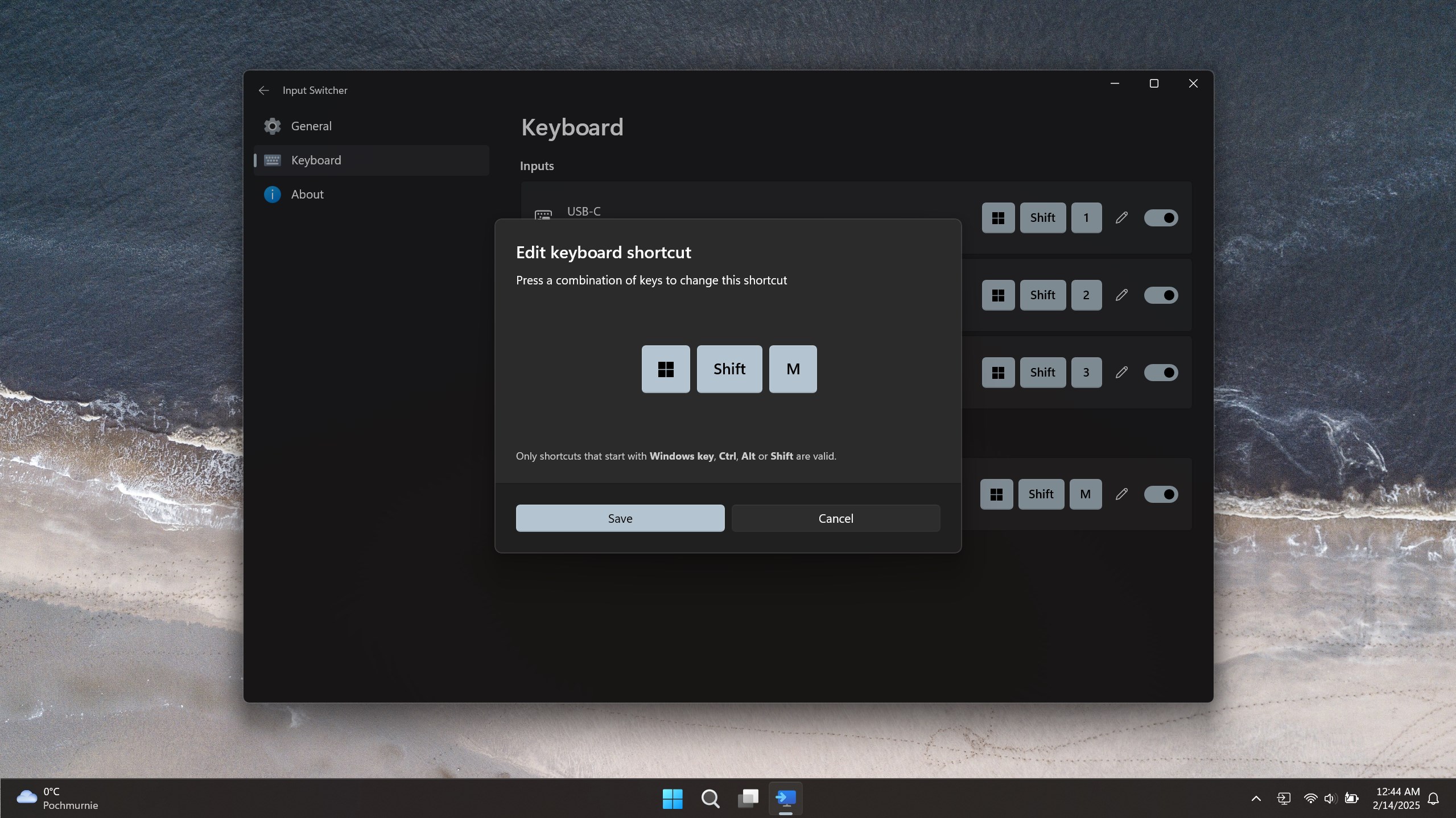
- Customizable Hotkeys: Users can assign personalized keyboard shortcuts for different devices, enabling instant switches with a simple keystroke—perfect for multitasking or gaming enthusiasts.
- Device Profile Management: Save and switch between device configurations effortlessly, ensuring settings are preserved across sessions—ideal for setups with varying device arrangements.
- Lightweight and Non-Intrusive: The application runs smoothly in the background without consuming significant system resources, ensuring your workflow remains uninterrupted.
A Deep Dive into User Experience
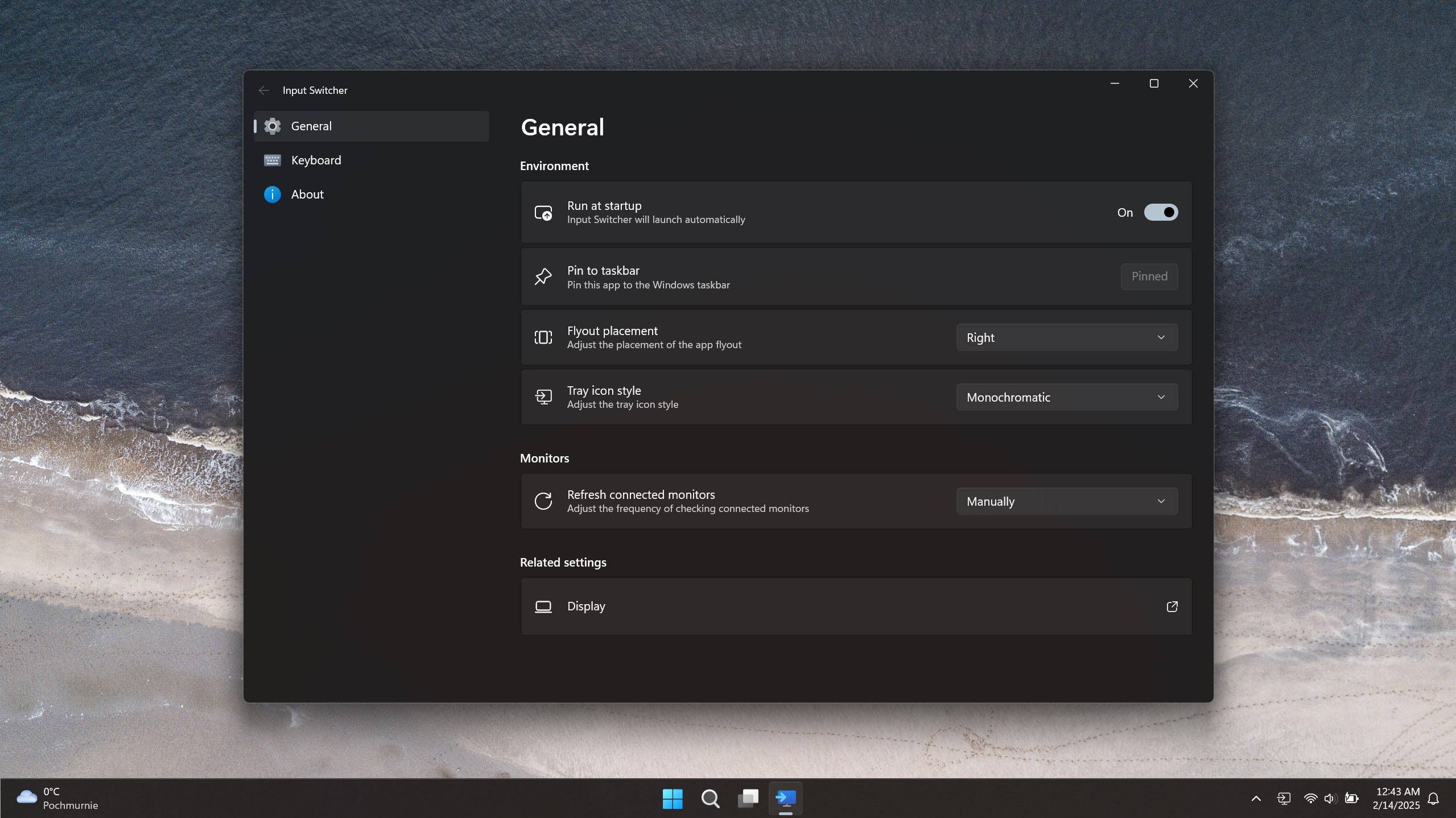
The design philosophy behind Input Switcher emphasizes clarity and ease of use. Upon launching, the interface presents a straightforward list of connected devices, each clearly labeled, making it easy for users to identify and select their target device. The setup process is intuitive—adding or removing devices requires just a few clicks, and configuring hotkeys is similarly straightforward.
In terms of responsiveness, the app feels snappy; switching devices happens almost instantaneously, with no noticeable lag, which enhances user confidence and minimizes disruption during critical tasks. Its learning curve is gentle—most users should be able to master basic functions within minutes, and the detailed options cater well to power users seeking more control.
What Sets Input Switcher Apart?
Unlike traditional device management tools bundled within Windows, Input Switcher offers a dedicated and streamlined approach that focuses solely on input device switching. Its key differentiator lies in the customizable hotkeys and device profile management—features that turn routine device toggling into a smooth, almost automatic process. This app's ability to remember device configurations across sessions and facilitate rapid switching makes it particularly appealing to those who regularly modify their input setup, such as gamers, content creators, or professionals working in multi-device environments.
Final Verdict: Worth Adding to Your Utility Arsenal
Considering its unobtrusive design, ease of use, and powerful customization options, Input Switcher for Windows receives a solid recommendation. It's especially suitable for users who frequently switch between multiple input devices and need a reliable, quick solution. While it may not replace all-in-one device management suites, its dedicated focus and simplicity make it a valuable addition for those seeking efficiency and convenience.
In summary, if you're tired of crawling through settings or disconnecting devices manually, give Input Switcher a try—you might find that what once was a cumbersome chore becomes a seamless part of your daily workflow. For anyone looking for a lightweight, practical tool to enhance input device control, this app is certainly worth a shot.
Pros
- Seamless switching between multiple inputs
- Intuitive and user-friendly interface
- Supports a wide range of input sources
- Customizable hotkeys for quick access
- Lightweight and non-intrusive
Cons
- Limited customization options for interface appearance
- Occasional lag during rapid input switching
- Incompatibility with some third-party accessibility tools
- Limited language support beyond English and Chinese
- Requires Windows 10 or higher











