
- Category Utilities & tools
- Developer P2 Labs
- Available on PC
- OS Windows 10 version 14393.0 or higher
- Memory 300 MB
- Keyboard Not specified
- Mouse Not specified
- languages English (United States)
Streamlining Your Windows Experience: An In-Depth Look at Keyboard Locker
If you've ever accidentally triggered a key or disrupted your workflow with unexpected keystrokes, Keyboard Locker for Windows offers a simple yet effective solution. Designed by P2 Labs, this utility aims to give users control over keyboard inputs, making it a handy tool in many scenarios—from presentations to fixing annoying keyboard issues. Let's delve into what makes this app a noteworthy addition to your toolkit.
Who Is This App For? Bringing Control to Your Keystrokes
Keyboard Locker is targeted at Windows users who need to temporarily disable their keyboard without unplugging devices or shutting down their computer. It's ideal for professionals giving presentations, parents safeguarding children from accidental key presses, or anyone who sometimes finds their keyboard acting up at the wrong moment. Developed by P2 Labs, a team focused on creating unobtrusive utility tools, this app promises straightforward functionality and minimal fuss.
Core Features That Stand Out
Effortless Locking and Unlocking Mechanism
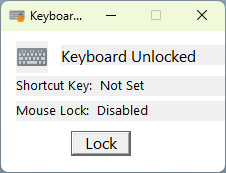
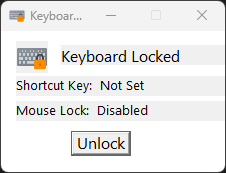
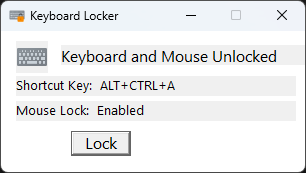
The primary feature of Keyboard Locker is its simple toggle function—press a designated hotkey combination to disable or re-enable keyboard input instantly. This seamless process resembles flipping a switch, giving users quick control without digging through complex menus or settings. It's especially useful during sensitive tasks or when needing a quick break from unintended keystrokes.
Persistent Lock Across Sessions
Once activated, the app maintains the lock state until manually disengaged, ensuring that accidental key presses don't interfere during critical moments. This persistence means you don't have to keep the app open or monitor it constantly—perfect for those who require reliability and peace of mind during long presentations or recordings.
Customizable Hotkeys and User-Friendly Interface
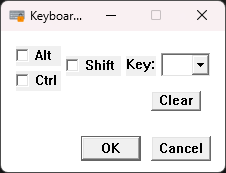
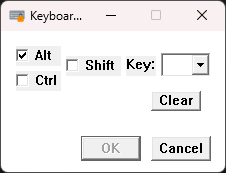
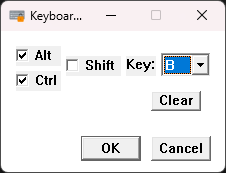
Keyboard Locker allows customization of hotkeys, enabling users to select shortcuts that suit their workflow. Its clean, minimal interface is designed for rapid understanding—no steep learning curve here. The setup feels like adjusting a familiar device, which encourages quick adoption even by less tech-savvy users.
A Closer Look at User Experience
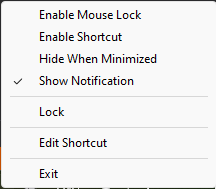
The interface design of Keyboard Locker is straightforward—think of it as the dashboard of an aircraft: sleek and uncluttered. Operating the app requires only a few clicks or key presses, making it surprisingly intuitive. The responsiveness is smooth; toggling lock status feels almost instantaneous, akin to flicking a switch. For users unfamiliar with such utilities, the learning curve is gentle—the app's clear prompts and simple controls act like a friendly guide in the automation realm.
Compared with other keyboard management tools that often come with bulky features or complicated settings, Keyboard Locker emphasizes minimalism and essential utility. Its unobtrusive design means it doesn't interfere with your other applications, allowing you to focus on your tasks without distraction or lag.
What Sets It Apart? Unique Advantages in the Utilities Arena
While many tools offer keyboard management, Keyboard Locker's standout feature is its ability to lock the keyboard entirely with a customizable hotkey until you decide to unlock. This feature is particularly useful for users who need a quick, reliable method to prevent accidental inputs without resorting to hardware disconnection. Its persistent lock setting across sessions adds an extra layer of control absent in some competitors that reset after a restart.
Moreover, the app's simplicity and focus on core functionality make it appealing. Unlike bloated utilities that attempt to do many things—or security-oriented tools with complex configurations—Keyboard Locker zeroes in on providing an ultra-reliable, easy-to-use lock mechanism. Think of it as the “mute button” for your keyboard—powerful yet straightforward.
Final Thoughts: Is It Worth a Spot on Your Desktop?
If your daily routine involves giving presentations, troubleshooting keyboard issues, or just needing a quick way to prevent unwanted keystrokes, Keyboard Locker is a trustworthy and unobtrusive choice. Its core strengths—simple hotkey toggling and persistent lock state—address real user needs without overcomplicating the experience. For those seeking a lightweight yet reliable tool, I'd recommend giving this app a try.
As a professional tech reviewer, I appreciate how Keyboard Locker combines functionality with elegance, offering a practical solution that feels like it was designed with the user's needs in mind. It's no-nonsense, effective, and easy to integrate into your daily routine—making it a valuable utility for anyone looking to regain control over their Windows keyboard inputs.
Pros
- Simple to enable and disable
- Prevents accidental key presses
- Lightweight app
- Easy to use interface
- Compatible with various Windows versions
Cons
- Lacks customization options
- Does not lock all input devices
- May sometimes not respond immediately
- Limited support for multiple profiles
- No built-in help or user guide











