

- Category Utilities & tools
- Available on PC
- OS Windows 10 version 19041.1 or higher
- languages Arabic, Bulgarian, Chinese (Simplified), Chinese (Traditional), Croatian, Czech, Danish, Dutch, English (United Kingdom), English (United States), Estonian, Finnish, French, French (Canada), German, Greek, Hebrew, Hungarian, Italian, Japanese, Korean , Latvian, Lithuanian, Norwegian (Bokmål), Polish , Portuguese (Brazil), Portuguese (Portugal), Romanian, Russian, Serbian (Latin, Serbia), Slovak, Slovenian (Slovenia), Spanish (Mexico), Spanish (Spain), Swedish, Thai, Turkish, Ukrainian
Quick Assist for Windows: Your Friendly Remote Support Companion
Imagine having a helpful tech buddy ready to troubleshoot your PC issues anytime—Quick Assist for Windows aims to be that dependable companion, offering streamlined remote assistance with a user-friendly touch. Developed by Microsoft Corporation, this app simplifies remote support, making it accessible for both tech novices and seasoned professionals alike.
Basic Information: Clear, Concise, and Targeted
Positioning in a Nutshell
Quick Assist for Windows is a lightweight yet powerful tool designed to facilitate remote desktop support effortlessly.
Developer & Publisher
Developed and published by Microsoft Corporation, ensuring seamless integration within the Windows ecosystem and reliable security standards.
Main Features & Highlights
- Easy Remote Assistance: Initiate or receive remote help without complex setup procedures.
- Secure Connection: End-to-end encryption ensures your support sessions remain private.
- Simple User Interface: Intuitive design that guides users through the support process.
- Minimal Dependencies: Works seamlessly across Windows versions without additional software.
Target Audience
Ideal for IT professionals, tech support teams, and everyday Windows users seeking quick, secure remote help to fix issues or guide others remotely.
A Pleasant Dive into User Experience and Core Features
A Smooth and Friendly User Interface
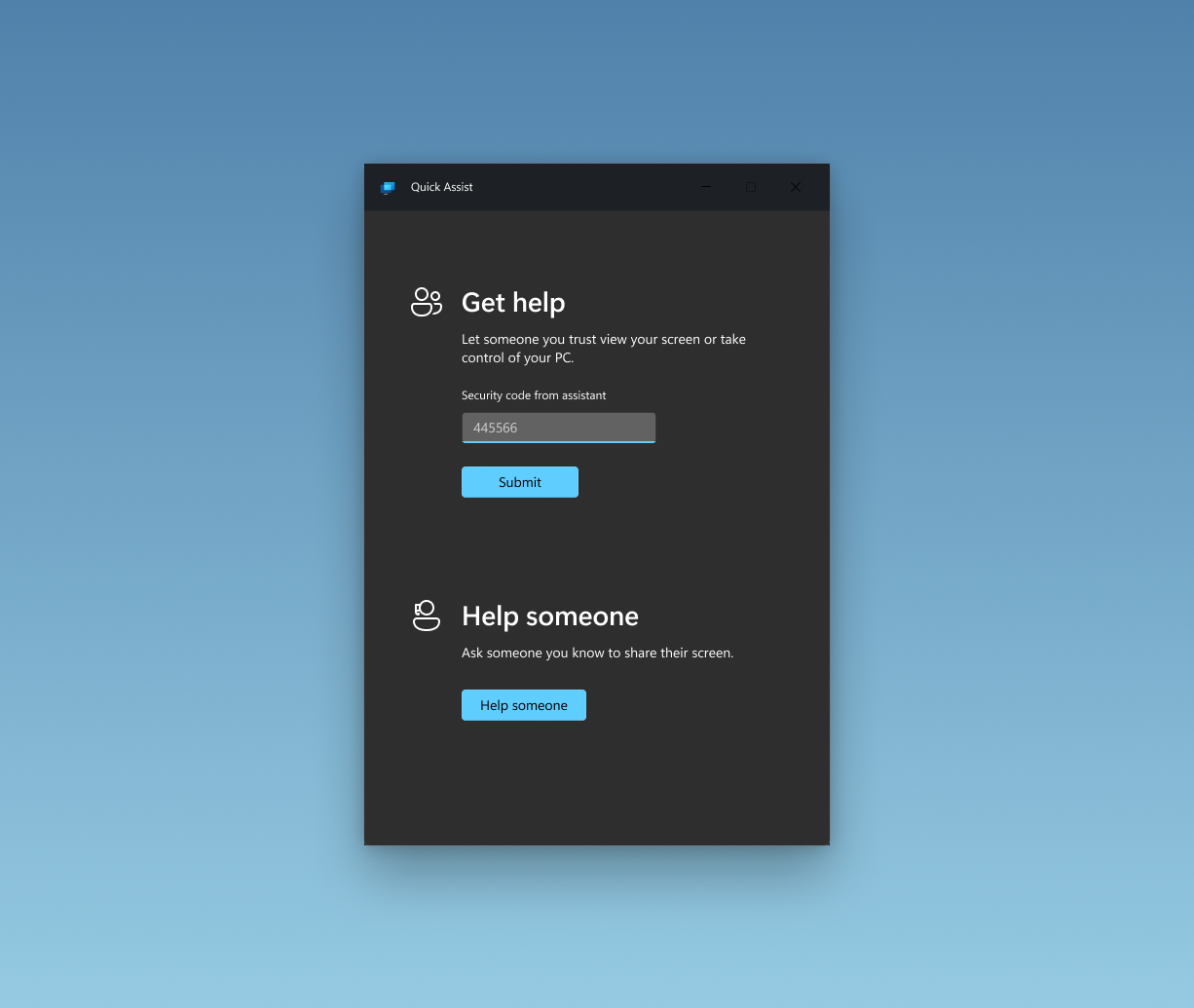
From the moment you open Quick Assist, its clean, uncluttered layout beckons—think of it as stepping into a well-organized workshop. Large buttons and straightforward instructions make launching a support session feel like a friendly chat rather than navigating complex menus. The app's design adopts familiar Windows aesthetics, easing even the most hesitant users into the process with minimal learning curve. Transitions are fluid, and the whole experience is snappy, demonstrating high optimization for Windows' native environment.
Core Functionalities: How It Gets the Job Done
- Quick Initiation of Remote Sessions: Starting a remote support session is as simple as sharing a code—no fuss, no confusing steps. Support providers can quickly generate a help code, which users enter to connect—a process akin to opening a door with a unique key.
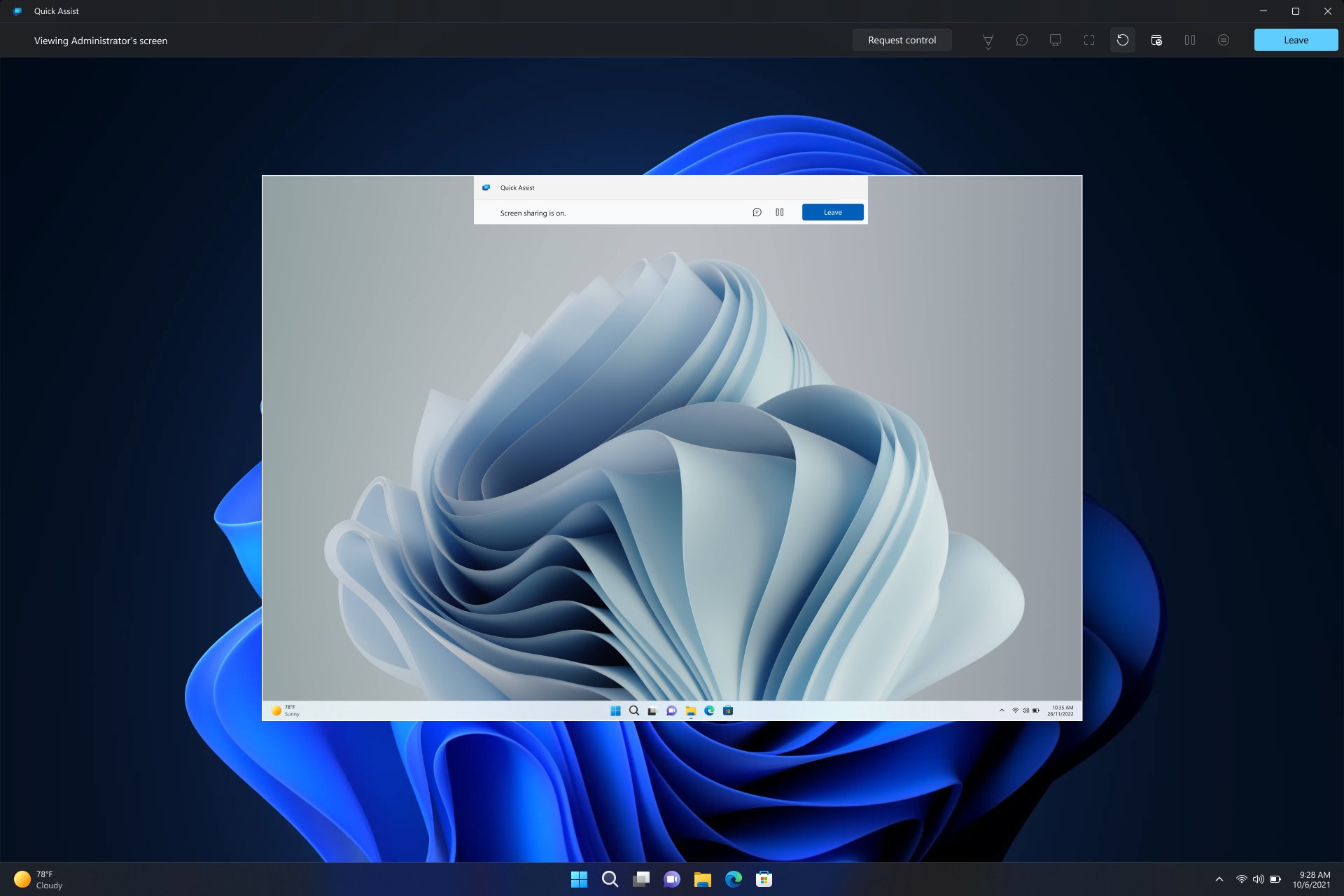
- Real-time Assistance with Visual Clarity: Once connected, support providers gain control over the user's desktop, allowing for seamless troubleshooting. The clarity of the remote view is sharp, ensuring no detail, from tiny error messages to detailed system info, gets lost in translation.
- Secure and Confidential: The emphasis on security is evident. All sessions are encrypted, ensuring sensitive data remains protected—a crucial feature in today's privacy-aware landscape.
Evaluation of User Experience
Overall, Quick Assist offers an uncomplicated, nearly frictionless experience. Its interface reduces intimidation for first-time users, and the support process flows naturally, thanks to logical prompts and minimal setup. Transitioning between roles (either as helper or recipient) is seamless, resembling a friendly chat rather than a formal tech procedure. While it doesn't feature fancy customization options or extensive settings, this minimalistic approach emphasizes ease of use—making remote assistance accessible to everyone.What Sets It Apart from Its Peers
Unlike third-party tools that may require downloads, subscriptions, or account sign-ins, Quick Assist is inherently integrated within Windows. This native design ensures faster connection times and fewer compatibility issues, giving it a significant edge. Furthermore, its straightforward code-sharing method makes user onboarding frictionless—think of it as passing a note in class rather than dealing with elaborate login procedures. The security focus, embedded directly through Windows' trusted infrastructure, gives users peace of mind.
Compared to alternatives like TeamViewer or AnyDesk, Quick Assist may lack advanced features such as file transfer or multi-party sessions, but its core purpose—quick, secure, remote support—is executed with simplicity and reliability. For users who value straightforwardness and integrated Windows support above all, this app is a true gem.
Final Verdict: Should You Give It a Try?
Considering its ease of use, security measures, and seamless integration, I recommend Quick Assist for anyone needing reliable, on-the-fly remote support within the Windows environment. It's especially suitable for support teams or individual users who want a no-fuss, quick solution without the bells and whistles of more complex tools. For those seeking a straightforward, secure, and Windows-native remote assistance app, Quick Assist is definitely worth keeping in your toolkit.
Pros
- User-Friendly Interface
- Rapid Connectivity
- Free to Use
- Secure Support Sessions
- Easy to Share Code
Cons
- Limited Compatibility
- Dependence on a Stable Internet Connection
- Minimal Customization Options
- Initial Setup Slightly Complex
- Limited Functional Features











