

- Category Utilities & tools
- Available on PC
- OS Windows 10 version 17763.0 or higher
- languages English (United Kingdom)
Unveiling RoboCopy GUI for Windows: The User-Friendly Backup Maestro
If you've ever felt overwhelmed by the command-line complexity of RoboCopy, RoboCopy GUI for Windows steps in as an intuitive, visual-friendly solution designed to streamline your file backup and synchronization tasks. It aims to bring the power of RoboCopy to everyone, packaged neatly with a user-friendly interface and helpful features.
About the Developer: PC Assist Software
Developed by PC Assist Software, this application is crafted to serve both casual users and pros seeking an easier way to manage large file operations. PC Assist Software is dedicated to creating practical utilities that simplify common tech tasks without sacrificing depth or control.
Key Features That Make It Shine
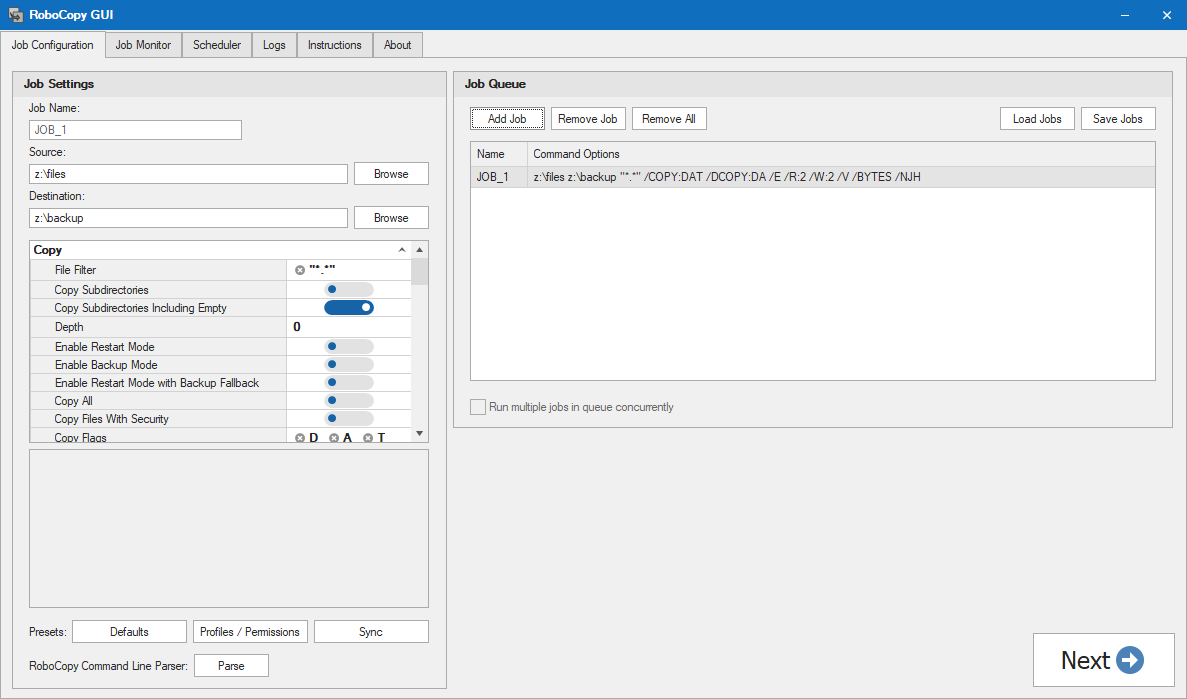
- Graphical User Interface (GUI): Replacing the daunting command line, it offers a visual environment where users can configure complex copy jobs with point-and-click ease.
- Task Profiles & Presets: Save and reuse customized backup profiles, saving time on repeated tasks or setting up scheduled backups effortlessly.
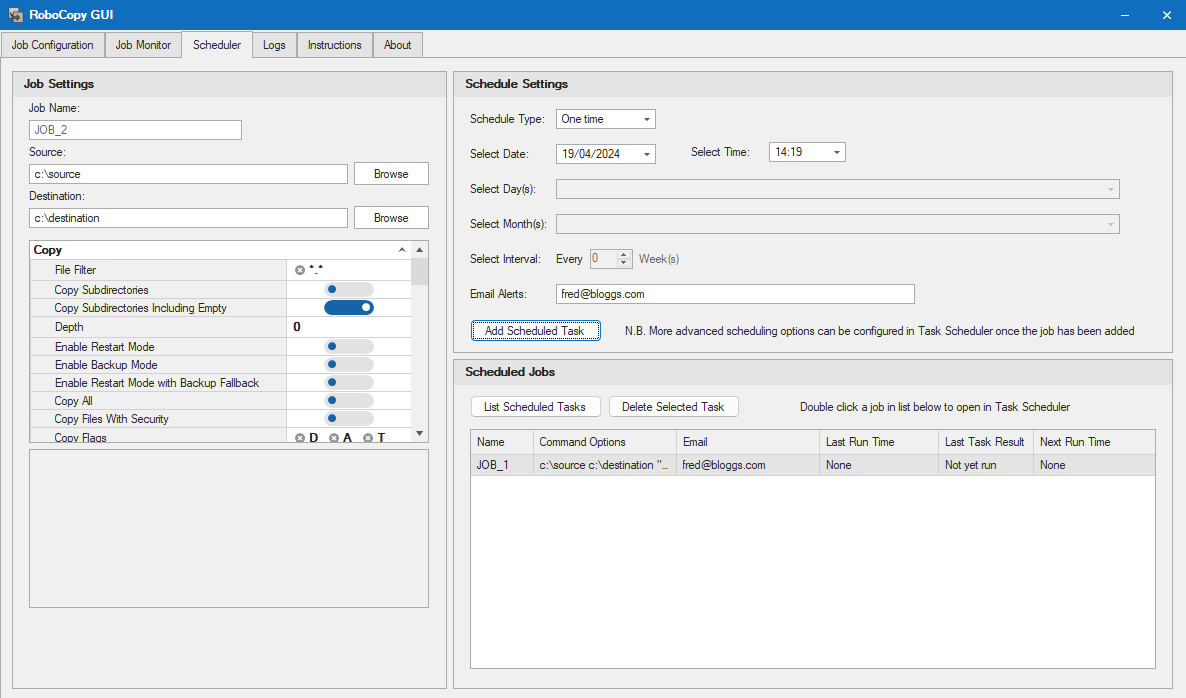
- Advanced Filtering & Scheduling: Fine-tune which files to include or exclude and set automated runs, making routine backups as simple as setting an alarm.
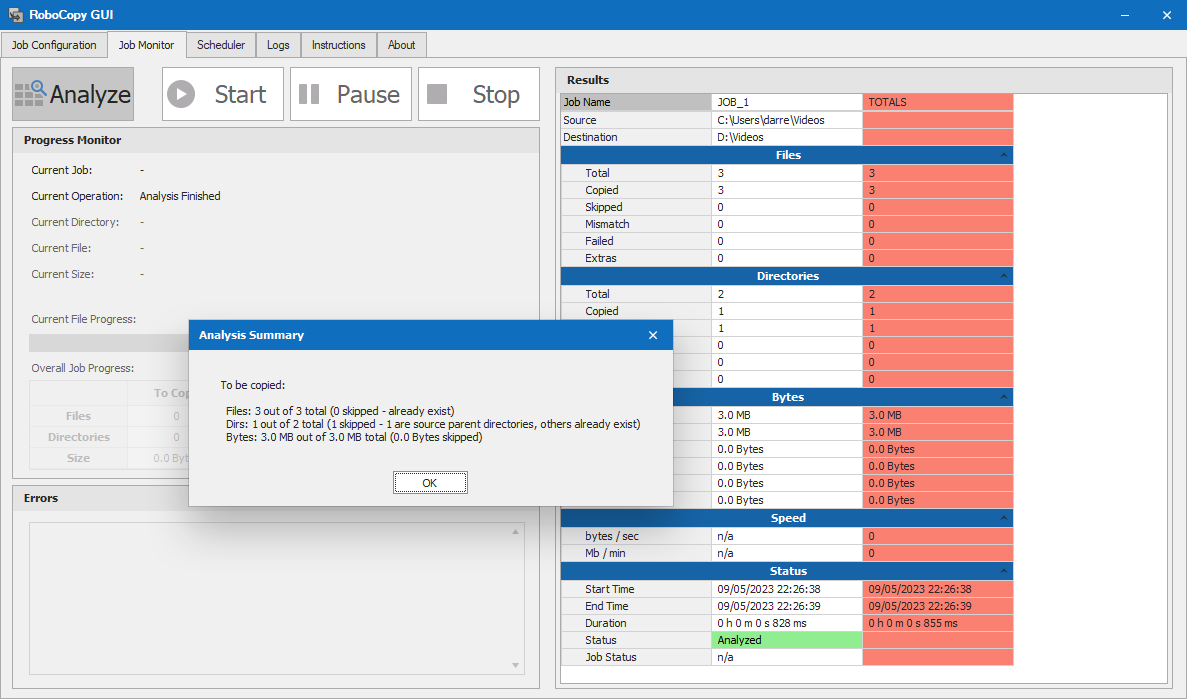
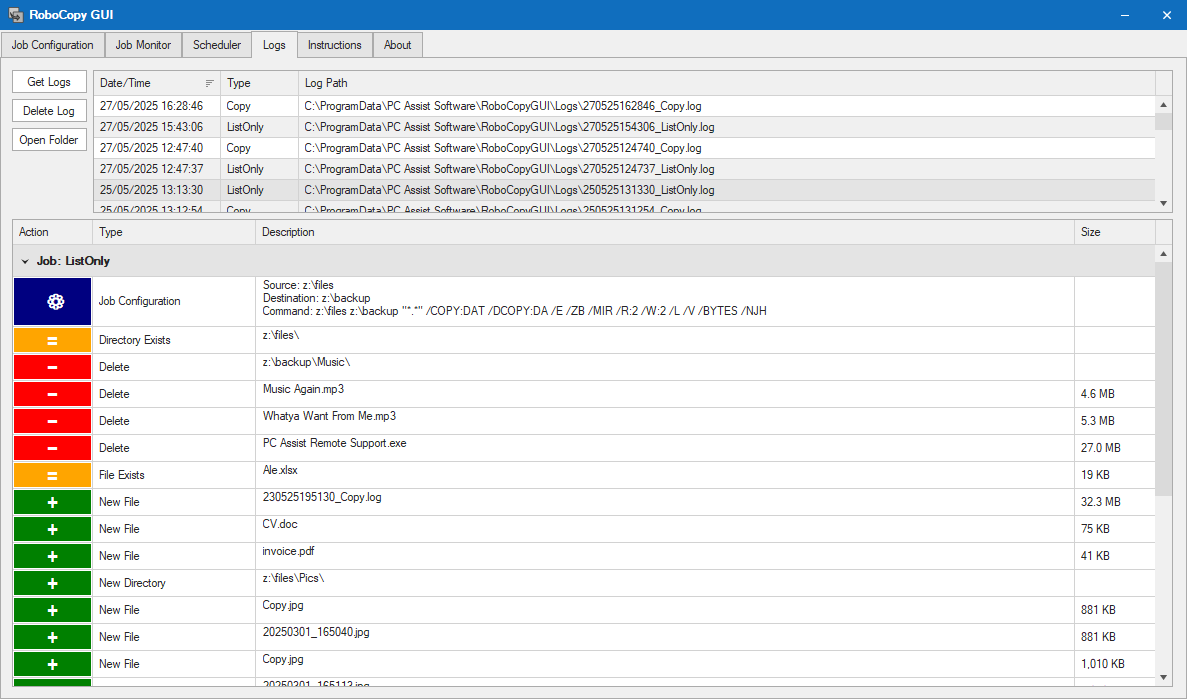
- Progress Monitoring & Logs: Real-time visual progress bars and detailed logs help users stay informed, troubleshoot, and ensure backup integrity.
A Colorful Journey Through Core Functionalities
Intuitive, Visual Backup Configuration
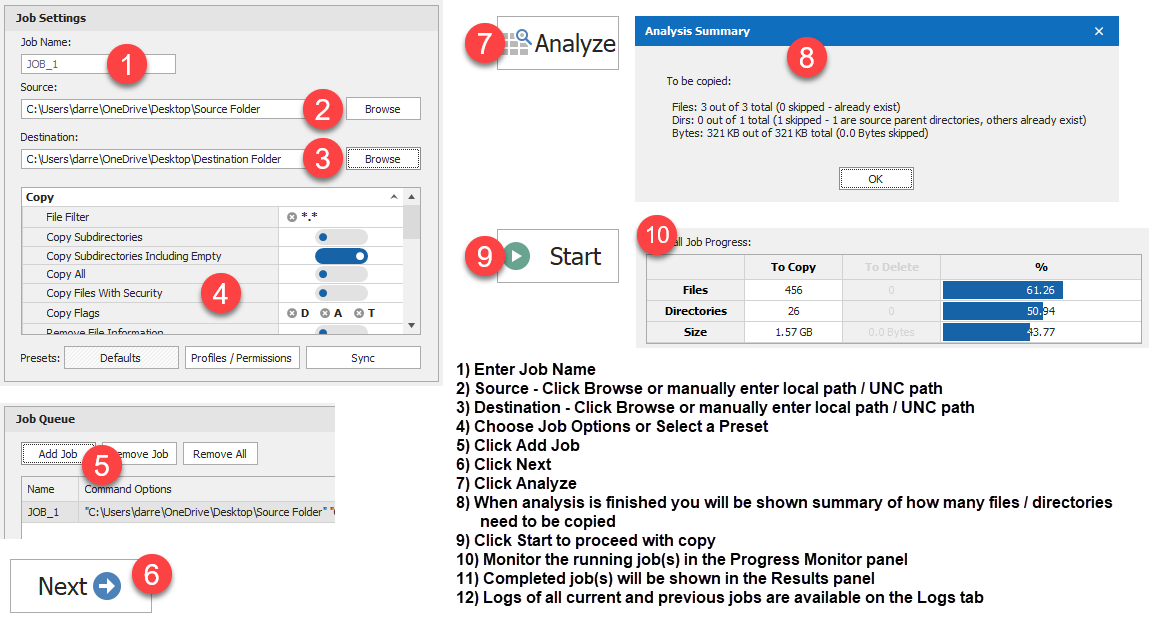
If you've ever tried to decode complex command-line scripts, RoboCopy GUI makes this process feel like assembling a Lego set. Its drag-and-drop elements, checkboxes, and dropdowns turn a potentially intimidating task into a streamlined, visual experience. Setting source and destination folders is as simple as browsing folders, and selecting backup options is just a matter of clicks. This approachable setup demystifies what could otherwise be a daunting technical task.
Powerful Task Profiles & Automation
For those managing regular backups—think of this feature as your personal backup butler—saving profiles means you can set up a job once and run it repeatedly with a single click or timer. The interface allows you to configure presets for common scenarios, such as daily backups or synching folders after work hours. The scheduled tasks feature means you can automate routine backups, turning your PC into a diligent digital servant that works in the background, quietly ensuring your data safety without constant manual input.
Monitoring, Logging, and Fine-Grained Control
The real beauty of RoboCopy GUI lies in its detailed status updates and logs. As data flows, a clear progress bar acts like a GPS, guiding you through the backup journey. Should issues arise, the log files serve as a detailed report card, helping troubleshoot with transparency. The ability to filter files precisely (by size, type, or date) adds a layer of sophistication, making this tool suitable for complex or sensitive backup jobs.
Ease of Use and Distinctive Advantages
The application's interface is clean, well-organized, and visually inviting—imagine a dashboard that feels more like managing a playlist than coding a script. Learning curve? Minimal. Even tech novices can pick it up after a few minutes, while seasoned users will appreciate the depth of options at their fingertips. Compared to purely command-line tools or other utility apps, RoboCopy GUI excels in offering a visual approach paired with powerful customization, setting it apart from more simplistic or less flexible utilities.
Should You Give It a Go? Our Recommendation
All considered, RoboCopy GUI for Windows stands out as a robust, approachable replacement for the traditional RoboCopy command line. Its top-tier features—especially the task profiles and comprehensive monitoring—make routine backups less of a chore and more of a breeze. For users seeking a reliable, easy-to-navigate backup utility that doesn't compromise on power, this app is worth trying out. It's particularly recommended for those who want the flexibility of RoboCopy but prefer a visual, simplified interface. If you're managing sensitive or critical data regularly, RoboCopy GUI could become your trusted digital assistant without the typical complexity.
Pros
- Intuitive GUI for RoboCopy tasks
- Comprehensive transfer options
- Ease of scheduling and automation
- Real-time progress monitoring
- Lightweight and user-friendly interface
Cons
- Limited advanced customization options
- Occasional UI lag during large transfers
- Insufficient help documentation for complex features
- Default settings may not suit all workflows
- Limited support for cloud storage providers











