
- Category Utilities & tools
- Developer Samsung Electronics Co. Ltd.
- Available on PC
- OS Windows 10 version 19041.0 or higher
- languages Arabic, Arabic (United Arab Emirates), Bulgarian, Chinese (Simplified), Chinese (Traditional), Chinese (Traditional, Hong Kong SAR), Croatian, Czech, Danish, Dutch, English (United Kingdom), English (United States), Estonian, Finnish, French, French (Canada), German, Greek, Hebrew, Hindi, Hungarian, Indonesian, Italian, Japanese, Korean , Latvian, Lithuanian, Malay, Norwegian (Bokmål), Polish , Portuguese (Brazil), Portuguese (Portugal), Romanian, Russian, Slovak, Slovenian (Slovenia), Spanish (Argentina), Spanish (Chile), Spanish (Latin America), Spanish (Mexico), Spanish (Paraguay), Spanish (Spain), Spanish (Uruguay), Swedish, Thai, Turkish, Ukrainian, Vietnamese
Seamless Data Transfer at Your Fingertips
Samsung Smart Switch for Windows stands out as a reliable companion for anyone looking to migrate their data effortlessly between devices. Whether you're switching to a new phone or just reorganizing your digital life, this app promises a smooth journey from chaos to order.
Developed by a Tech Leader
Crafted by Samsung Electronics Co. Ltd., a global titan in consumer electronics, the app benefits from years of innovation and a deep understanding of user needs. Their expertise ensures that Smart Switch not only functions efficiently but also integrates seamlessly within the Samsung ecosystem.
Top Features That Make a Difference
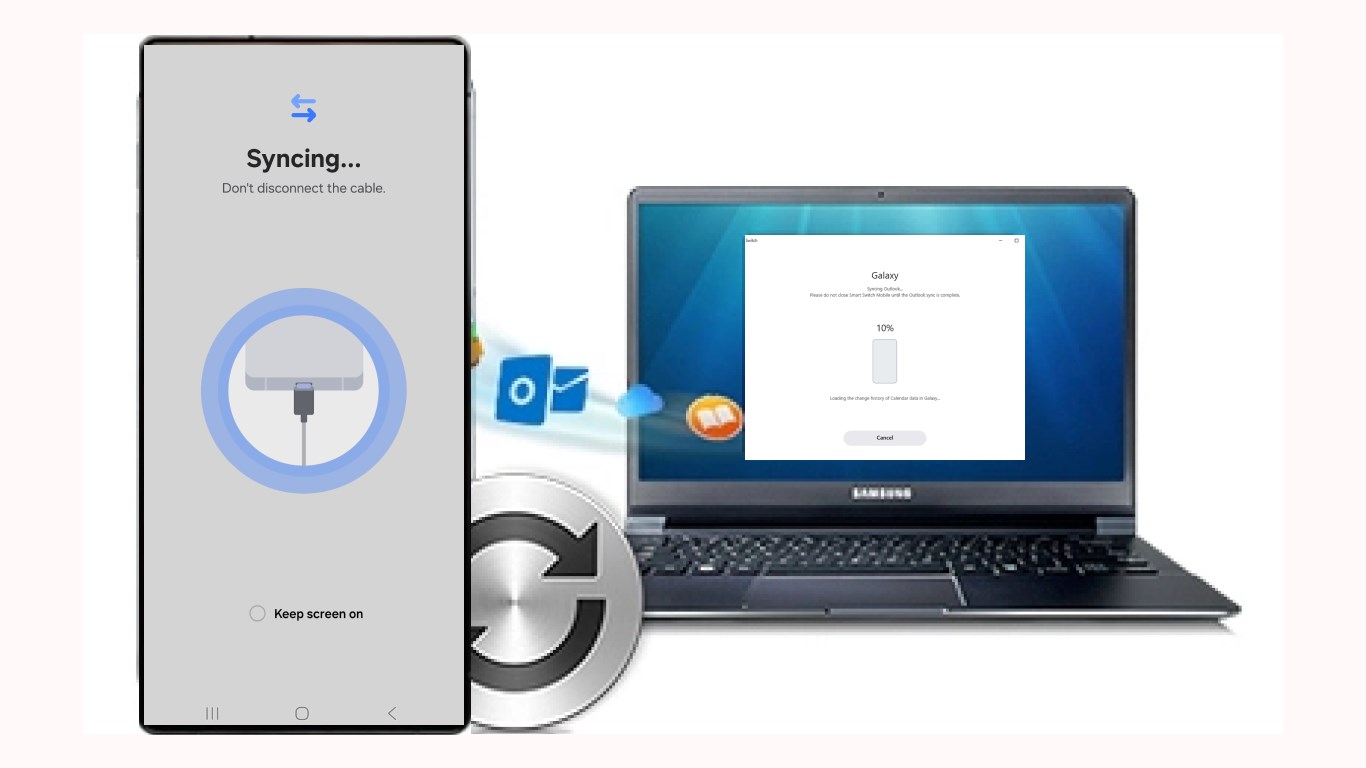
- One-Click Device Migration: Simplifies the transfer process by allowing users to migrate contacts, photos, messages, and apps with a single click, reducing the hassle of manual file management.
- Automatic Data Compatibility Checks: An intelligent feature that scans and ensures the transferred data is compatible with the new device, preventing corruption or loss.
- Secure Data Transfer Protocols: Utilizes robust encryption standards to keep your personal information safe throughout the migration process.
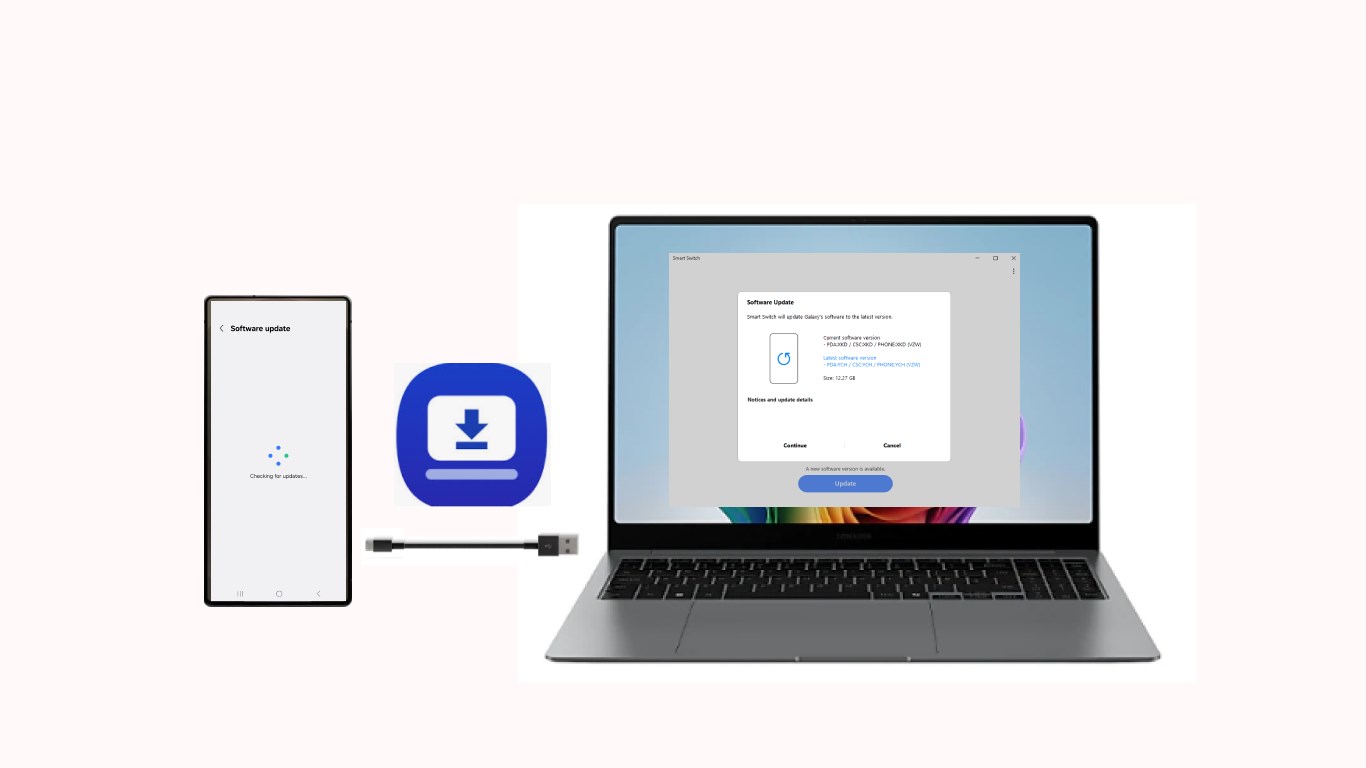
- Flexible Transfer Options: Supports various connection methods such as Wi-Fi and USB, accommodating different scenarios and user preferences.
A Friendly Interface with a User-Centric Design
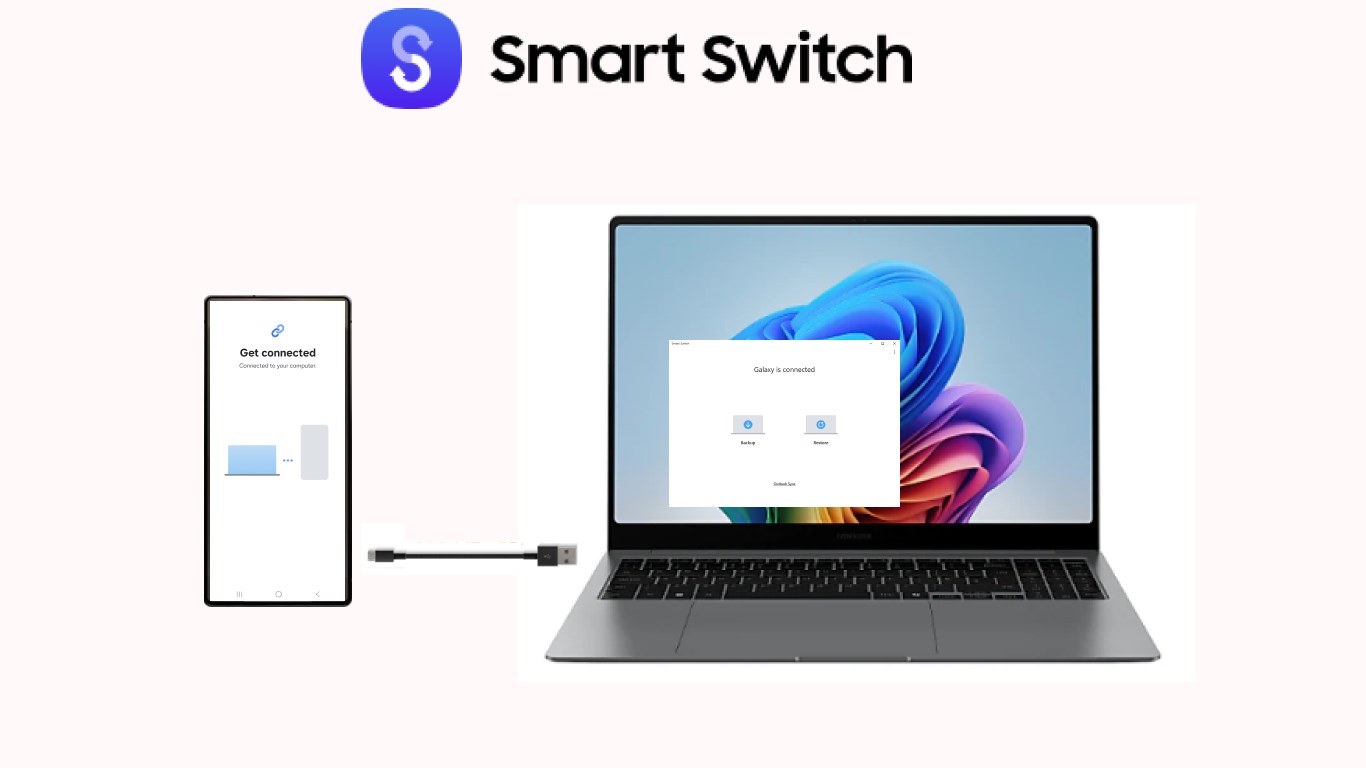
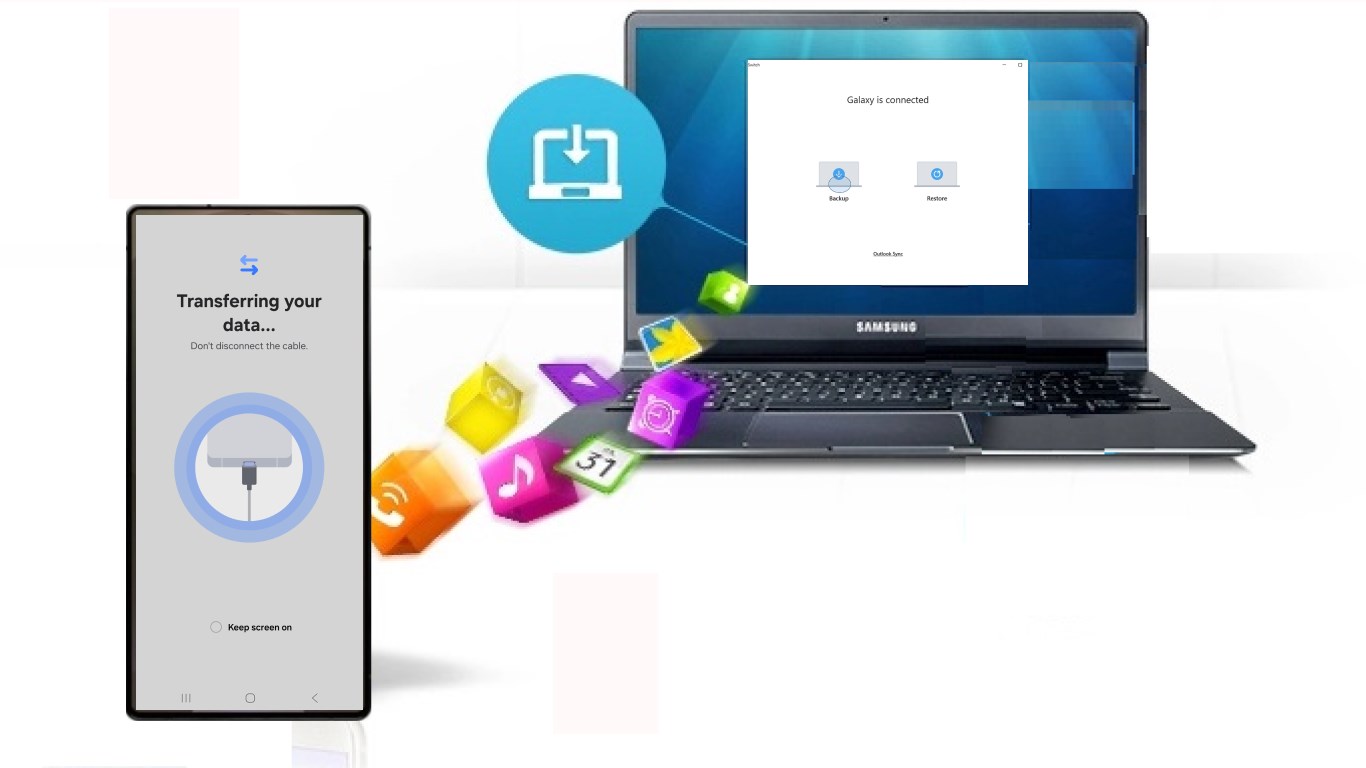
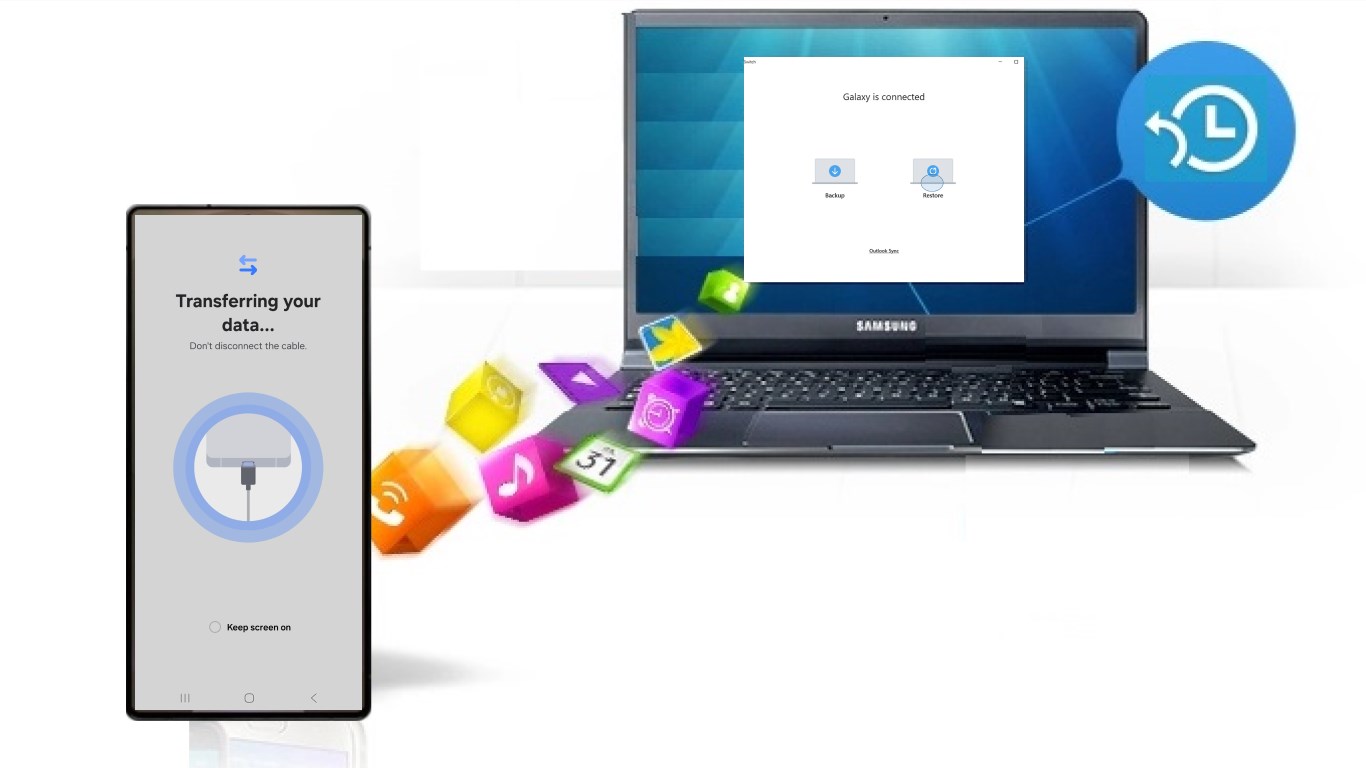
From the moment you launch Samsung Smart Switch for Windows, it feels like stepping into a well-organized control room. The interface boasts a clean, modern aesthetic with intuitive icons and straightforward instructions, making it accessible even for those less tech-savvy. The operation flow is smooth and logical — connect your device, select data to transfer, and watch the magic happen. The app's learning curve is gentle, and most users can master it within minutes, turning a potentially daunting task into an almost enjoyable activity.
How It Stands Out in the Utilities & Tools Crowd
Compared to other device transfer applications, Smart Switch offers a unique blend of comprehensive data migration, security, and device compatibility. Its core strength lies in the automated compatibility checks that assure users their data will transfer correctly without manual interventions or post-transfer fixes. Additionally, Samsung's extensive ecosystem integration allows for a more holistic experience—especially beneficial for Samsung device owners who seek a seamless bridge from old to new. Unlike some generic tools that only transfer a limited set of data, Samsung Smart Switch covers almost everything, reducing the need for multi-tool solutions.
Final Verdict and Recommendations
All in all, Samsung Smart Switch for Windows is a thoughtfully designed utility that delivers on its promise of hassle-free data migration. Its user-friendly design, coupled with robust security features and broad device support, makes it a practical choice for Samsung smartphone users and PC owners alike. I would recommend it to anyone planning a device upgrade or simply wanting to streamline their data management—it's like having a reliable digital assistant guiding you through the process. Whether you're a tech novice or a seasoned user, this app is worth keeping in your toolkit for next device transition or data organization projects.
Pros
- Easy Data Transfer
- Supports Multiple Platforms
- Wireless and Wired Options
- Backup and Restore Functionality
- User-Friendly Interface
Cons
- Limited Device Compatibility
- Slow Transfer Speeds over Wi-Fi
- Potential Data Loss During Transfer
- App Stability Issues on Some Systems
- Limited Support for Non-Samsung Devices











