
- Category Utilities & tools
- Developer Some Media Apps
- Available on PC, Mobile, Surface Hub, HoloLens
- OS Windows 10 version 17763.0 or higher
- languages English (United States)
Transforming Scans into Polished PDFs with Ease
Looking for a straightforward way to convert your paper documents into versatile digital PDFs? "Scan Document to PDF for Windows" by Some Media Apps positions itself as a reliable digital assistant aimed at simplifying this task, whether you're in an office, a classroom, or managing personal paperwork.
Developer and Core Highlights
Developed by Some Media Apps, this application aims to streamline document digitization. Its main highlights include:
- User-friendly interface: A clean, intuitive layout that minimizes the learning curve.
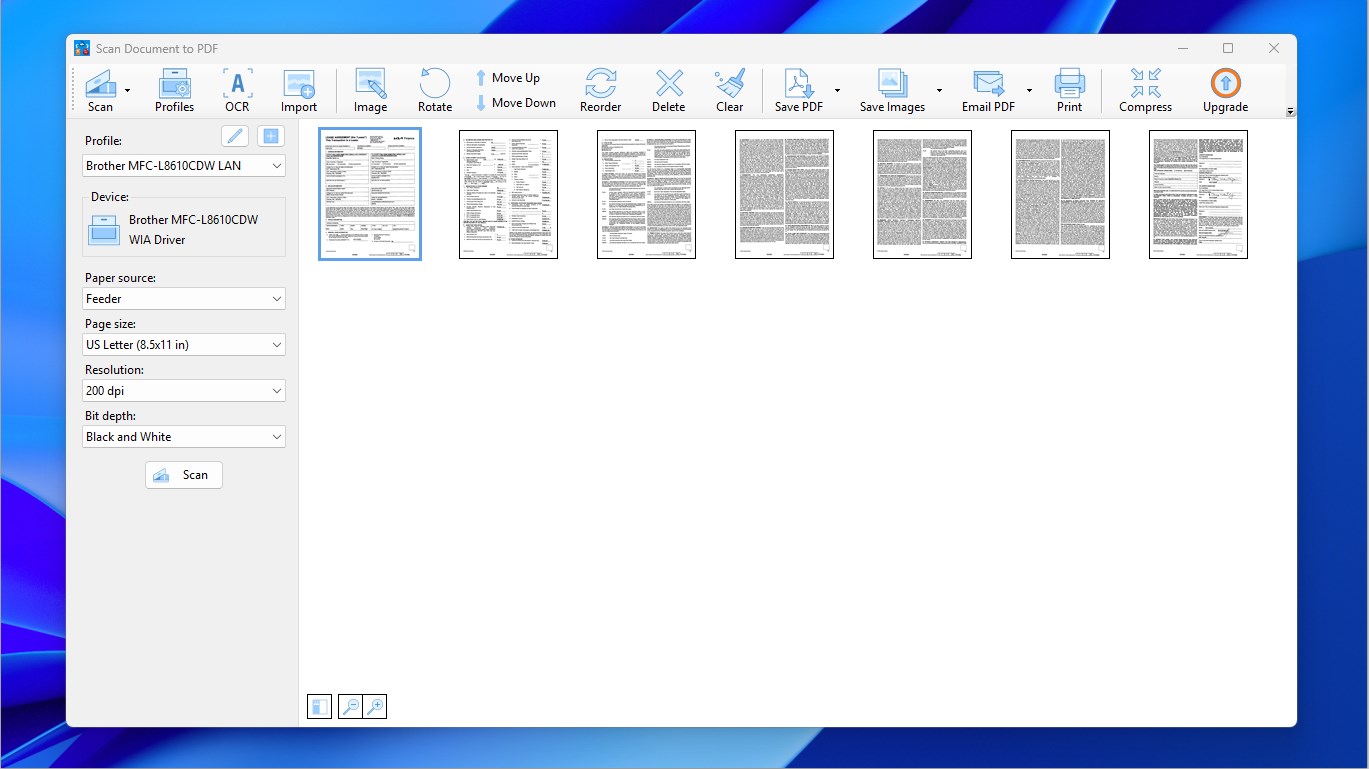
- Efficient scan-to-PDF conversion: Quickly digitize and organize documents, images, and handwritten notes.
- Multi-page document support: Seamlessly compile multiple scans into a single PDF file.
- Basic editing features: Crop, rotate, and adjust scanned images to enhance readability.
The app targets students, professionals, and anyone who regularly manages physical documents and needs a simple way to archive or share them digitally.
Immersive Experience: Scanning and Conversion Done Right
From the moment you fire up the app, it feels like opening a digital photocopy room that's been put in the palm of your hand. The interface is straightforward—large buttons, minimal clutter—making the scan process feel almost like flipping through a notebook. The app supports both webcam captures and importing images from your device, giving you flexibility no matter the source of your documents.
One of the most delightful aspects is the speed at which scans are processed—without lag or excessive waiting times. Once scanned, the app automatically detects page boundaries, allowing you to crop or rotate pages with just a few taps. These features make multi-page document creation a breeze, akin to assembling a picture-perfect photo album but for your PDFs.
Design and User Experience: Smooth Sailing for All Users
The design philosophy here seems to be “less is more.” Navigating through the app feels natural—buttons are logically placed, and workflows are simple enough for beginners yet efficient for seasoned users. The app's responsiveness and stability are noteworthy; switching between tasks or importing multiple images happens seamlessly, with no noticeable slowdown.
The learning curve is gentle. Even if you're not a tech whiz, the step-by-step prompts and intuitive controls guide you effortlessly through the process of scanning, editing, and saving documents. This ease of use makes it suitable for quick jobs during a busy day or more detailed, larger projects.
What Sets It Apart? Unique Selling Points
Compared to other utilities in the same category, "Scan Document to PDF for Windows" offers a few notable advantages:
- Simplified multi-page assembly: While many scanner apps focus solely on single-page tasks, this app excels at consolidating multiple images into a well-organized PDF, much like creating a photo album—organized and accessible.
- Lightweight and accessible: The app's minimalistic design ensures that it stays quick and responsive, without burdening your system or requiring extensive setup.
These features, combined with its ease of use, make it an attractive option for users who need reliable, no-fuss document digitization.
Final Verdict: Recommended for Everyday Document Tasks
All in all, "Scan Document to PDF for Windows" by Some Media Apps is a solid choice for those seeking a simple, effective tool to turn physical documents into clean digital PDFs. Its standout feature—multi-page document assembly—sets it apart in the crowded utility space. Whether you're a student digitizing handwritten notes or a professional organizing receipts, this app offers a straightforward and reliable solution.
While it may lack some advanced editing or OCR capabilities found in more comprehensive apps, its core strengths lie in ease of use, speed, and consistency. I recommend giving it a try if you want a no-nonsense tool that does one thing well—turn your scans into beautiful, organized PDFs without fuss.
Pros
- High-quality PDF conversion
- Intuitive user interface
- Fast processing speed
- Auto-cropping and edge detection
- Multiple document management features
Cons
- Limited editing tools within the app
- Occasional inaccuracies in edge detection
- No OCR feature included in the free version
- File size optimization could be better
- Limited annotation options











