

- Category Utilities & tools
- Available on PC
- OS Windows 10 version 17763.0 or higher
- languages English (United States)
Unlocking Your Webcam's Full Potential: An In-Depth Review of Webcam Settings Tool for Windows
If you've ever felt that your webcam's default settings don't quite do justice to your video calls, recordings, or live streams, then Webcam Settings Tool. for Windows might just become your new best friend. This straightforward yet powerful utility promises to give users a granular level of control over webcam configurations—think of it as giving your webcam a makeover to help it perform at its best. Let's explore whether this tool truly lives up to its promise.
Basic Information: Clear, Concise, User-Centric
Webcam Settings Tool for Windows is a user-friendly application designed to fine-tune webcam parameters with precision. Developed by Lambert Studio, a team focused on creating simple yet effective utility tools, this app aims to bridge the gap between generic camera settings and the more intricate controls offered by professional hardware. Its standout features include customizable exposure adjustments, focus controls, and overall camera calibration – making it ideal for content creators, remote workers, and tech enthusiasts looking to enhance their visual setup. The target audience primarily encompasses casual users who want more control without the complexity of professional editing software or technical expertise, as well as semi-professionals seeking to elevate their webcam quality seamlessly.
A Fresh Take on Webcam Tuning: Setting the Stage for Success
Imagine sitting down for a crucial video call, only to realize that your webcam's image appears dull or overly bright, distorting your professional image. That's when Webcam Settings Tool steps in—much like a skilled makeup artist for your camera—offering you the power to adjust and perfect your webcam's output at a glance. Its intuitive interface and straightforward workflow make it accessible without a steep learning curve, turning what used to be a technical nightmare into a smooth experience.
Core Features that Make a Difference
Precise Exposure and Focus Control
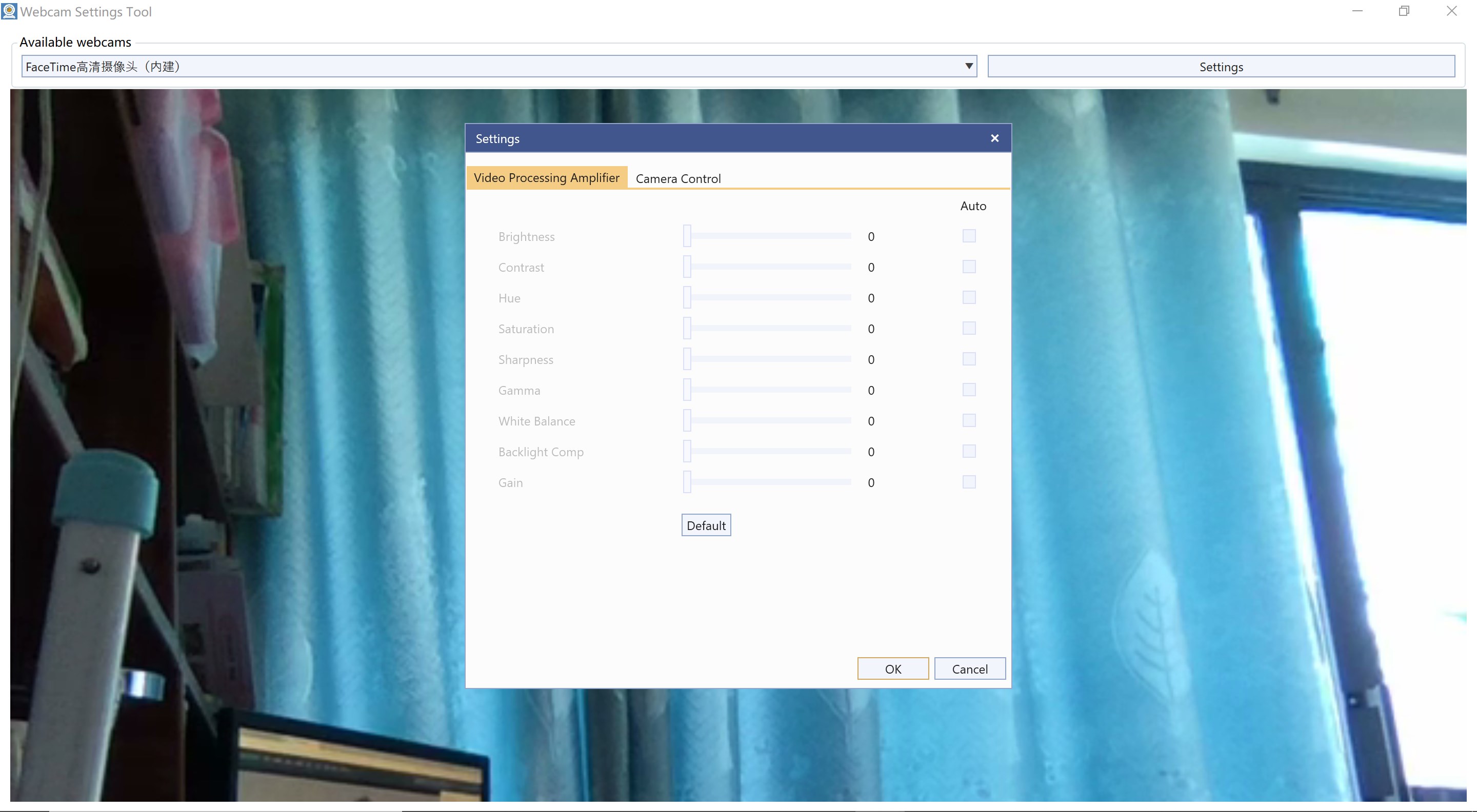
The app's star feature allows users to manually adjust exposure and focus settings—something most default webcams or basic apps lack. Whether you're in a dimly lit room or trying to maintain clarity while moving around, fine-tuning these parameters ensures your image remains sharp and well-lit. This capability is akin to adjusting the aperture on a professional camera, giving users a real tactile sense of control over their visual output. The process is straightforward; sliders are intuitive, and real-time feedback allows immediate assessment of changes, making it easy even for first-timers to get used to the parameters.
Camera Calibration and Custom Profiles
Another highlight is the ability to calibrate your webcam by saving and switching between custom profiles. Picture having a ‘Work Mode' profile with optimized settings for video calls and a ‘Streaming Mode' crafted for live broadcasts. This feature is particularly beneficial for users juggling multiple scenarios, saving time and ensuring consistent quality. Think of it as setting different “modes” for your camera, much like switching from eco to sport mode in your car—simple, quick, and effective.
Advanced Control and Compatibility
Beyond basic adjustments, the application offers advanced controls like setting PID (pixel intensity distribution), cleaning up image noise, and modifying gamma settings. These options give more technical users the tools they need to achieve a professional look. Compatibility is broad, supporting a wide array of webcams, which means it's versatile enough whether you're using an integrated laptop camera or a high-end external device.
Design, Usability, and User Experience
The interface of Webcam Settings Tool for Windows feels like a well-organized toolbox—everything is where you'd expect, with sliders, checkboxes, and buttons laid out logically. It's not flashy, but simplicity is its strength. Users can navigate through different controls without confusion, and tweaking settings feels responsive and smooth—like turning dials on a vintage radio, each click delivers satisfying feedback. Even with minimal technical background, users will find the learning curve gentle, thanks to helpful tooltips and clear labels.
Compared to other utilities that either bombard you with complex options or hide essential controls behind layers of menus, this app strikes a balance—accessible yet powerful. Its most distinctive feature is the real-time preview of adjustments, enabling users to see the immediate impact, greatly enhancing the overall experience.
Final Verdict: Worth a Try for Webcam Enthusiasts
All things considered, Webcam Settings Tool for Windows from Lambert Studio presents a compelling offering for anyone seeking higher control over their webcam's image quality. Its standout capabilities—the fine-grained exposure/focus controls and custom profiles—are particularly valuable for those who want to avoid the low-quality output of default settings without delving into complex software. The app's clean design and ease of use make it suitable for beginners, while its technical options cater to more advanced users.
If you're aiming for more professional-looking video during calls, streams, or recordings, and you value a tool that's straightforward yet powerful, I'd recommend giving this app a serious look. It's not a magic fix, but it's the kind of utility that empowers users to get the most out of their existing hardware without a hefty learning curve or expensive upgrades.
Pros
- Intuitive interface for easy camera settings adjustment
- Supports a wide range of webcams and devices
- Real-time settings preview helps in fine-tuning adjustments quickly
- Lightweight and quick to install
- Offers advanced adjustments for professional users
Cons
- Limited support for some custom webcam features
- No built-in automatic calibration tools
- Occasional compatibility issues with very new or obscure webcam models
- Lack of detailed documentation within the app
- Settings may reset after system updates or restarts











