
- Category Utilities & tools
- Available on PC
- OS Windows 11 version 22000.0 or higher
- Mouse Integrated Mouse
- languages Afrikaans, Albanian, Arabic, Azerbaijani, Basque, Bosnian (Latin, Bosnia and Herzegovina), Bulgarian, Catalan, Chinese (Simplified), Chinese (Traditional), Croatian, Czech, Danish, Dutch, English (United Kingdom), English (United States), Estonian, Finnish, French, French (Canada), Galician , Georgian, German, Greek, Hebrew, Hindi, Hungarian, Icelandic, Indonesian, Kazakh, Korean , Latvian, Lithuanian, Malay, Norwegian (Bokmål), Persian, Polish , Portuguese (Brazil), Portuguese (Portugal), Romanian, Russian, Serbian, Serbian (Latin, Serbia), Slovak, Slovenian (Slovenia), Spanish (Mexico), Spanish (Spain), Swedish, Thai, Turkish, Ukrainian, Vietnamese, Welsh
Introduction: Illuminating Windows HDR Calibration
If you've ever felt that your HDR display isn't quite shining at its brightest or showing colors with true richness, Windows HDR Calibration is here to be your guiding light. Designed to help users achieve the perfect balance between vividness and accuracy, this app offers a streamlined way to fine-tune your HDR experience directly within Windows. Developed by Microsoft Corporation, it acts as a mini tuner tailored specifically for Windows users striving for professional-grade display calibration without the need for pricey hardware or external tools.
Essential Features That Make a Difference
1. Precise HDR Brightness and Contrast Adjustment
The flagship feature of the app allows users to tweak HDR brightness levels with finesse, ensuring that highlights are neither blown out nor dull. Imagine adjusting the lights in a studio to get just the right spotlight effect—this tool offers that level of control, making sure your HDR content looks vibrant yet natural. It's especially beneficial for gamers, video editors, and anyone who consumes HDR content regularly, helping to reveal more detail in dark scenes while maintaining the brilliance of bright scenes.
2. Color Calibration for Natural and Vivid Output
Beyond luminance, color accuracy is paramount. This feature guides users through setting optimal color settings, helping to reproduce colors that are true to life. Whether you're editing photos, watching movies, or gaming, having accurately calibrated colors ensures your display doesn't just look good—it looks exactly as intended. The app provides easy-to-follow instructions, making even novices feel like professional calibrators.
3. User-Friendly Calibration Wizard
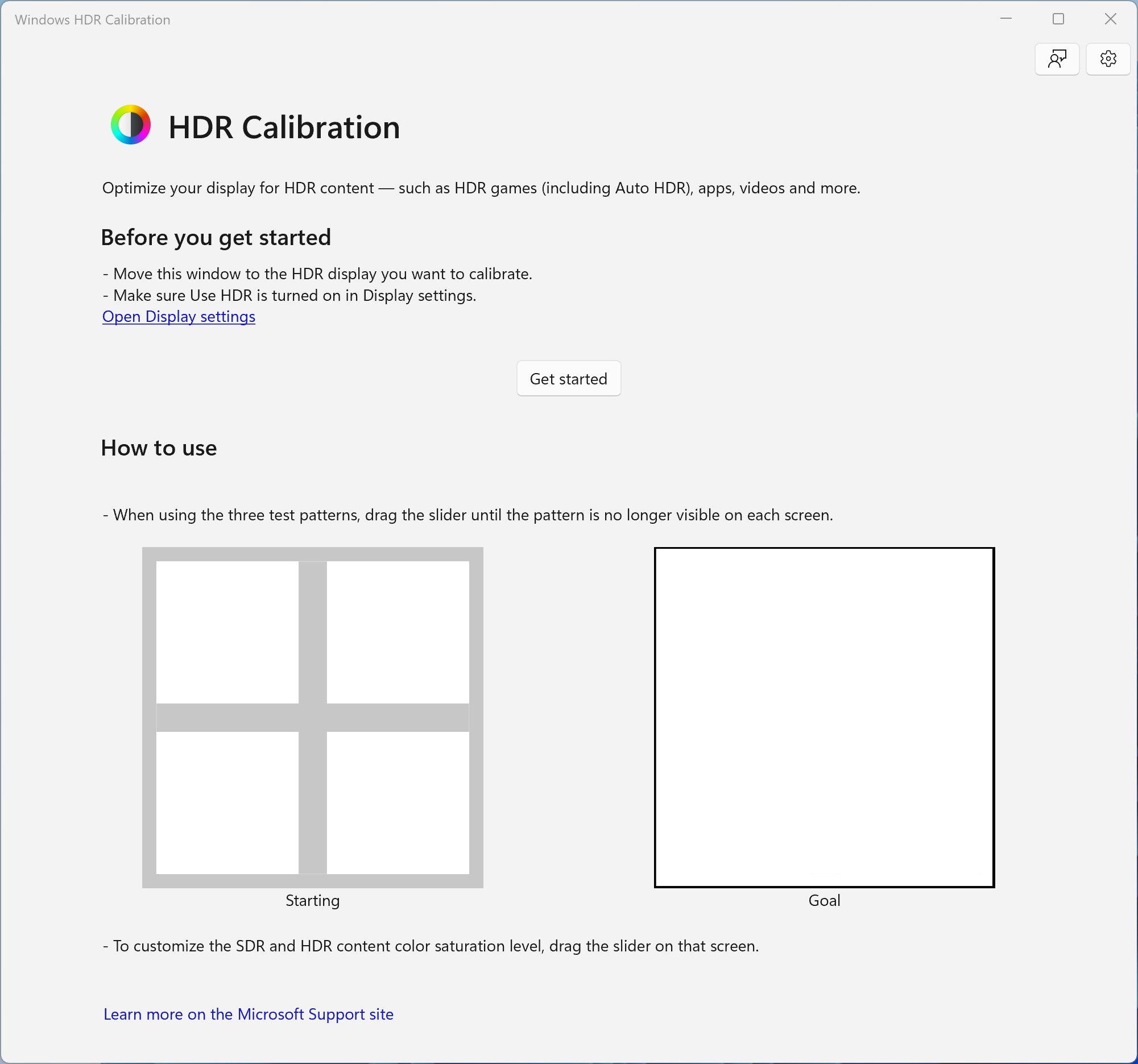
What truly sets this app apart is its intuitive calibration wizard, which simplifies the complex process of display tuning. Rather than navigating through a maze of settings, users are guided step-by-step through visual tests and adjustments. Think of it as having a friendly tech expert beside you, whispering “Increase this slightly,” or “Reduce that a bit,” making calibration accessible for users at all skill levels.
Design, Usability, and User Experience
The interface of Windows HDR Calibration strikes an admirable balance between simplicity and functionality. Its clean, straightforward layout resembles a well-organized toolbox, preventing overwhelm and allowing users to focus on each calibration step. The controls are responsive, and transitions between steps are smooth, creating an experience akin to strolling through a well-paved path—no unexpected bumps or delays.
Learning curve? Minimal. Even newcomers to display calibration will find the step-by-step guidance easy to grasp, thanks to clear instructions and visual cues. For seasoned tech enthusiasts, it offers enough depth to fine-tune settings precisely without clutter or confusion.
Unique Advantages and Differentiators
Compared to other utilities in the same domain, this Microsoft tool shines because it's deeply integrated with Windows, requiring no complicated installations or external hardware. Unlike third-party calibration tools that often cost hundreds of dollars, this app democratizes HDR calibration, making high-quality tuning accessible to everyday users.
Its top-two standout features are undoubtedly the intelligent calibration wizard and the seamless integration with Windows display settings. These combine to deliver a calibration process that is not only accurate but also remarkably hassle-free. Moreover, the app's focus on HDR-specific adjustments is a real boon in an era where HDR content is mainstream, yet many displays still need fine-tuning to hit their peak performance.
Recommendations and Usage Suggestions
Overall, I would rate this app as a strong "Recommended" for Windows users looking to optimize their HDR display without the fuss and expense of third-party hardware or software. It's ideal for content creators who need accurate colors, casual gamers eager to enhance their visual experience, or home users wanting their media to look as good as possible. For best results, spend some time following the step-by-step guidance, and consider re-calibrating periodically to ensure your display stays in top form.
In conclusion, Windows HDR Calibration emerges as a practical and accessible tool that demystifies the complex art of display calibration. Its user-centric design, combined with powerful HDR-specific adjustments, makes it an asset for anyone serious about getting the most out of their display—just like tuning a finely crafted instrument for that perfect performance.
Pros
- Easy calibration process
- Improves HDR picture quality
- User-friendly interface
- Real-time feedback during calibration
- Supports multiple display calibration profiles
Cons
- Limited device compatibility
- Requires Windows HDR to be enabled
- Calibration process might be time-consuming for beginners
- Lack of detailed troubleshooting guidance
- No automatic calibration feature











