

- Category Utilities & tools
- Available on PC
- OS Windows 10 version 14393.0 or higher
- Keyboard Not specified
- Mouse Not specified
- languages Belarusian, Catalan, Chinese (Simplified), Chinese (Traditional), Croatian, Czech, Danish, Dutch, English, Finnish, French, German, Hungarian, Icelandic, Italian, Japanese, Korean, Lithuanian, Norwegian, Persian/Farsi, Polish, Portuguese, Romanian, Russian, Slovak, Spanish, Swedish, Tamil, Turkish, Ukrainian, Vietnamese
Introducing WinSCP for Windows: A Robust FTP/SFTP Client Find Your File Transfer Companion
WinSCP for Windows, developed by Martin Prikryl, is a dedicated file transfer utility that simplifies secure data exchange between your local machine and remote servers. Whether you're managing websites or handling remote backups, this tool offers a dependable and user-friendly platform designed for efficient file management over SSH, SFTP, and FTP protocols.
Core Features That Make a Difference
Secure and Flexible Protocol Support
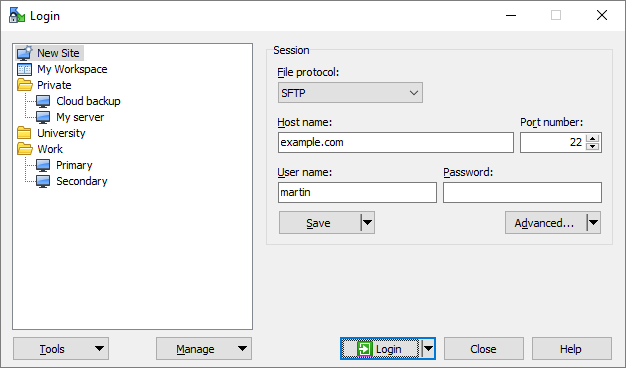
At the heart of WinSCP is its versatile support for various protocols like SFTP, SCP, FTP, and WebDAV. This multi-protocol flexibility means users can seamlessly connect to different server environments without switching tools. Its built-in SSH encryption ensures your transfer remains secure, akin to having an armored courier delivering sensitive documents—safe from prying eyes.
Intuitive Graphical User Interface with Commander Layout
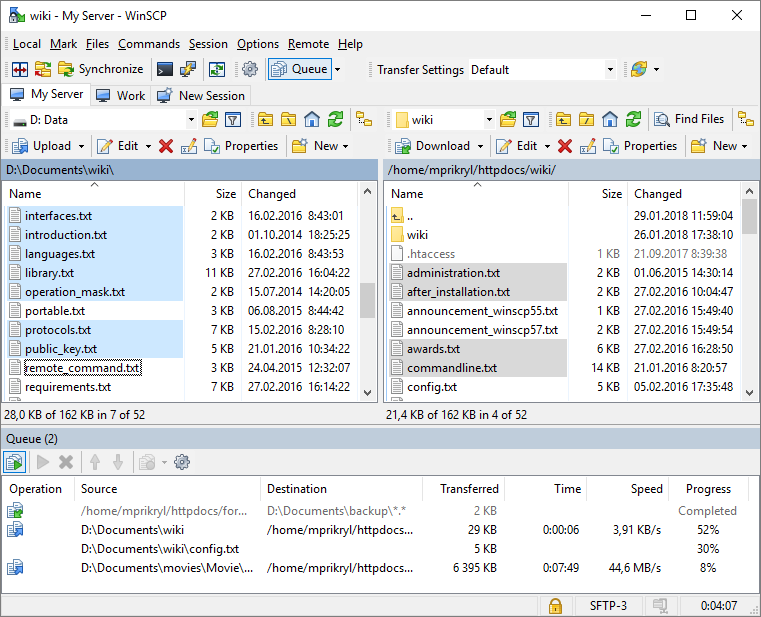
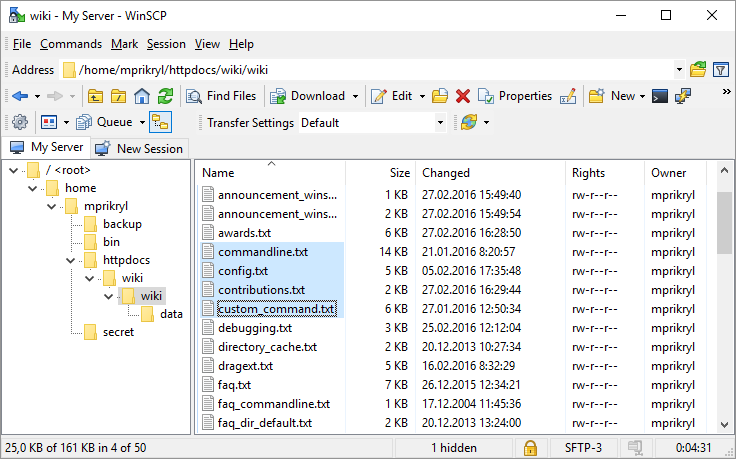
The interface adopts a classic dual-pane layout reminiscent of file managers like Windows Explorer, making navigation straightforward even for beginners. Drag-and-drop support, context menus, and customizable toolbar buttons make routine transfers feel as effortless as flipping through a well-organized notebook. The interface strikes a balance between simplicity and functionality, ensuring an accessible experience for users of varying skill levels.
Powerful Automation with Scripting and Command-Line Support
Beyond basic file transfers, WinSCP shines with its scripting and command-line capabilities. Users can automate repetitive tasks such as backups, uploads, and downloads, turning tedious routines into one-click operations. The scripting environment is well-documented and flexible, empowering advanced users to craft customized workflows—think of it as having a virtual assistant who remembers all your routines and executes them flawlessly.
Delving into User Experience: Seamless, Clear, and Friendly
Using WinSCP is akin to having a reliable GPS navigational system for your files—clear directions, visual cues, and smooth operations at every turn. The interface's clarity reduces the learning curve, making it accessible for novices, while advanced features provide depth for seasoned users. The application's responsiveness ensures that even large file transfers don't cause frustrating lag, with progress indicators and logs keeping you informed along the way.
What Sets WinSCP Apart from Its Peers?
While many file transfer tools exist, WinSCP distinguishes itself through its open-source reliability and its focus on security. Its ability to integrate with PuTTY and Pageant for SSH key management offers a seamless and secure workflow. Moreover, its scripting support is highly customizable, allowing users to embed file transfer routines into larger automation pipelines—an edge over simpler clunky clients. Its stability and regular updates make it a steadfast choice for professionals needing dependable data exchange.
Final Thoughts and Recommendations
If you're seeking a free, versatile, and stable file transfer client, WinSCP is highly recommended. It caters well both to users needing straightforward transfer capabilities and those who want to automate complex workflows. While its interface may seem a bit utilitarian at first glance, its depth and customization options quickly reveal their worth. For anyone involved in web development, server management, or remote backups, this tool is like having a trusted courier—reliable, fast, and secure. Give it a try, and you'll find managing remote files no longer a chore but a smooth, controlled task.
Pros
- User-friendly interface
- Supports multiple protocols
- Robust scripting capabilities
- High security features
- Good integration with Windows
Cons
- Limited advanced synchronization features
- Occasional connection stability issues with unstable networks
- Learning curve for scripting beginners
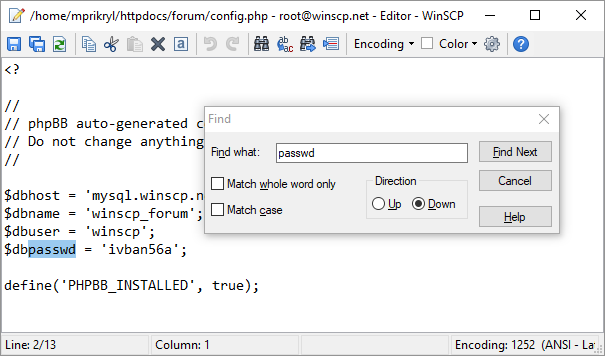
- Limited built-in file editor
- Updates occasionally introduce minor bugs











